

I have been using Canva for a couple years, but I am finding that I am gravitating more and more to Canva when I am creating new content. This year, I co-delivered some AI tech training for staff. In putting together content, there were a couple of new learnings for me that I would like to share:
Background Music
Not sure how long this has been a thing, but I was just not aware. We wanted to play music while staff were coming into the classroom before the session started. Rather than opening up Spotify to play the song that we wanted, we added music right into the presentation under the first slide. See image below.
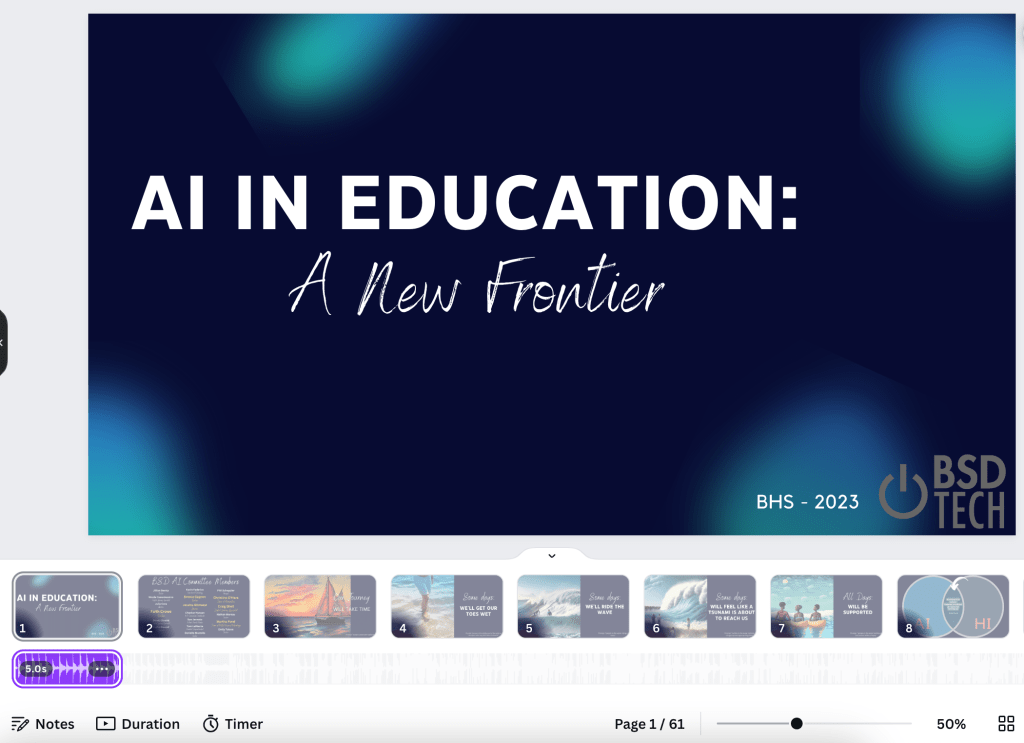
I always thought that if I did that, the song would only play for the 5 seconds that it is shown under the slide. Well, when you go into full present mode, the entire song will play, or play as long as you are on the first slide. Who knew?!?!
If you have never explored around with adding music to a slide (or multiple slides):
- Select the audio button on the left column – If you don’t see it there, select the apps icon and scroll down the column until the audio button appears
- Search for a free audio file that is of your liking
- Click and drag the audio file underneath the slides in the presentation
- Adjust the length to determine how long you want to audio to play – Only on one slide, multiple slides etc

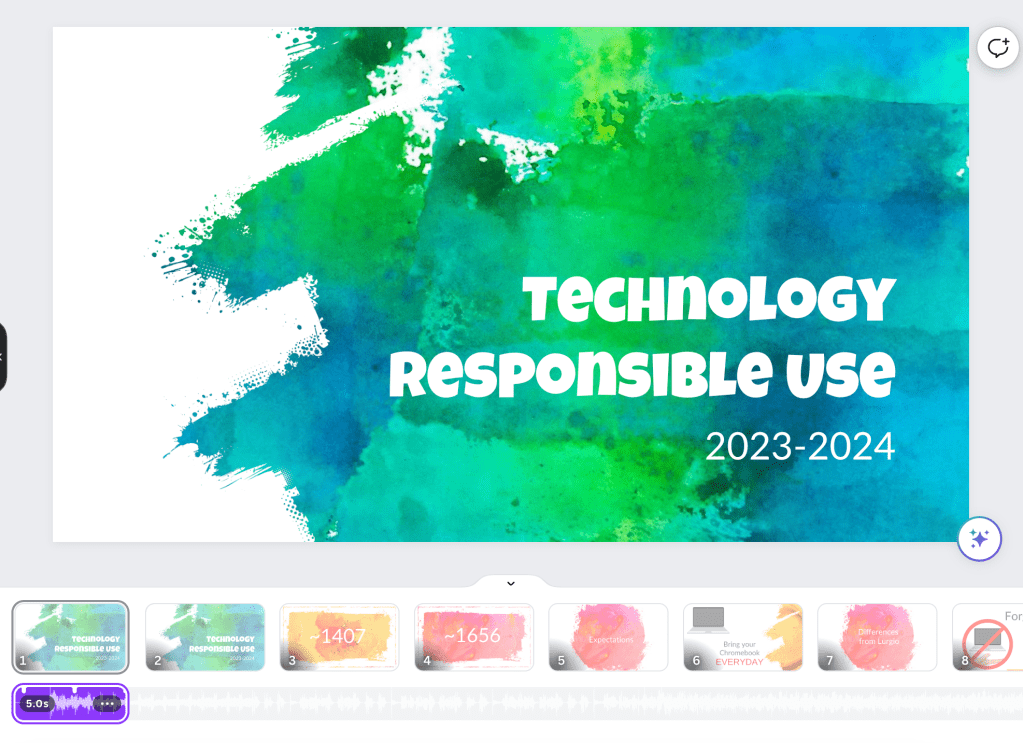
Pro Tip: If you are giving a presentation, duplicate the first slide so that when you want to start talking but aren’t ready to show the content of the actual presentation, you can click to the second slide but no one knows that you have moved on to slide two since it is the exact same beginning slide. In the image below, you can see that I have a first slide welcoming the 9th grade class to their technology expectations for the year. Slide one has an audio file underneath it. But slide two does not.
 Craig M Sheil