
This past summer, I had the opportunity to attend a Google Symposium in Chicago. Over the span of the three days, we had an opportunity to learn about what Google is working on, provide some feedback on some future projects, get inspired from one another, and continue to grow our professional learning network. One component that really resonated with me was the capabilities of Google Gemini. While I knew that I could ask Gemini to help assist with many different tasks, one thing that I hadn’t explored was how Gemini can help code an idea or an activity.
A lightbulb moment happened for me when Andy Caffrey highlighted how he used Gemini to code an interactive activity that we participate in. We walked through the steps that I’m about to walk through with you as to how you can take your idea and ask Gemini to assist in making that idea turn into a reality. Gemini will write some code, you have the ability to preview the activity to see if what was coded is what you were expecting, and then you copy that code and paste in a Google Site. Light bulb moment for me. Over the past couple weeks, I’ve explored around with different ideas, techniques and activities and I hope these ideas will inspire you to think about what you could possibly have Gemini help you out. (Keep in mind that while I am highlighting how Gemini can code, you can do similar tasks in Canva using Canva AI to code interactive activities.)
To view all three examples on a Google Site, click HERE
Coding a Timeline
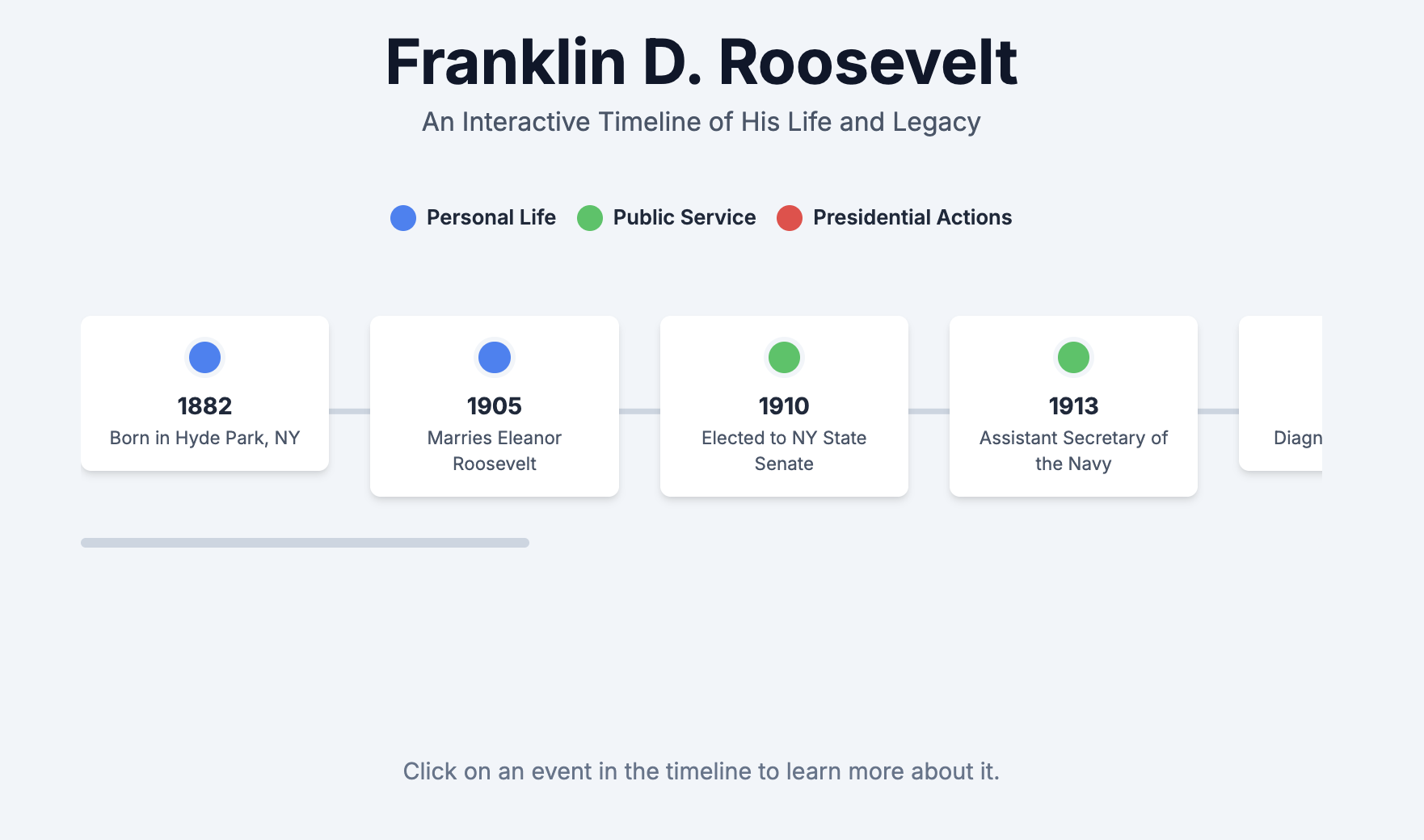
There is a classroom in the high school that has a big timeline of the content that students are learning in their class. It spans from wall to wall. I got to thinking that perhaps we can turn that information into an interactive timeline. I asked Gemini to create an interactive timeline about Franklin D Roosevelt, and the accomplishments that he helped institute from his presidency. Below is an example prompt that I put into Gemini. You can see that I wanted this to be a timeline beyond just students scrolling and seeing different components of FDR. I asked Gemini to design it so that if they actually selected a particular highlight in that timeline they would actually be prompted to answer some questions. I wanted immediate feedback when answer questions as well as providing a food for thought question for them to think about.
“Code for me an interactive timeline that 10th grade high school students can interact with in relation to Franklin D. Roosevelt. The timeline should highlight major accomplishments on behalf of Franklin D. Rossevelt. major events relating to his personal life should be blue, major events relating to things he helped pass as president of the united states should be red and major events relating to public service should be green. Once a student select a major event, a fact should be provided as well as a follow up question for the students to think about.” – prompt with Google Gemini – September 24, 2025
To view the example on a Google Site, click HERE
Self Checker Activity – Interactive Charts
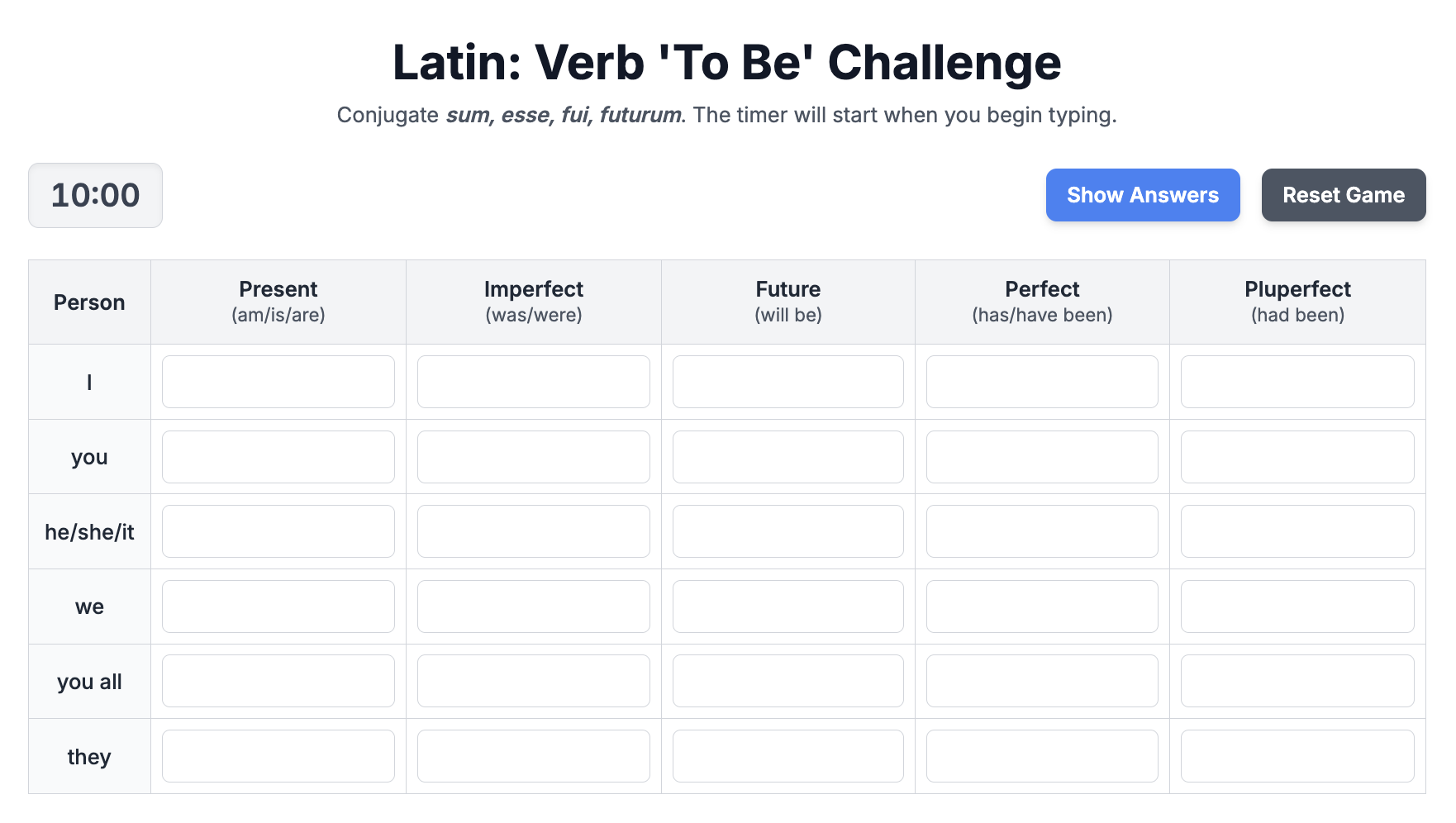
The next activity – Latin teachers wanting to be able to have student self check their work. With the help of uploading a PDF file of a chart, we were able to ask Gemini to create an activity where the moment the student starts entering in answers, the timer starts ticking and students are able to self check their work. This can be an alternative to a Kahoot!, Gimkit, or Blooket game. The idea down the road would be for this latin teacher to have a google site that contains all of these self checkers for students for each of the chapters in the class. A one stop shop. Below is a sample prompt that was put into Gemini.
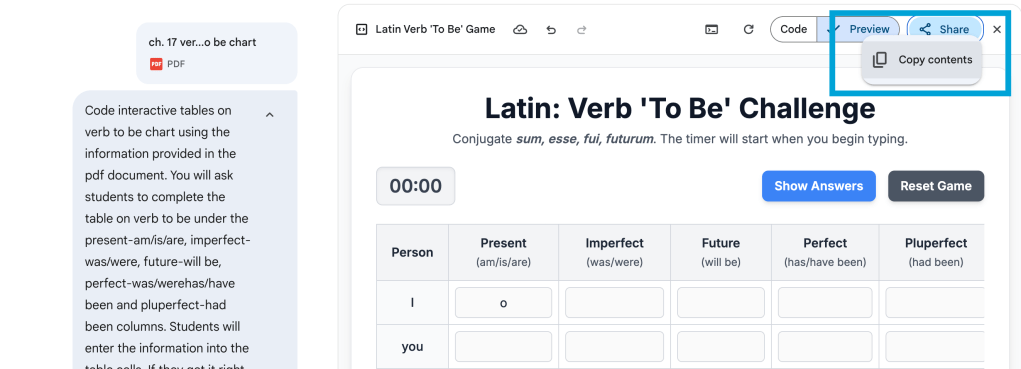
“Code interactive tables on verb to be chart using the information provided in the pdf document. You will ask students to complete the table on verb to be under the present-am/is/are, imperfect-was/were, future-will be, perfect-was/werehas/have been and pluperfect-had been columns. Students will enter the information into the table cells. If they get it right, fill in the box green. Provide a count down timer from 10 minutes once they start. Provide a ‘show answers’ button to show answers as well as a reset game button to reset the game” – prompt with Google Gemini – September 12, 2025
To view the example on a Google Site, click HERE
‘Family Feud’ – Fun Advisory Activity
A third example pertains to a fun advisory game that advisors can play with their advisees. Our principal sent out a form that I put together asking staff to answer three questions. The three questions were:
What is one question you hear students ask you every day?
What is one thing that gets you through the day?
What’s the first thing you look forward to on summer vacation?
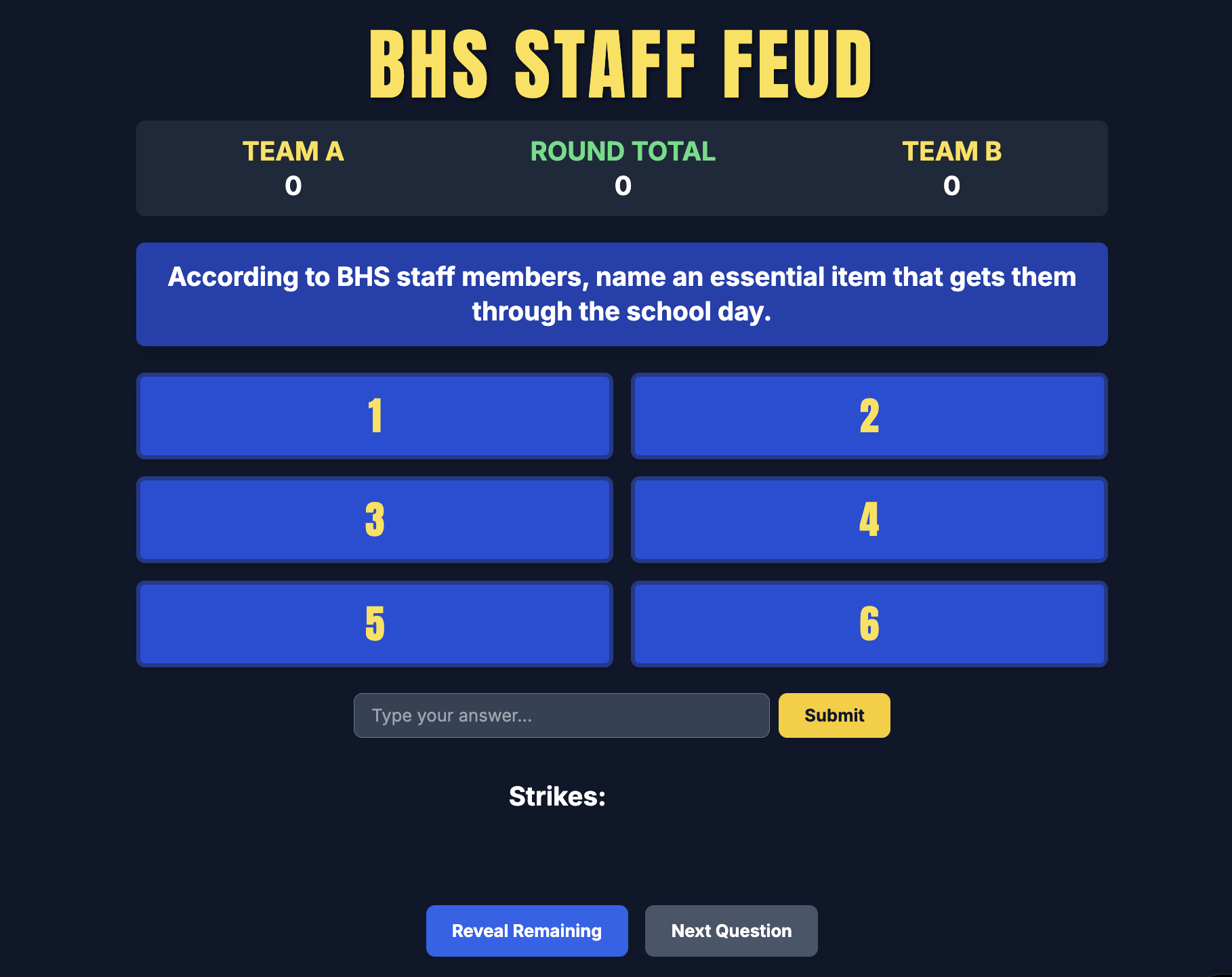
From those results, I asked Gemini to create a Family Feud style game. The idea is to then have advisories play the game to either compete against their own peers in advisory or against another advisory – but the topic is about their own teachers and their responses. Below is a sample prompt that was put into Gemini
“code a family feud game where 53 BHS staff members were surveyed with the top 6 answers on the board. there are three rounds of questions. The first question is “According to BHS staff members, name an essential item that gets them through the school day” The top six answers with the number of staff who said that answer are: Coffee – 19; Water – 9; Laptop – 4; Snacks – 3; Colleagues – 3; Music – 2. The second question for round two is “According to BHS staff members, name something that staff look forward to doing on the very first day of summer vacation” The top six answers are: Sleeping in – 25; Coffee – 6; beach – 3; Going for a walk – 2; gardening – 2; hiking – 2. The third question for round three is “Name a question that BHS staff hear from their students almost every single day”. The top six answers are: Is this graded? – 15; What time is it? – 6; What are we doing today? – 4; Can I go to the bathroom? – 3; Do you have a charger? – 3; Can we leave early today? when a student types in a response, if they have an answer, the answer reveals behind its spot with the number associated with it. If an answer is wrong, put a red x. Student is only allowed 3 red x’s before the other team gets to steal. if the team gets three strikes, allow one more guess to see if the other team gets an answer so that they can steal the points. Then provide a button to indicate which team should get the points. Then allow a reveal remaining button to show so see the remaining answers that were not figured out. Then allow users to go to the next question.” – prompt with Google Gemini – September 25, 2025
To view the example on a Google Site, click HERE
Three completely different examples…three completely different purposes, but I like how I’m able to take an idea that a teacher or myself might have and try and make it become reality with the assistance of Gemini.
Workflow
In terms of workflow, these are the steps that you would use to help make something become a reality
- Come up with an idea
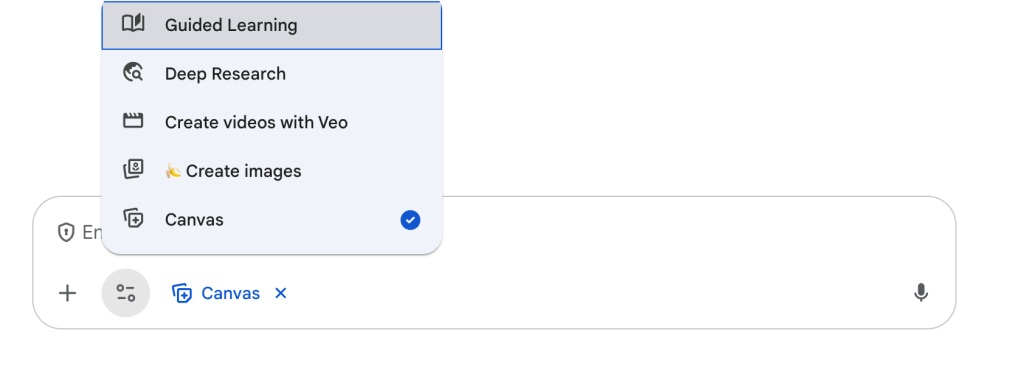
- Open up Gemini and put in your prompt – make sure you have selected Canvas under the tool menu. Remember to be as specific as possible to help ensure that you will get a product that you’re looking. Don’t be surprised if you have to continue the conversation and go through several different versions.
- Preview your coded activity that Gemini has provided you.
- Copy the html code from the share button on the top right corner
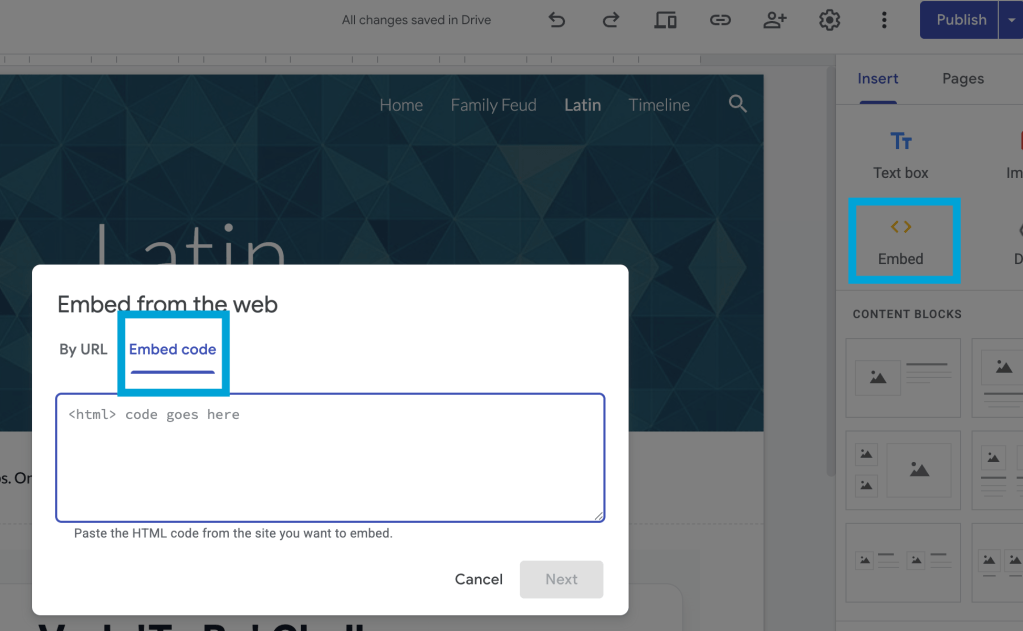
- Go to Google sites – as an editor, go to the top right corner and select the embed button, and paste your code
- Once you are happy with your page on your site, don’t forget to publish or republish your website for others to view.
What ideas have you asked Gemini? What will you ask Gemini to do for you? If you have any questions feel free to reach out.
And that is my Spiel…
 Craig M Sheil