Something About In Person Trainings

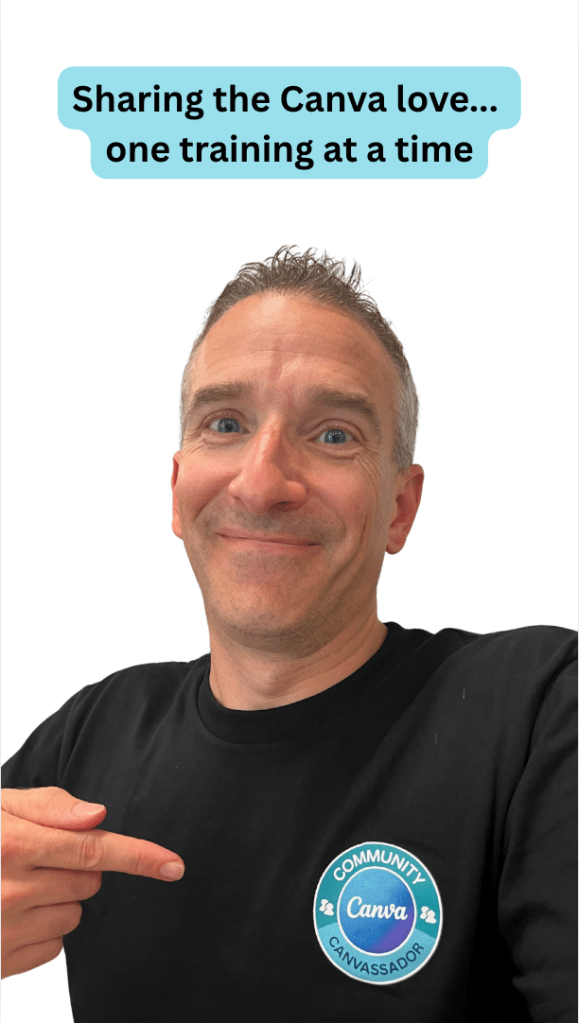
Earlier this week, I had to opportunity to deliver a one day in person training on “Unlocking the Potential with Canva Education” to educators and professionals from New Hampshire and Massachusetts. I put my Canvassador shirt on and shared my Canva love to others…and I had a great time.
As with many folks over the past 5 years, many of the trainings that I have delivered or participated in have been virtual. Even my graduate level courses that I teach or co-teach have all moved to a hybrid online model. This week has reminded me how fun it is to do things in person. It allows you to build a connection with others and get to know one another – even though it might only be for six hours. It easily allows participants to talk with one another and to give ideas or suggestions without having to be wait to be called on. Participants are able to experience the energy from on another. It also allows for differentiation and an opportunity for folks to be able to work on their own projects/ideas while still being able to ask questions as I walk around.

Sure, it is so much easier to click a button for a webinar or training and tell yourself, I can put it on and play it in the background while I do (fill in the blank). Or sure, I will sign up for the webinar or training and if I don’t go to it, I’ll just get the recording to watch on my own time, if ever. But…I was reminded of how fun it really is to do trainings together in one space. The energy in the room and the laughter in the room can’t be matched.

Quick Overview of the Day

The day was all about Canva Education. A Sandbox Canva presentation was shared out to the participants so that they could explore around with the features that I was modeling on each of the slides. We talked about

  • things you should consider when designing your own content
  • how to get inspired from designs from others
  • how to use templates from others
  • how to share out one’s own files
  • Canva’s AI capabilities
  • how one can demonstrate knowledge with the record feature both video and audio (thrilled to see the enhanced feature of voice recorder)
  • how to deal with organization of files
  • how to work with bulk create (like a mail merge)
  • and on and on…

There was also an opportunity for participants to work through a design/task/project of their own during open lab time where I would walk around and help assist with questions.

A nice added touch was the fact that Canva Education provided some swag for participants (pens and stickers) and well as paid for the food for lunch. Thankful for their willingness to support the event. I created a canva video highlighting the day for anyone interested.

I look forward to the next in person opportunity….

And that is my #Spiel
Update to Google Classroom Guardian Summaries 2024

Google recently changed what parents and guardians can now see if Google Classroom Guardian summaries are turned on through Google Classroom. In the past, parents were only able to receive an email that indicates what assignments were pushed out with whatever description was added to the assignment. Now in the new view, parents are able to actually see most files that are shared in the classroom page. Parents have the ability to select a class and see the classworks page in view only mode – based on their students profile and what is shared with them. The parent is able to actually click on files to get a greater understanding of the assignments if they find value in that. Google is doing a better job now of mimicking what students years ago were able to do when a parent said “show me what you are working on in class – and the student would take out the papers that were handed out”.

In an effort to help teachers in my school, I created two different videos walking them through what this new process looks like on the parent/guardian side.

The first video focuses on sharing Google Docs with students and testing out the different permission settings of files to include what it looks like if ‘make a copy for each student’ is used for an assignment.

The second video focuses on sharing out Google Forms as well as Canva resources. Teachers can see the difference between locked mode and non-locked mode of a google form, as well as different ways to share out a Canva product.

For those that need a reminder, a teacher can activate Guardian Email Summaries through the settings gear menu on the top right corner of any Google Classroom. If parents email is not already tied to the student, one teacher in the school domain must invite the parent. Once this is done once, no other teacher needs to invite the parent (who is using guardian summaries).

If you have any questions, feel free to reach out.

And that is my Spiel…

Few Canva Presentation Features

I have been using Canva for a couple years, but I am finding that I am gravitating more and more to Canva when I am creating new content. This year, I co-delivered some AI tech training for staff. In putting together content, there were a couple of new learnings for me that I would like to share:

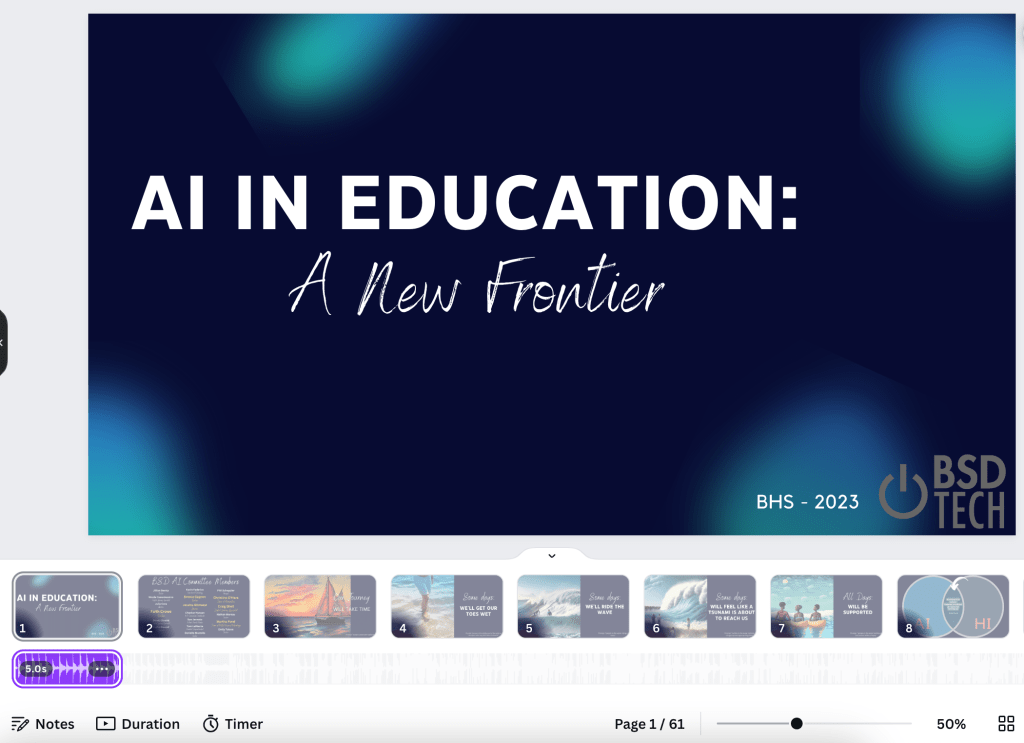
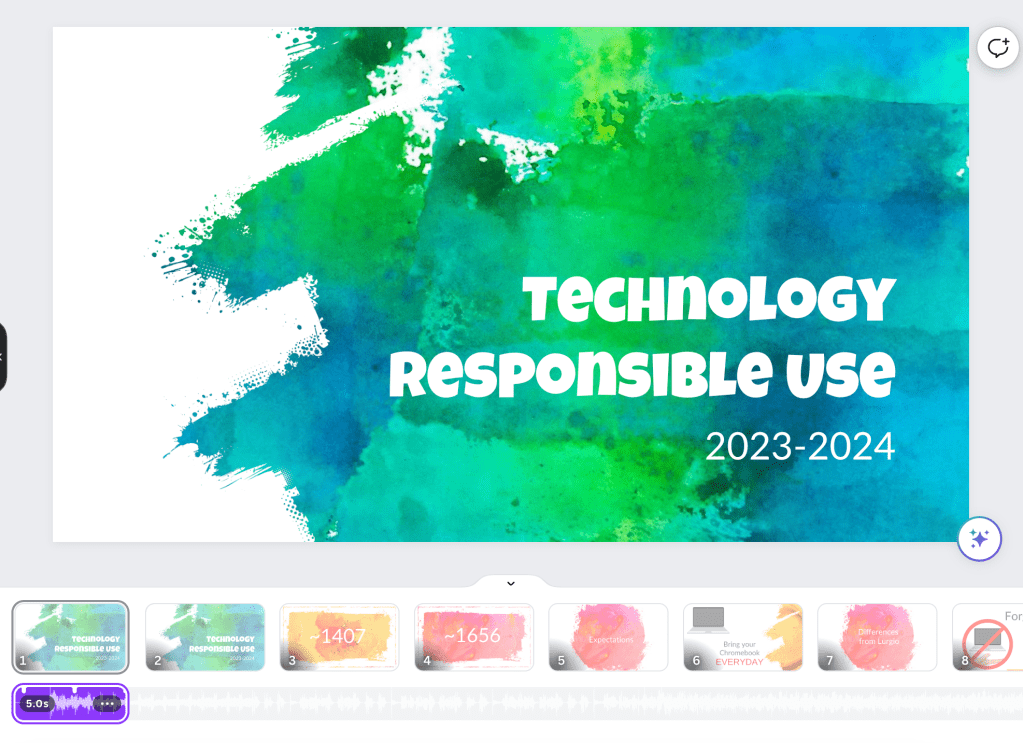
Not sure how long this has been a thing, but I was just not aware. We wanted to play music while staff were coming into the classroom before the session started. Rather than opening up Spotify to play the song that we wanted, we added music right into the presentation under the first slide. See image below.

I always thought that if I did that, the song would only play for the 5 seconds that it is shown under the slide. Well, when you go into full present mode, the entire song will play, or play as long as you are on the first slide. Who knew?!?!

If you have never explored around with adding music to a slide (or multiple slides):

  • Select the audio button on the left column – If you don’t see it there, select the apps icon and scroll down the column until the audio button appears
  • Search for a free audio file that is of your liking
  • Click and drag the audio file underneath the slides in the presentation
  • Adjust the length to determine how long you want to audio to play – Only on one slide, multiple slides etc

Pro Tip: If you are giving a presentation, duplicate the first slide so that when you want to start talking but aren’t ready to show the content of the actual presentation, you can click to the second slide but no one knows that you have moved on to slide two since it is the exact same beginning slide. In the image below, you can see that I have a first slide welcoming the 9th grade class to their technology expectations for the year. Slide one has an audio file underneath it. But slide two does not.

Continue reading “Few Canva Presentation Features”