Google Classroom Consistency

Our district, grades 3-12, decided to give a fresh look to Google Classroom. This year our district is working towards streamlining how homework and tasks for students are reported. This came from a district homework committee, that was put together over a year ago, analyzing how and what teachers are reporting as work needing to be accomplished. The committee discovered that there was absolutely no consistency. It was determined that from this committee, all teachers, especially grades 5 – 12, would report homework through Google Classroom.

Many students and teachers were unaware of the fact that Google Classroom helps organize the learner automatically for them whether it’s using the calendar mode to view assignments or the to-do list mode to see what has been completed or not completed. In the to-do list, there is also a missing column letting students know exactly what they are missing from all of their classes. Students also are able to see what assignments has to be done right on the main page of Google classroom in the classroom tiles or from the chrome device itself by clicking on the date and seeing right away what assignments are due very soon without even needing to be on the Google Classroom page in chrome.

One big change for this year is asking teachers to report work that students need to complete in Google classroom whether it is a digital assignment or not. This was something really new, especially at the high school level, as a teacher may not necessarily have assigned non-digital work through Google classroom because there wasn’t something to turn in online. As a result, we’ve had conversations with students about how they need to honestly use the “Mark as Done” button when it is something that isn’t physically being turned in. We also took this opportunity to remind students to create files right from the assignment itself if a teacher isn’t pushing an actual template to the students. By encouraging them to create the file right inside the assignment, not only will Google Classroom name the file for them, it will also keep the file organized. On the teacher’s side, this also allows the teacher to see student work right away and not have to wait until the assignment is physically turned in to see how and what the student is doing throughout the writing or creating process.

We’ve also taken the opportunity to send invites to guardians letting them know they have the opportunity to receive Google classroom guardian summaries weekly, or daily. These summaries let the guardian know what their child has or has not been completing as well as upcoming assignments that they have in their classes. Not only is this a great tool,  it’s automatically doing the work for the teacher of communicating to parents, if they want that communication. We took this opportunity to let teachers know what access parents/guardians would have now that parents/guardians can click on a link in the Guardian Summaries email and get ‘view only’ access to the classworks page of the Google Classroom.

In order to make this all work, we had to thoughtfully think about how we were going to educate all parties involved. We’ve had to educate administrators and what things would look like. We’ve given reminders to teachers who utilize Google classroom on a day-to-day basis…things that they should consider or maybe new techniques or approaches to use this year. We’ve reminded students five ways in which they can be notified what tasks or homework assignments they have to complete and determine which approach works best for them and their learning styles. Lastly, we’ve educated the community of what guardian summaries are all about, what they have access to and not have access to, and provided resources on our district tech website to help guide guardians and or students. The Digital Learning Specialist Team has curated resources on our district technology site to help parents/guardians and students. Click HERE to view. On the teacher side, we have provided resources in our in house google classroom that provides many best practices and how to’s with Google Classroom.

We still have a lot of work to do, but I am very proud of the work everyone has accomplished thus far.

And that is my Spiel…
Update to Google Classroom Guardian Summaries 2024

Google recently changed what parents and guardians can now see if Google Classroom Guardian summaries are turned on through Google Classroom. In the past, parents were only able to receive an email that indicates what assignments were pushed out with whatever description was added to the assignment. Now in the new view, parents are able to actually see most files that are shared in the classroom page. Parents have the ability to select a class and see the classworks page in view only mode – based on their students profile and what is shared with them. The parent is able to actually click on files to get a greater understanding of the assignments if they find value in that. Google is doing a better job now of mimicking what students years ago were able to do when a parent said “show me what you are working on in class – and the student would take out the papers that were handed out”.

In an effort to help teachers in my school, I created two different videos walking them through what this new process looks like on the parent/guardian side.

The first video focuses on sharing Google Docs with students and testing out the different permission settings of files to include what it looks like if ‘make a copy for each student’ is used for an assignment.

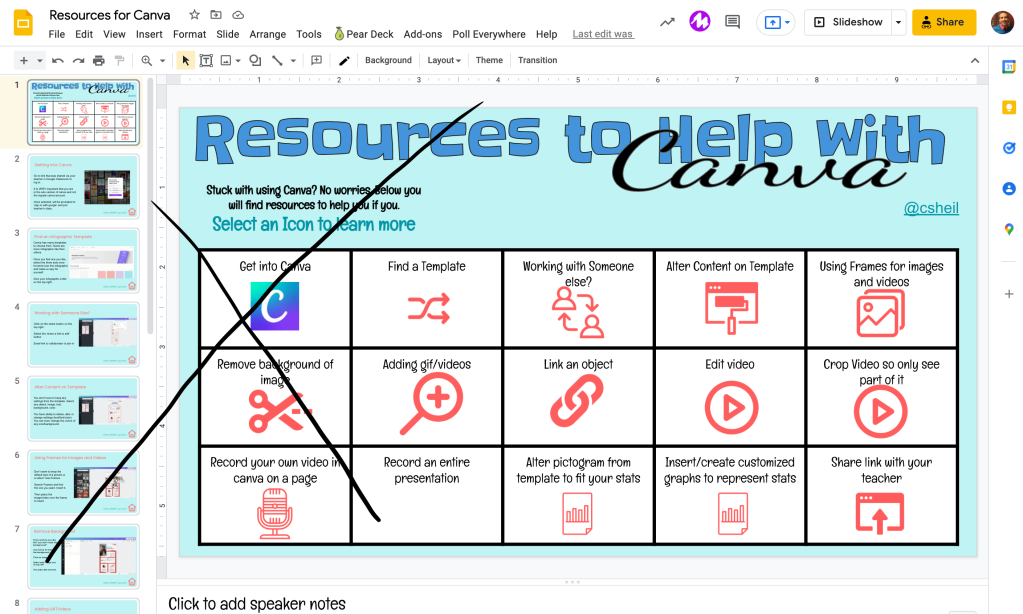
The second video focuses on sharing out Google Forms as well as Canva resources. Teachers can see the difference between locked mode and non-locked mode of a google form, as well as different ways to share out a Canva product.

For those that need a reminder, a teacher can activate Guardian Email Summaries through the settings gear menu on the top right corner of any Google Classroom. If parents email is not already tied to the student, one teacher in the school domain must invite the parent. Once this is done once, no other teacher needs to invite the parent (who is using guardian summaries).

If you have any questions, feel free to reach out.

And that is my Spiel…

10 Days of Google 2022

It’s that time of year again…sharing out random Google tips in a short fun manner. 10 Days of Google is here! However, this year, I am changing the way in which I am sharing out the information. I have decided to push myself and create my first canva website to showcase the information. Each day will ‘appear’ on its own page. Rather than create a blog post for each day, I will be posting twice – highlighting the first 5 days and the last 5 days.

10 Days of Google 2022

What can you expect on the first 5 days?

That is a great question! The following are highlighted in the first round:

  • Day 1: Google Docs – Linking files with Smart Chips and formatting text
  • Day 2: YouTube – Auto-translating text to a different language – this is especially helpful for students whose first language is not English or World Language teacher wanting to show a video in a different language but want to have English subtitles
  • Day 3: Tables in Google Docs – Features available with tables in Google Docs
  • Day 4: Google Form – Customizing font, embedding links and sharing survey results once completing a google form
  • Day 5: Google Classroom – Good reminders for students (and teachers) – copy a direct link to a Google Classroom assignment details, figure out what must be completed, and using originality report with Google Classroom assignments

This year, I have been spending a lot of time exploring around with the features Canva has to offer. This project has been great for me to learn how Canva websites work. I look forward to creating more in the future.

If you have any questions or want to learn more about what has been highlighted, you know where to find me.

And that is my Spiel…

Forcing Present Mode of Google Slide in Google Classroom

There are instances where I want to force participants to view a slide show presentation in present mode, rather than the ‘edit view’ mode where slides show up on the left column. One instance is when I want users to interact with the material – where they choose their own path.

Continue reading “Forcing Present Mode of Google Slide in Google Classroom”

PDFlix: Providing ‘On Your Time’ PD Opportunities

Screen Shot 2020-01-21 at 8.09.00 PM

Screen Shot 2020-01-21 at 6.42.02 AMOk, yes…the sound of Netflix went through my mind as I started typing. Each year, Jess Gilcreast (High School librarian), and I think of creative and different ways to provide professional development for the staff that we work with. We have tried it all, or at least seems that way. Whether it is providing ‘learning at your own time’ opportunities through Google Classroom, in person trainings, or online book chats through Twitter. We strive to keep things ‘fresh’ and continuously push the limits.

Continue reading “PDFlix: Providing ‘On Your Time’ PD Opportunities”