Rethinking and Redesigning Lessons using Spreadsheets

(I’m embarrassed to say that this blog post should have gone out in Feb 2023 as that is when a draft was written below – but time got away from me). 

This is one of the parts of my job that I enjoy – rethinking and redesigning lessons to better support curriculum. One example recently came from the Wellness department. In Wellness I classes, students are asked to take a look at food that they eat and document nutritional facts. The idea here is for students to get a general idea as to what they eat and how their decisions relate to the daily recommended allowance.

To make this happen, students are asked to document food that they would eat over a span of two days at restaurants. Using a nutrition calculator, students are able to find accurate nutritional facts. Once students document their own data, they are asked to answer questions comparing their results to the daily recommended allowance. Students in the past were given a google document similar to the image below.
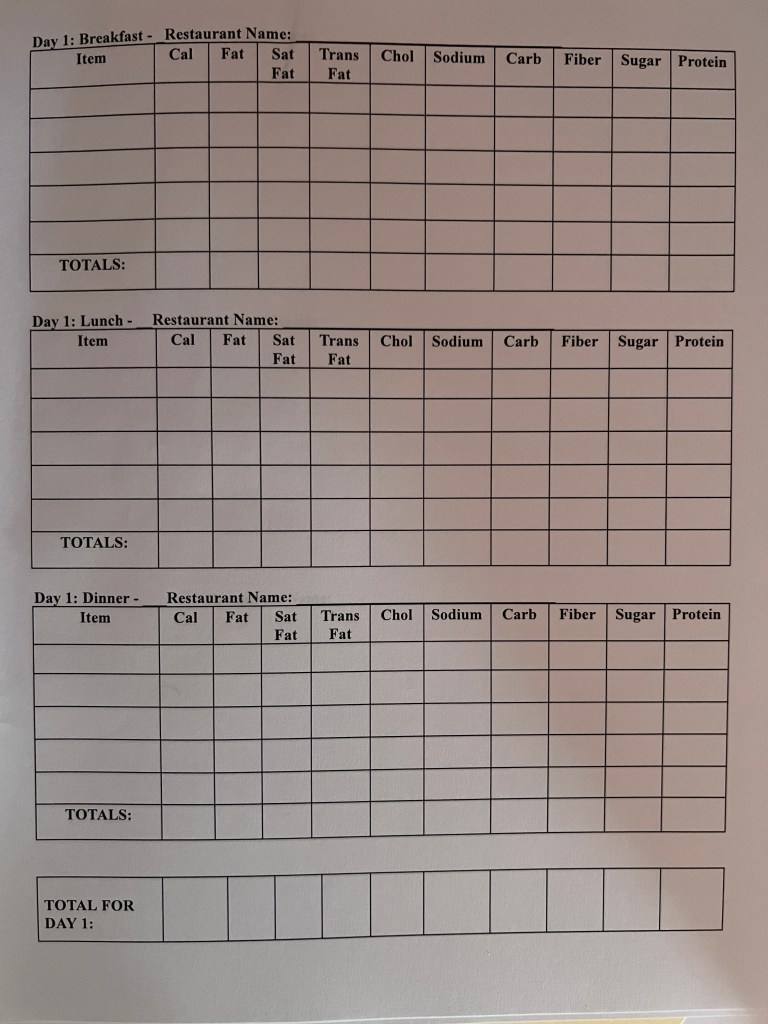
With this document, all information is provided in a one stop shop. A nutritional calculator is provided, tables are clearly labeled prompting students with the necessary information needed, and follow up questions are provided. Students are asked to complete the worksheet.

Continue reading “Rethinking and Redesigning Lessons using Spreadsheets”

Looker Studio for Athletics Schedule

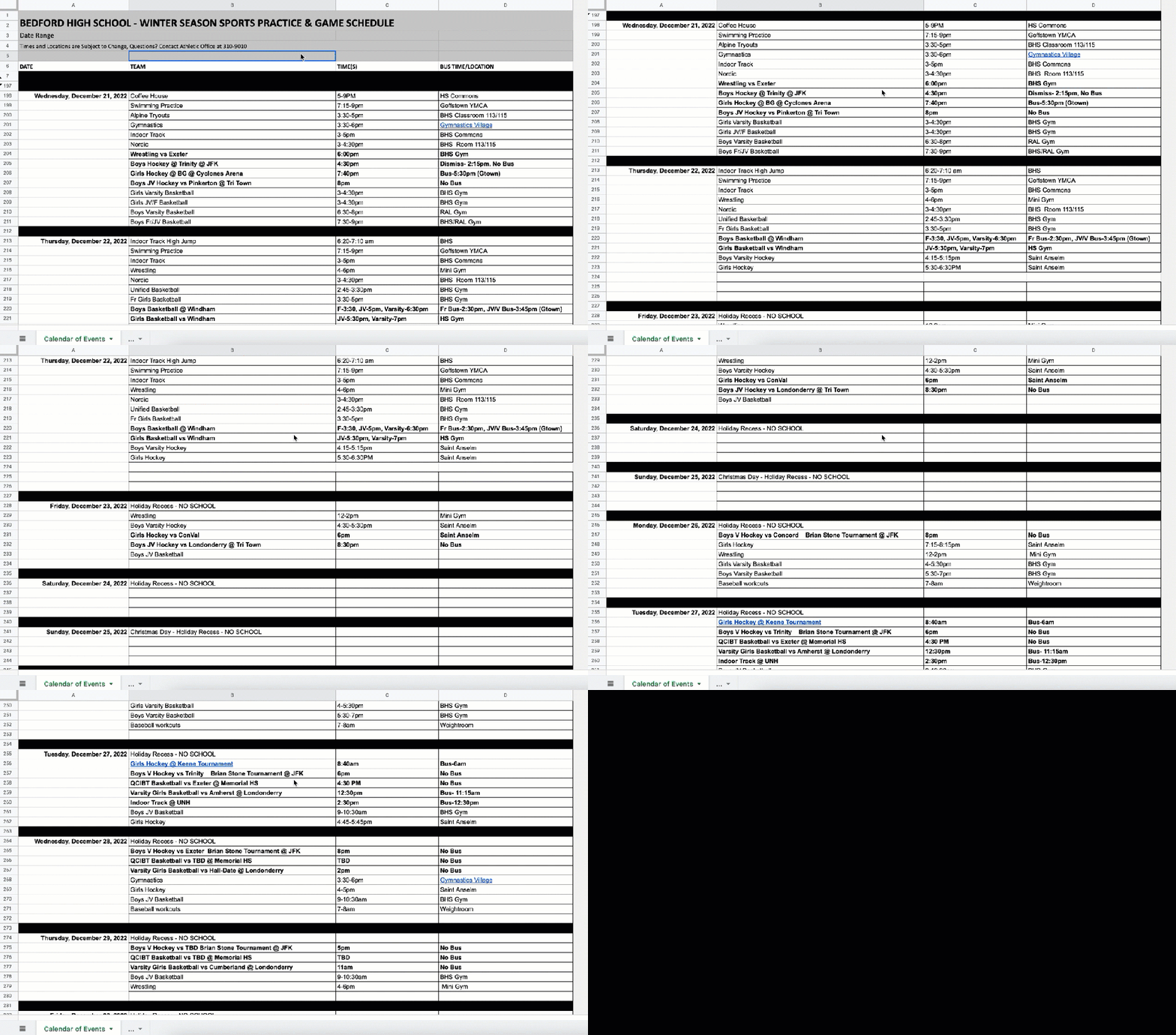
We continue to find ways in which Looker Studio, formerly known as Data Studio, can be used to help visualize data differently. (NOTE: In the example provided, no student data is used). For years, our Athletic Director at the high school posts a monthly schedule of all sport practices, games/meets, team meetings etc that happen as to way to make sure that all athletes and parents are on the same page. But how can we make this schedule experience better? Welcome Looker Studio.

The athletics schedule had always been created in a Google Sheet. The community was given view access each month so that they can scroll through and find the events that pertain to them. The one missing element was being able to sort the data easily. This meant that users had to scroll through all of the events and hope that they didn’t miss a practice or a game. The athletic director would hide dates once they passed so that those events no longer showed to help with the view of the sheet; meaning that once a date happened, the row was hidden. Below is a gif showing what one calendar view looked like:

Continue reading “Looker Studio for Athletics Schedule”

Streamline Daily Data Collection

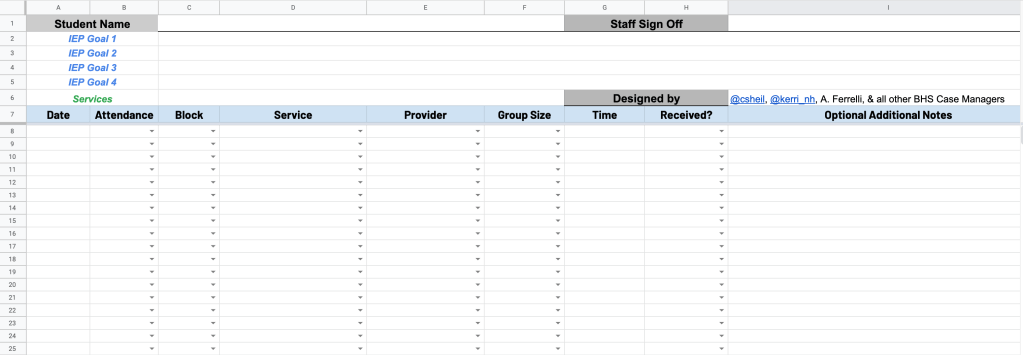
Our special educators at our high school have been asked to formally keep track of the services that they are giving students under their caseload next school year. My colleague, Kerri Lunn, and I sat with one of the case managers to truly understand all that they are being asked to document. We wanted to make sure that they will not spend hours each week documenting the necessary information.

Based on the conversation, we landed on creating a spreadsheet template that each case manager can make a copy of. Things we considered:

  • Streamlined workflow so that they are making selections from as many drop down columns as possible – less typing the better
  • Each student has its own sheet tab so that finding information later in the year can be found easily
  • Use of column stats can give a quick overview of each student when meetings arise or questions are asked in an email throughout the school year
  • Workflow that all special education case managers can work with – we met with the whole team to get feedback and made adjustments based on their suggestions
Visual showing the spreadsheet view

Continue reading “Streamline Daily Data Collection”

Day 7 of Google 2019 – Google Sheets

Screen Shot 2019-12-01 at 6.53.26 AM.pngOn this seventh day of Google, we will be taking a look at a couple of Google Sheet features.
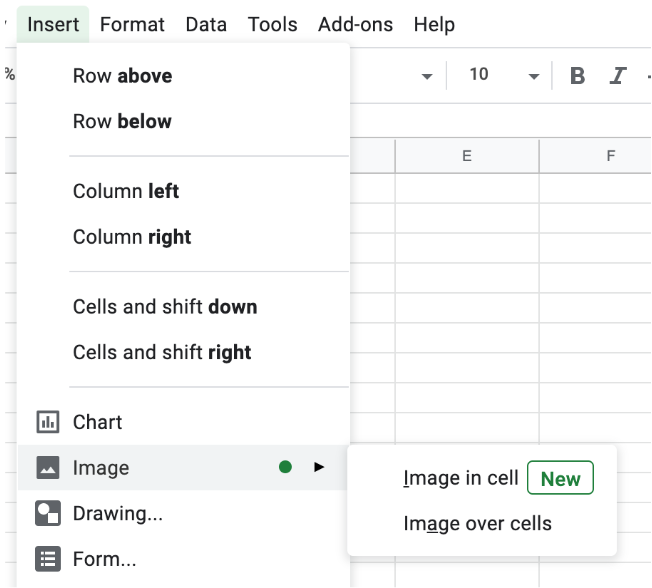
Images in a Cell

I will have to admit, in the past, I always struggled with fitting images in a cell of a Google Sheet. For whatever reason, I was not able to get things where I wanted them on a first try. Well, Google has solved this problem. Under the “Insert” menu, you will now find “Image in a Cell” when you hover over “Image”.

Screen Shot 2019-12-13 at 9.10.04 AM.png

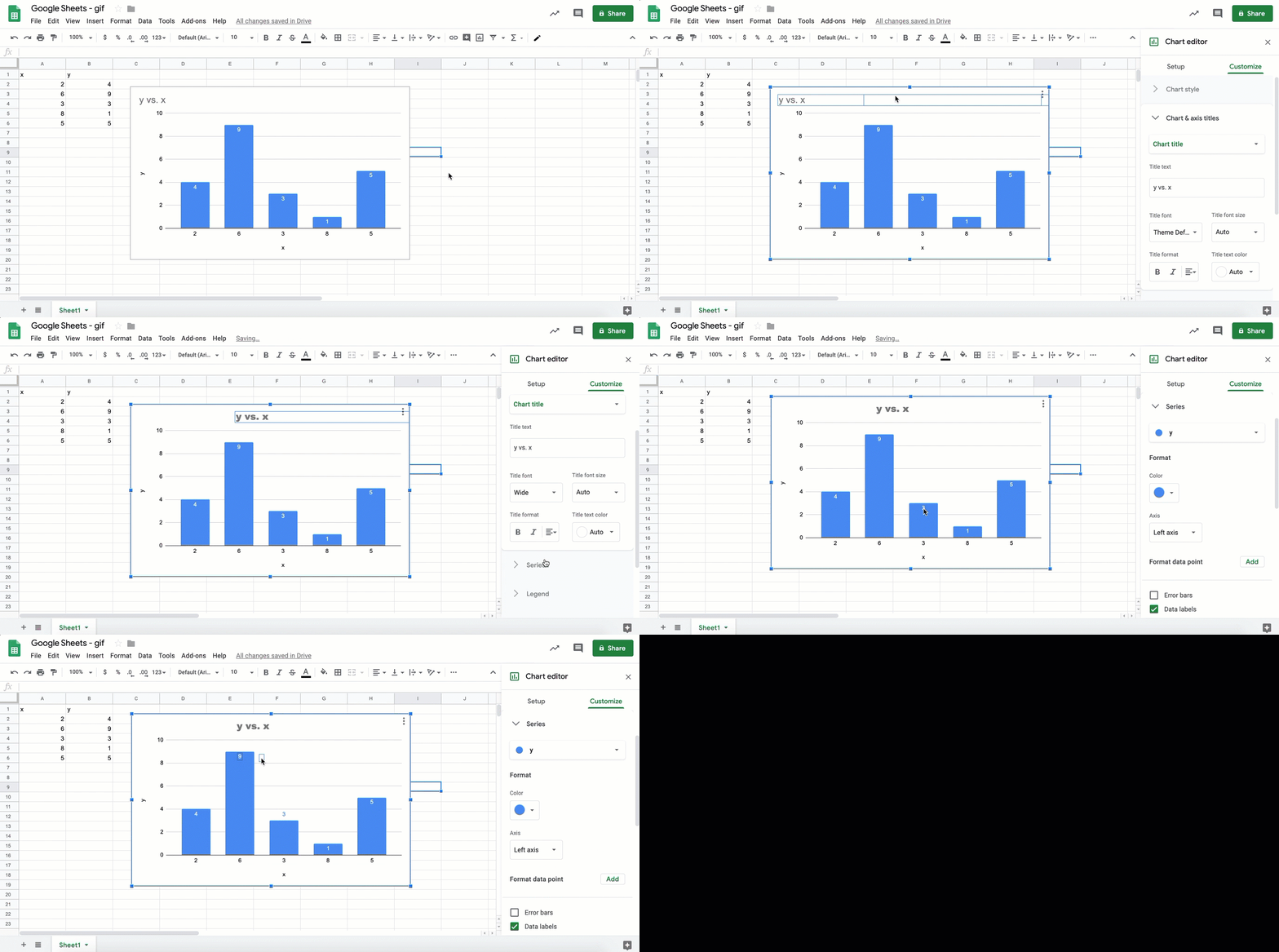
Customize Graphs

Next, we will take a look a graphs. In the past, you did not have the freedom to truly customize the looks of your graphs or charts. You now can click on items to move around, change font, style, etc. To initiate any changes, click on different areas of the graph. Then, a column on the right side will show up for you to make the edits that you want to make.

2019-11-05_07-50-12-1

If you have any questions with the items listed above, you know where to find me. And that is my Spiel…

Teacher Tip – Flippity: On the Fly vs. Planned Groups

Screen Shot 2019-02-21 at 8.50.38 PM

There are many elements to my job that I absolutely love. Today was another reminder! Seeing as though I help support curriculum in the classrooms, I am able to observe great teaching strategies from the high school staff. We all do great things and have great skills that are unique to us as an individual.

Continue reading “Teacher Tip – Flippity: On the Fly vs. Planned Groups”