Few Canva Presentation Features

I have been using Canva for a couple years, but I am finding that I am gravitating more and more to Canva when I am creating new content. This year, I co-delivered some AI tech training for staff. In putting together content, there were a couple of new learnings for me that I would like to share:

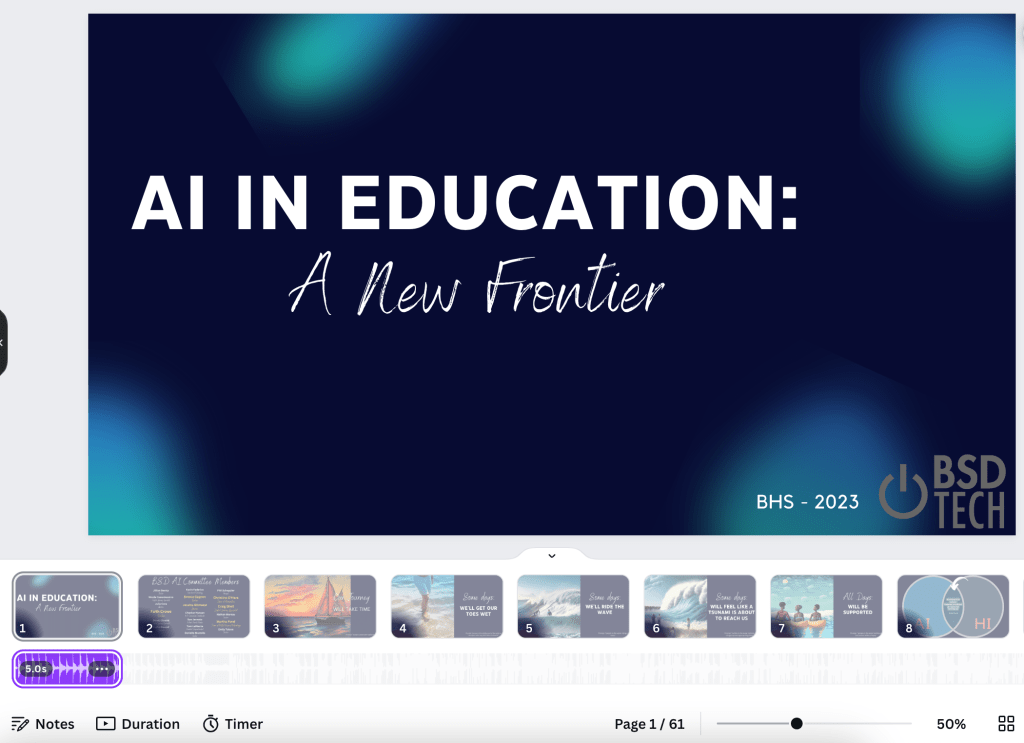
Not sure how long this has been a thing, but I was just not aware. We wanted to play music while staff were coming into the classroom before the session started. Rather than opening up Spotify to play the song that we wanted, we added music right into the presentation under the first slide. See image below.

I always thought that if I did that, the song would only play for the 5 seconds that it is shown under the slide. Well, when you go into full present mode, the entire song will play, or play as long as you are on the first slide. Who knew?!?!

If you have never explored around with adding music to a slide (or multiple slides):

  • Select the audio button on the left column – If you don’t see it there, select the apps icon and scroll down the column until the audio button appears
  • Search for a free audio file that is of your liking
  • Click and drag the audio file underneath the slides in the presentation
  • Adjust the length to determine how long you want to audio to play – Only on one slide, multiple slides etc

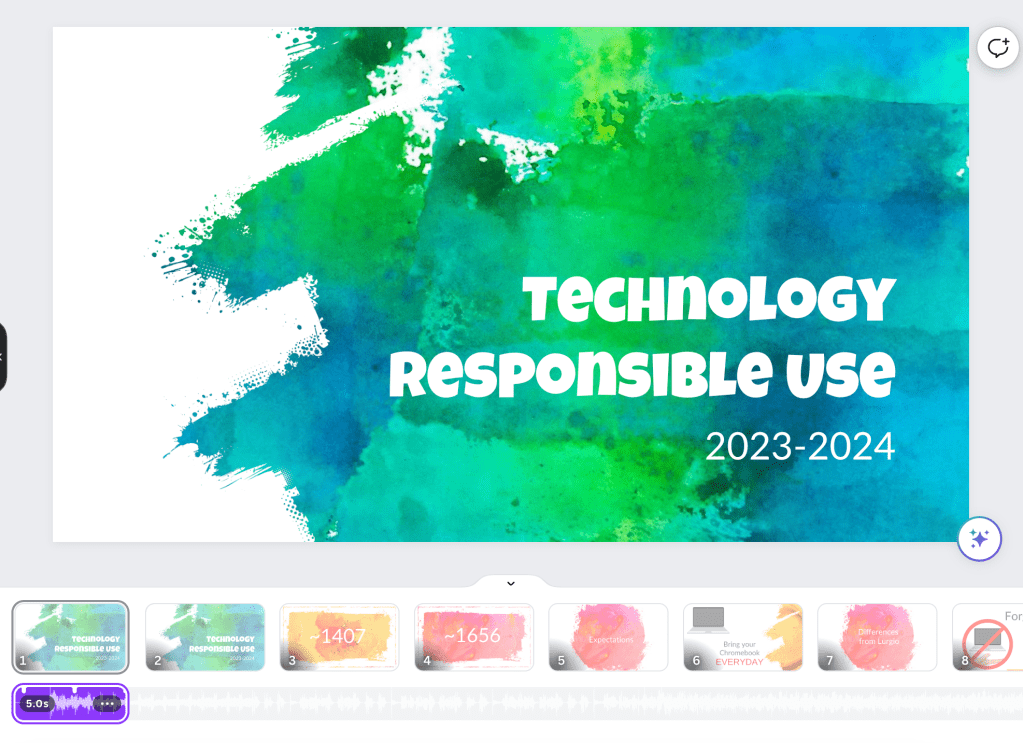
Pro Tip: If you are giving a presentation, duplicate the first slide so that when you want to start talking but aren’t ready to show the content of the actual presentation, you can click to the second slide but no one knows that you have moved on to slide two since it is the exact same beginning slide. In the image below, you can see that I have a first slide welcoming the 9th grade class to their technology expectations for the year. Slide one has an audio file underneath it. But slide two does not.

Continue reading “Few Canva Presentation Features”

Rethinking and Redesigning Lessons using Spreadsheets

(I’m embarrassed to say that this blog post should have gone out in Feb 2023 as that is when a draft was written below – but time got away from me). 

This is one of the parts of my job that I enjoy – rethinking and redesigning lessons to better support curriculum. One example recently came from the Wellness department. In Wellness I classes, students are asked to take a look at food that they eat and document nutritional facts. The idea here is for students to get a general idea as to what they eat and how their decisions relate to the daily recommended allowance.

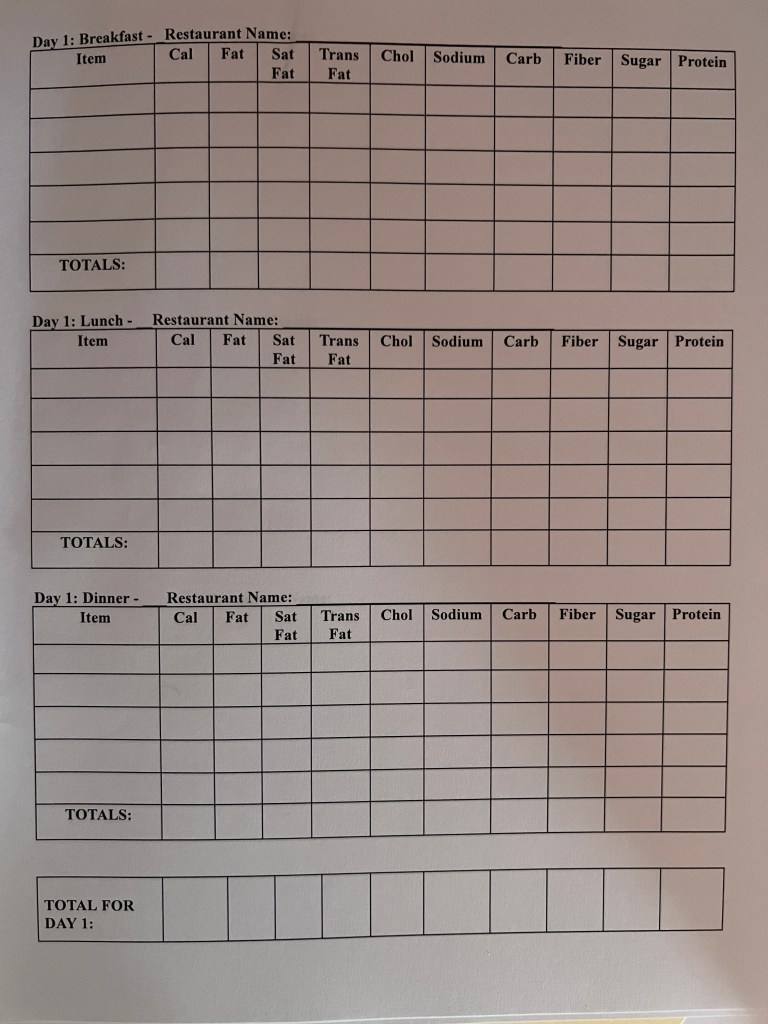
To make this happen, students are asked to document food that they would eat over a span of two days at restaurants. Using a nutrition calculator, students are able to find accurate nutritional facts. Once students document their own data, they are asked to answer questions comparing their results to the daily recommended allowance. Students in the past were given a google document similar to the image below.

With this document, all information is provided in a one stop shop. A nutritional calculator is provided, tables are clearly labeled prompting students with the necessary information needed, and follow up questions are provided. Students are asked to complete the worksheet.

Continue reading “Rethinking and Redesigning Lessons using Spreadsheets”

Looker Studio for Athletics Schedule

We continue to find ways in which Looker Studio, formerly known as Data Studio, can be used to help visualize data differently. (NOTE: In the example provided, no student data is used). For years, our Athletic Director at the high school posts a monthly schedule of all sport practices, games/meets, team meetings etc that happen as to way to make sure that all athletes and parents are on the same page. But how can we make this schedule experience better? Welcome Looker Studio.

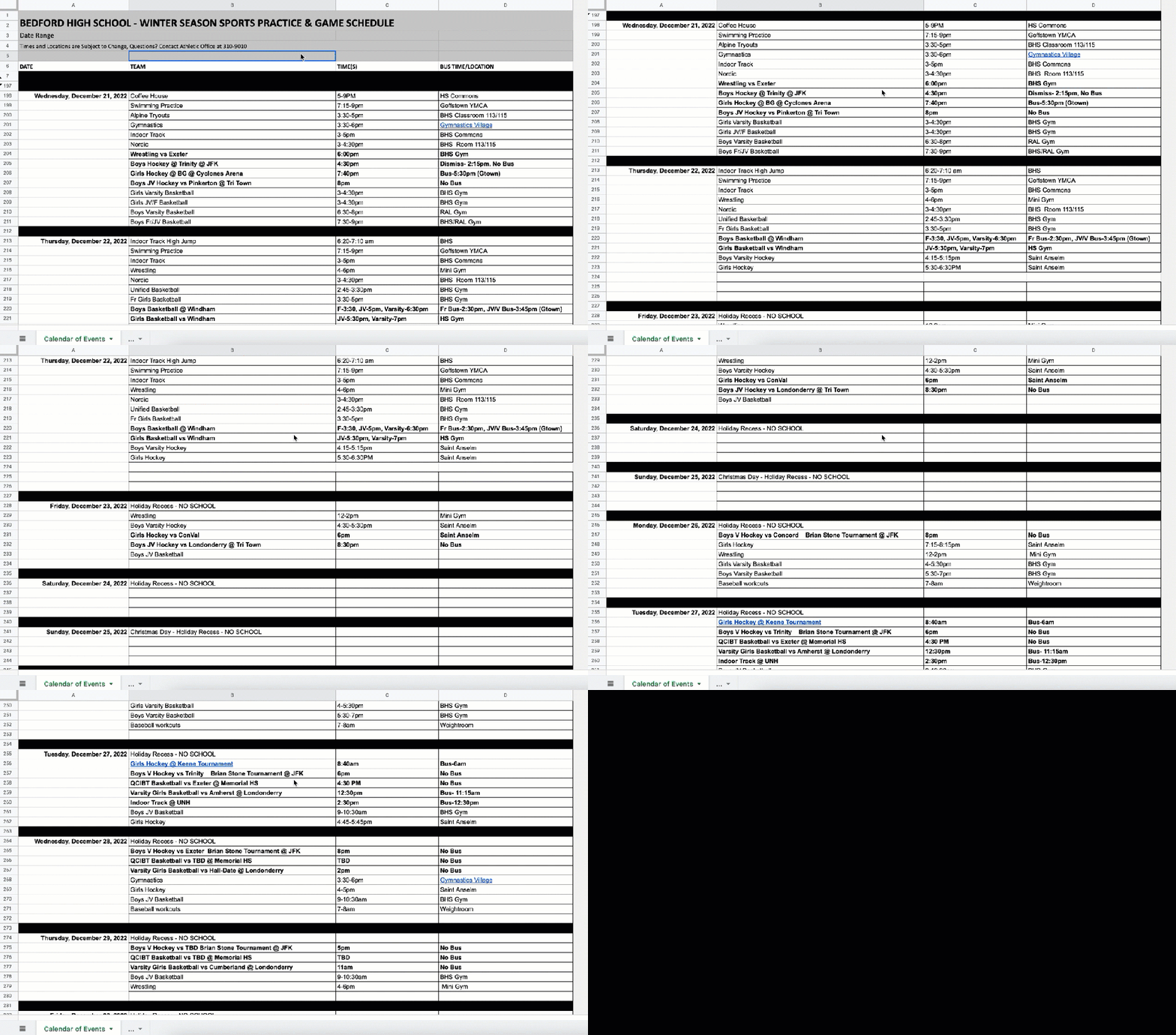
The athletics schedule had always been created in a Google Sheet. The community was given view access each month so that they can scroll through and find the events that pertain to them. The one missing element was being able to sort the data easily. This meant that users had to scroll through all of the events and hope that they didn’t miss a practice or a game. The athletic director would hide dates once they passed so that those events no longer showed to help with the view of the sheet; meaning that once a date happened, the row was hidden. Below is a gif showing what one calendar view looked like:

Continue reading “Looker Studio for Athletics Schedule”

Week 2 of 10 Days of Google 2022

The second week of 10 Days of Google has arrived. What can you expect to see this week? Great question:

  • Day 6: Google Sheets (learn how to split data quickly, create view only sorting, as well as protect data that you are sharing)
  • Day 7: Chrome (Year in Search 2022, Google breathing exercise, reopening closed tabs and diving into the websites you are accessing)
  • Day 8: Google Slides (Placeholders, laser pointer, closed captioning and importing slides)
  • Day 9: Google Docs (Building blocks and water marks for letter head in documents)
  • Day 10: Chromebook (connecting to a projector, last five saved items and creating a GIF on a chromebook)

Click HERE to learn more about these days.

Be on the look out next week for two bonus days of material.

And that is my Spiel…

10 Days of Google 2022

It’s that time of year again…sharing out random Google tips in a short fun manner. 10 Days of Google is here! However, this year, I am changing the way in which I am sharing out the information. I have decided to push myself and create my first canva website to showcase the information. Each day will ‘appear’ on its own page. Rather than create a blog post for each day, I will be posting twice – highlighting the first 5 days and the last 5 days.

10 Days of Google 2022

What can you expect on the first 5 days?

That is a great question! The following are highlighted in the first round:

  • Day 1: Google Docs – Linking files with Smart Chips and formatting text
  • Day 2: YouTube – Auto-translating text to a different language – this is especially helpful for students whose first language is not English or World Language teacher wanting to show a video in a different language but want to have English subtitles
  • Day 3: Tables in Google Docs – Features available with tables in Google Docs
  • Day 4: Google Form – Customizing font, embedding links and sharing survey results once completing a google form
  • Day 5: Google Classroom – Good reminders for students (and teachers) – copy a direct link to a Google Classroom assignment details, figure out what must be completed, and using originality report with Google Classroom assignments

This year, I have been spending a lot of time exploring around with the features Canva has to offer. This project has been great for me to learn how Canva websites work. I look forward to creating more in the future.

If you have any questions or want to learn more about what has been highlighted, you know where to find me.

And that is my Spiel…