
 On the tenth day of Google, we will focus on accessibility. Google has been focusing a lot on accessibility and making sure that all students are able to learn and grow with the support of a Chromebook. Google has devoted a page on their website where they address accessibility.
On this page, I found a PDF file – Accessibility Flashcards. On each slide, google addresses an accessibility and the shortcut or step to initiate said accessibility feature. While you yourself might not need an accessibility feature, it is still good to know that they exist for the learners that are in your space on a daily basis.
If you have any questions, you know where to find me. HAPPY HOLIDAYS everyone! And that is my Spiel…
 For the ninth day of Google, we will focus on formatting tips and tricks. Have to admit, I did not know about any of these until most recently. It is all about unlearning what you have always done to learn something new. These tips will most certainly save you some time in the future.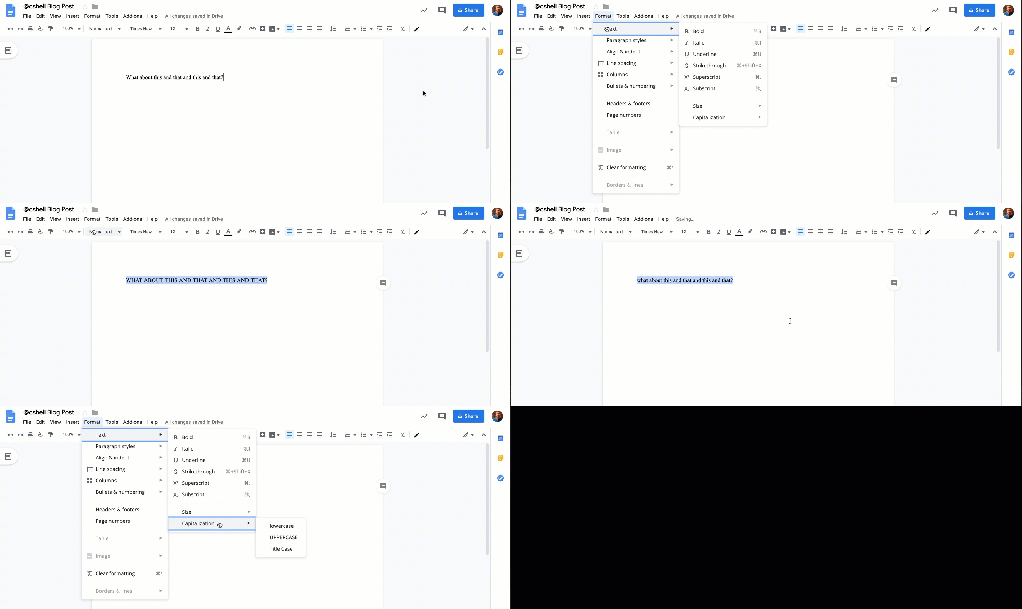
 On this eighth day of Google, we will focus on how students can participate in activities on their Chromebook while in ‘locked mode’. In particular, I want to focus on two different features: Locked mode with Google Forms and Desmos Calculator.
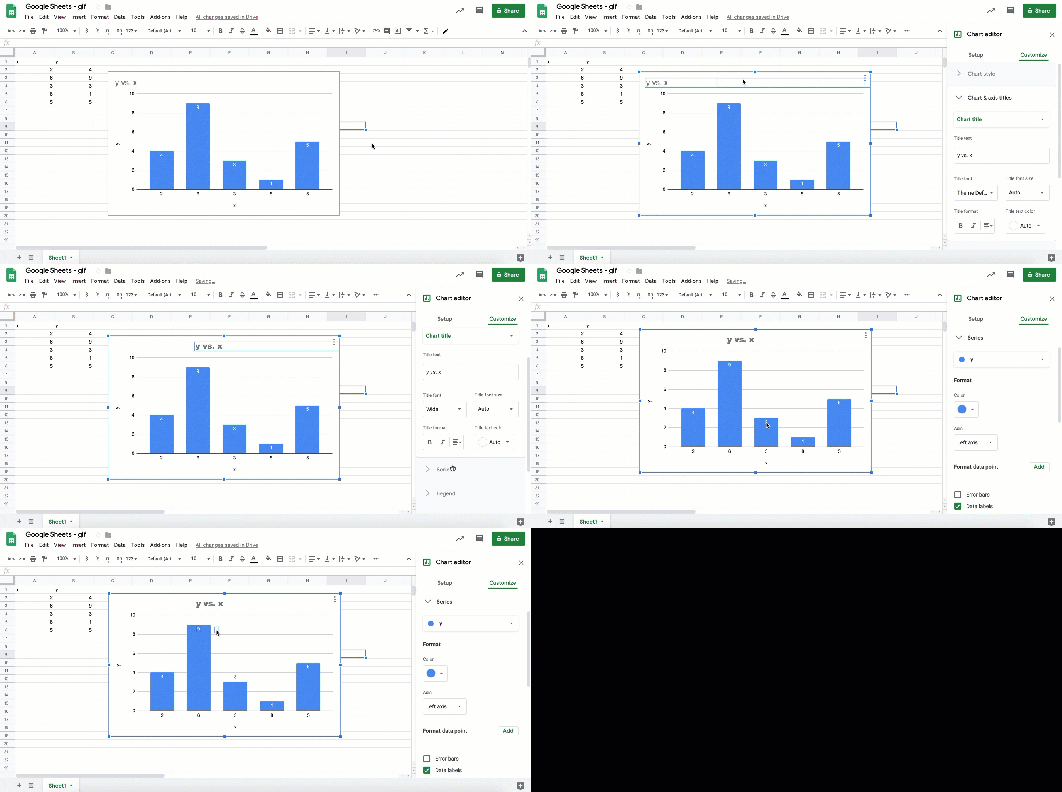
 On this seventh day of Google, we will be taking a look at a couple of Google Sheet features.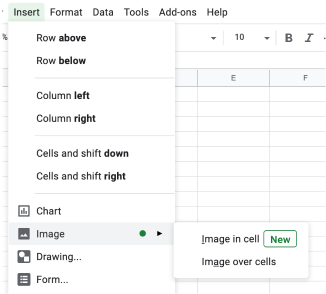
 The sixth day of Google focuses on how you can use Google Slides for podcasting or having background audio playing while presenting.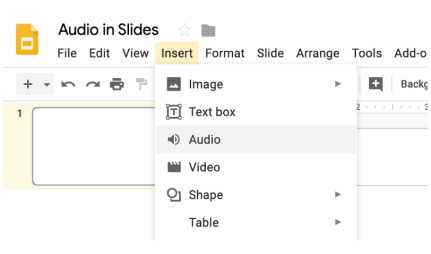
 Craig M Sheil