 For the fourth day of Google, I thought I would focus on Google Calendar.
Inviting Colleagues
You have always been able to add other people to a calendar invite. Recently, I discovered that you can invite colleagues right from the opening pop up screen. Once you add at least one person, their calendar will temporarily show up on the screen overlaying with your calendar. This way, you can quickly find a particular time that would work. In the example below, my Google Calendar is Red, while my colleagues is Lime Green. The moment I add my colleagues name, her calendar shows up. Then I can move the appointment accordingly.

Go To Date
At the beginning of each school year, I am given a document indicating all required after school meetings that I must attend. It can be tedious trying to click through each week or month by selecting the right arrow. I recently discovered that while in Google Calendar, if you use the short cut “g”, a Go To Date pop up window shows up. Type in the date you are interested in getting to, and magically it shows up.

NOTE: You must have keyboard shortcuts activated in Google Calendar in order for this to work. To activate, select the settings gear on the top right, followed by the check box under keyboard shortcuts checked. Once this is enabled, if you are curious about other shortcuts in Google Calendar you would just type “/” and a pop up window with options will appear.

Search in Calendar
Now, I am embarrassed to say that I didn’t know you could search for calendar events right in calendar. This is something that should not have surprised me seeing as though Google is all about searching. If you are trying to find details from a particular calendar event or when particular calendar event happened in the past, use the search feature, rather than going back week by week until you find what you are looking for.
To search in Calendar, type “?”. A search box will show up on the top of your screen. Type in a key word and all calendar events with that key word will show up. A lot less time wasted using this approach.
If you have any questions on this or other Google Calendar items, you know where to find me. And that is my Spiel…

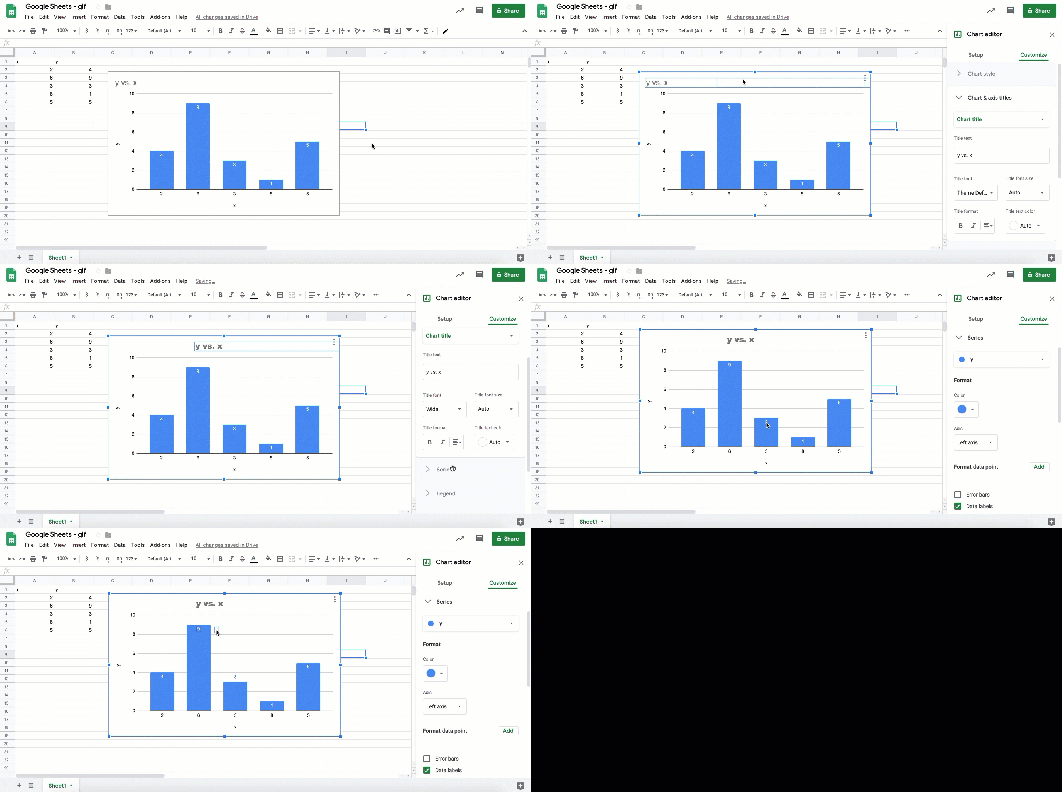
 On this seventh day of Google, we will be taking a look at a couple of Google Sheet features.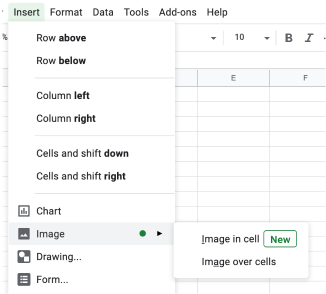
 The sixth day of Google focuses on how you can use Google Slides for podcasting or having background audio playing while presenting.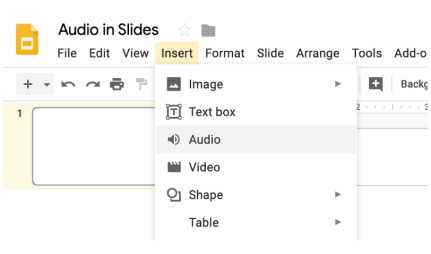
 On this day fifth of Google, we will take a deeper dive into Google Slides (
 For the third day of Google, we will take a closer look at Google Keep (

