The title of this post should speak for itself. “Stepping Outside My Comfortable Limits” – it is a statement that we hear from time to time. Well, I can say that I have done this recently. As a kid, I always dreaded reading. It just was not my thing. Give me some math problems to solve and I was right there ready to go with my mechanical pencil. Yes, I LOVED mechanical pencils! Well, fast forward to March 2018…who knew that I would be co-leading an online book chat with the librarian in my school, Jessica Gilcreast, as a means of delivering professional development. In fact, when I told my family about this, my brother thought I was lying and my mother smiled. In the end, once I truly convinced them of my task at hand, they were impressed with me. Put a smile on my face.
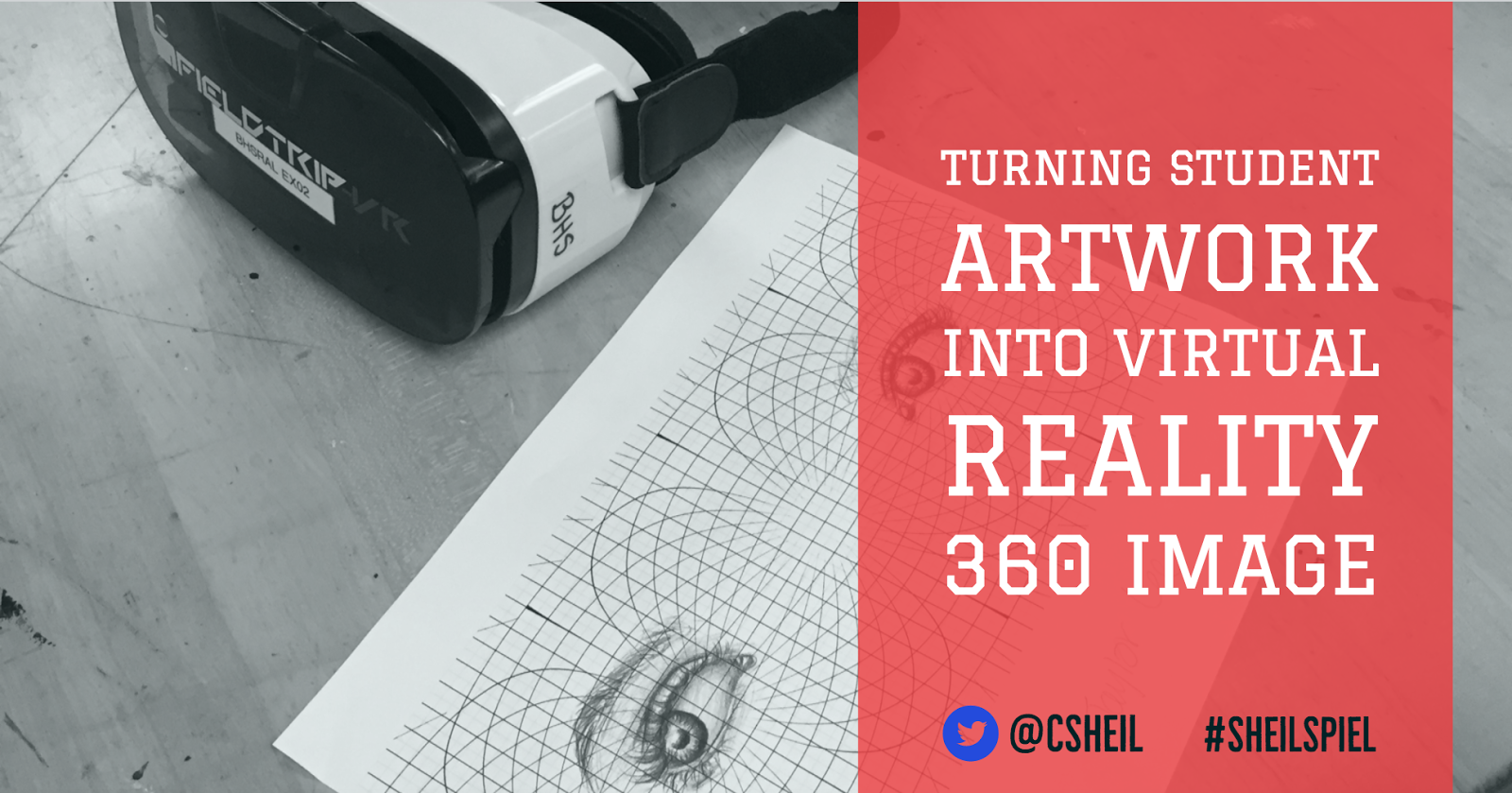
Turning Student Artwork into Virtual Reality 360 Image
Here we go again. Craig is writing another blog post about virtual reality. I promise that we do other things at the high school that I work at. However, we continue to try new things pertaining to virtual reality.
Continue reading “Turning Student Artwork into Virtual Reality 360 Image”
Virtual & Augmented Reality Station Work
Happy New Year everyone! Seems hard to believe that I have started my journey with this blog three years ago. This blog has been one of those places that I have been able to reflect on things that have been accomplished in my school as well as share some of my favorite tips and tricks. My only hope is that I have more time to share more of my thoughts throughout this year.
One blog post that I have been meaning to write about for a couple of months now is how teachers at Bedford High School are implementing virtual and augmented reality in the classroom, beyond using Google Expeditions. This has been done through the use of station work. Mrs. Pingree & Mrs. Nardion (science), Mr. Guerard (Wellness) and Mrs. Sarsfield & Mrs. Orrego & Ms. Close (Spanish II) have all followed this type of model. One specific example that I want to share is what Mrs. Pingree and Mr. Guerard did.
Day 12 of Google: Creating Your own GIF with AutoDraw, Photos, and Slides
For day twelve of Google, we are going to look at how AutoDraw, Google Photos and Google Slides can be used to help create your own GIF for a presentation.
GIF files and bitmojis have appeared in text messages/group chats for awhile now. I am noticing that more and more people are including these in presentations now. In most cases, gifs that are used are ones that have been found online. Well, with the help of three applications, you can create your own GIF. What makes this process even easier is the fact that Google Photos is now an option for inserting images into a Google Slide presentation.
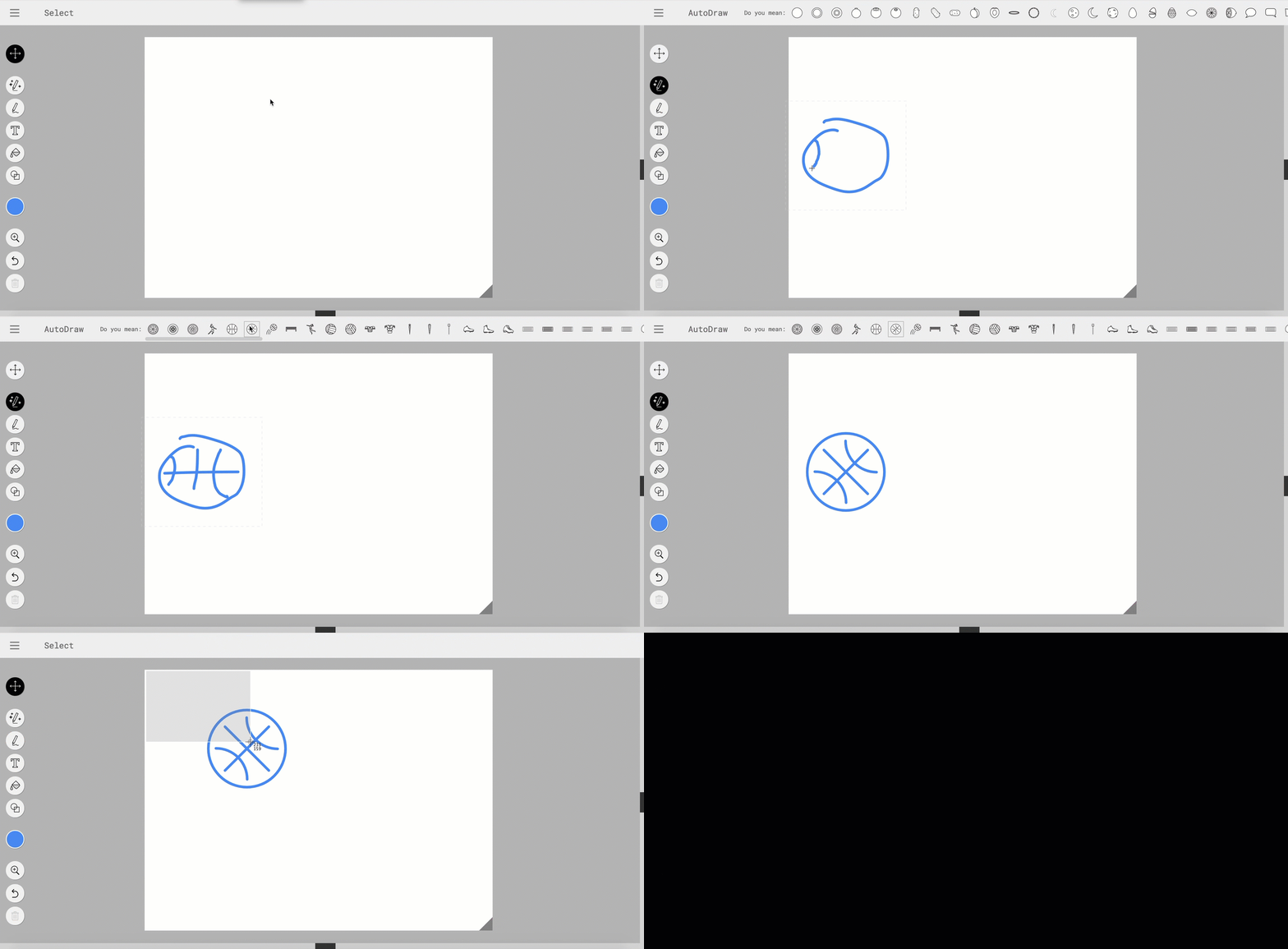
Below is an example of something that was created in AutoDraw, uploaded into Google Photos to create a ‘GIF’. This file can then be inserted into any location that allows for images. Below will walk you through the process…
Step 1: AutoDraw
I have written an earlier blog post on Google AutoDraw. AutoDraw is a great way for students to create their own visual with the help of artificial intelligence. I for one am not a great drawer. I can use all the help that I can get with my drawings. This is also a great way to get ‘free to use’ images.
- Create what you want to turn into a GIF. My example will be a basketball moving as if it is being thrown in the air.
- After my image is all set, take a screenshot
- Move items that you ‘drew’ (in my case, I will move the basketball)
- Take another screenshot
- Repeat step 3 and 4 until you have all the necessary screenshots
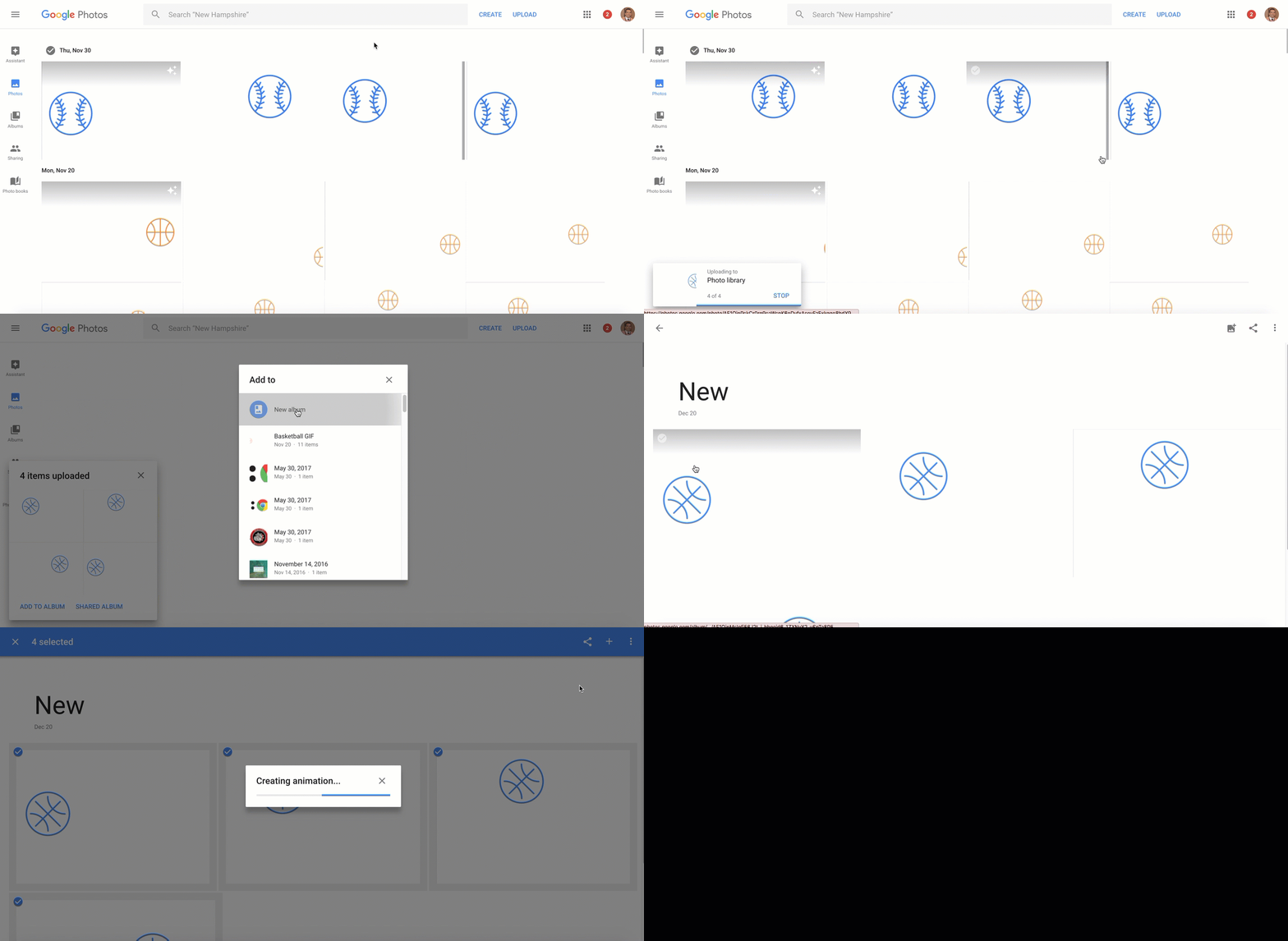
Step 2: Google Photos
- Once in Google Photos, choose upload on the top right corner
- Upload all of the screenshots (or images you want to eventually make into a GIF file)
- On top right corner, select the plus button and choose animation
- Select all images you want to be part of the gif ‘animation’
Step 3: Google Slides (or Docs, Drawing)
- Open up Google Slide presentation
- Go to slide you want the image to be located on
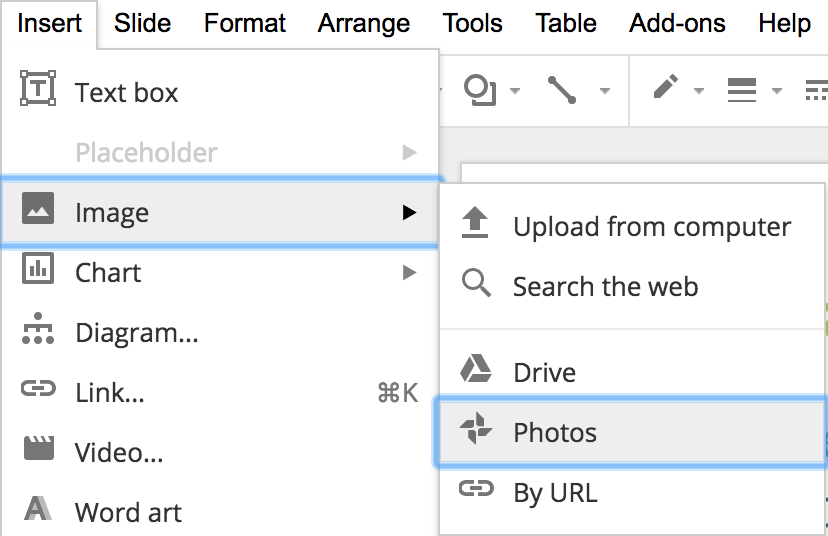
- Under the insert menu, choose Image followed by Photos. Google will search your Google Photos and you will select your GIF file.
Day 11: Change Default Text in Google Docs
On day eleven of Google, we are going to look at how you can change your default text in Google Docs. To be honest, I didn’t know that you could actually change the default setting to Google Doc until recently. I always manually changed the text to what I wanted it to be. Never thought that I could tell Google what I want it to be when I open up a document.
Google has determined that Arial size 11 font is the default font and size. For some people, this does not necessary work. For instance, if you are required to use MLA format, I believe the text has to be size 12. Students would then have to manually go to the top and change the font to 12.
If you find that you want to change the default of the font text and size, follow these steps: (NOTE: this will change the default to all Google Docs that you create moving forward. If you find that you don’t like the default that you set, you can make the change again.)
Changing Default Setting
- Determine what font you want to make default
- Determine the size you want to make default
- Select the Normal Text, and choose Normal Text drop down – choose ‘Update Normal Text to Match’
- Select Normal Text, then Options, save as my default settings