#sau25discovers – Learning From Each Other

Last Friday, the Bedford School District hosted its second annual Future Ready Conference where over 100 sessions were offered by its own staff as well as a few outside presenters. This day reminded me yet again at how fortunate we are that our district is willing to provide an opportunity for all staff members in the district to get together in one place to learn and share ideas with each other. We modeled our day off of Medfield’s Digital Learning Day – thanks again Neal for the inspiration!

Most importantly, I am also proud and thankful that we have a staff who are willing to take the time, out of their already busy lives, to share their own experiences and knowledge on particular concepts/tools/ideas. Let’s face it, our day would not be as successful if we didn’t have staff who were willing to go above and beyond to put together engaging sessions to inspire others. What I think is also cool is that we had a couple of sessions where students were presenting to our staff, thanks to the National Honor Society and DECA students. Hands down, this staff development day is by far my favorite as we all get together to not only learn from one other but to also support one another. Below, I have curated some tweets to highlight #sau25discovers.

On another note, if you are inspired to try something new in your classroom and you would like assistance or want to talk things through, you know where to find me. And that is my spiel…

Link to Storify HERE

(Also a big thanks to Kerri Lunn for putting together this animoto slideshow capturing the day.)

‘Mrs. Frizzle & a Greece Tour Guide’ Visited our School

Over the past couple of weeks, we have had students experience learning with the help of Google Expeditions. Both students and teachers alike enjoyed the opportunity to learn curriculum through a different medium than they have in the past. (We are very fortunate that our school is able to share a mobile cart of phones with our middle school to be able to explore different virtual reality applications in the classroom).

Field Trip to Greece
Mrs. Cooney and Mrs. Hatzidakis (and later Mr. Woodhead and Mrs. Devito) were thrilled to know that Google Expeditions had a Greece tour for their Freshmen humanities students to experience. Based on some reading and class activities that they had already experienced in previous classes, Mrs. Cooney was able to reinforce concepts about the Acropolis and other important Greece facts with two different tours. Google Expeditions provided an opportunity to see the Acropolis from a bird eye view.

Mrs. Cooney and Mrs. Hatzidakis also took it to the next level by having students run their own virtual tour by walking through the Acropolis using Sites in VR app. Students were able to experience the actual location through a series of 7 different 360 images. It was great for students to be able to ‘walk through’ at their own pace to make their own observations.

Mrs. Frizzle in 2017

When Mrs. Morrissey found out that Google Expeditions had a tour of the digestive system, she knew right away that she needed to implement it in her IB Biology II SL course this year. She had told the students that as a kid, she always enjoyed watching the Magic School Bus shows, especially the episode of when the school bus brought the students through the digestive system of a body. To think that now Mrs. Morrissey is the ‘new’ Mrs. Frizzle!

I thought it was clever with how Mrs. Morrissey used the app. In other situations, teachers have had students participate in an expedition and then completed other tasks. Mrs. Morrissey instead started the expedition of going into the mouth and esophagus. Then the students took off the headsets and together the class took some notes. Then, the students put on the headsets again for Mrs. Frizzle, I mean Mrs. Morrissey, to walk them through the stomach, etc. So rather than taking notes first and exploring second, the students explored around the particular part of the digestive system, then they took notes. This idea was a great way of breaking up notes.

Some people might say, well Craig, do you need virtual reality in order to help students understand the geography of a place? Can’t you show an image through the projector and accomplish the same thing? My answer to that question is you do not need virtual reality to teach. However, it can be a great opportunity to integrate with curriculum if done thoughtfully. If you are curious how Google Expeditions, or other virtual reality apps, can be used in your classroom, you know where to find me.

And that is my spiel…

Using Document Cameras Beyond Projecting a Worksheet

Document cameras have been around for a while now – it certainly is not new technology. However, this past week has reminded me, yet again, how document cameras can serve different purposes. Yes, I know the typical situation where a teacher places a piece of paper on the desk and uses a document camera to project the paper on the wall. This way students can follow along with filling out the piece of paper. But how can you take this simple device and take it to the next level. (Again, keep in mind that these examples are not new, earth shattering ideas).
Class Demonstrations

p.p1 {margin: 0.0px 0.0px 0.0px 0.0px; font: 12.0px Helvetica} p.p2 {margin: 0.0px 0.0px 0.0px 0.0px; font: 12.0px Helvetica; min-height: 14.0px}

Mrs. Lederhos, our ceramics teacher, used the IPEVO document camera for the first time last week. She was explaining how it was hard for her whole class to look over her shoulders when she wanted to demonstrate a technique with pinch pots. She asked if she could try out a document camera to see if it would help improve the way she showcased techniques. We set her up with the document camera and things could not work any better. To the left, is a picture of her set up. Now, Mrs. Lederhos is able to demonstrate techniques in wide screen on the front of the room. I also like how she has placed the document camera on a rotating stand. This can help her with making sure that the document camera is in the right place as well as give the document camera more height. I was also impressed with how clear the picture quality was coming through during demonstration, even though there was constant movement.
Mrs. Hogan, our Photography teacher, has also found the document camera to be very helpful when needing to show her Photography students how to check settings on their digital camera prior to taking pictures. Again, she solved a situation of needing everyone in the class to see the steps rather than having to show each individual student.

Screencasting
Over the past couple of years, I have helped teachers create short screencasts. Teachers have created these screencasts for different purposes. However, I have had in the back of my mind that screencasts must be done with content created on a computer screen. This is not the case!
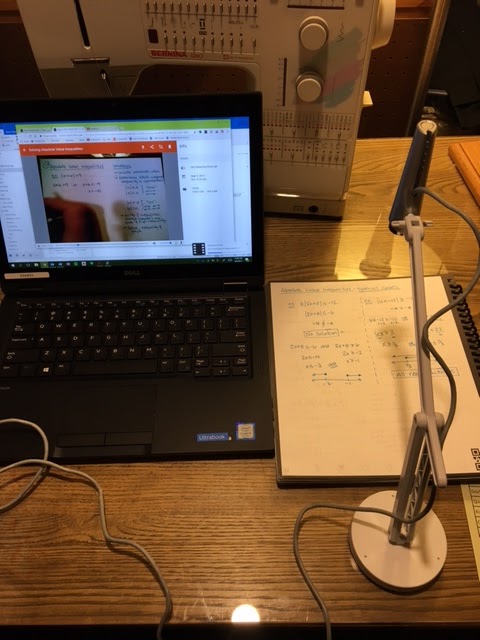
A friend of mine, Ms. Drake, who happens to be a math teacher, shared with me a visual with what she accomplished. The picture spoke to me as it made me realize that a teacher does not need to have everything electronic in order to screencast. She had her document camera connected to her laptop. She used Screencastify, a chrome extension that we use all the time in my school, to gather what is being shown on her screen. In this case, it is the document camera projection on her screen that she is recording. Rather than using Smart Notebook, or Google Slides to walk through examples, she was using her notepad to write out her mathematics. Again, you might be saying well Craig, that is not any different than a teacher filling out a piece of paper live in front of a class. You are right! But I didn’t make the connection that a teacher could in fact record a screencast with paper and pencil. 
If you would like to talk more about how document cameras can be used in your classroom, you know where to find me.
And that is my spiel…

Challenge Yourself this School Year


The beginning of another school year is among us. As I write this blog post I am realizing that I myself have been in the education field now for fifteen years. It is amazing how fast time flies when you are having fun.

One of my favorite quotes, that I have referenced throughout those fifteen years, is from John Dewey, “If we teach today as we taught yesterday, we rob our children of tomorrow.“
To me, this is a great reminder that it is always important for educators to constantly reflect on their work and make improvements/enhancements when necessary. So, I ask you “How will you challenge yourself this school year to grow professionally and/or improve or enhance a lesson?”
Will you…
  • use Google Classroom for the first time to help with organizing and streamlining information relating to your class?
  • allow students to view content in a virtual format through virtual reality headsets?
  • ask a guest speaker to Hangout out with your class virtually, or better yet use the record feature in YouTube Live so that multiple classes can benefit from the conversation?
  • implement a hyperdoc in a unit lesson to allow students to explore and share their ideas to a broader audience other than you as the teacher?
  • join Twitter for the first time as a means to grow professionally by following other educators with similar interests/ideas?
  • inspire others in your professional learning community (PLC) to try something new?

Let’s Inspire Each Other
I have created a Flipgrid topic so that we can all inspire each other. Click HERE to share how you plan on challenging yourself this year. My hope is that we can all learn from each other in what our own goals/aspirations are for this coming school year.
Only you will know what makes the most sense, but all that I ask is that you push yourself in some way. No task is small task. If you would like to chat about how you can accomplish your challenge that you have given yourself, you know where to find me.
And that is my spiel…

New Google Sites – "Page Level Permissions" with a Twist

Over the summer, I have been converting our tech website for the high school manually into the New Google Sites. In a way, it has been great because I have been able to truly look through what is on our tech website and weed through the items and information that is no longer valid. (That’s one draw back from how quickly technology changes) That spring cleaning feel in the summer time!

In thinking about how I wanted to design the site, I was trying to find a way in which staff at the high school would only have access to certain pages, and not students. I had used the page level permission feature in the old Google Sites before. This was helpful – as long as the staff member was logged in with their Google account, they would see about 6 different tabs on the website where as students and the rest of the public would only see abut 3 tabs. Currently, the New Google Sites does not have page level permissions – maybe a feature that will show up in the future? Who knows…

I have heard some people share the tip of reenacting page level permissions through documents and files that are embedded on a page. In other words, if I wanted only staff to see content on a page, I could embed a Google Document on the page. Then with the blue share button in the Google Document, I would only share it with the staff group list. Thus, even though the public could see the page on the site, they would not see the content in the Google Document (unless the viewer was part of the staff group list). I knew I did not want to use this approach.

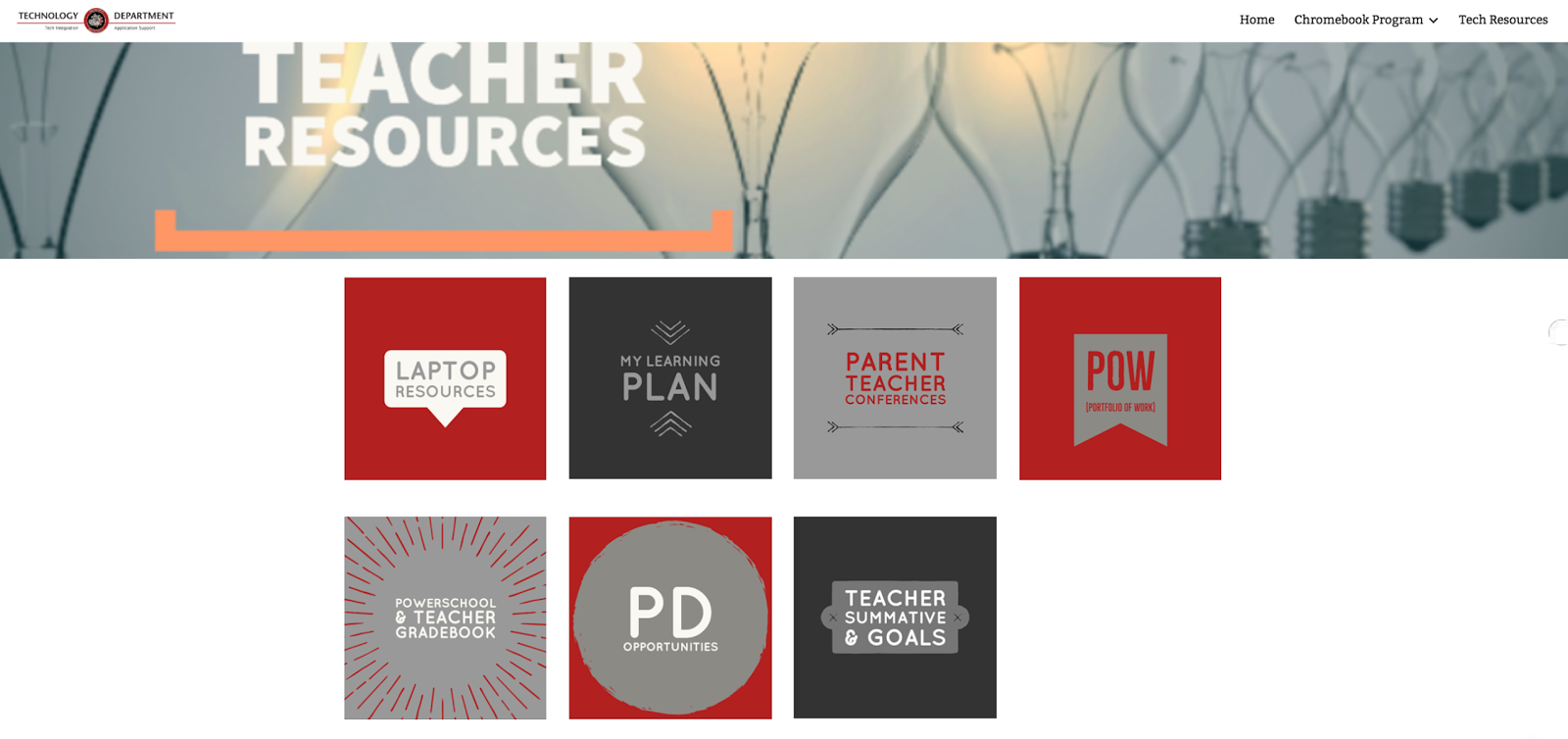
Instead, I wanted to make sure that only staff could find particular page with information that was just for them. Below, you will find a screenshot of a page that is not public. I have decided to hide it from the site’s navigation. This page is a landing page for teachers where they could then select a subpage based on what they were looking to do. Thus, the landing page and its subpages are hidden from the public.

Hiding a Page in New Google Sites

In order to hide a page from the site navigation:

1. First Create the page(s) you plan to hide from the navigation

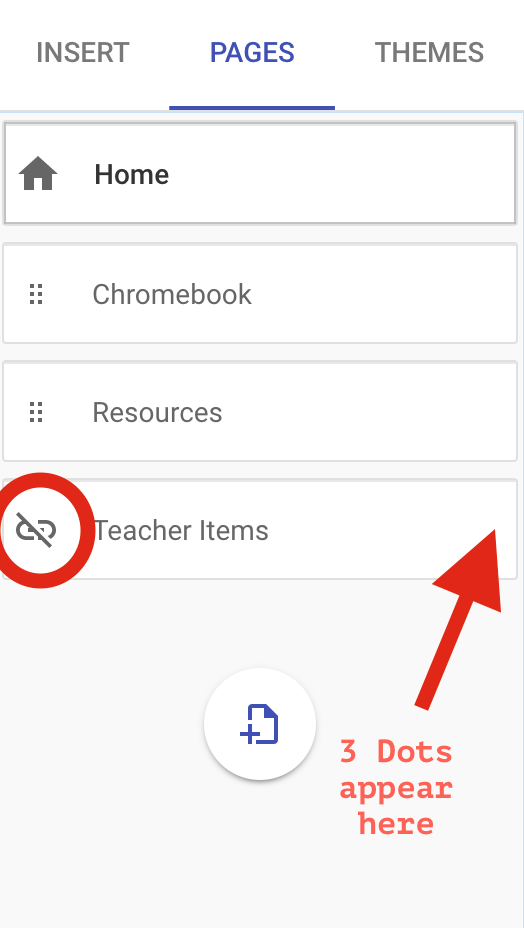
2. Hover over the page name and click on the three dots that appear on the right side.

3. From the drop down menu, select ‘hide from navigation’. You will notice as a result, there is a link with a line through it for the Teacher Items page. This means that it is now hidden. Whereas Chromebook and Resources pages do not have this icon.

Giving Staff Access to Page – “Page Level Permissions” with a Twist

Again, I needed a way to get a page to staff without the ability to use Page Level Permissions. So, I…

1. I published the site.

2. I viewed the published site. (You will notice on the top right corner that Teacher Items page is not in the navigation of the website.

3. I will then use the google URL shortener to shorten the link. I will shorten the link to the Teacher Items page (not the home page). This is the link that I will ask staff to bookmark on their devices at the beginning of the school year. As long as staff access the tech website with this link, they will have access to everything that has been posted on the new tech website. If they access the website from the public link, which will be linked on the high school website, they will only have access to the public pages that are included in the navigation of the website.

To get a better understanding of what I am talking about:

Click HERE to view a sample site. You will notice in the navigation of the site,  Teacher Items Page is not listed.

Click HERE to view Teacher Items Page. This would be the link that I would ask teachers to bookmark.

Use of this Feature
Sure, not all of you might be in the same boat as I am with needing to hide pages to differentiate content between staff and students. But one way this feature might be useful is for those that are into integrating Breakout EDU into their curriculum. If you create a breakout using the New Google Sites, you could hide certain pages so that it is not easily accessible for students to get to – but yet you are still using one site to host all of the information/content.

Want to talk more about this feature, you know where to find me. And that is my Spiel…