Keyboard Shortcut for Providing Comments in Google Doc

Last week, I attended a math workshop put on by Alice Keeler. One of her talking points is all about being efficient and using keyboard shortcuts to save time. We as educators only have a certain amount of time in the day to get work done. Let’s take back some of that time with using keyboard shortcuts. One way that this can be done is when we provide valuable feedback to our students through a Google Document with the commenting feature.

Keyboard Shortcuts:
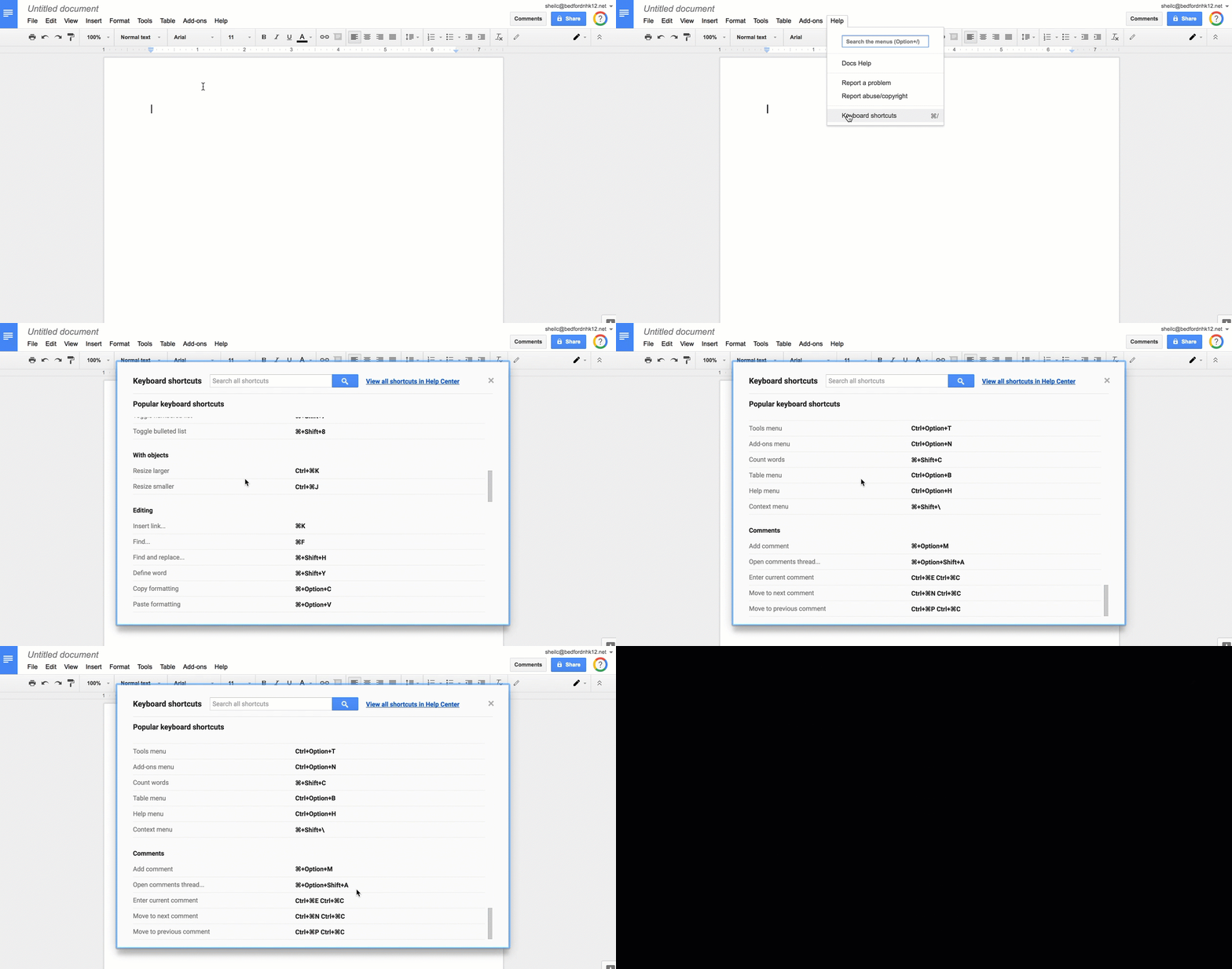
Most people know the shortcuts when it comes to copying and pasting text. Many also know the shortcuts for opening a new tab. You might be asking yourself, “Self…how do I find out what keyboard shortcuts are available while using Google Documents?” Have no fear! Google has provided a keyboard shortcut page, which can be found under the Help Menu.


*NOTE: The keyboard shortcuts that you see in the gif file above are for mac users as I recorded this on my mac computer.

Assessing/Providing Feedback on Google Doc
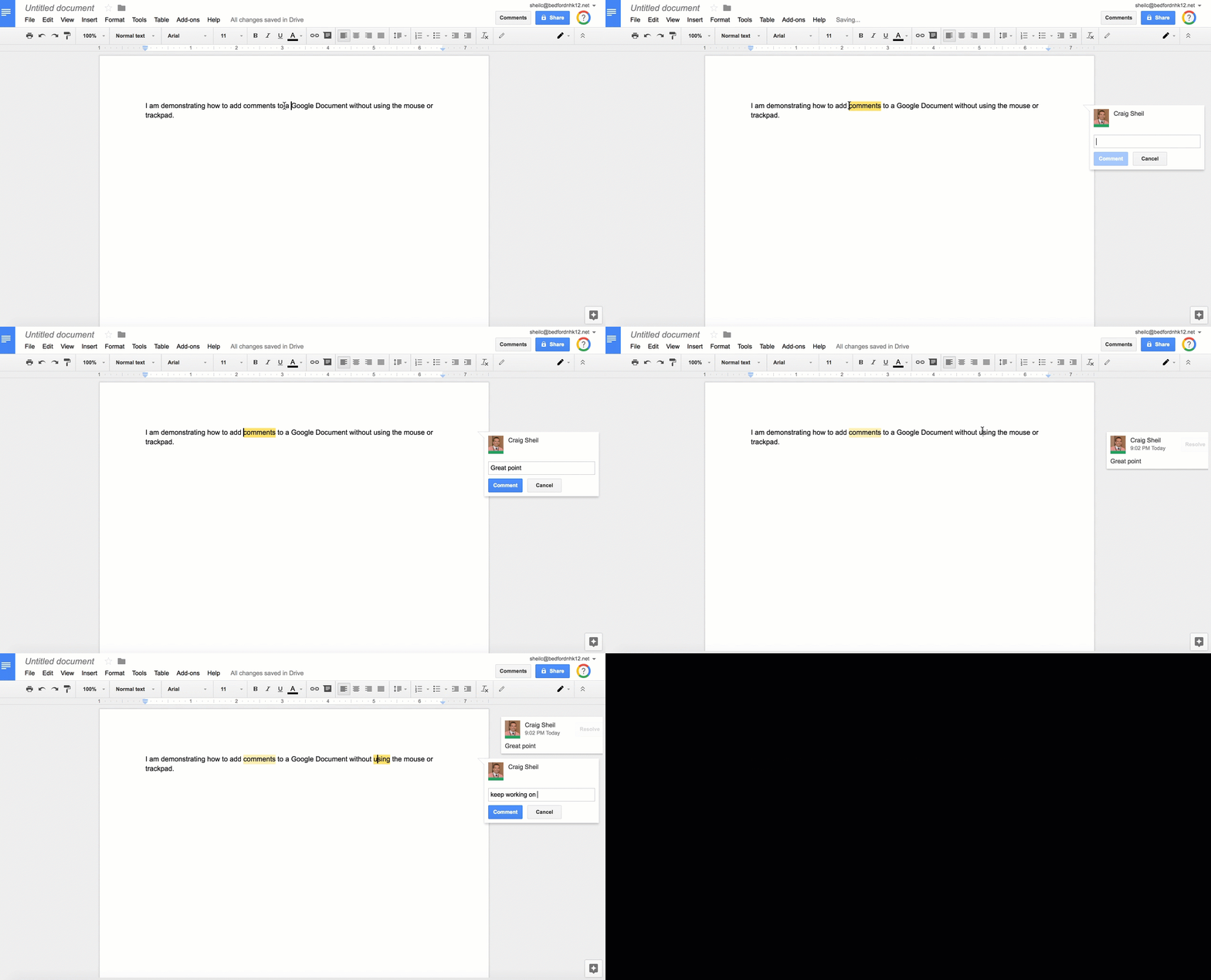
Assessing/providing feedback on a Google Document can take sometime, especially when you first start to venture in this direction. I have heard many say that it takes longer to grade online compared to the ‘traditional way’ with pen and paper. However, there are a couple of keyboard shortcuts that can help save you time.

STEPS:

  • Place cursor where you want to add a comment
  • Use the following shortcut keys depending on the device that you have so that the commenting window will open on the right side of the Google Document:

Mac user: Command, Option, M
Chromebook User: Control, Alt, M

  • Provide your feedback
  • When completed with the comment, use the shortcut keys Control, M so that the commenting window will close

Close Current Tab

When you have finished providing feedback on the Google Document, don’t hit the x on the tab in Chrome. Instead, use the following keyboard shortcut:

Mac user: Command, W
Chromebook User: Control, W

This will automatically close the current tab you are on.

I know that this seems basic, but you might be surprised at how efficient you become with providing feedback the more and more you get used to the keyboard shortcuts. Don’t believe me…ask Jess Doyle as I know she has been using keyboard shortcuts for a couple of years now.

And that is my spiel…

Creating Images with Google Auto Draw

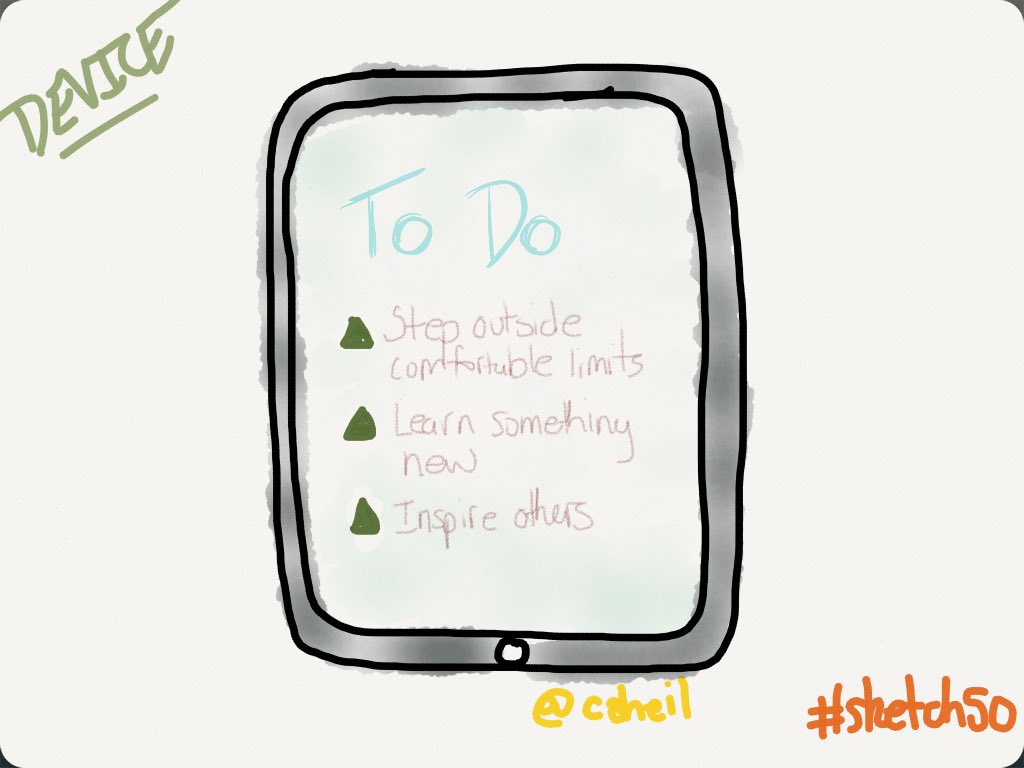
In a recent post, I had mentioned that I was participating in #sketch50 challenge, where at the end of the challenge, I will have had created 50 sketches. Not everyone might have the time to actually create a sketch which is where one of Google’s AI Experiments, Auto Draw, can come into play. If you find that you cannot create a ‘well designed image’ you can have auto draw actually predict what you are drawing and select from the images that it has already curated from artists.

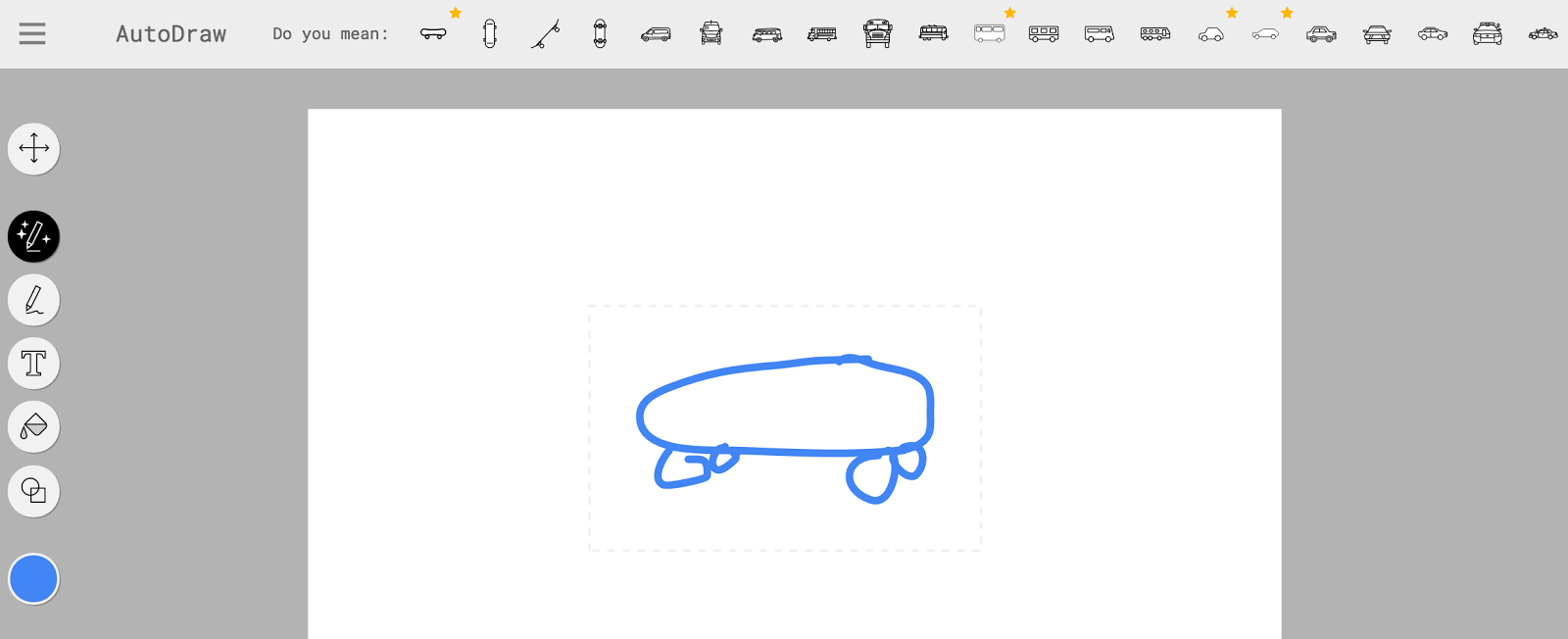
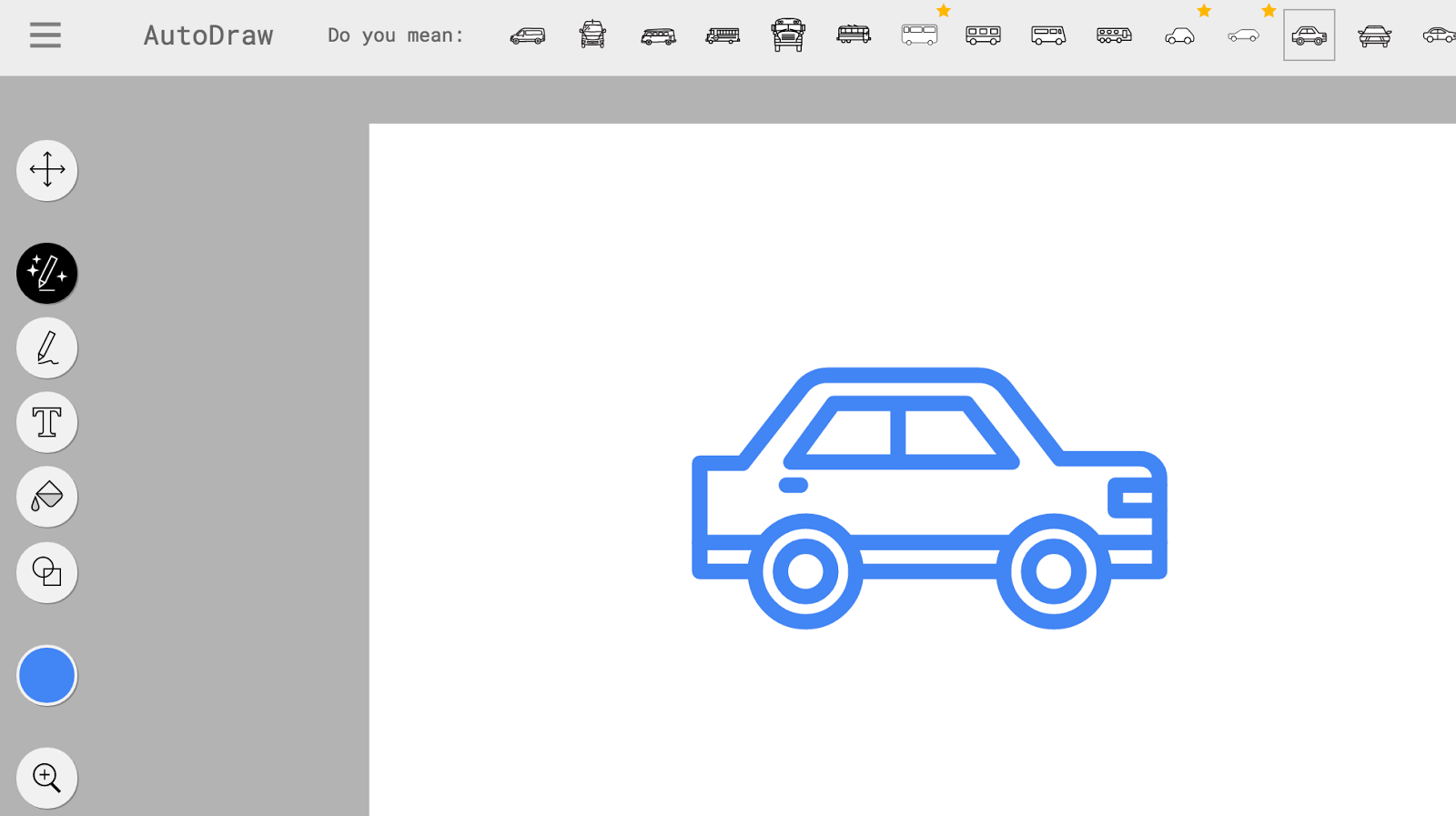
For instance, I drew the following image from my laptop. On the top of the screen, it predicted that it might be a skateboard, or a bus, or a car or a… Then I am able to tell it what I was wanting it to be – In this case, I wanted it to be a car. I could then change color of the image, and if I wanted, I could also add other content with it. 

This can be a great way by which a student can get free to use images to support the work that they produce. I find this to be a very clever tool as it can be used in many different applications:
  • making a quick poster
  • getting images to support a Google Slide presentation (or for other web tools)
  • making a sketch note
The possibilities are endless. If you have any questions as to how you can use this tool with your students, stop by and we can chat.
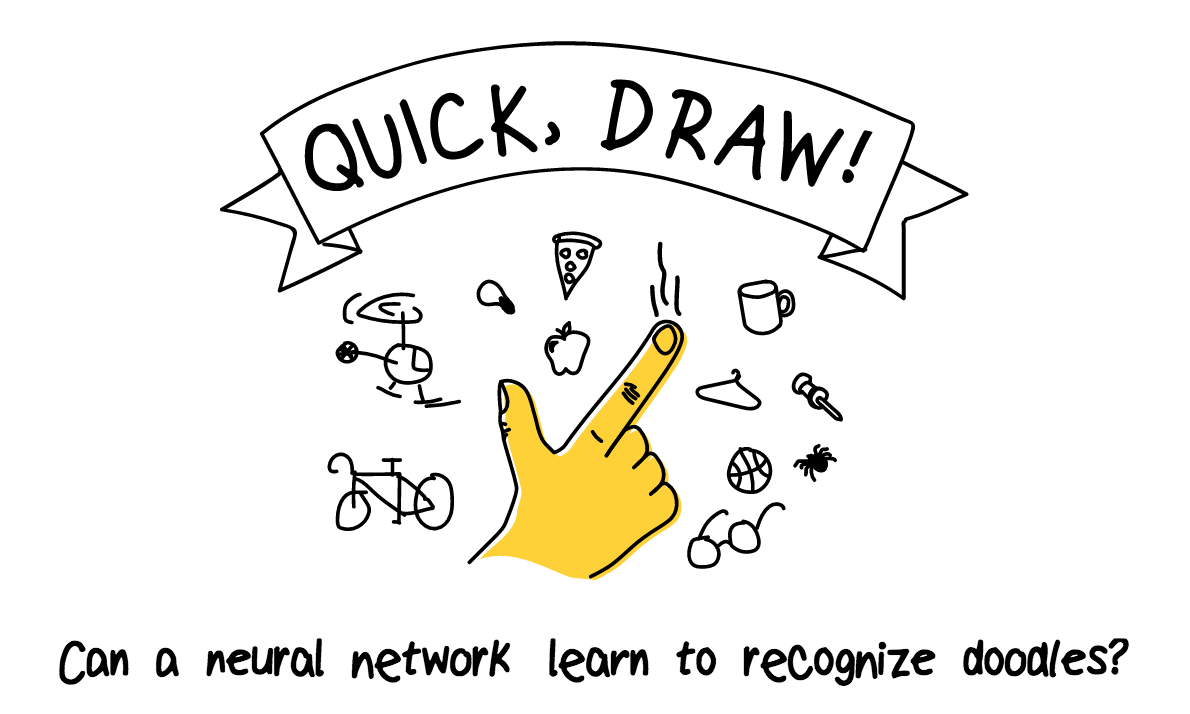
Oh and by the way, if you have not tried out Google Quick Draw! yet, you have to try it out. It is a fun game to play where you have 20 seconds for the computer to figure out what image you are drawing. We played this with our advisees one day with the help of a projector and the IPevo Interactive Whiteboard.
And that is my spiel…

#Sketch50 – True Inspiration

Let me start off by saying that I do not have the artistic ability like other people. However, I have always been intrigued with sketchnoting. Most people can agree with me in that Sylvia Duckworth does an amazing job with sketchnoting. If you do a simple Google search of ‘Sylvia Duckworth sketchnote‘ several of her masterpieces come up.

Just this past December, I decided to attend Kathy Schrock‘s presentation at the Christa McAuliffe Technology Conference in New Hampshire on sketchnoting. Like I said, I have always been intrigued with sketchnoting. What I liked about Kathy’s session was that she helped us walk through different tasks with sketchnoting…making people, shapes, borders etc. (Kathy has curated lots of resources on sketchnoting HERE) The session started to get my brain thinking that maybe I can sketchnote.

Fast forward to mid-March. I come across a tweet on Twitter that there was going to be a 50 day sketchnote challenge. Call me crazy, but I immediately thought that this was a cool idea.

My Challenge Journey
Sure enough, I decided to commit myself to the challenge and followed the Twitter Handle @Sketch_50. The first day was lightbulb. Sure I can draw that…

Day two was microphone or megaphone followed by speech bubbles for day three. It was not until Day four where I realized that there was something big happening.
1. Lots and lots of people have decided to join in on the fun from all over
2. People are inspiring others to participate in #sketch50
3. People are learning great techniques from others through the use of sketchnotes (for instance, on my first sketchnote, I did not include my twitter handle)
4. People are building their visual vocabulary through this challenge
5. People over the course of 50 days will have their own sketches that they can repurpose for future use


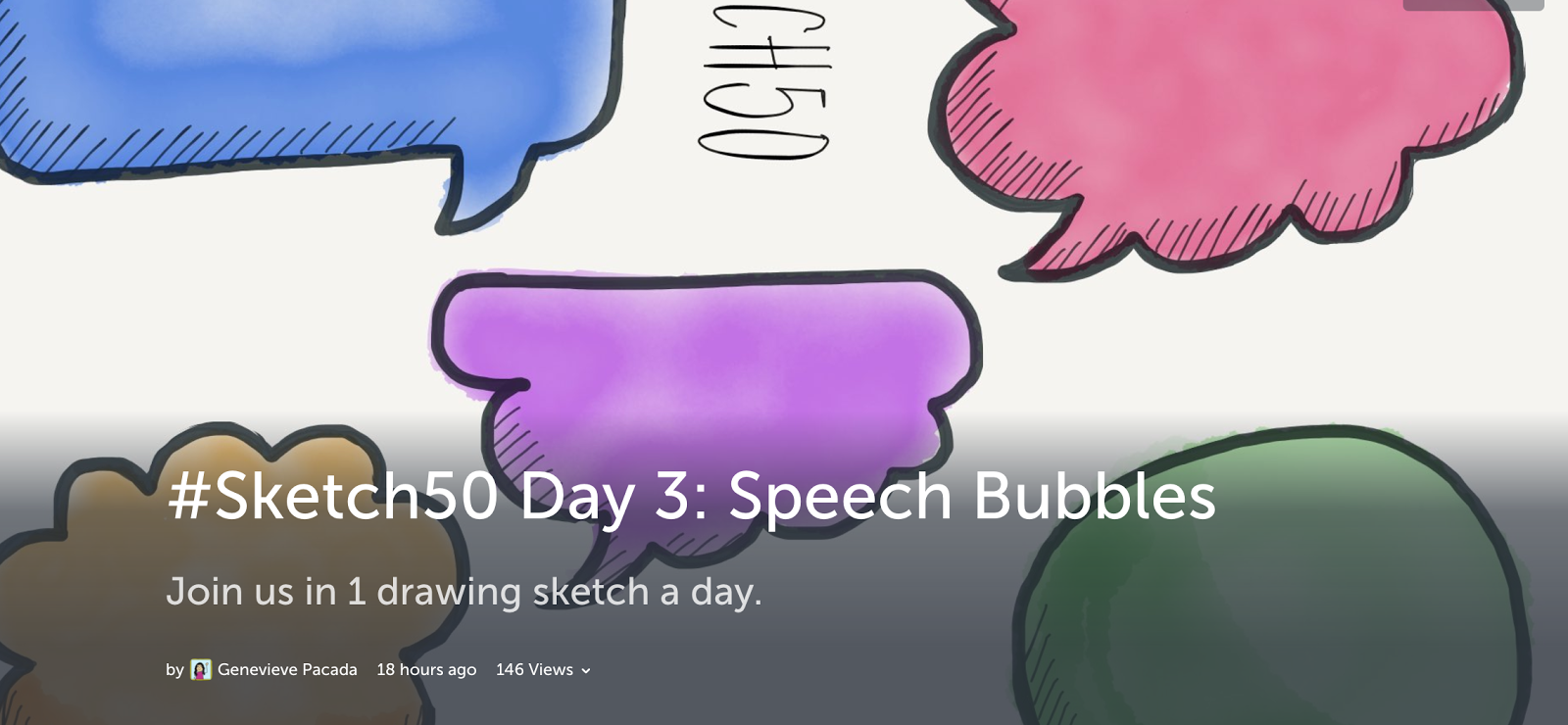
I also realized that we as people sure have different perspectives of one simple topic. Genevieve Pacada decided to curate all of the sketch notes from Day 3 – Speech Bubbles. I looked at some of these and was just in awe. It is cool to see other perspectives from people all over the world.

A colleague of mine, Jess Gilcreast, tweeted out to others that she decided to curate all of her sketches in a Google Docs table. This way she has a one stop shop of accessing all of her sketchnotes. Very clever idea as I would not have thought of doing something like that. I am going to do something similar with the use of storify. I have seen a couple of people mention or use this tool recently – thanks Tina Zita and Mary Marotta. My only hope is that over the course of these 50 days, I will see some improvement on my sketchnotes.

To see my personal journey that I have taken, click HERE.

Will You Join Me?
I highly encourage you to also get inspired by either participate in the challenge (you don’t have to start from square one, or just follow the hashtag #sketch50 on twitter). Sketchnoting can be done in many ways:

  • Paper and pencil/pens
  • Google Drawing
  • Notes (Apple app on your iPhone)
  • Paper 53 (iPad app) – my personal preference

You would be surprised with what you see. True inspiration. Hope you will join me on this adventure.

And that is my spiel…

//platform.twitter.com/widgets.js

Bingo with Your Chromebook

Looking to change up the way chromebooks are used in your classroom? How about having students play bingo electronically…

Google Drawing
Donna Dennis, a co-worker, came up with idea of creating a bingo board template in Google Drawing. Students would either make a copy of the bingo template or receive a copy in Google Classroom. Then students determine what words they want to use to put in their board by dragging the text boxes into the bingo game board. Once the have a match, they are able to bring over a chip to place over the square in the bingo board. This is a very clever way of having students still be able to determine what board they have without using paper. (Down fall you might say would be that students could move their chosen words around the board, as their words are not locked into place, while the game is being played). To see an example of the template that I am talking about, click HERE. – In the image below you cannot see the word bank or the chips that are provided.

If you are interested in the Google Drawing template, feel free to make a copy of it and adapt to your own content. Each word in the word bank is an individual text box. Click on the text box and edit the text. Within five minutes, you can have your own version!

Flippity

Those of you who know me know that I am a big fan of Flippity. The creator has very seamlessly created back end scripts for the average user of Google Sheets to help make their life that much easier.  Just last week, I noticed that Flippity has a bingo option! How cool is that? The steps are very easy:

  • Make a copy of the Bingo Template
  • Add your own words
  • Publish the spreadsheet
  • Provide the link for students to get their own version of the bingo card
For full details from Flippity, click HERE.
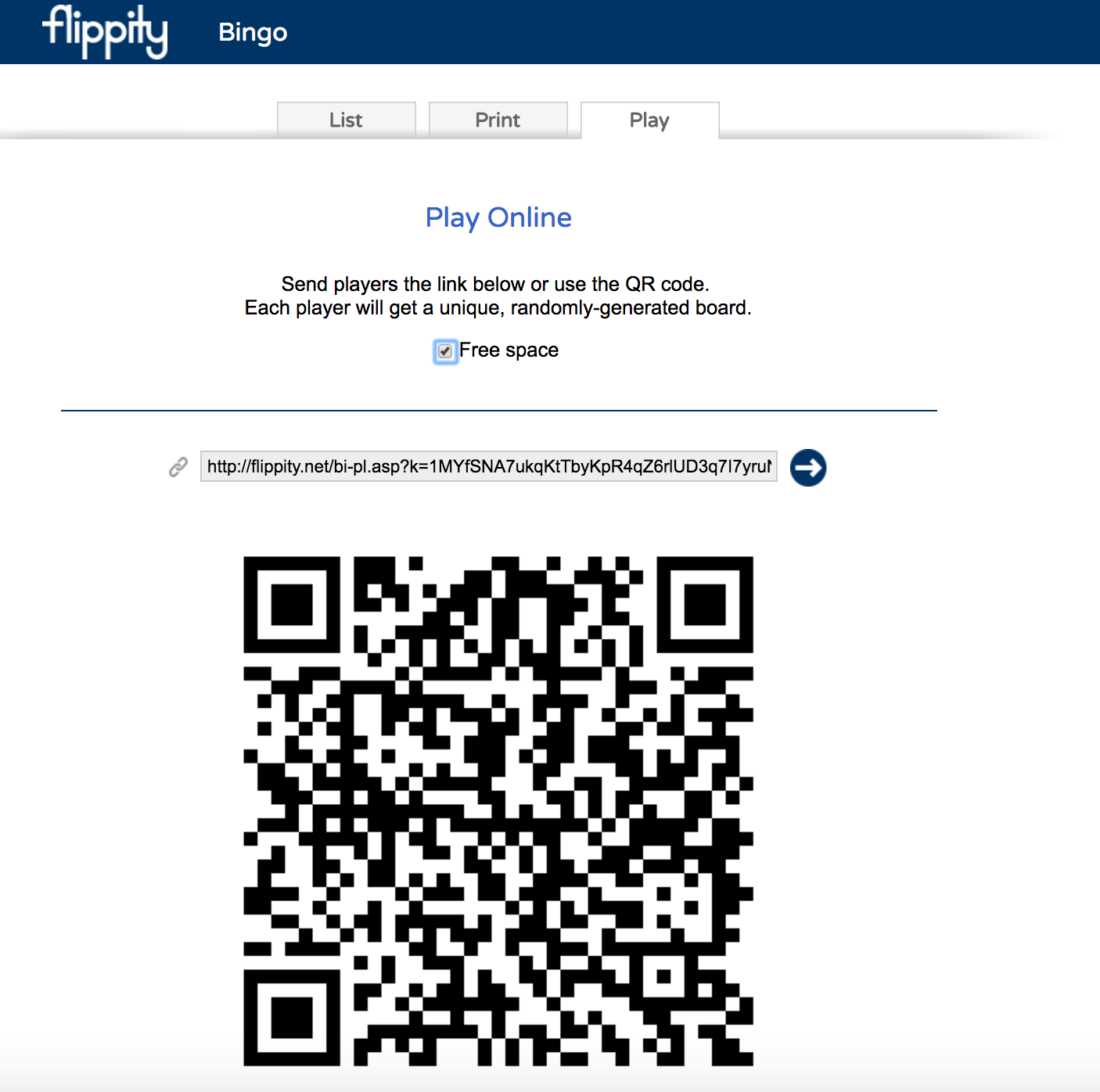
To try out a demo of G-Suite terms Bingo board that I put together, click HERE. When you get to the page, select the play tab (decide if you want a free space), then click on the link right above the QR code. You will be given a random arrangement from the words that I put into the spreadsheet. 
NOTE: each time you go to the link, it will give you a different arrangement. What is nice about this is if you put it through classroom, or have student type a shortener goo.gl url, they will automatically have a different game board. In other words, I clicked on the blue arrow next the link above the QR code. This opened another tab on my computer. I took the link from that new tab and used the goo.gl shortener chrome extension to get a shortened link. This link is what I told students to type in order to get their own board.
I also made sure that I put in more than the minimum number of words to help make sure that students did not have words on their game board.

When a student has a particular box, they just click on the words and a chip appears. If they make a mistake, they can just click on the chip and it will disappear. Very easy to use.

As always, if you have any questions on how to use this tool or you want to chat about how you can implement it in your curriculum, you know where to find me.
And that is my spiel…

#GoogleExpeditions in the Geometry Classroom

*This post is near and dear to me seeing as though I used to teach math for eight years.

Virtual Reality is certainly a buzz word these days. Lately at our school, we have been exploring ways by which we can incorporate virtual reality in the classroom. One idea came from a math teacher, Trever Reeh, who blogged about having students explore angle of elevation.

Google Expeditions

Mrs. Taylor, a Geometry teacher at BHS, decided to try out a similar activity but instead use Google Expeditions. To get the students used to the app, she showed them around Machu Picchu first. She highlighted certain geometric characteristics as well as showcase the area. We heard lots of ‘that’s cool’ and ‘can we go somewhere else’.

Next step was to get students to understand how angle of elevation and right triangles can help determine how far they are in the virtual world to certain landmarks. Two landmarks in particular were the Eiffel Tower and Big Ben. Students were paired up where one visited Paris, while the other visited London.

Mrs. Taylor started a different Google Expedition, High Points of Europe: A Tour of Towers, and had those going to Paris virtually see the Eiffel Tower first. The partner then measured the angle of elevation the student took to see the highest point of the tower. Once the measurements were taken, students switched roles so that measurements could be taken by looking at the top of Big Ben in London.

Students then had to do some quick research on their Chromebook to find out information about how tall the towers are, with correct units, to determine about how far they are from the landmark in the picture.

This was such a great opening activity for the students to learn about a new mathematical topic. They were engaged and had fun. I certainly wish that I was able to implement this activity back when I taught Geometry to my students.

A BIG thanks to Trever for inspiring us to try this out activity. Of course, if you would like to chat about how you can use Google Expeditions or Virtual Reality into your curriculum, stop by and we can chat.

And that is my Spiel…