Google Street View – Creating 360 Photosphere

This week, Kerri Lunn and I have been exploring around with how one might be able to create a 360 Photosphere. One such app that will allow you to create a photosphere is Google’s Google Street View. This app is different from Google Maps. This free app allows you to explore the world as if you were there in person. It integrates Google street views, still images, as well as 360 photospheres.

Check out the two photospheres that we created:

Main Entrance to Bedford High School

[googlemaps https://www.google.com/maps/embed?pb=!1m0!3m2!1sen!2sus!4v1489764625558!6m8!1m7!1sF%3A-lgpXSRz-xLw%2FWMrBcC4WH9I%2FAAAAAAAACdo%2FohFLswAgjVcGM8Ns0ronQ7YIGWgw27eZgCLIB!2m2!1d42.9374526!2d-71.5179639!3f235.47222401216524!4f0.884189748833947!5f0.7820865974627469″ style=”border: 0;” width=”600″>

Tech 222 Office – check out our digs!


Exploring Around the World

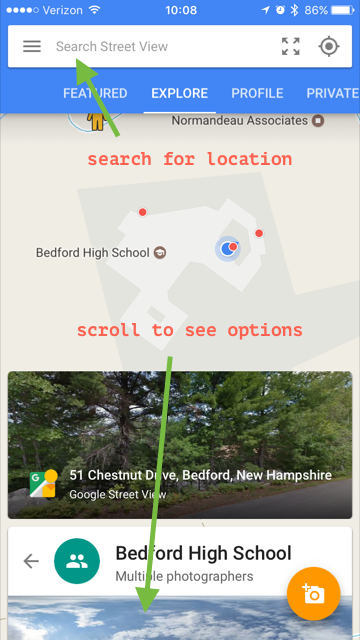
When you open the app, you have the ability to search for a particular location at the top of the screen. Based on what you search, you will see a sample of photos and photospheres (360 photo). These will be located at the bottom of the screen. You will also notice who has actually uploaded the photo. By selecting the particular photo or photosphere, it will open to give you the perspective as if you were there in person.

You will notice in this screen shot, that there are three different red dots on Bedford High School indicating that there are three different photospheres available to view. The photospheres were taking in the locations (or almost) that are shown.


Adding Your Own Photosphere
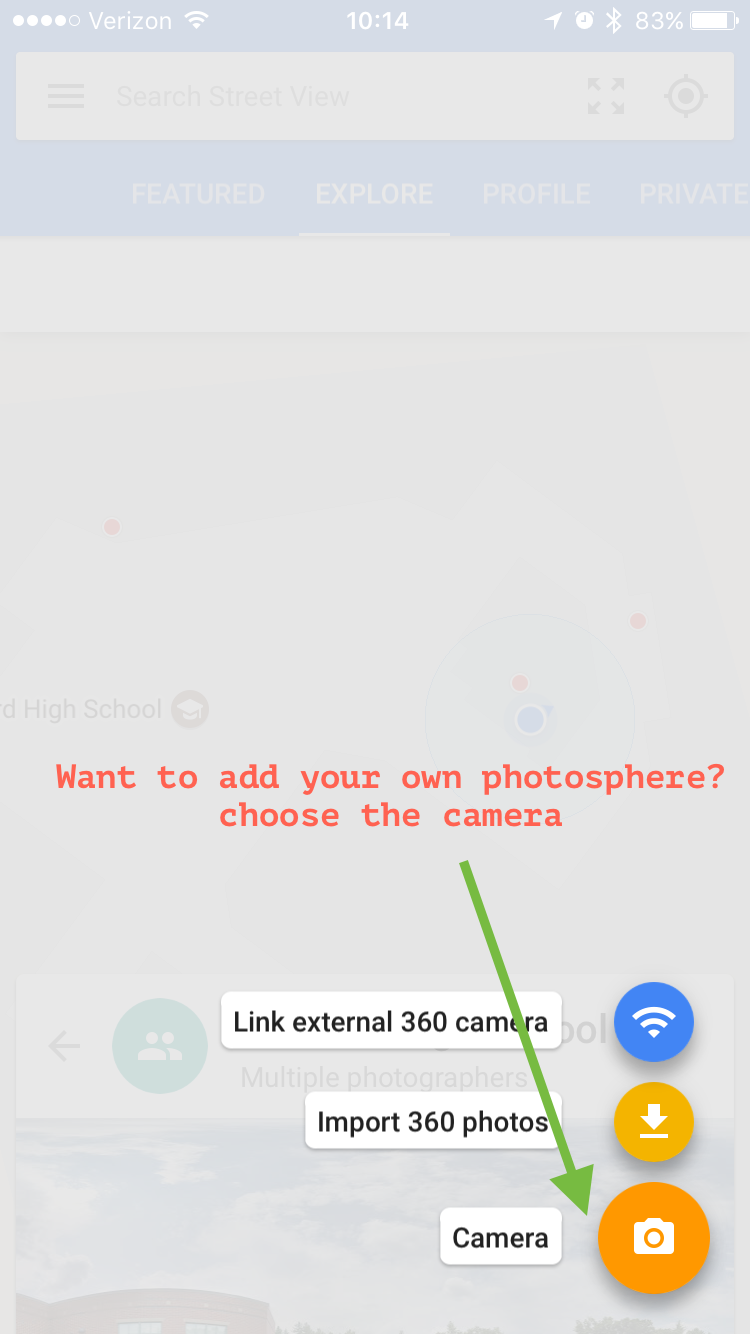
If you want to add your own photosphere, click on the camera icon.


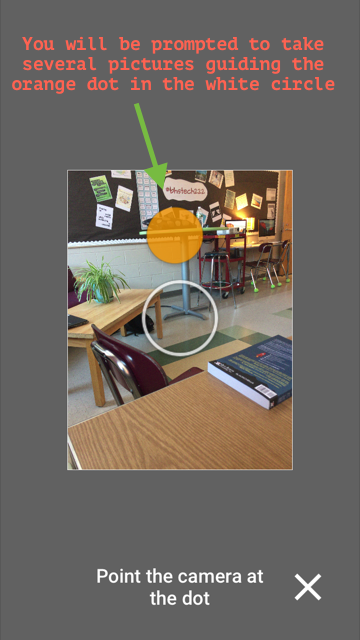
Then you will be prompted to take several pictures guiding the orange dot in the white circle.

Tip: Make sure that you do not move too much as this will distort your image. It definitely takes some getting use to.

Publishing Your Content
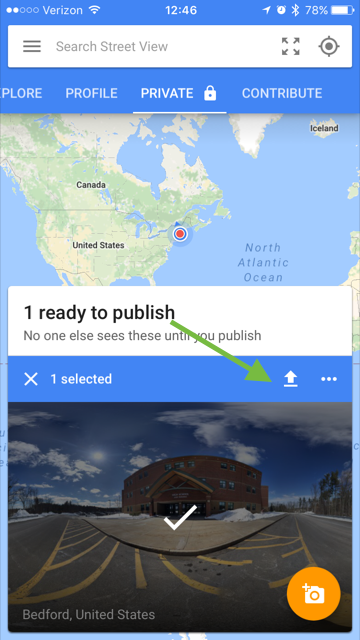
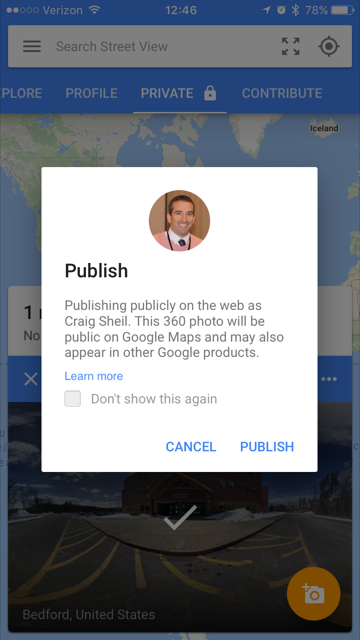
Once you have taken multiple pictures to complete a 360 photosphere, it will take a few minutes for the photo to be rendered. Then you will have the option to publish your photosphere. Things to note: in order to publish, use must be logged into your Google Account. Location of the photo will also be provided. Thus, you will want to make sure that your school district allows for work to be published with location tied to it (if you are working with students). Also, proper etiquette is to make sure that people in the photosphere give permission for their picture to be taken if their face appears.
And that is my Spiel…
Creating 360 Videos

Over the past couple of weeks, I have been exploring around with virtual reality and 360 pictures/videos. Through this exploration, I have learned from and been inspired by Sylvia Duckworth (@sylviaduckworth), Kathy Schrock (@kathyschrock), Julie Spang (@jaspang), and Mary Marotta (@mmarotta). My main purpose is to find and implement authentic 360 experiences in the classroom. Sure, it might be cool to be able to take a picture or record something in 360. But how can one make sure that the learning experience has been enhanced.

Implementing 360 Videos

  • Periodically, students and teachers attend field trips throughout the school year. One could bring a 360 camera with them and actually capture part of the experience. This then could be shared with students who could not attend due to being out sick for that time.
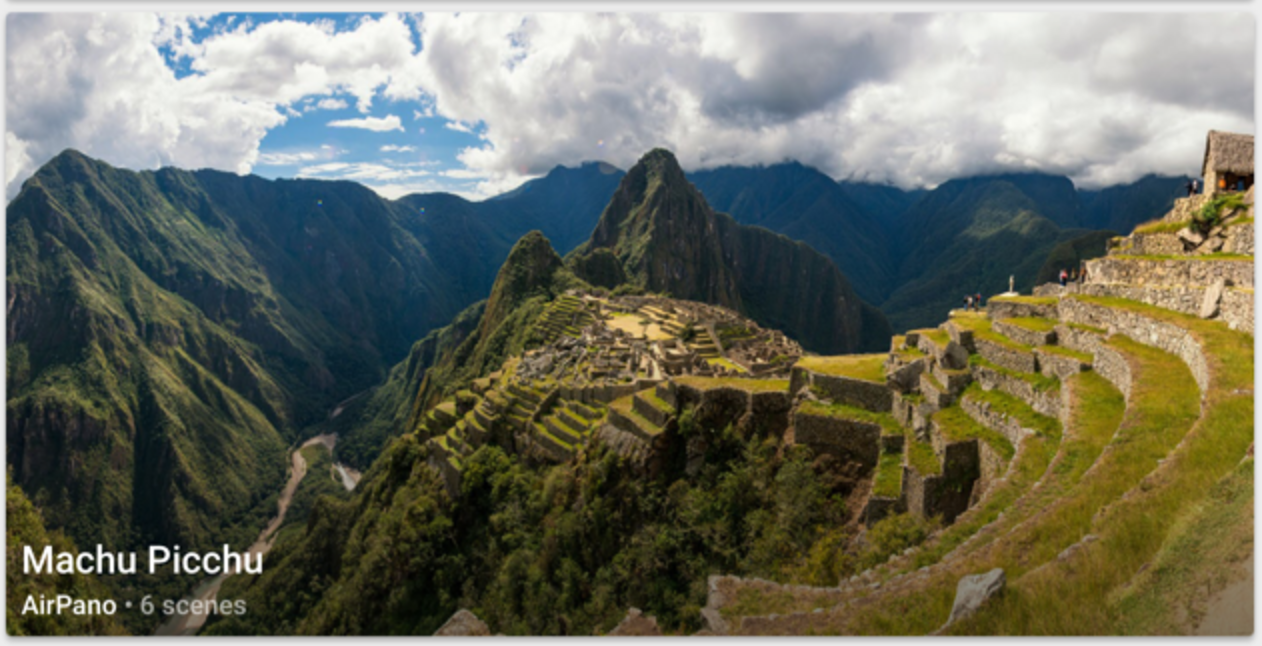
  • Each year, students and teachers participate in what we call Intersession. This is where all parties involve participate in an experience beyond the typical curriculum. Some travel throughout the world – this year some students will be going to China as well as Machu Picchu. By capturing 360 video, Spanish teachers could integrate actual experiences with future classes about the location and culture.
  • Each year our seniors are required to do a senior project. How cool would it be for a senior to record their application of knowledge? That senior could then take that video and have students virtually experience what the student experienced during their senior project presentation with the help of VR headsets. (Great idea Ms. Hatzidakis!)
  • In the future, it would also be great for students to be able to take a 360 image and curate information relating to that image by placing hot spots. I know that some programs like Thinglink are already creating ‘spaces’ for uses to be able to do such a thing. Just a different way of sharing information beyond a typical Google Slide presentation or poster presentation.
Creating 360 Videos

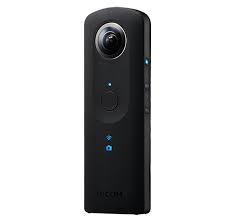
Our school purchased a Richo Theta S. This camera allows a user to be able to take still 360 images as well as record true 360 video. I have found it very easy to capture images and video from the device. I, however, found it a bit challenging to actually upload a 360 video to YouTube. You cannot just go to YouTube to upload the video file like you would with any other non 360 video.

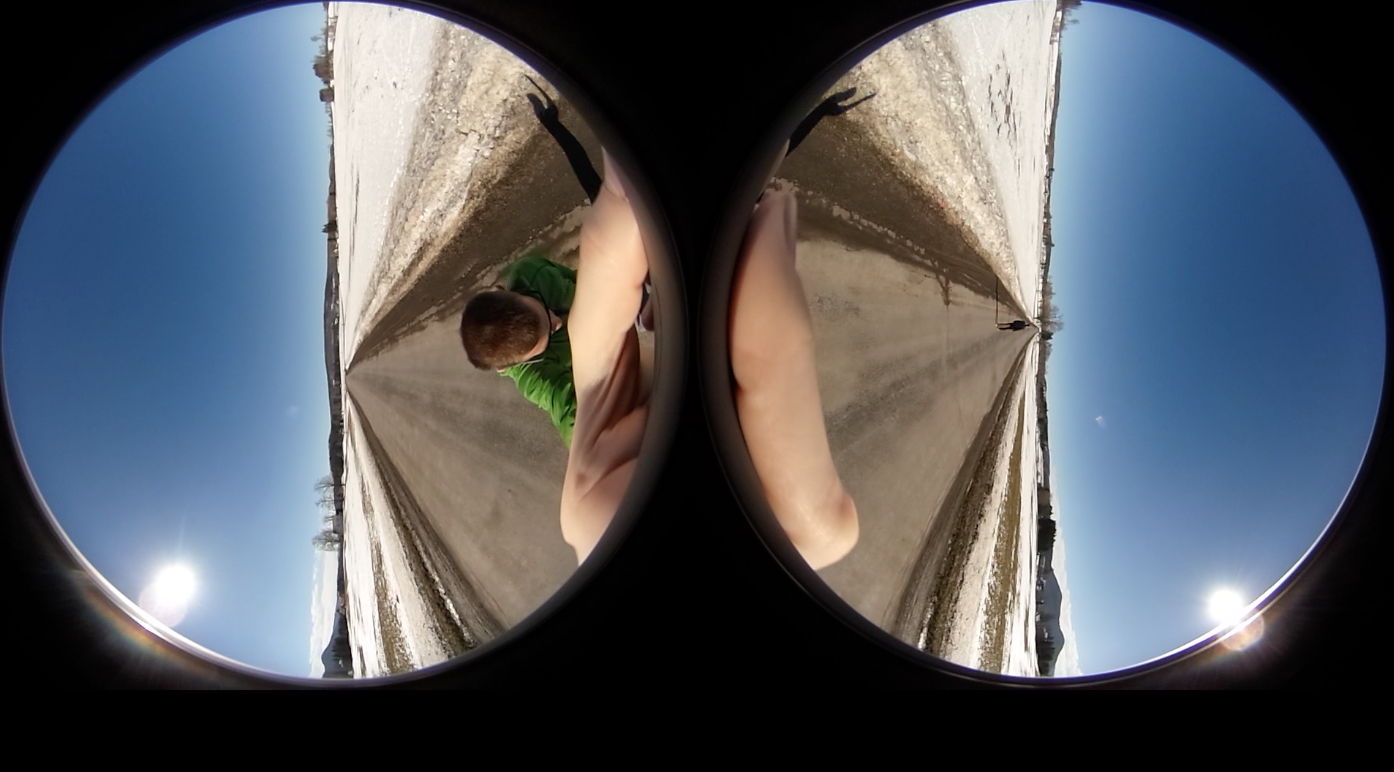
So, what is the process that I took? First I took the footage on the camera. I then followed the instructions that Ricoh provided on their website – where I connected the camera to my Mac computer. I found the file that I was interested in, but you will notice that the file is in the format of two different camera shots (see image below).

You must open the Ricoh app (already downloaded on my Mac computer) and place the file in the app. This will create the ‘360 file’ that you really want. Unless I am missing something, you cannot just place this MP4 file in YouTube. YouTube will not know that it is an actual 360 video. On YouTube’s help website, it states:

“Your video file needs to include certain metadata for 360° playback to be enabled.”

So, I had to install an app on my Mac computer so that it will add the metadata it needs into a new file. Instructions on this process can be found HERE.

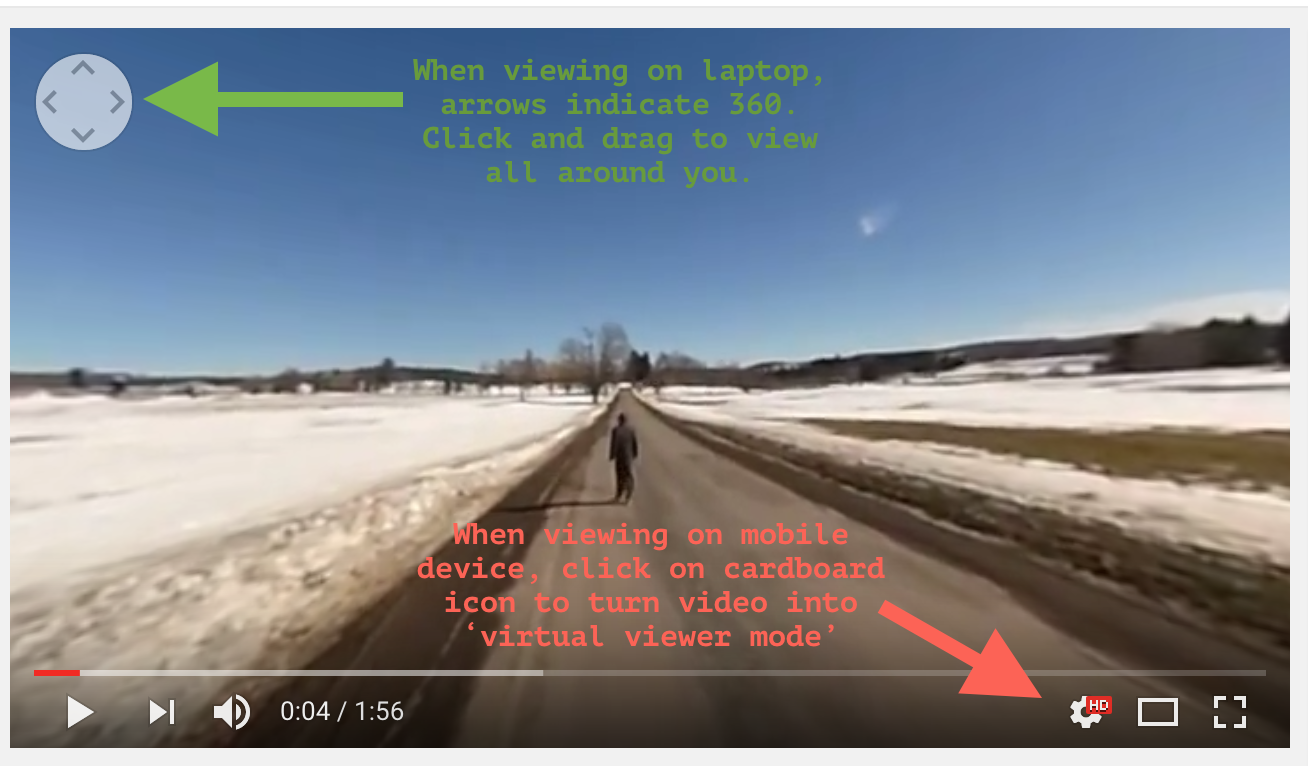
Once this was done, the file was then uploaded to YouTube. You will know that your video uploaded correctly if you see the arrows on the top left corner (when viewing video on laptop) or the cardboard icon shows up on bottom right corner (when viewing on a mobile device).

While this all seems like a lot of steps and a lot of work, it really isn’t. Just a new process of doing something new. Now that I know what is entailed, I will be able to do this much faster in the future. 
Below is my very first attempt to uploading a 360 video to YouTube. It was filmed on a nice winter day on a country road. Yes, you will get to watch me walking in the middle of the road. I encourage you to see the difference between using a VR headset and a chromebook/laptop. The video most certainly will not receive any Academy awards as the quality is not great. I was more interested in learning about the process of how one could create such video. Moving forward, I would use a selfie stick or a camera stand (if stationary) when filming. You will notice that the camera does take itself out of the video but you can still tell that a hand was holding the camera while filming the video.

I can’t wait to investigate more with 360 videos and virtual reality. It seems as though this is where we are headed. Just have to keep in mind of practical uses in the classroom. You know where to find me if you want to chat about how you can implement this in your curriculum.

As always, that is my Spiel…

Using & Sharing G-Suite Templates

Let’s face it…there are times where you are not interested in creating something from scratch or you do not want your students to have to either. You just want to be able to use a template that has already been made. Why reinvent the wheel? Well, Google Drive has some templates that you can choose from. The question you might ask is, “Well, how can I find templates for docs, slides, forms, etc.”

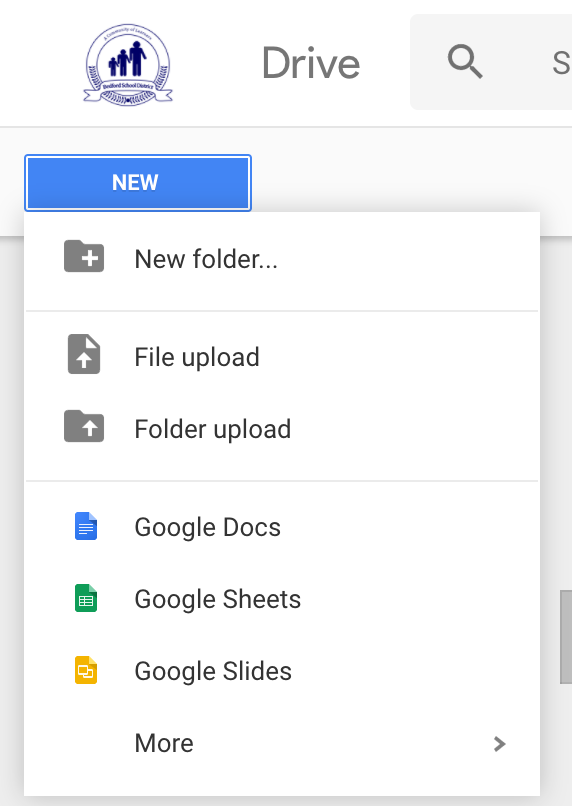
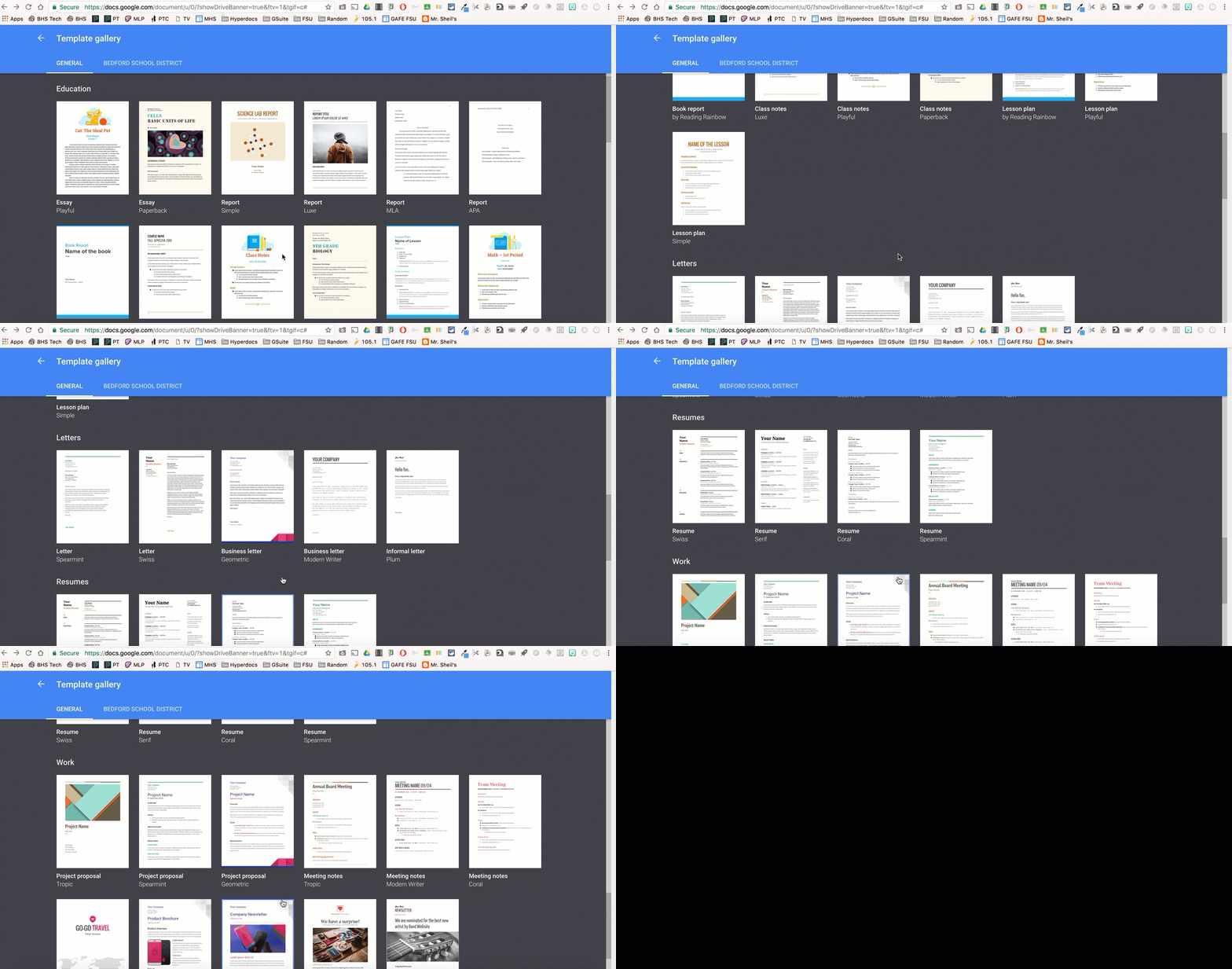
If you are in the Google Drive tab, you will notice that when you go to create a new document, by selecting the new button, you are not prompted with an option to create a document from a template.

Instead, you will want to actually be on the landing page of the type of file that you are looking to use a template. For example, if you are looking for students to compose a letter or write newsletter for an assignment, you might have them go to the landing page of Google Docs (docs.google.com) OR select the docs icon in the top right waffle icon.

By doing this, not only will you find Google Docs that you have in your drive, you will also find some templates that have already been created for anyone to use and alter. Even if you do not like what is provided, the templates will give you an idea of how one has created them. This might give you some inspiration on how you can design some of your files moving forward. This might also give you some inspiration to share your own templates with your school domain.

Finding a Template

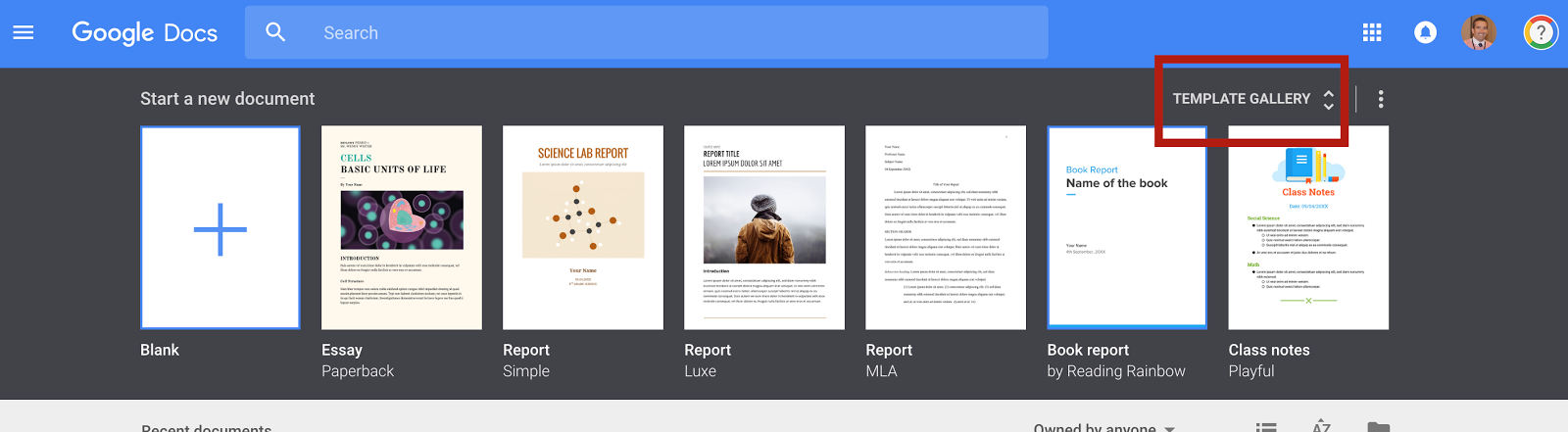
One row of templates are located at the top.

By selecting the word TEMPLATE GALLERY, you will find more options to choose from.

Select the one that you are interested in and away you go.

Providing a Template for Your School Domain
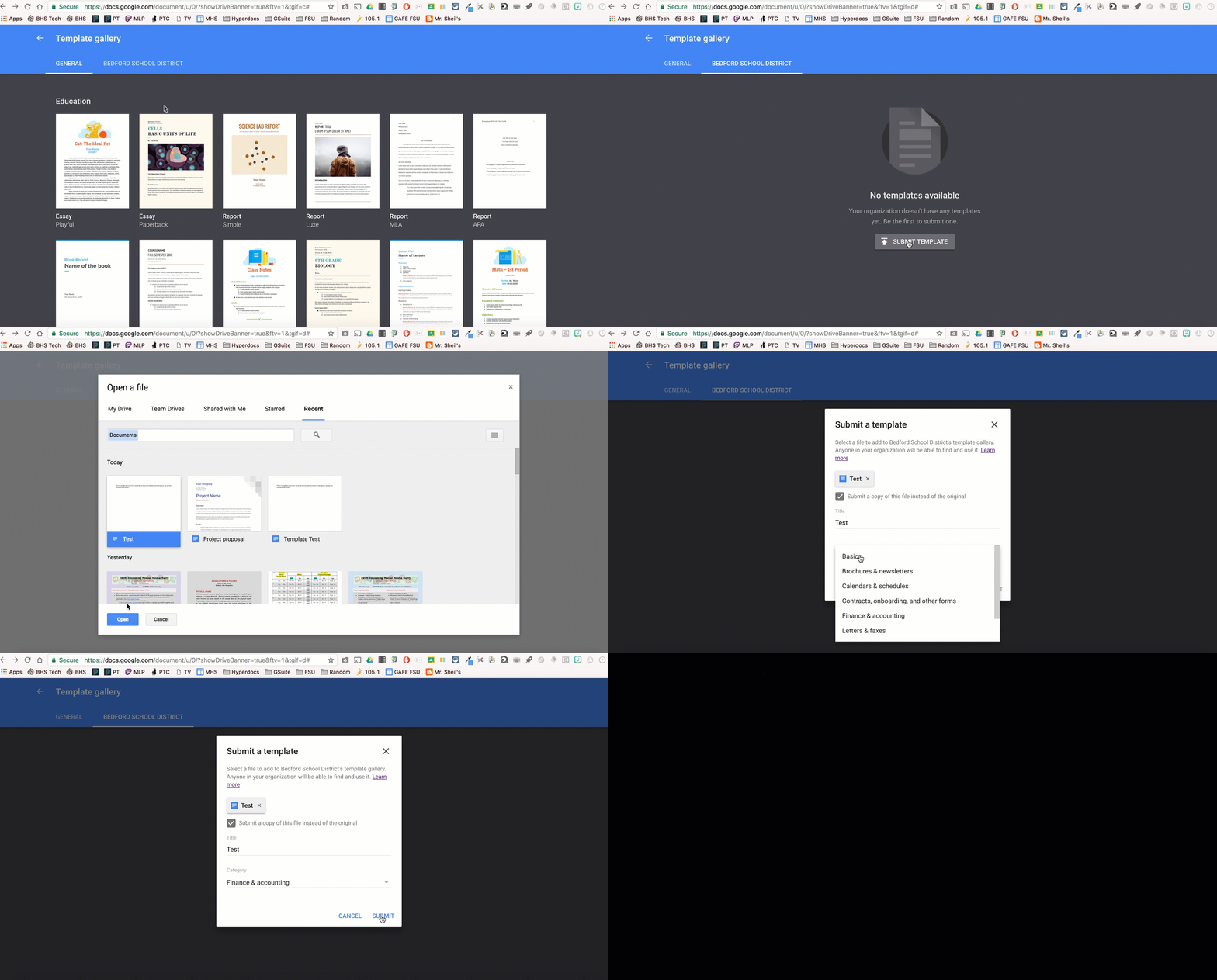
You have the ability to add a template for your school domain as well. Once you are in the template gallery, select your school district tab. Then follow the steps to submitting a template.

Recommended Templates for Teachers

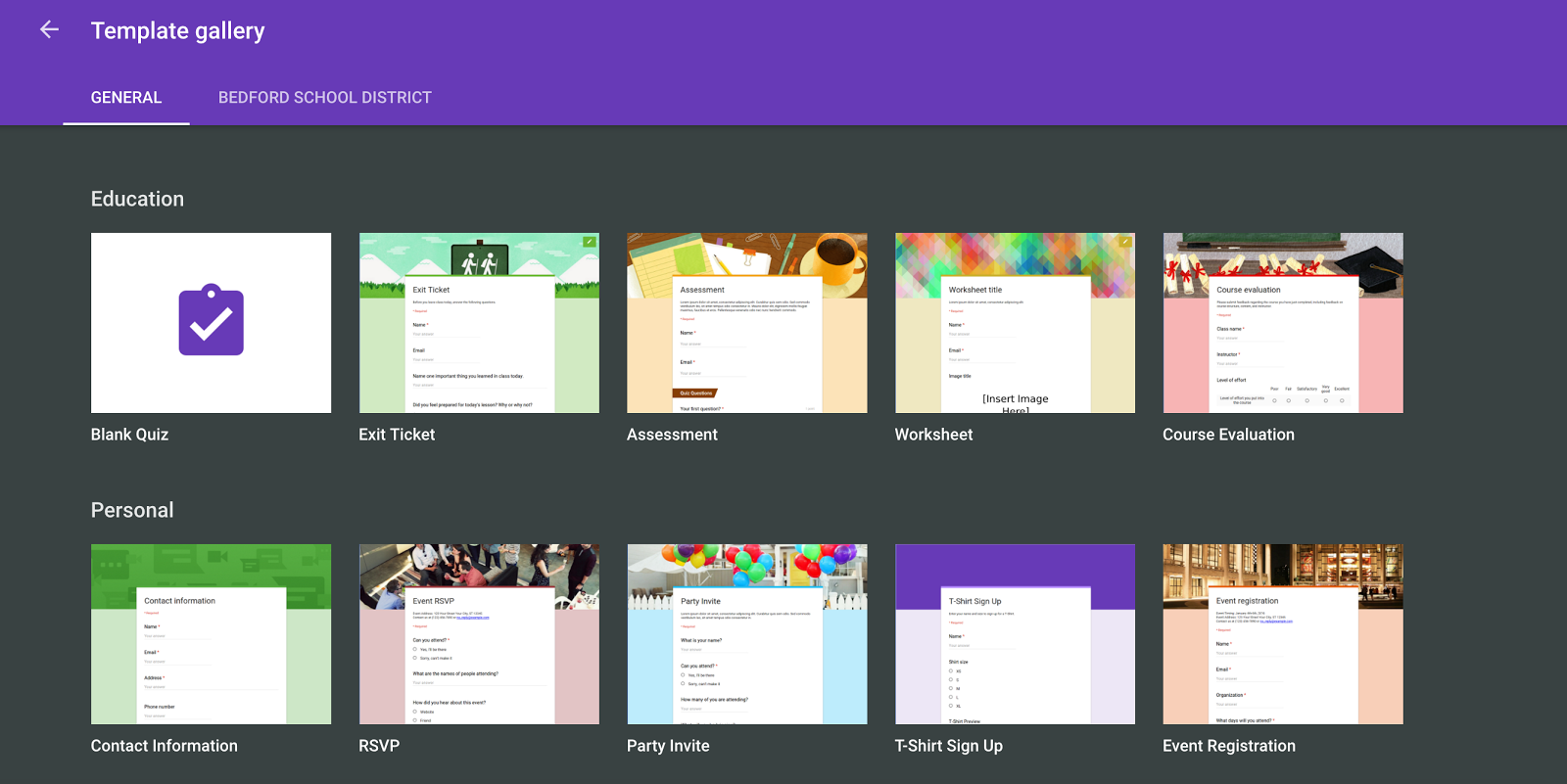
Google Forms has a couple of templates that can help teachers get started: Exit Ticket and Course Evaluation.

Of course, if you have any questions, you know where to find me.

And that is my Spiel…

Efficiency with Using Multiple Tabs in Chrome

Sometimes the ‘simplest things’ are the ‘best things’. One such example has to deal with managing your chrome tabs and windows. We all have experienced a time where we wanted to be able to see two different tabs in a chrome browser at the same time, but we don’t want to have to deal with bouncing back and forth from each of them to accomplish work. You also don’t want to have to manually select new window from the file menu of Chrome. So the solution you ask? Use two different chrome extensions, called Tab Scissors and Tab Glue.

Tab Scissors
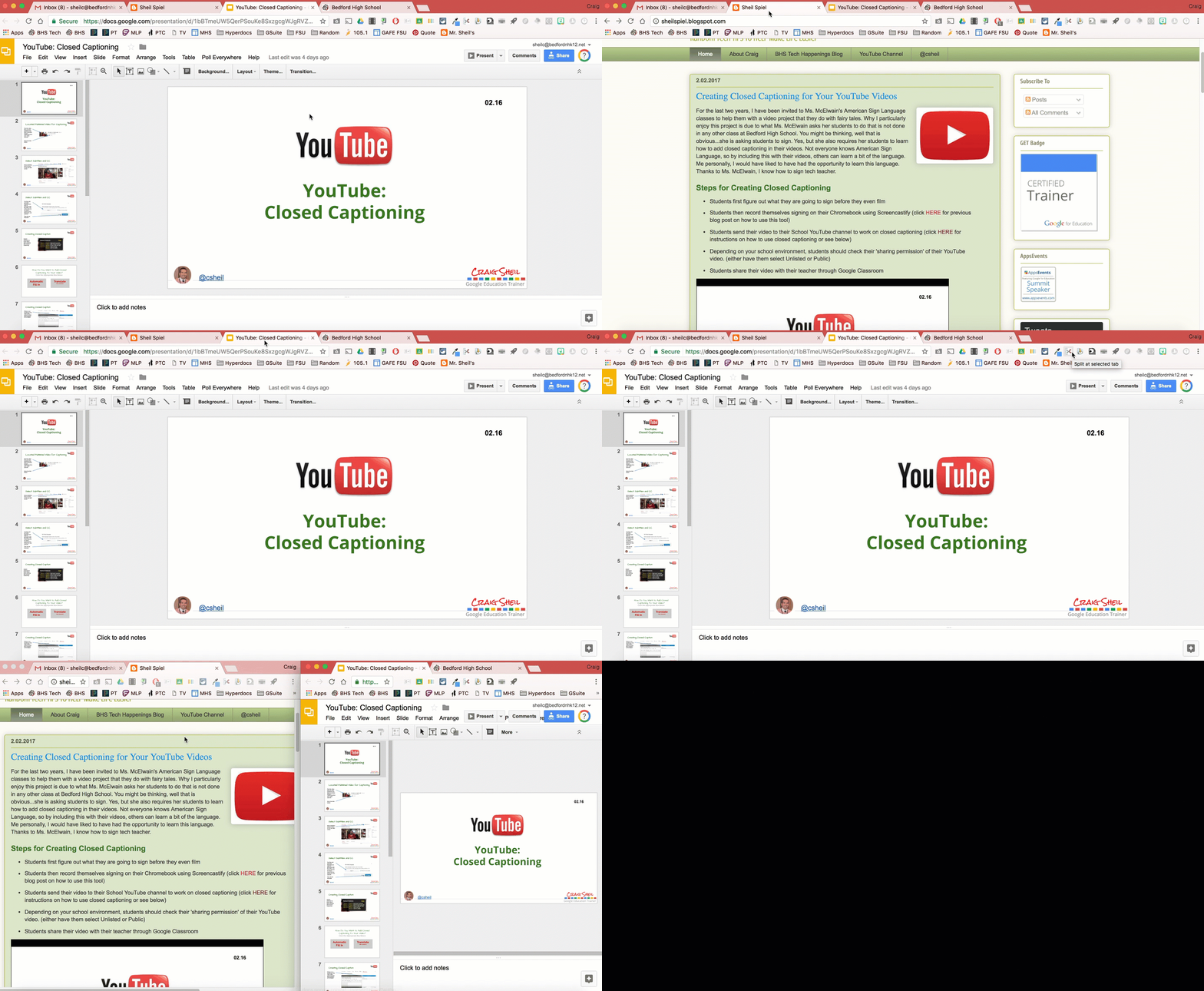
You can get tab scissors from the chrome store, under the extensions section. By selecting this chrome extension, it will automatically create two different windows for you.

NOTE:
1. The two separated windows will take the same real estate as the original window. Thus you will want to make sure that the original window takes up the full screen of your computer.

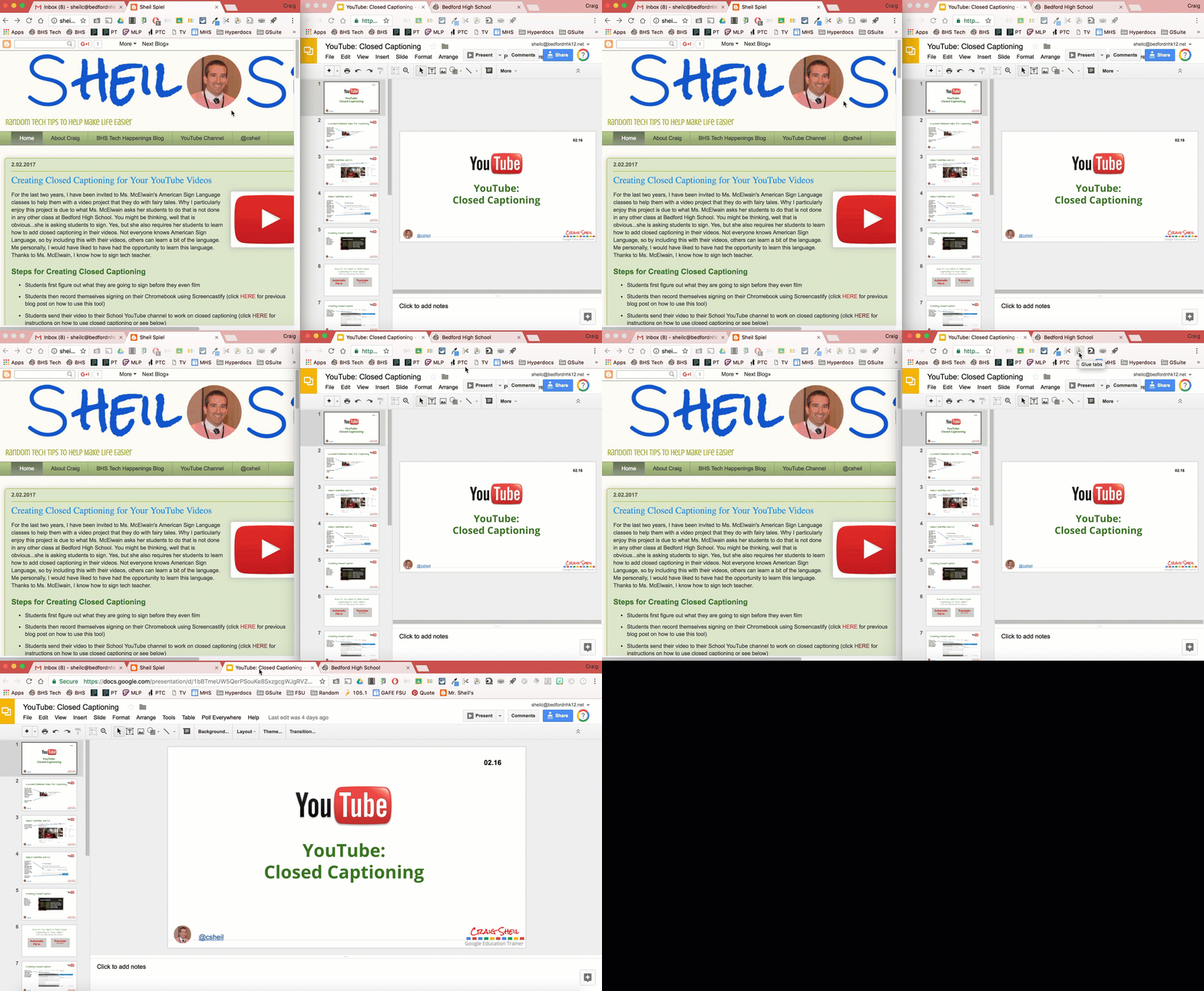
2. You will notice in the GIF below, I want to be able to see the Sheil Spiel tab as well as the YouTube: Closed Captioning Google Slide presentation tab. Thus, because the Google Slide is the tab on the right side, I selected its tab before hitting the Tab Scissors chrome extension.


Tab Glue
You can get tab glue from the chrome store, under the extensions section. When you are ready to merge the two chrome windows back into one, you select the tab glue extension. See the GIF below.

Hope that this simple tech tip can help make you be more efficient with your work.

And that is my Spiel…

Creating Closed Captioning for Your YouTube Videos

For the last two years, I have been invited to Ms. McElwain’s American Sign Language classes to help them with a video project that they do with fairy tales. Why I particularly enjoy this project is due to what Ms. McElwain asks her students to do that is not done in any other class at Bedford High School. You might be thinking, well that is obvious…she is asking students to sign. Yes, but she also requires her students to learn how to add closed captioning in their videos. Not everyone knows American Sign Language, so by including this with their videos, others can learn a bit of the language. Me personally, I would have liked to have had the opportunity to learn this language. Thanks to Ms. McElwain, I know how to sign tech teacher.

Steps for Creating Closed Captioning

  • Students first figure out what they are going to sign before they even film
  • Students then record themselves signing on their Chromebook using Screencastify (click HERE for previous blog post on how to use this tool)
  • Students send their video to their School YouTube channel to work on closed captioning (click HERE for instructions on how to use closed captioning or see below)
  • Depending on your school environment, students should check their ‘sharing permission’ of their YouTube video. (either have them select Unlisted or Public)
  • Students share their video with their teacher through Google Classroom


Watching Any YouTube Video
Whenever you watch a YouTube video, you can activate Closed Captioning on the Video by selecting the CC box at the bottom right of the YouTube video. Closed Captioning will then appear.

*NOTE: For the video in the image below, I did not actually work on the Closed Captioning even though it was a video that I screencasted. YouTube is making its best guess on what is being stated. Thus, there might be some errors in what is being stated verbally versus being shown through text.

If you would like to learn more on how you can implement this feature with your curriculum and students, you know where to find me.

And that is my spiel…