
Some teachers at our high school have decided to turn on the Guardian Email Summaries component to Google Classroom. This resource was created to help further explain what Guardian Email Summaries are all about for parents/guardians to reference (if need be). This video is linked on the teacher website letting guardians know that they turned on this feature.
Graph My Math!: Coordinate Plane Templates
 A math colleague of mine, Stefan Fritz, found himself in a situation where he constantly was in the need for customized coordinate planes for worksheets, activities, assessments etc that he was creating for his students.
With the lack of great resources out there, he decided to create his own website. How COOL is that? What is this website you ask?
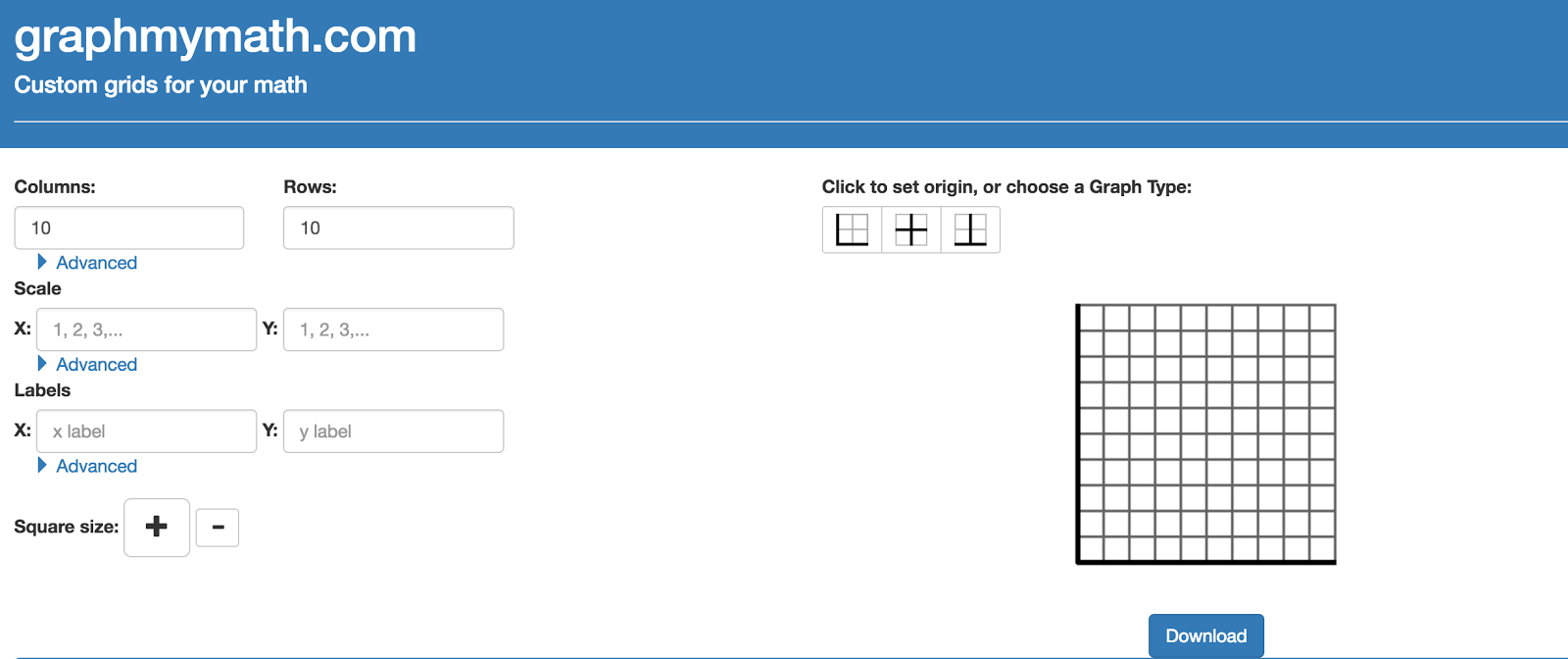
Here a user is able to indicate how they want to customize a coordinate plane to look:
- scaling of x and y axis
- labeling of the axes
- layout of the grid
Once the user has their settings for the grid, they are able to select the download button. This file can then be added to a Google Doc or Google Slide, or any other product they wish.
* NOTE: The downloaded file type will be a png file.
Big kudos to Stefan for solving a problem he found himself in and allowing other educators to benefit from his hard work in creating this great site!
Math Keyboard Shortcuts for Google Docs
Math teachers know that typing math notation in Google Docs takes a bit of work. Rachel Fairhurst, a middle school math teacher in the Bedford School District, created a Google Doc with a list of shortcuts for her students so that they can type math expressions efficiently and correctly without having to spend the time to find what they are looking for in the equation tool bar. A sample of shortcuts can be seen in the image below. To view the full list of shortcuts that Rachel felt were important for her students click on this Google Doc link.

 The trick to getting started in a Google Doc is to open the equation editor in the Google Document under the insert window. There is even a shortcut to inserting an equation without the need of moving the curser to the insert window.
Chromebook Shortcut: Alt + I + E (Alt + I will open the Insert window. E then opens the Equation editor)
Mac Shortcut: Ctrl + Option + I + E (Ctrl + Option + I will open the Insert window. E then opens the Equation editor)
Demonstration of Using the Shortcuts
For example: If I am looking to typing the following equation in a proper math notation in a Google Doc
y=3(pi)x+5/8
I would type the following:
y=3\pi(space bar key)x+\frac(space bar key)5(tab key)8
For a better demonstration, watch this short view.
Big Thanks to Rachel for sharing this great resource for students!
Gamifying Professional Development – #GoogleSheets
This past semester Jess Gilcreast, our librarian, and I worked together in creating ways our staff could earn professional development hours besides sitting in a formal training. Our goal was to help create flexibility and adhere to different learning styles. One such way that we accomplished this was through offering professional development training through Gamification, using Google Sheets.
The Inspiration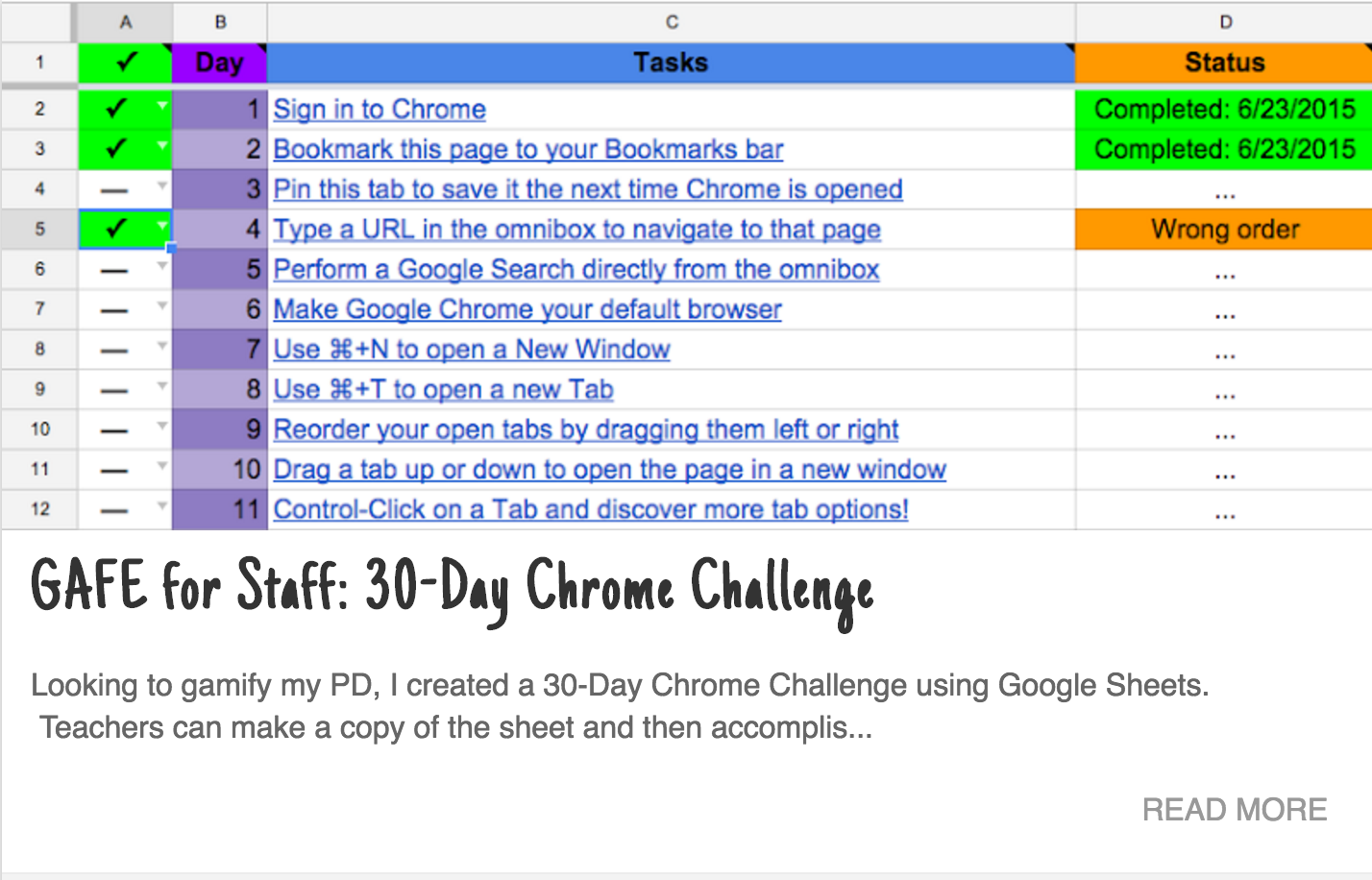 This inspiration came from Bob Petitto. Not only was I impressed with the work that he had published on his blog, but I was also inspired by his Chrome in 30 Day activity that he put together. I appreciated the fact that he provided a way for his staff to learn about the Chrome browser on their own time by completing 30 different tasks. His original blog post on his 30 day challenge can be found HERE.
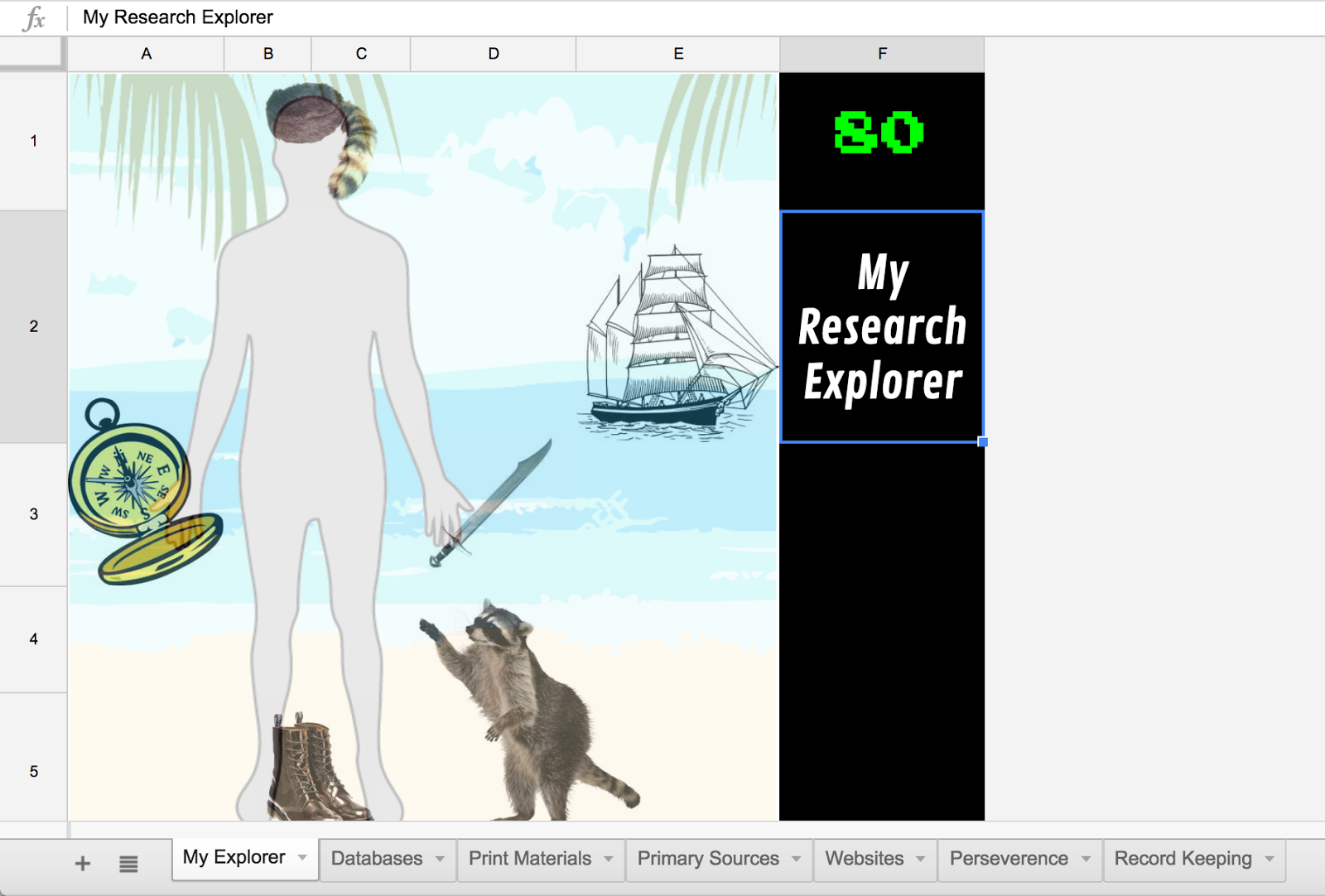
I also was inspired by the work that our Freshmen humanities teachers put together, Heath Ahnert, Steph Burnham, Krystin Cooney, Jess Hatzidakis, Steward Pepper, and Meg Uliasz. Their ultimate goal was to help students truly understand the process of researching and citing acquired information for a research paper. Thus, they gamified the task. Based on student decision on which specific tasks they completed, different items would appear with their explorer. The more challenges the students completed, the more elaborate items would appear, truly creating a ‘game’ out of learning. Such an awesome way for staff to connect with students. These teachers did great work and they came back stating that the students loved the activity.
Gamifying Professional Development
So, with the two above incidences, Jess Gilcreast and I put together our own activity that related to tech training we wanted our staff to know. The link to our Gamification PD Google Sheet can be found HERE. Feel free to use, we just ask that you please give credit.
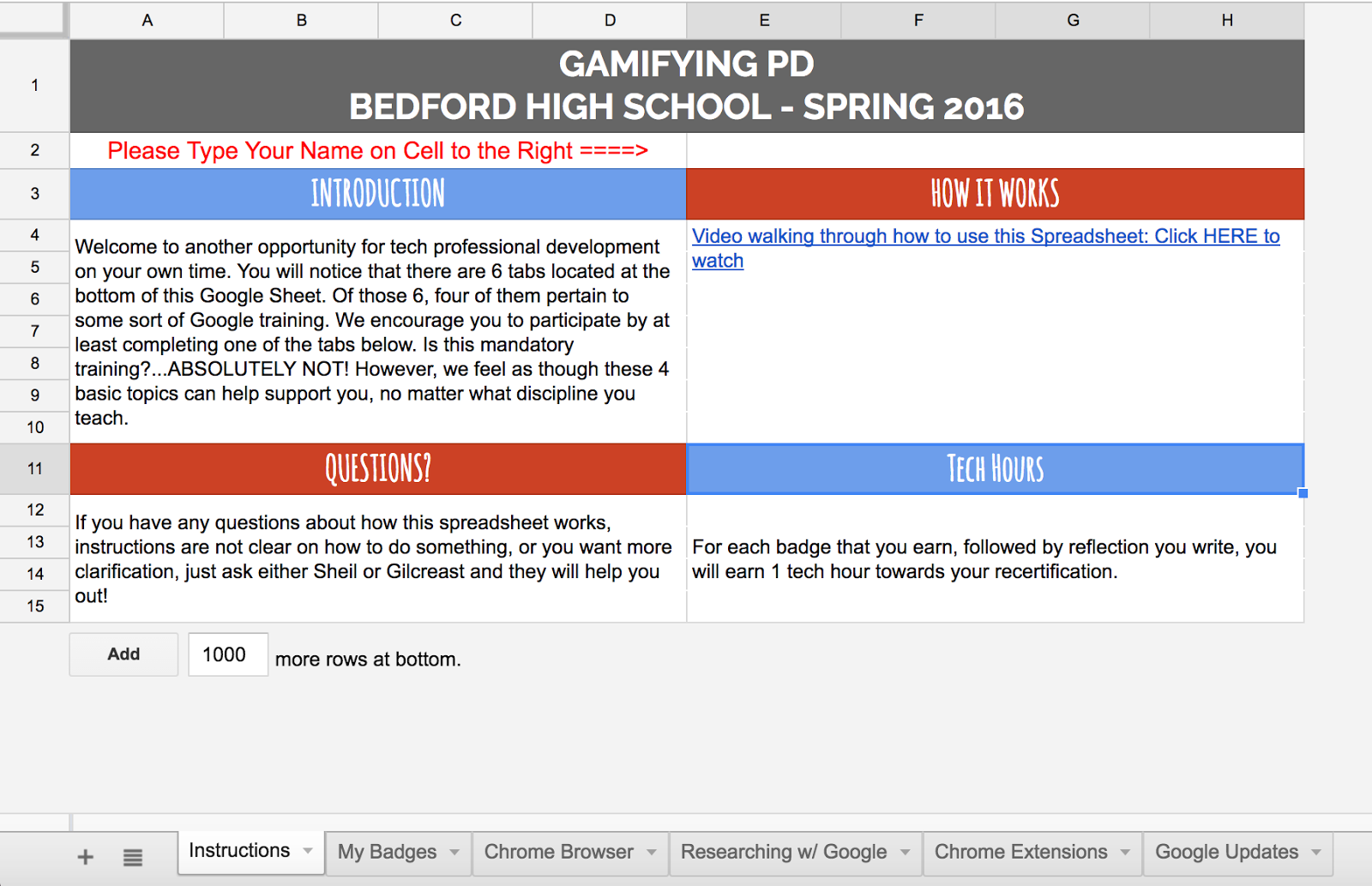
Instructions Tab:
Instructions for the user explaining how to use the sheet. A video is even included for the user to help them with navigating through the Google Sheet.
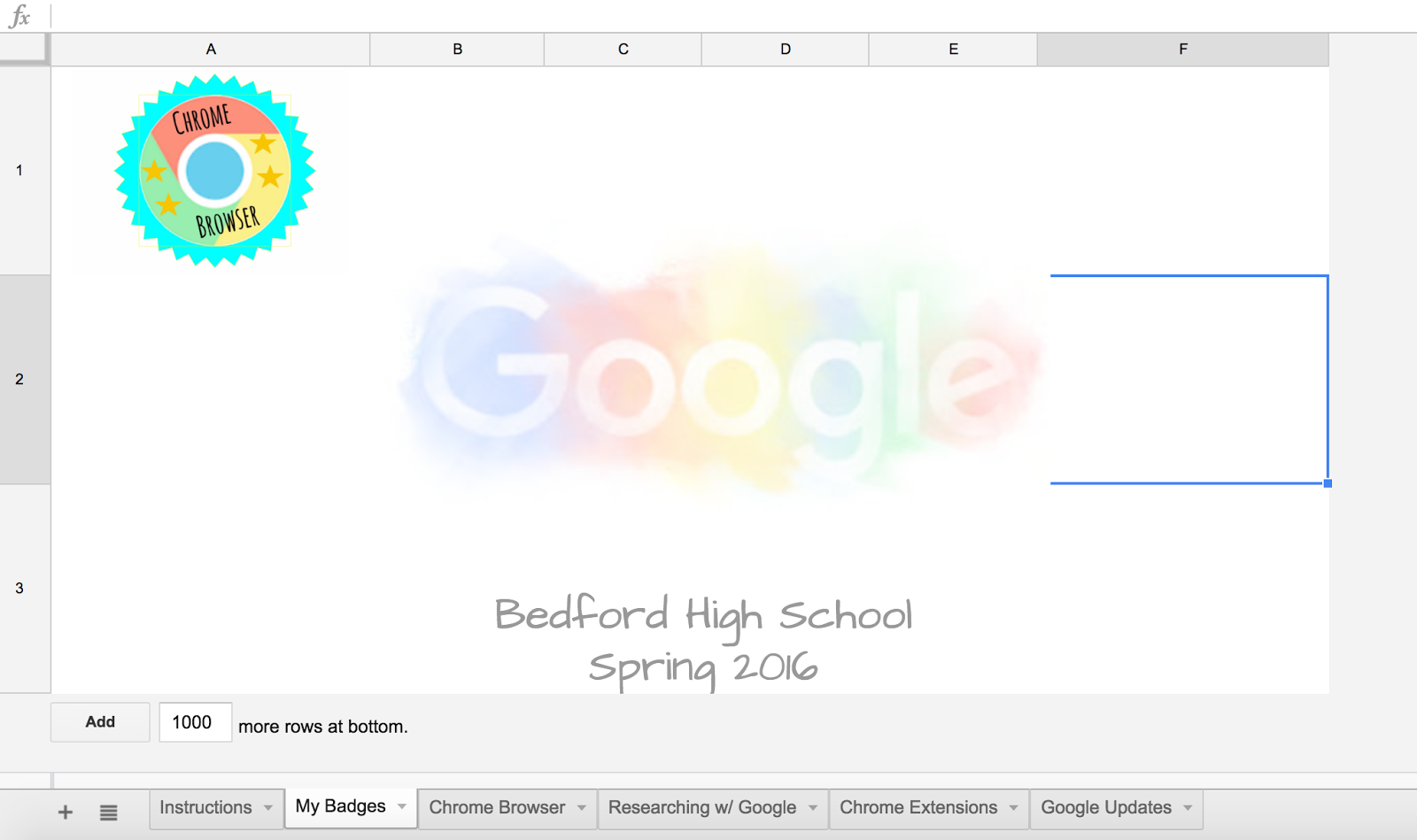
My Badges Tab:
As the user completes tasks a certain badge will show up on their ‘certificate’. If a user completes all four tasks, all of them show up on their certificate, one in each corner of the certificate.
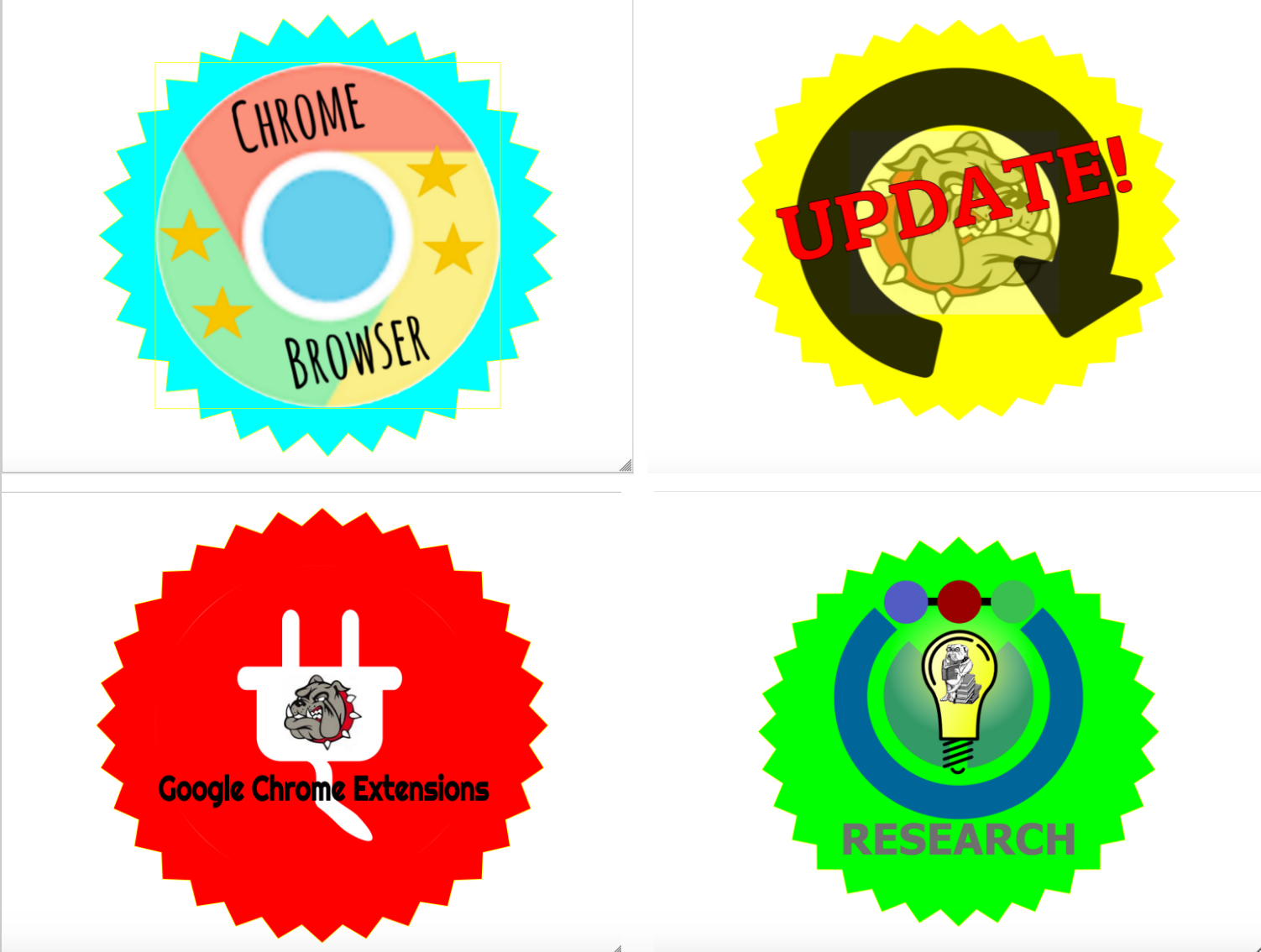
These were the four badges that Gilcreast created for the certificate. All done by using Google Drawings.
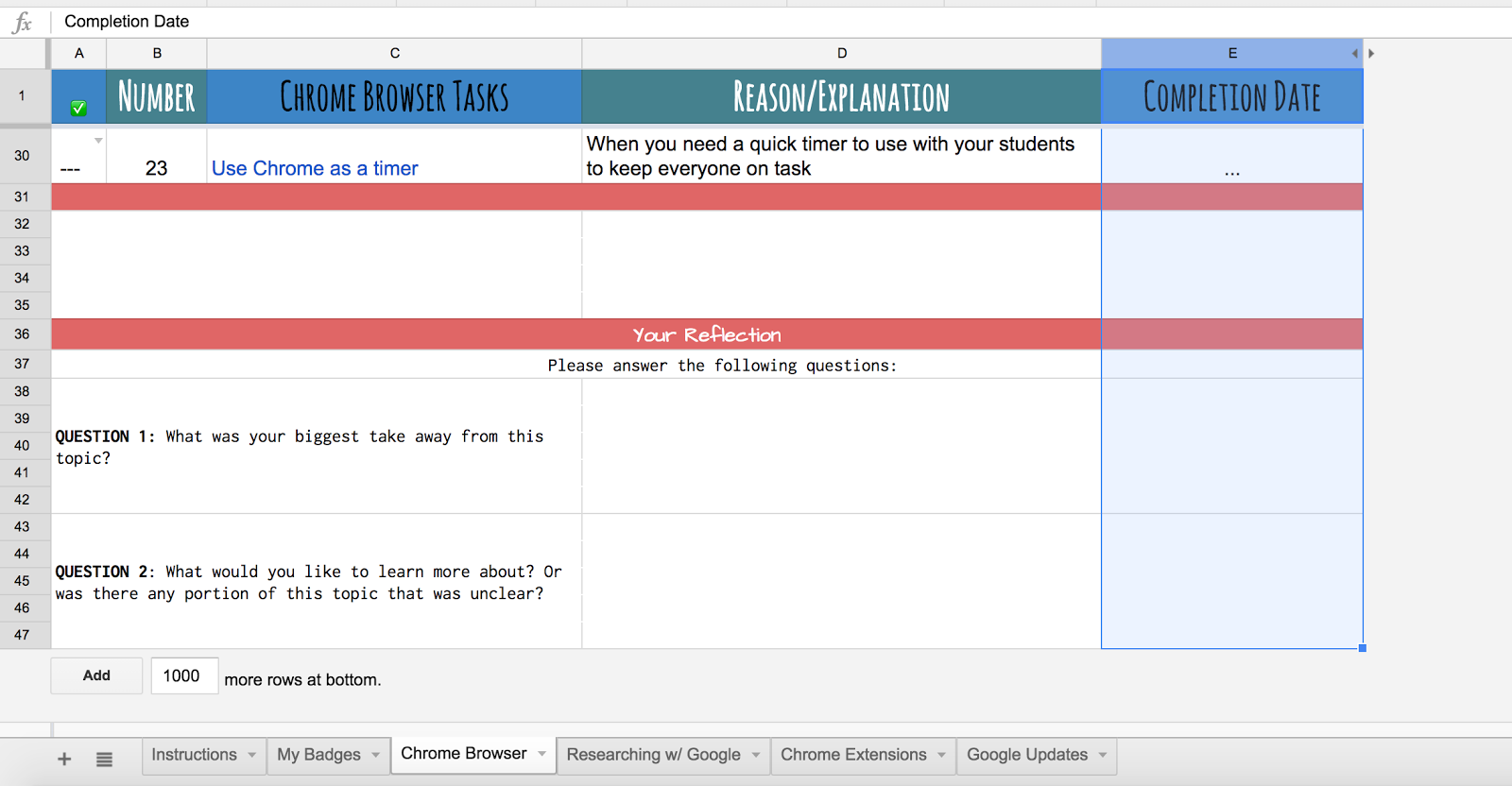
PD Tabs:
We offered four different opportunities for the staff: Chrome Browser, Researching w/ Google, Chrome Extensions, and Google Updates. In order for a staff member to receive a badge, they had to complete all tasks under that topic. You will also notice that a reflection section was added at the bottom of each tab. We wanted to know what their biggest take away from the activity was as well as any questions they still had that we could help answer.
NOTE: Some things might be outdated at this time as this was something we put together for Spring semester of 2016.
Benefits to this Type of Learning?
- Staff learn at their own pace
- Staff learn when they want to learn (learning should happen beyond the walls of the school – we hear this all the time with student learning so why shouldn’t it apply to our staff as well)
- Staff are competitive
This was the very first time that I had done anything in terms of Gamifying. Not only did I have fun deciding what to include, I also gained a great appreciation for what Google Sheets can do for you. I also enjoyed collaborating with my librarian. I know that I have already said this but thanks for the inspiration Bob Petitto and Freshmen Humanities team. My hope is that in the future more staff in our school will take advantage learning in this format.
No Connection Error? Play the Dinosaur Game!
 From time to time, we have all seen this chrome message when our internet connection is not working. Well, have no fear as you can entertain yourself until the connection gets resolved or you find something else better to do.
To play the dinosaur game, hit the up arrow. Soon you will discover that your dinosaur on the top left corner of your screen will start running. But be careful, as there will be objects in your way that you must jump over.
The question that I have for you is, how many points can you get with your dinosaur?
 Craig M Sheil