New Year – Reflection and Being Present

So I am going to be one of those people who adds their own thoughts about the new year and moving forward. Here is my top five list.

Reflection – can be an important and valuable thing – and I have found myself doing this a lot more lately, which is a GREAT THING.

What have I been reflecting on you might ask?

1. Being creative and innovative – now that we no longer new to #GSuite I am constantly trying to find ways of being more creative with the tool. One of those is how I am delivering professional development for the staff. This year, the librarian and I have created our own badge system (with inspiration from others) to help encourage our staff to take their learning to the next level with a combination of Google Classroom and Google Sheets. How can we continue to push the envelope and take things to the next level? Can’t wait to find out!

2. Learning from peers – Last month we had some visitors come to Bedford High School to see how technology is integrated into classes. While this has not been the first time we have had visitors, I decided to stay with the visitors during the classroom visits this time around. Even though I know what tools our staff use in the classrooms, I still found myself learning a trick or tip from them. If I had not of stayed in the class, I would have missed these great moments. This is why I am now going to make an effort to carve out some time during my schedule at least twice a month to visit some classes and see how teachers are in fact using the tools that are at their disposal. We all do great things, we all can learn from one another, and I look forward to seeing what cool things I will discover from others.

3. #Observeme – This concept connects with bullet 2 on learning from others. This concept was shared with me last month where staff members encourage their peers to observe their lesson to either help give feedback or share something new that is being implemented into the classroom. This is something that I hope to implement either in the classroom or during teacher trainings that I give. To learn more about this concept, check out the twitter hashtag.

4. Virtual Reality – When you turn on the TV you see more and more people talking about the new direction we are going (or already in) in – and it is called Virtual Reality. What does VR look like in the education setting – beyond just being submersed in a 360 movie? How can students create their own VR project? These are great questions that I look forward to diving into.

5. Living in the Moment – Over vacation break, the video “This is exactly what’s wrong with this generation” was shared multiple times on my social media feeds. I decided to actually watch it (even though it was 15 mins long) and realized that this video does not just pertain to millennials. This video pertains to everyone that uses mobile devices. While watching, I found that I could relate with checking my phone at times that I shouldn’t.  While I am not addicted to being on social media, I know that I can cut down my use. I want to live more in the moment.  This video is another great reminder that we need to help support our students handle their mobile devices.

Of course, these are not the only items that I will focus on throughout 2017…they just happen to be on my mind at this time.

At that is my spiel…

Customize Your G-Suite ‘Waffle’

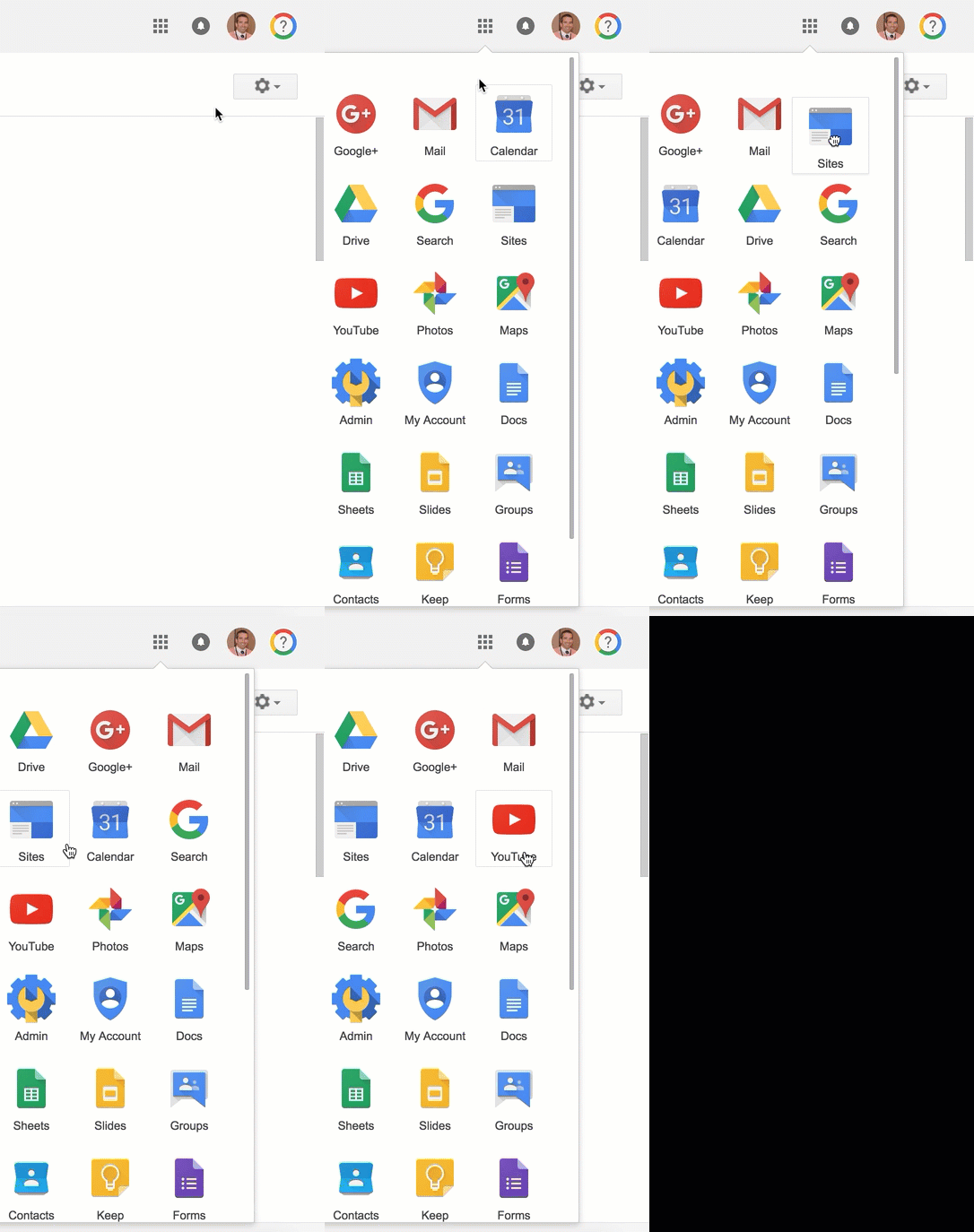
Here is a quick tip for you when you are accessing information from you G-Suite ‘waffle’. No, I am not talking about the food item. The waffle is an unofficial term that is used when talking about the drop down menu of options for G-Suite applications, once an user is logged into their account. Google pre-populates the icons in the waffle for you. However, many people do not know that you can actually move some of the applications around based on your liking. Check out the demonstration below:


Steps:
  • Click on the waffle icon on the top right (make sure you are signed into your Google account.
  • Click and drag the application that you want to move.

A Couple of Notes:
  • It appears as though some tools will not show up until G-Suite notices that you use the tool. One example for me was Google Keep. I noticed that after I started accessing the website, the icon showed up in my waffle.
  • Some applications cannot be moved. For instance, Google Classroom, will not show up in the top section of the drop down windo. Not sure why this is. 
  • Some applications just do not seem to exist. For instance, it appears as though a Google Drawing shortcut does not exist.

And that is my spiel…

Using Shortcuts with Screencastify

Screencastify has been a ‘go to’ tool for our school, especially since it works so nicely with chromebooks. For those of you who have not used Screencastify, I highly recommend that you check it out.

There are many uses of the tool:

  • Create a screencast demonstrating a task
  • Create a screencast highlighting information
  • Record conversation between people
  • Record an audio recording (by using the camera feature but blocking the camera so that it only records a black screen and picks up audio only)
  • Film scenes for a project
What I am most excited about is the fact that you can create your own shortcuts when using Screencastify. Sometimes, I do find it a bit clunky trying to start and stop the screencast without seeing the curser go off the screen. This can help with that. You can create (or use the existing) shortcuts for

Starting Screencastify
Pause/Resume Recording
Start/Stop Recording
Change Recording to Current Tab

Watch the gif below to see how easy this is.

For those of you who have never used Screencastify, or you want a resource for your students, scroll through the Google Slideshow below.

As always, if you have any questions about how you or your students can use this tool in your classroom, you know where to find me.

And that’s my spiel…

Adobe Express: Taking Design to the Next Level

Over the past month, I have been exploring around with a tool called Adobe Express (formally called Adobe Spark). Adobe Express is a tool that provides a user an opportunity to create:

Visual Post, Video, Web Page

Adobe Express works on the web (works great on Chromebooks) as well as through mobile apps (Adobe Spark Post, Adobe Spark Video, Adobe Spark Page). The user is able to log into Adobe Spark with their Google Account – it will ask for a birth date. (If you are planning on using this with students below 13, you should talk with your tech integrator to see if this is in fact a tool you should use with your students.) Below is an example of what you can do with Adobe Voice. This video speaks to the three components of Adobe Spark.

https://spark.adobe.com/video/NqYkC7Ur76B5d/embed

Examples of the Tool
This is an example of a Spark Post that I have created.

Clicking on this link will bring you to a Spark Page that I am currently working on for Hour of Code.

Using this Tool in Your Classroom

You could easily use Spark Post to highlight a song, quote, or poem. Students can use Spark Video to promote a product, explain an idea or concept, verbalize a story they wrote, etc. The possibilities are endless. Rather than using Google Slides to present a topic, students could use Spark Page. Students could even take it to the next level and integrate Spark Posts and Spark Videos into their Spark Page.

Instructions
I have created a 4 step process instructions guideline for students and staff. You can access the actual link to the Google Drawing HERE. The links on the Google drawing will either demonstrate/explain what to do either in GIF or Video format.


Why I Like Adobe Spark
There are many reasons why I like this tool. To name a few…

  • Very easy to use
  • Visually appealing
  • Allows for creativity
  • Allows for student voice and choice

It is important to note that this does not replace G-Suite and its tools. This, however, is a great alternative to the powerful collaboration tool G-Suite from time to time. My challenge for you is to out one of the tools yourself within the next month – once you do one, you will be hooked!

As always, if you have any questions or want to talk about how this tool can be integrated in your own classroom, you know where to find me.

And that is my Spiel…

BHS Becoming Social Media Savvy

For the past two years, tech 222 and counseling have worked together to help educate BHS students about social media use and their digital tattoo. One year, we put on a Social Media Awareness day. The second year, we celebrated social media over a course of a week.

This year, with input from administration and others, we decided to bring the conversation of social media throughout the school year. Each month, we will focus on a particular concept/aspect of social media. Our plan is to also come up with four different activities for students to participate in based on their grade level. We then hope that each advisory participates in the activity during one of the advisory days in that month.

To kick things off, we decided to focus on the positive aspects of social media. For the Freshmen class, they sat through a 30 minute presentation on “Social Media and Your Digital Tattoo” presentation. We focused on the goods, the bads and the cautions of social media. Students were able to see how the freshmen class answered certain questions about social media in the presentation. To view the Prezi presentation, click HERE or view below.

https://prezi.com/embed/pwjal6tke5db/?bgcolor=ffffff&lock_to_path=0&autoplay=0&autohide_ctrls=0&landing_data=bHVZZmNaNDBIWnNjdEVENDRhZDFNZGNIUE43MHdLNWpsdFJLb2ZHanI0c3R4ZnpYZ2VzUTFWMGtFc1lpNk9reFZ3PT0&landing_sign=Hnus9wjuNwPWe3fhnnOHwXYzn66E8IKQKqsR9UBqzJM

For the rest of the school population, we created these positive digital citizen activities. The idea is for different grade levels to do different activities so that we do not have to re-create the wheel next year – just tweak things.

Topics
The following are the topics we plan on talking about for the rest of the school year:
October – Positive Digital Citizen
November – Be Present & Social Media Addition
December – Cyberbullying
January – Mental Health
February – Online Safety
March – Distracted Driving/Distracted Walking

Looking for Resources
Where do you come in? We are looking for suggestions on activities, videos, case studies, conversations etc that we might want to implement throughout the year. We are looking for activities that will connect with and engage high school students. Have any ideas or thoughts…help us out and share in this google form. Looking for ideas beyond just printing a worksheet and having students fill out

Interested in seeing what people are sharing? Click HERE.

Thanks in advance for any ideas/suggestions. At the end of the year, we will share what we have come up with through collaboration from others. Lets help educate our students in an engaging way!