Google Meet for Full Class Meetings

In our district, we have been in person all year with our students. It has been nice that we have not had to have learning happen through virtual meetings all day, every day. I have however appreciated the fact that this resource is still available in the back pocket for when it makes sense.

There have been a couple of times now where I have needed to meet with a particular graduation class. Rather than having over 300 students all pile into the theater, ran a Google Meet session. Advisors of that particular class were sent a Google Meet link to join and projected me into their classrooms. Students then had the ability to follow along and complete the task at hand that I was demonstrating. What also helped was the fact that these students were spaced out throughout the school building. So, having 300 students complete tasks at the same time throughout the building is more successful than having 300 students in the theater accessing one access point.
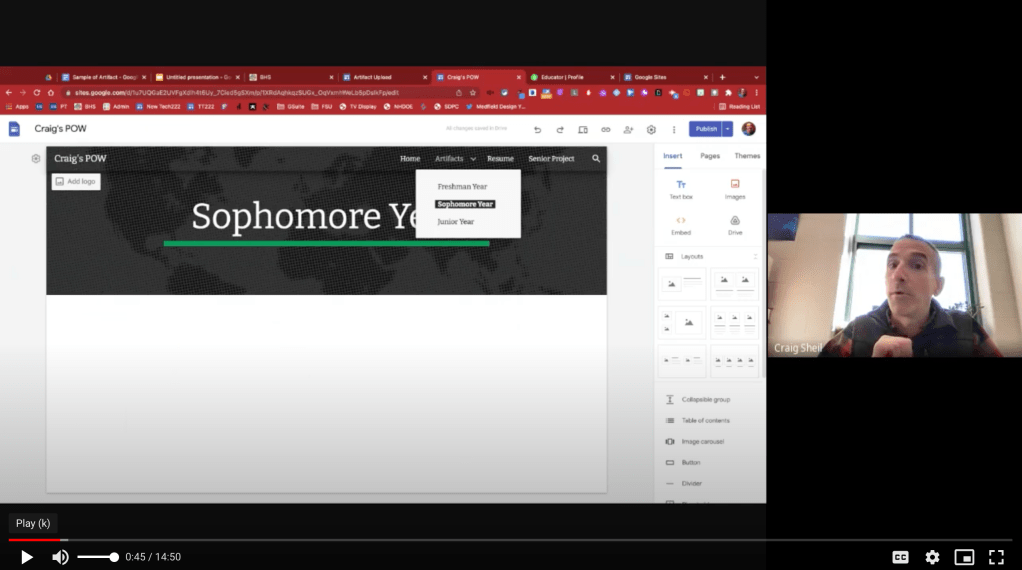
I also appreciated the fact that I was able to record the sessions as well. Advisors were told ahead of time to mute their camera and their microphone. Once the session was completed, I was able to follow up with the link to the recording that could be shown again at a later time. This way if an advisor was absent and a group of students missed the message, that advisor could play it at a time that made sense for them.

While many of us want to forget some of the experiences that we were faced with the past few years, it is important to recognize that some of the tools that we used then can still be used in creative ways moving forward. This is one of them.

If you have any questions about this idea or process, you know how to find me.

And that is my Spiel…

Forcing Present Mode of Google Slide in Google Classroom

There are instances where I want to force participants to view a slide show presentation in present mode, rather than the ‘edit view’ mode where slides show up on the left column. One instance is when I want users to interact with the material – where they choose their own path.

Continue reading “Forcing Present Mode of Google Slide in Google Classroom”

2021 – Day 10 of Google – Random Stuff

We have made it to our last day of Google, Day 10. Today, I am going to mention random google things that really don’t connect to one another. Why you ask? Why not!

YEAR END SEARCH

I always look forward to seeing what Google is going to share with us at the end of the year. They take a look at what had been searched throughout the year and put a video collage together. It is an opportunity to reflect on what has happened over the year. A lot happens in just a single year. At times, I forget about something or think to myself wow, it was that long ago? To see this years video, click HERE or watch below.

After watching the video, take a few minutes to see trends from the year (Year in Search 2021). You have the ability to see what caught peoples’ attention, who inspired people, and see what questions people had in common. This could be a great opportunity for students to look at stats.

For instance, did you know that…

  • The world search “how to start a business” more than “how to get a job” in 2021.
  • “How to move with plants” was search more than “how to move with pets” and “how to move with kids”, in 2021.
  • “How to maintain mental healthy” was searched more this year than ever before globally.

These stats, and many more, can be found in the ‘explore the trends’ section of the website.

You can also encourage students to take a look at ‘see the top trends lists’ button toward the very bottom of the page. On the page students can look at the data on a particular item. In the gif example below, I looked at NBA search results, starting worldwide. Then I made the change to see what the graph looked like with United States selected only. Then I wanted to make a comparison with NBA and WNBA.

Continue reading “2021 – Day 10 of Google – Random Stuff”

2021 – Day 9 of Google – Accessibility

On the ninth day of Google, we will look into some accessibility features. We are all learners and we all learn differently. Sometimes that means that information needs to be available in different formats or appearances. Did you know…

VOICE TYPING AND TRANSLATIONS IN DOCS

Voice typing in Google Docs has a been around for a couple of years now. However, an aha moment happened for me a couple of weeks ago. We have students who speak English as a second language. For any student that is struggling, they could use voice typing to speak their thoughts in their native language, then use the translation feature to translate into English. Now, I recognize that things won’t necessarily translate perfectly and I know that some teachers don’t want students to take the easy way out, but there is a time and a place where this could prove helpful. What would the work flow be?

  • Activate ‘voice typing’ under the ‘tools’ menu
  • Change the language in the drop down menu above the microphone button (language that the user would be speaking in)
  • Once content is in the document, the student could then highlight and select ‘translate document’ under the ‘tools’ menu

For those that would like a demo on how to use voice typing, click HERE. Keep in mind that there are several prompts you can give to help with formatting. For example: new paragraph, new line, period (to end sentence), stop listening, etc. For more detailed commands click HERE.

I was speaking with a friend and she was talking about how she worked with someone who was hard of hearing in one ear. In many cases, this person is unable to comprehend everything that is said in a staff meeting. This person could open up a google doc and turn on voice typing while the speaker is talking. Perhaps the person who is hard of hearing would be able to read the content in the google doc (keeping in mind that she would have to sit close to the front to have the computer pick up the words). Another word of caution would be to let the speaker know ahead of time so that they are aware that the words being spoken are in fact being translated.

Continue reading “2021 – Day 9 of Google – Accessibility”

2021 – Day 8 of Google – Sheets

On the eighth day of Google, we will look at a couple of aha moments from Google Sheets. Google Sheets is such a valuable tool to help us be efficient with data. I have found over the years that I have been able to improve my skillset in working with data. I by no means am an expert but I do enjoy learning new stuff. Did you know…

CELL HISTORY

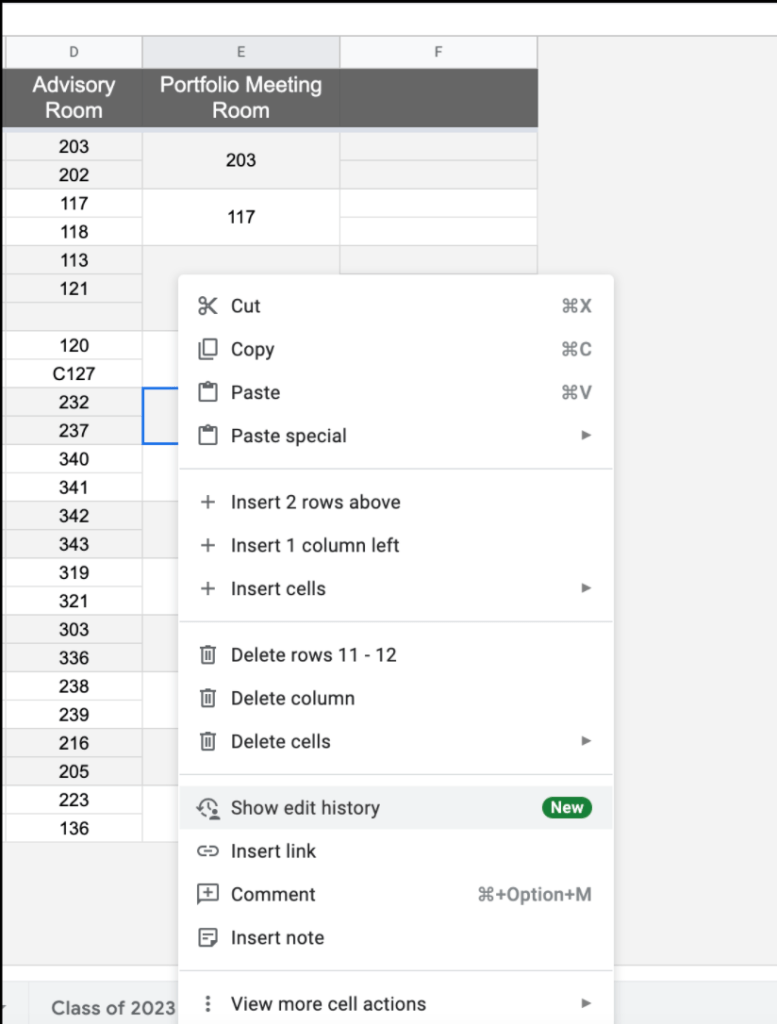
Did you know that you now have the ability to see edit history of particular cells? How to see this history?

  • Right click on a cell
  • Choose ‘show edit history’
  • A small window will appear with any edit history of that cell. You might notice a left/right arrow having you take a look at different versions of just that one cell.

I like that you have the ability to focus on one particular part of the Google Sheet rather than having to sort through everything to find what I are looking for.

Continue reading “2021 – Day 8 of Google – Sheets”