2021 – Day 6 of Google – Google Docs (Part 2)

On the sixth day of Google, we will take a look into Google Docs again. Some of the features below are not necessarily all new ideas but ideas that are worth taking a second look at. 

NOTE TAKING WHILE WATCHING YOUTUBE VIDEO

There might be times where you are asking students to watch a YouTube video and take notes. Over a year ago, Google Docs allowed students the ability to preview/watch a video in a popup window while in the Google Doc. Students can determine how big or small of a window they want the video to play in. This can be helpful for students to shrink the video down so that they can type notes in the Doc. How to make this happen?

  • Provide link to a YouTube video
  • Students then select the link
  • Hover over the video pop up and select Open Preview
  • Students can then change the size of the video if it is too big

Click HERE to watch the process described above. Note: This feature also works with Google slides that have been linked in a Google Doc. Students can preview a slide presentation and take notes in a google doc as well. Same approach as listed above with a YouTube Video.

TO DO LISTS

You now have the ability to create to do lists in Google Doc. This can be a great approach in helping students through a detailed or lengthy assignment. Provide the checklist in the document that students have edit access to. Then as they complete tasks, they can cross off the to do list. I have even seem teachers use this feature in a syllabus or beginning of a unit of study. Then as learning or tasks are completed, students/teacher is able to visually indicate where they are now in the study of the course.

How do you create a to do list? 

  • Place cursor where the to do list should be
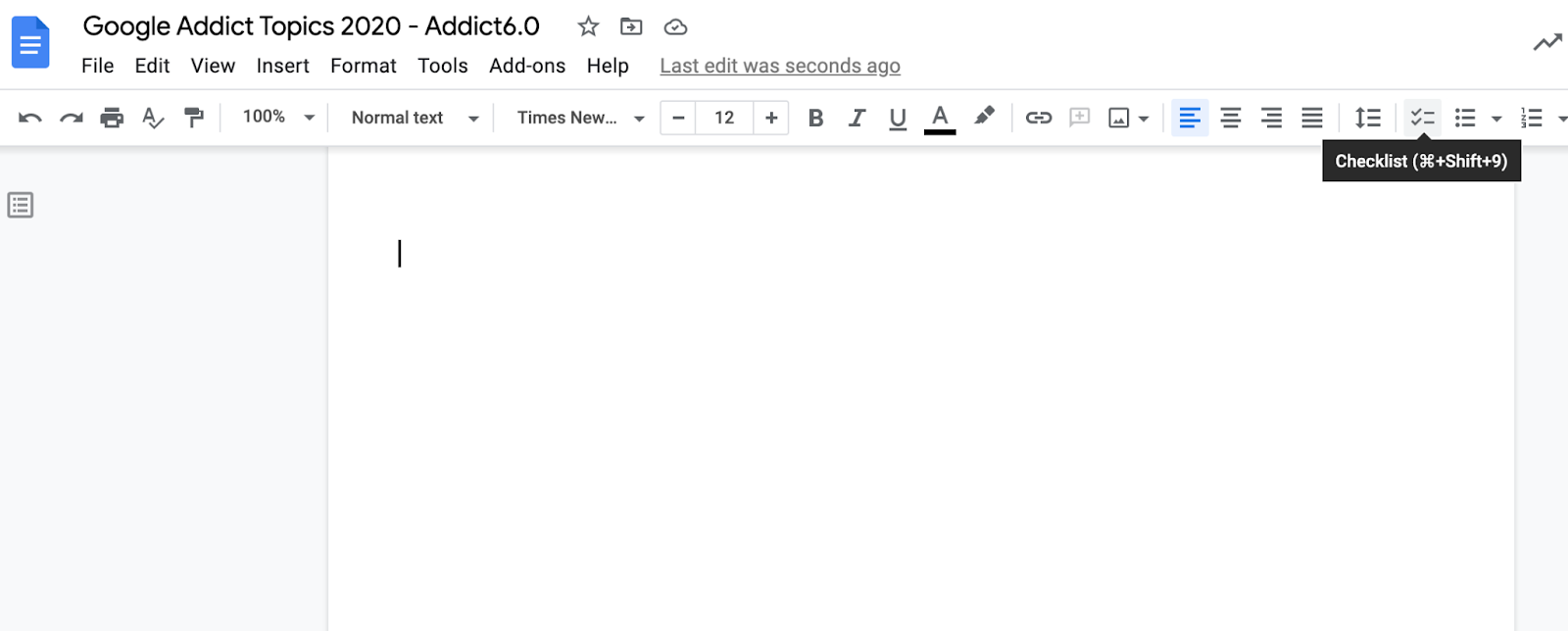
  • Then select the checklist icon in the menu (shortcut is command, shift, 9 on a mac or control, shift, 9 on a chromebook)

Once a task has been completed, select the box and it will cross the task off. It will not delete. The image below indicates where the check list icon is located.
APPROVALS FOR DOCUMENTS
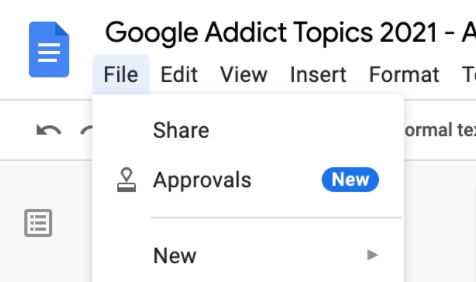
Google now has a more formal way in making sure that other people on a team have approved content in a document. I can see this really helpful when organizing content before being shared out with the community. For example, if I need to share out instructions about a certain protocol that parents need to follow, but I have to make sure the other 5 people on my team agree with how the protocol reads, I can use the new approval process.

How to make this happen?

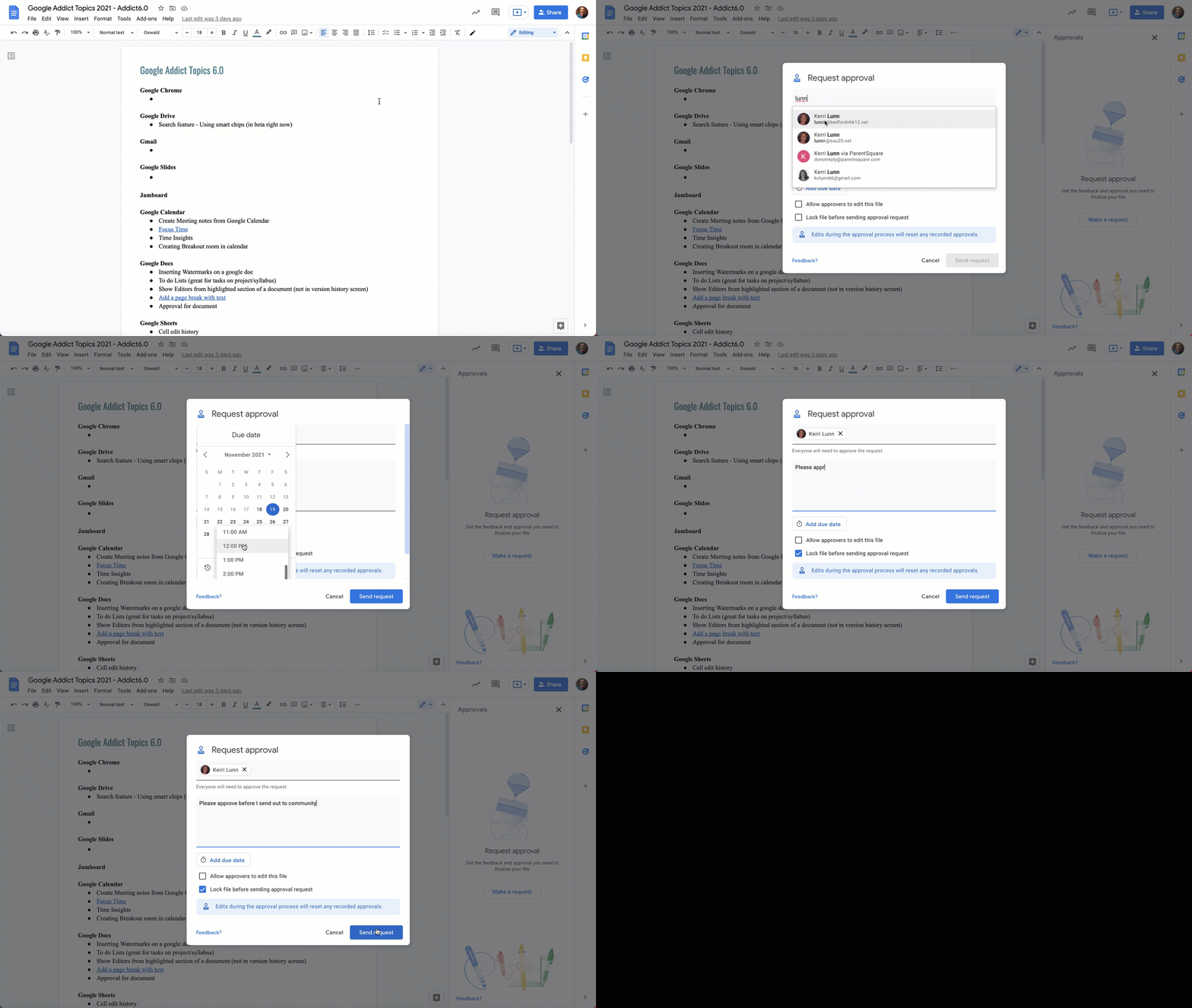
  • Under the file menu, select ‘Approvals’
  • Determine who you want to give approvals
  • Determine whether or not you want to all approvers to be able to edit the file; determine if you want to lock the file so that no one is able to edit the file while in approval mode
  • Determine if there is a due date

You will notice if you convert the file into locked mode, not even you as the owner can edit. You can revert back, but it will be locked for everyone. In the right column, it will keep track for you who has approved and who you are still waiting to hear from. Below is a gif that walks you through this process. I can see lots of potential with this new feature.
If you have any questions, you know where to find me.

And that is my Spiel…

2021 – Day 5 of Google – YouTube

On the fifth day of Google, we will take a look into YouTube. Some of the features below are not necessarily all new ideas but ideas that are worth taking a second look at.

PLAYBACK SPEED

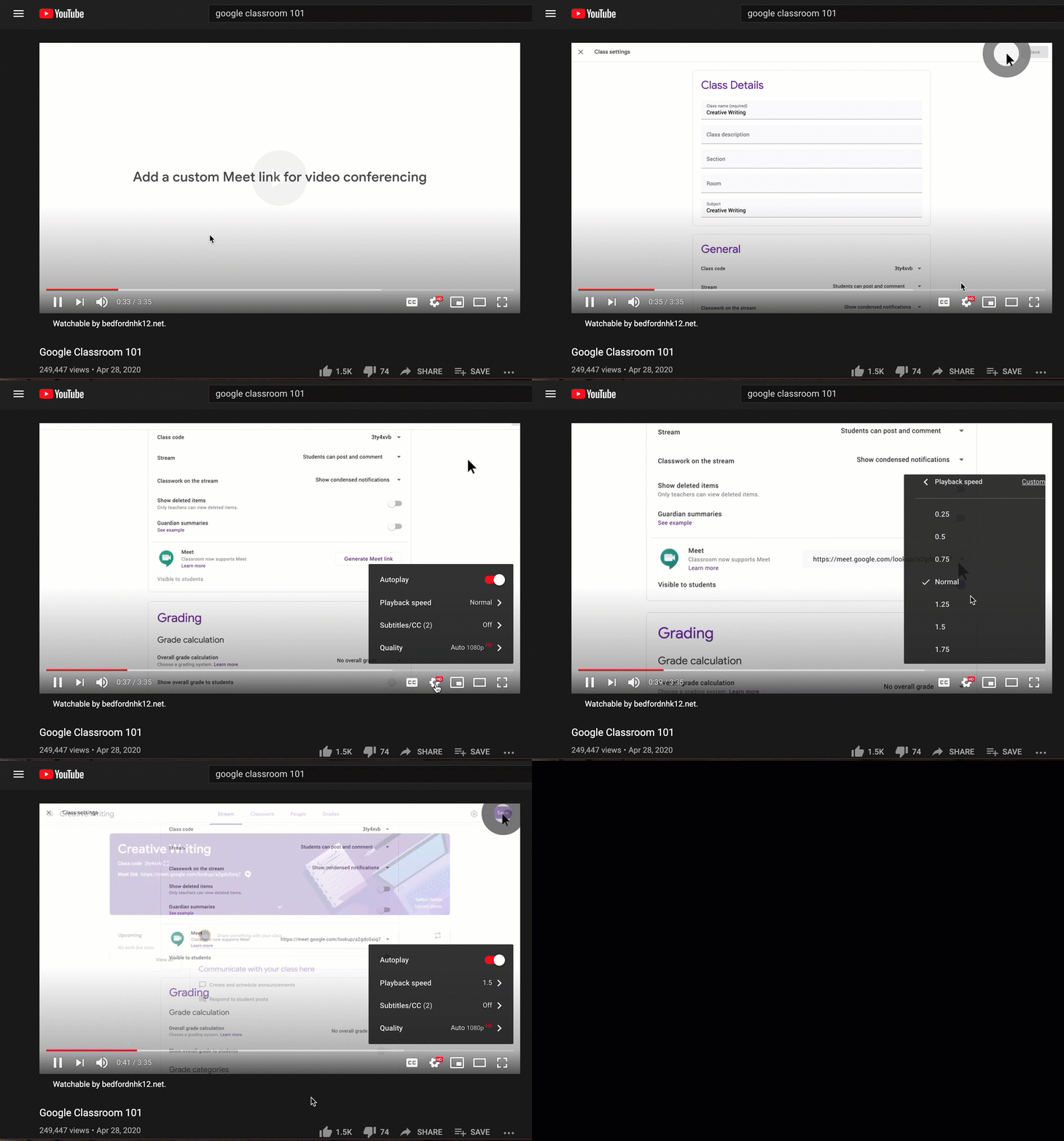
Ever in a situation where you want to speed through a video? Consider changing the speed by which it is played. Perhaps you are running out of time or you feel like you can get more out of the material if it is sped up. I find myself doing this more and more. If I see a video or webinar that I want to watch, and I see that it is 30 or more minutes, I will change the speed of the video.

Select the gear on the bottom of a YouTube video and change the playback speed to a faster speed. My suggestion is watching at 1.5 speed.

Continue reading “2021 – Day 5 of Google – YouTube”

2021 – Day 3 of Google – Calendar

On Day 3 of Google, we will take a look at Google Calendar. Perhaps some of these features can help streamline your workflow.

MEETING NOTES

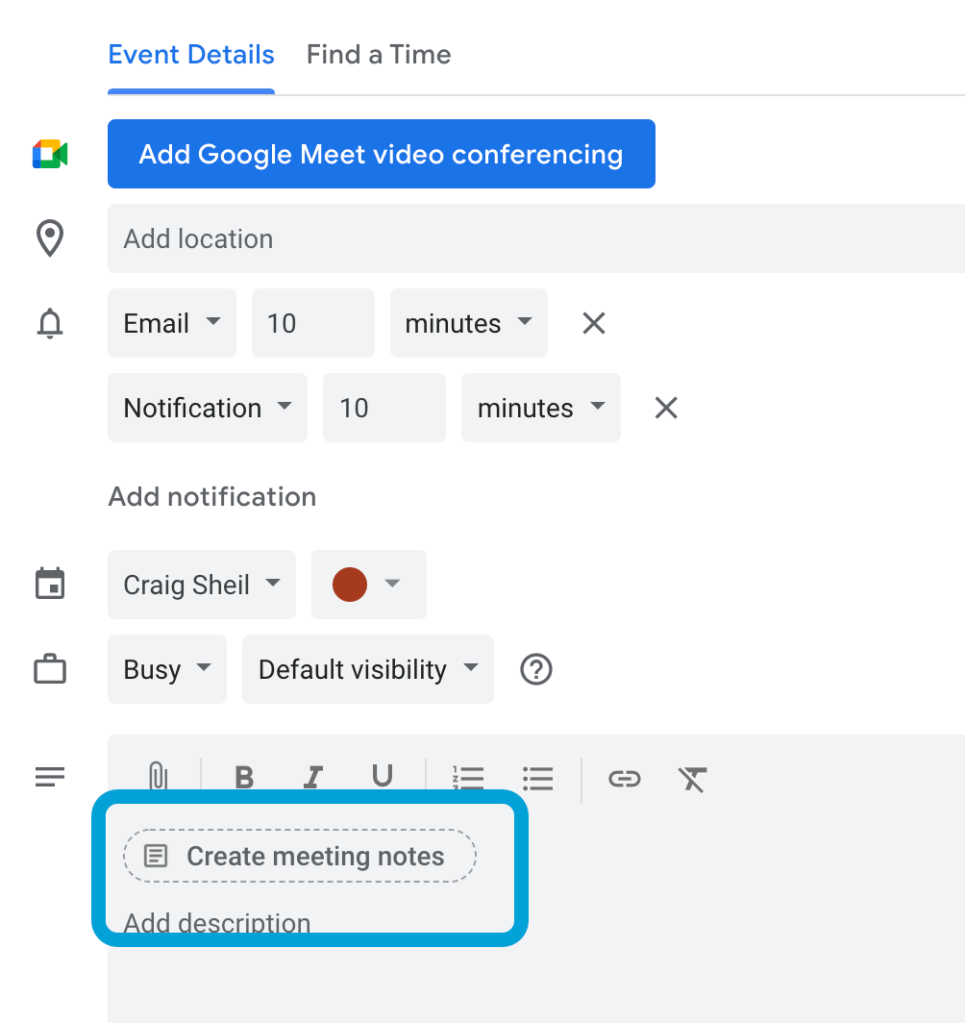
When organizing a meeting, you now have the ability as the owner to initiate meeting notes. What I like about this, is that the file is named the name of the calendar invite. It also automatically creates a space for attendees to add notes as well as action items (that can then be crossed off once completed).

If you forget to add meeting notes, you have the ability to edit your calendar event and add it after the fact. All attendees to the calendar invite have access to the file as well as editing access.

To add meeting notes, select the ‘create meeting notes’ button in the meeting description section.

Continue reading “2021 – Day 3 of Google – Calendar”

2021 – Day 4 of Google – Google Slides

On the fourth day of Google, we will dive into a couple of tips in Google Slides. Did you know…

CREATE YOUR OWN GRADIENT COLORS

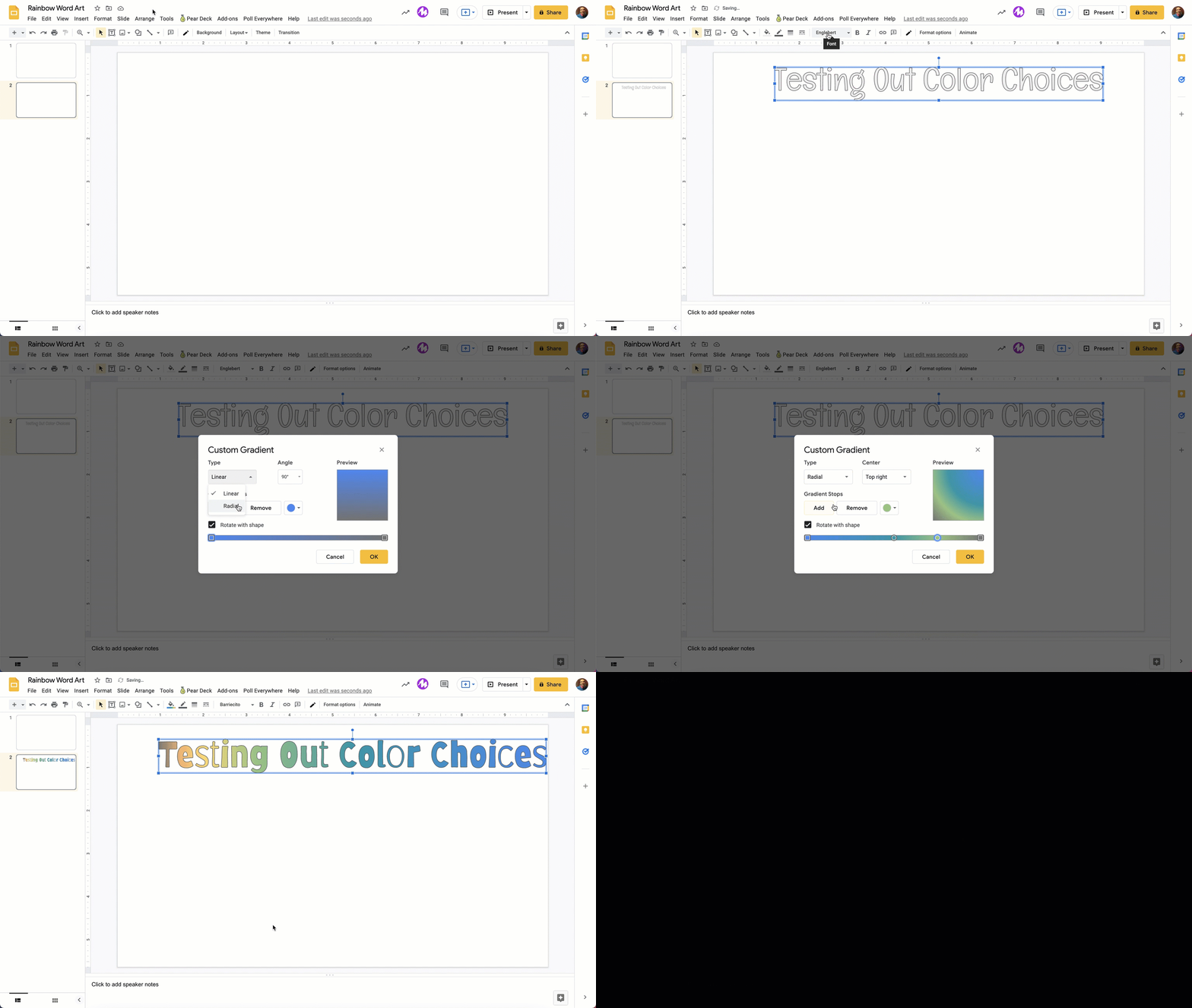
Did you know that you could create your gradient colors? I actually didn’t until a week ago. There might be times where you want to have multiple colors show up in text. To make this happen,

  • Insert a word art cell with your text
  • While text is selected, click the fill paint bucket icon
  • Under the gradient menu, select the icon to create your own color
  • Select the color you want to start with. You will then add a new gradient stop color. Repeat this step as many times as you want with the number of colors you will want to appear.
  • You can determine the type of gradient from linear to radial.

In the example below, you will see that a rainbow effect was created. You don’t need to select all of the gradient stops that I selected. You could keep it simple and only have one gradient stop.

This is something that you won’t use all the time. For me, this was a huh moment as I didn’t know it existed. When the right time comes, I will be sure to use the feature however.

Continue reading “2021 – Day 4 of Google – Google Slides”

2021 – Day 2 of Google – Google Docs

On our second day of Google, we will focus on Google Docs. There have been many aha moments in Docs lately. Let’s jump right into it. Did you know…

WATER MARKS

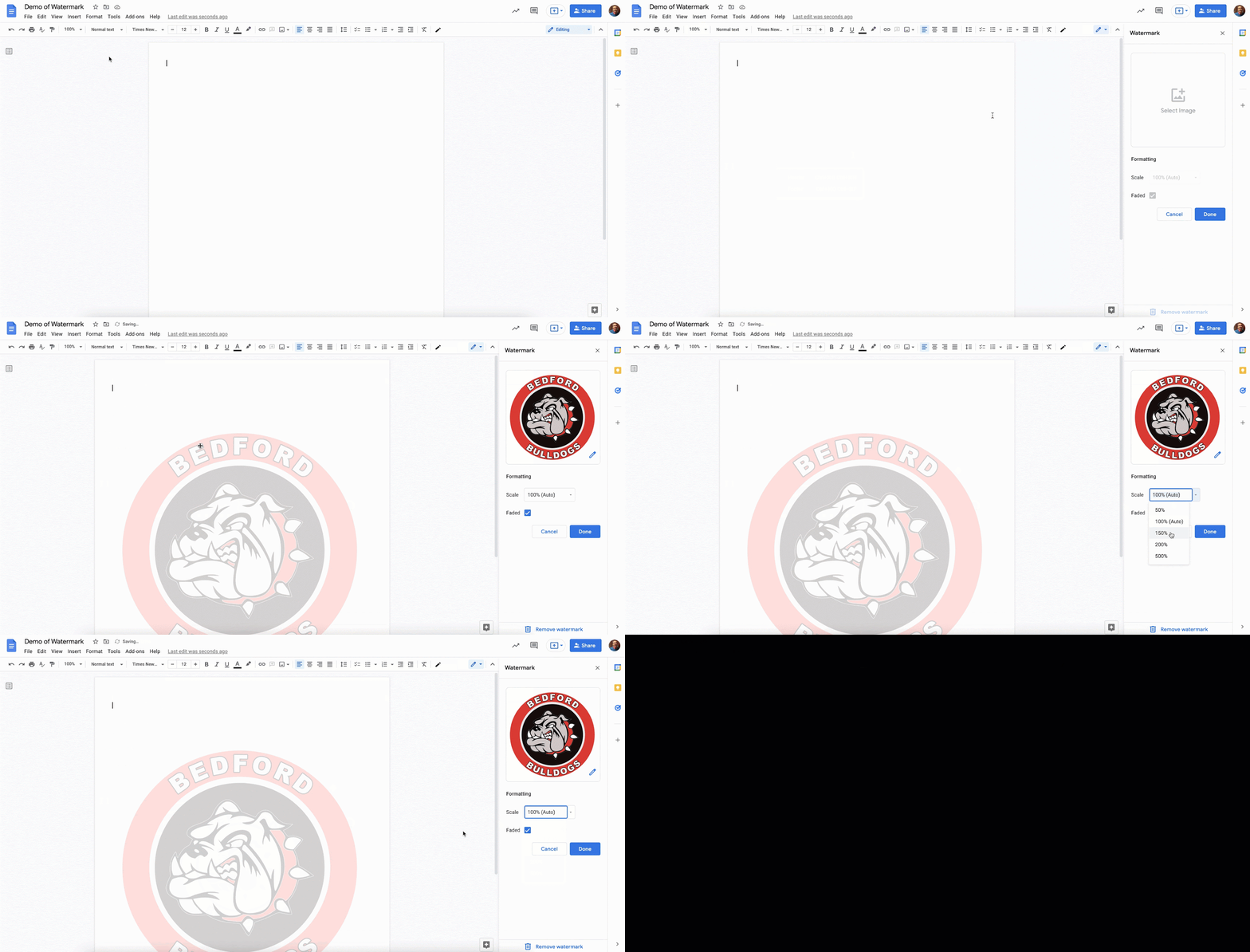
You now have the ability to add a water mark in the document. I remember the days of Word, where a file was shared and I immediately knew it was in draft format as the word DRAFT was written diagonally in the background. It was faded but it was clear that things were not set in stone.

For those that are looking for some sort of visual faded in the background, follow the steps below. You will see in the example below, our school logo was added. I had the ability to determine whether it should be faded or not, as well as what I want the scale of the image to be.

  • Under insert menu, select Watermark
  • Select the image box on the right column and find the image you want to upload
  • Determine scale and if you want it to appear faded

Continue reading “2021 – Day 2 of Google – Google Docs”