Calendar Integration with Google Classroom

It is finally here! Google Calendar has been integrated with Google Classroom.

Two Big Advantages:

  • Students are able to see all of their assignments for all of their classes in one view right in Google Classroom
  • Teachers are able to embed the calendar on their Teacher Website for parents without having to post content in both places. HUGE time saver!

How Technology Can Be Used During Open House

Lots of us have open house coming up in the very near future. Why not have technology help you with the process…below are some ideas.

Going to be Absent to Your Own Class?

Whether you are a teacher who cannot attend Open House yourself OR you want to be able to reach all of your parents (even those that could not attend), why not create a quick screencast of your presentation? Making screencasts are very easy to do now. You could record yourself talking through the presentation OR you could just turn on your webcam and talk to the computer.

If this is the route that you want to go, I would recommend using the Chrome Extension Screencastify. Below are instructions on how to use the tool if you have never used it before.

Worried about privacy and YouTube? No worries, just save your screencast to your Google Drive account with ‘anyone with the link’ sharing permission. When it is time to share, provide a link or QR code on your door if you are going to be absent. You can also email your screencast and/or embed the video on your teacher website for all parents to see.

Want to Have Fun with Parents?

In past years, some teachers have created a Jeopardy Game for the parents to play – this is a great way of getting parents engaged and involved. If you are interested in going this route, you can create a quick Jeopardy game using Flippity.net and Google Sheets. Instructions on how to do this can be found from a previous blog post that I wrote.

Up for a different competition game? Why not have parents participate in a fun game of Kahoot! We know that our students love participating in the game – might be great to share the fun. You could ask parents questions pertaining to your class and then go into more detail about the answers. It is important to note that parents would have to be willing to use their mobile device to make this work.

Need to Get Feedback?
It is important to know that both options below would require a parent to use their mobile device to provide feedback.

Are you one that likes to collect information from parents? How about making a Google Form to have parents fill out instead of passing around a piece of paper.

Another great option is using the Exit Ticket option from Socrative. This could be a great way of asking parents/guardians what they want you to know about their son/daughter.

The possibilities are endless as to what you can do. The most important thing is to make sure that you are having fun during open house as well as the parents.  Stop by room 222 if you would like to talk more about what you can do with technology during open house.

Happy Beginning of the School Year!

How to Make Your Own GIF File

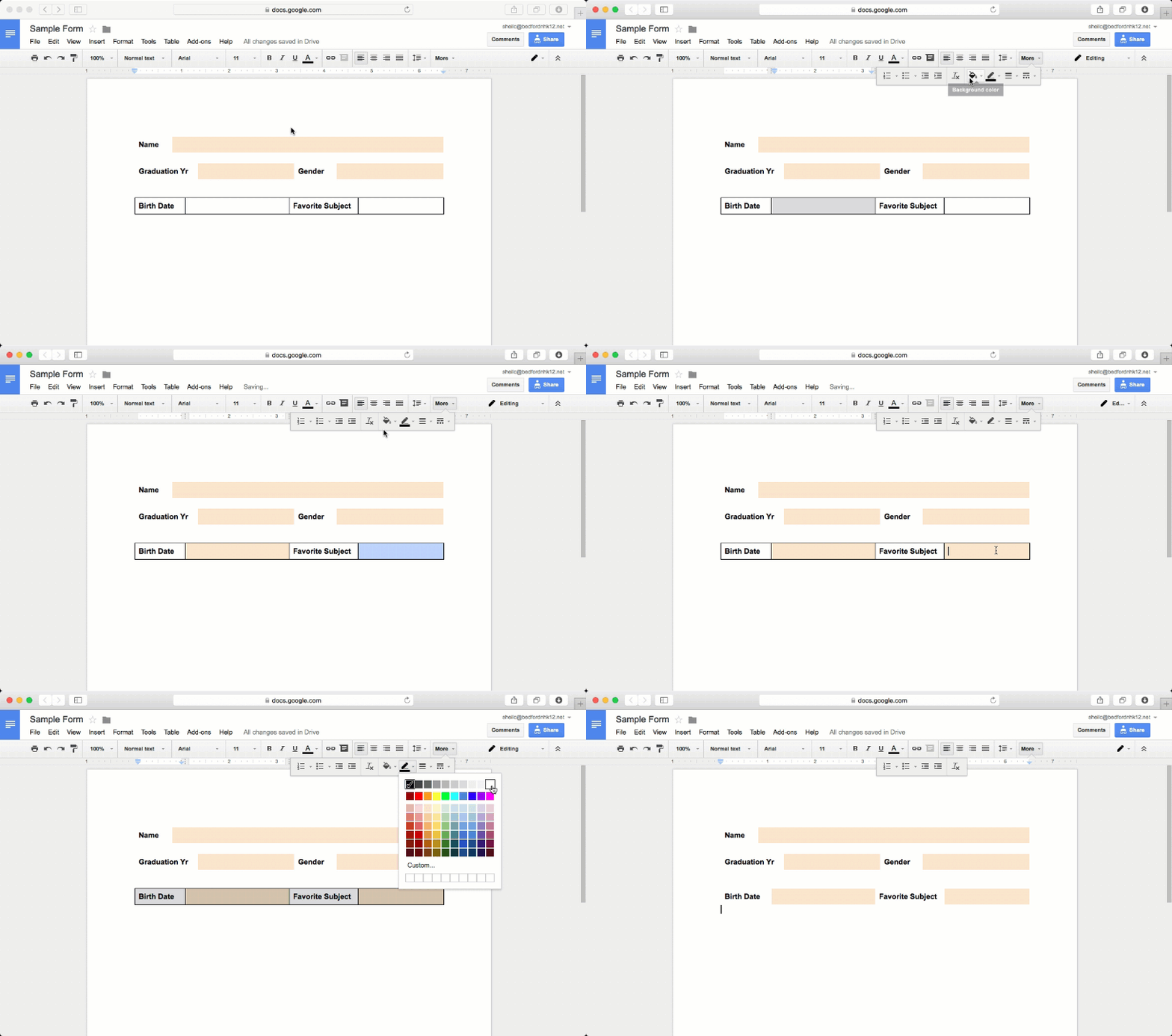
A couple of people have asked me how I have been creating GIF files. It is rather quite simple. For those of you who might be scratching your head as to what a GIF file is, a sample is provided below.

Basically, a GIF file is an animated graphics file (most just think of it as a ‘video’ file). This file extension just plays on repeat. It is great for showcasing a simple task that you want people to follow – but might be easier to explain through animating steps rather than writing the steps out.

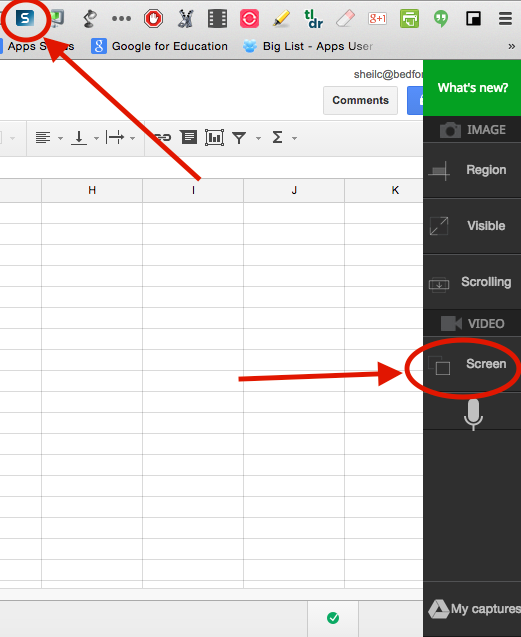
In order to begin, you will need to use the Chrome browser and download Techsmith Snagit (if you don’t already have it). Once it has been downloaded, the Chrome extension will show up on the top right corner of the browser.

Good to Note

There are a couple of things to note with this extension:

  • In order to use this Chrome extension, it will ask you to log into Chrome, if you are not already signed into the browser. 
  • This extension is not just for creating GIF files – you can annotate images as well as take video.
  • Techsmith saves all of your files in a folder that can be found in your Google Drive account. 
  • In order to make a GIF file, it has to be 15 seconds or less (at least I think it does)
Steps for Creating a GIF File
  • Determine what you want to ‘animate’
  • When ready, click on the Snagit chrome extension (top right corner of the browser) and select the Screen option.
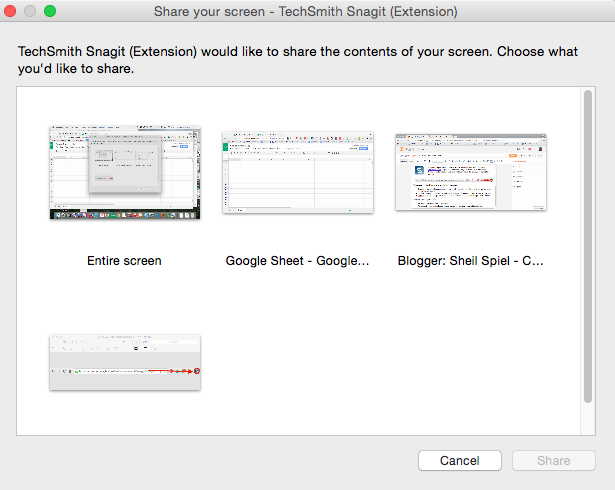
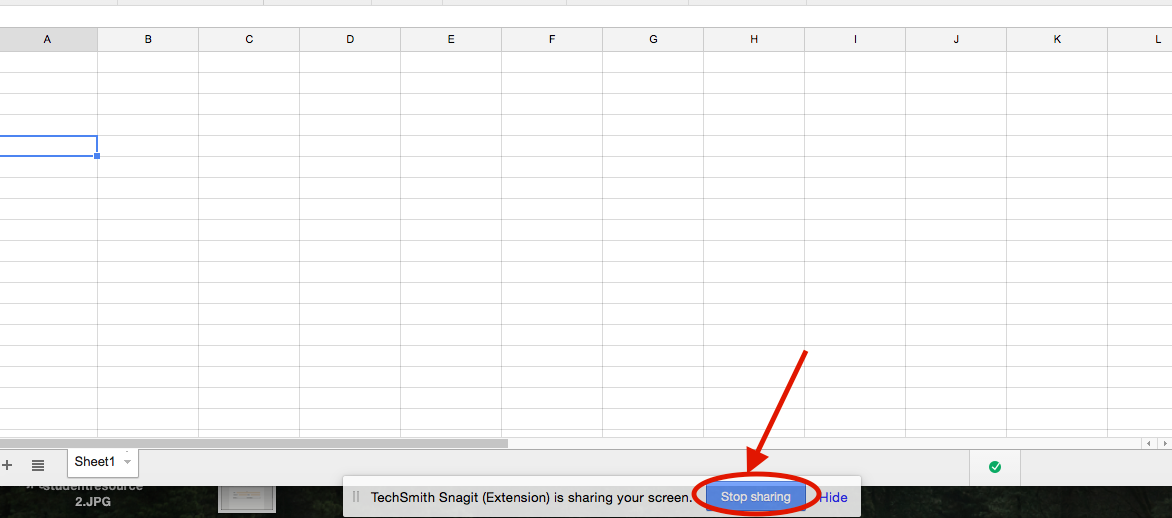
  • Snagit will ask you what you would like to record – based on what is already opened on your computer. Once you select the ‘screen’ you want to record, Snagit will start recording. In the image below, Snagit can record my entire screen, a Google Sheet that I have open, another tab that has my blog, or a file that is opened in Preview.
  • Once you are done with your recording, hit the stop sharing button.
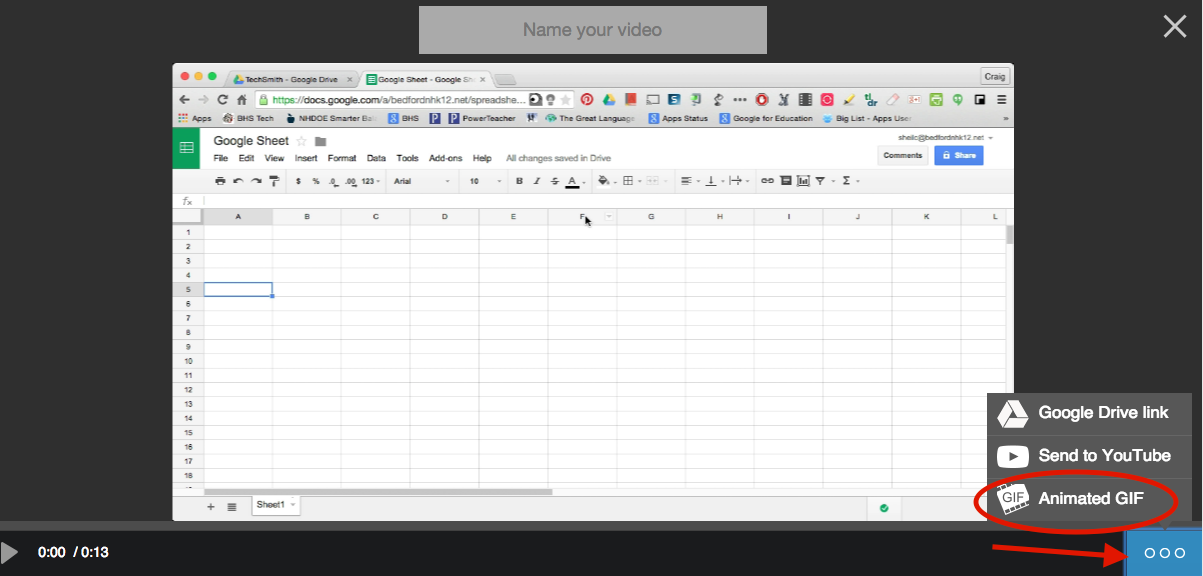
  • Then, name your video at the top of the screen. Next select animated GIF from the menu on the bottom left.
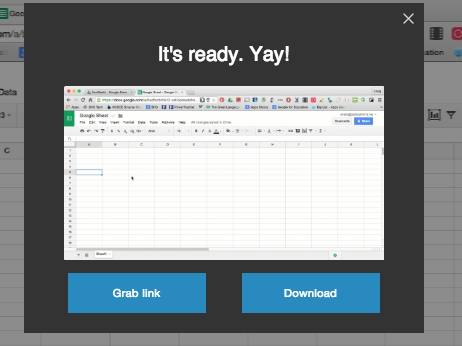
  • Lastly, Snagit will create a link as well as give you the ability to download your GIF file to upload on a website or blog post. Keep in mind that you can access these files right from your Google Drive in the Techsmith folder. (I also like the fact that you can upload video files right to YouTube as well.)

Hope this is helpful.

Google Keep – Great Way to Stay Organized!

Just recently, a staff member (Sue Reilly) shared a tool that she has been using, Google Keep. This is a great tool for those people who LOVE sticky notes. These sticky notes are virtual however and can be accessed anytime you are logged into your Google Account. And, this tool is WAY BETTER than the tasks list that is built into GMail. Trust me on this one!

Oh and the best part you might ask? You can create SHARED stickies with other people so that task lists can be edited in real time collaboratively. In other words, you can have a task list with a co-worker while another sticky is not shared with anyone.

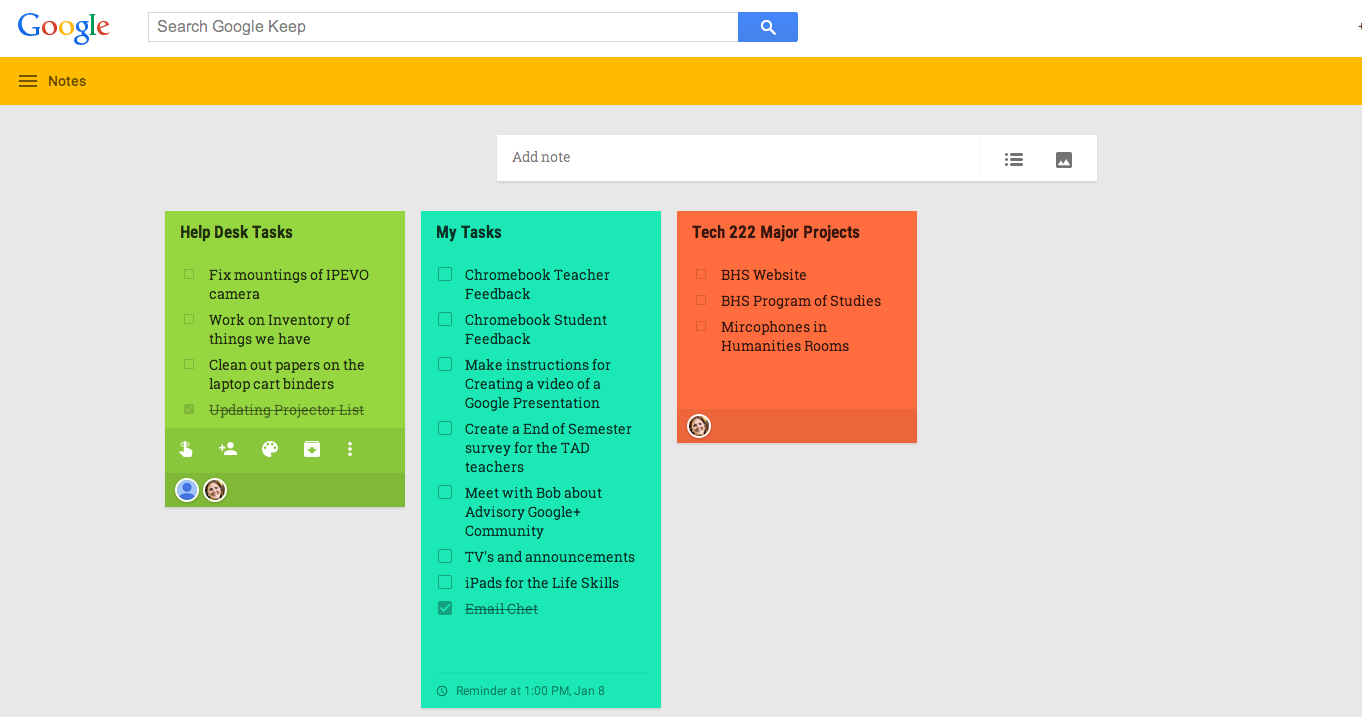
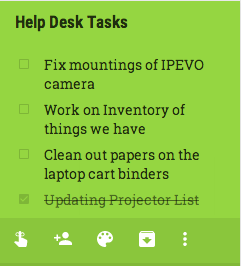
Below is an example of what my Google Keep looks like. The Green Sticky is shared with two other people, the Blue Sticky is not share with anyone, and the Red Sticky is shared with one other person.

Other Features of Google Keep

  • Stickies can be different colors to help differentiate between tasks
  • Stickies can either be notes or task list
  • Items can be deleted from a list once you have completed it
  • Reminders can be set on stickies so that you don’t forget about them
  • Stickies can be archived when you are done with them
Most of these features can be found by hovering over a sticky (as can be seen from the sticky on the left)

So, if you want to get rid of the stickies that are attached to the edge of your computer or on your desk – it is time for you to try this tool out. Go to keep.google.com and start exploring the possibilities.