
BHS Becoming Social Media Savvy

For the past two years, tech 222 and counseling have worked together to help educate BHS students about social media use and their digital tattoo. One year, we put on a Social Media Awareness day. The second year, we celebrated social media over a course of a week.

This year, with input from administration and others, we decided to bring the conversation of social media throughout the school year. Each month, we will focus on a particular concept/aspect of social media. Our plan is to also come up with four different activities for students to participate in based on their grade level. We then hope that each advisory participates in the activity during one of the advisory days in that month.

To kick things off, we decided to focus on the positive aspects of social media. For the Freshmen class, they sat through a 30 minute presentation on “Social Media and Your Digital Tattoo” presentation. We focused on the goods, the bads and the cautions of social media. Students were able to see how the freshmen class answered certain questions about social media in the presentation. To view the Prezi presentation, click HERE or view below.

https://prezi.com/embed/pwjal6tke5db/?bgcolor=ffffff&lock_to_path=0&autoplay=0&autohide_ctrls=0&landing_data=bHVZZmNaNDBIWnNjdEVENDRhZDFNZGNIUE43MHdLNWpsdFJLb2ZHanI0c3R4ZnpYZ2VzUTFWMGtFc1lpNk9reFZ3PT0&landing_sign=Hnus9wjuNwPWe3fhnnOHwXYzn66E8IKQKqsR9UBqzJM

For the rest of the school population, we created these positive digital citizen activities. The idea is for different grade levels to do different activities so that we do not have to re-create the wheel next year – just tweak things.

Topics
The following are the topics we plan on talking about for the rest of the school year:
October – Positive Digital Citizen
November – Be Present & Social Media Addition
December – Cyberbullying
January – Mental Health
February – Online Safety
March – Distracted Driving/Distracted Walking

Looking for Resources
Where do you come in? We are looking for suggestions on activities, videos, case studies, conversations etc that we might want to implement throughout the year. We are looking for activities that will connect with and engage high school students. Have any ideas or thoughts…help us out and share in this google form. Looking for ideas beyond just printing a worksheet and having students fill out

Interested in seeing what people are sharing? Click HERE.

Thanks in advance for any ideas/suggestions. At the end of the year, we will share what we have come up with through collaboration from others. Lets help educate our students in an engaging way!

Guardian Resource for Google Classroom Email Summaries

Some teachers at our high school have decided to turn on the Guardian Email Summaries component to Google Classroom. This resource was created to help further explain what Guardian Email Summaries are all about for parents/guardians to reference (if need be). This video is linked on the teacher website letting guardians know that they turned on this feature.

Calendar Integration with Google Classroom

It is finally here! Google Calendar has been integrated with Google Classroom.

Two Big Advantages:

  • Students are able to see all of their assignments for all of their classes in one view right in Google Classroom
  • Teachers are able to embed the calendar on their Teacher Website for parents without having to post content in both places. HUGE time saver!

How Technology Can Be Used During Open House

Lots of us have open house coming up in the very near future. Why not have technology help you with the process…below are some ideas.

Going to be Absent to Your Own Class?

Whether you are a teacher who cannot attend Open House yourself OR you want to be able to reach all of your parents (even those that could not attend), why not create a quick screencast of your presentation? Making screencasts are very easy to do now. You could record yourself talking through the presentation OR you could just turn on your webcam and talk to the computer.

If this is the route that you want to go, I would recommend using the Chrome Extension Screencastify. Below are instructions on how to use the tool if you have never used it before.

Worried about privacy and YouTube? No worries, just save your screencast to your Google Drive account with ‘anyone with the link’ sharing permission. When it is time to share, provide a link or QR code on your door if you are going to be absent. You can also email your screencast and/or embed the video on your teacher website for all parents to see.

Want to Have Fun with Parents?

In past years, some teachers have created a Jeopardy Game for the parents to play – this is a great way of getting parents engaged and involved. If you are interested in going this route, you can create a quick Jeopardy game using Flippity.net and Google Sheets. Instructions on how to do this can be found from a previous blog post that I wrote.

Up for a different competition game? Why not have parents participate in a fun game of Kahoot! We know that our students love participating in the game – might be great to share the fun. You could ask parents questions pertaining to your class and then go into more detail about the answers. It is important to note that parents would have to be willing to use their mobile device to make this work.

Need to Get Feedback?
It is important to know that both options below would require a parent to use their mobile device to provide feedback.

Are you one that likes to collect information from parents? How about making a Google Form to have parents fill out instead of passing around a piece of paper.

Another great option is using the Exit Ticket option from Socrative. This could be a great way of asking parents/guardians what they want you to know about their son/daughter.

The possibilities are endless as to what you can do. The most important thing is to make sure that you are having fun during open house as well as the parents.  Stop by room 222 if you would like to talk more about what you can do with technology during open house.

Happy Beginning of the School Year!

How to Make Your Own GIF File

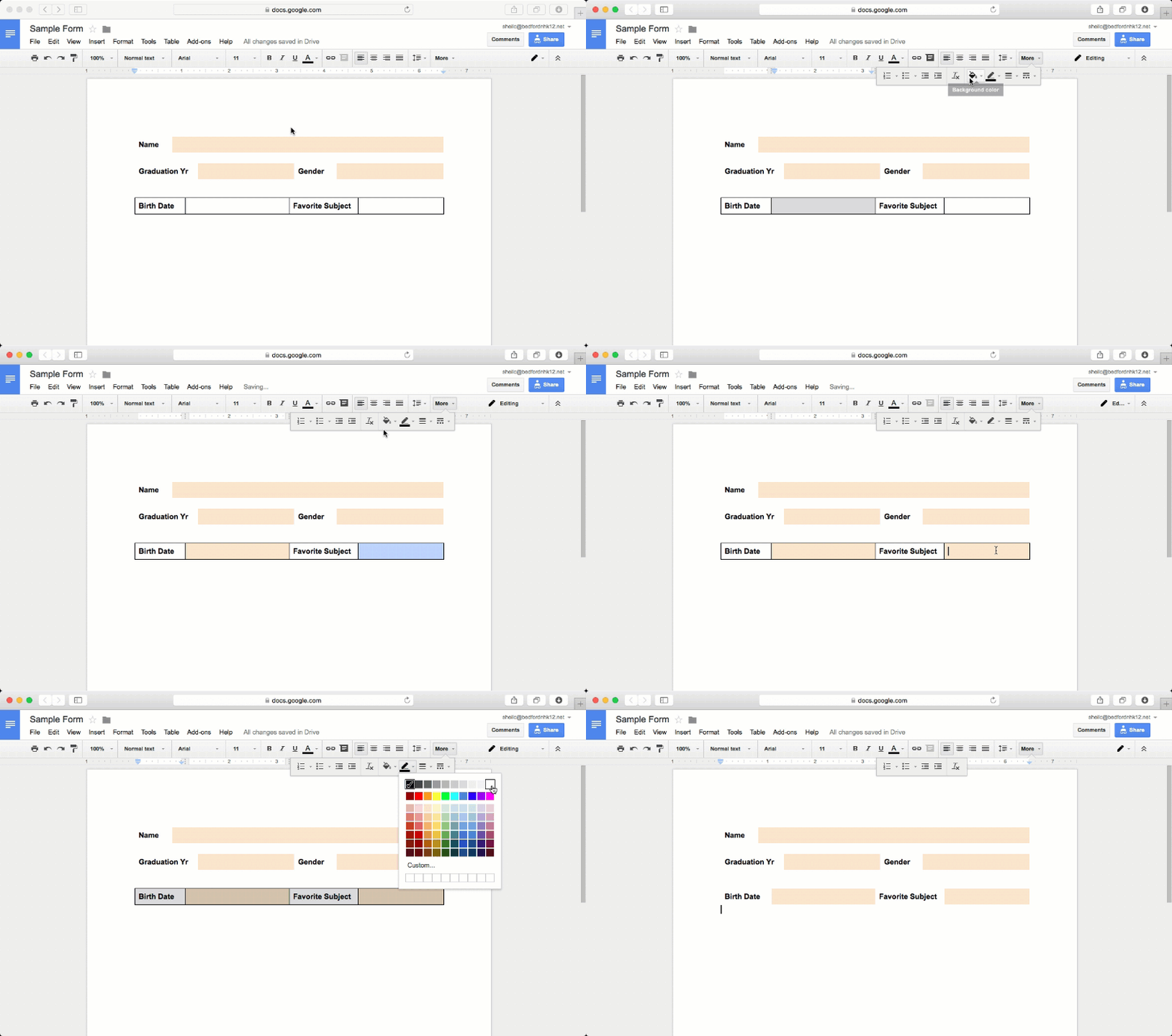
A couple of people have asked me how I have been creating GIF files. It is rather quite simple. For those of you who might be scratching your head as to what a GIF file is, a sample is provided below.

Basically, a GIF file is an animated graphics file (most just think of it as a ‘video’ file). This file extension just plays on repeat. It is great for showcasing a simple task that you want people to follow – but might be easier to explain through animating steps rather than writing the steps out.

In order to begin, you will need to use the Chrome browser and download Techsmith Snagit (if you don’t already have it). Once it has been downloaded, the Chrome extension will show up on the top right corner of the browser.

Good to Note

There are a couple of things to note with this extension:

  • In order to use this Chrome extension, it will ask you to log into Chrome, if you are not already signed into the browser. 
  • This extension is not just for creating GIF files – you can annotate images as well as take video.
  • Techsmith saves all of your files in a folder that can be found in your Google Drive account. 
  • In order to make a GIF file, it has to be 15 seconds or less (at least I think it does)
Steps for Creating a GIF File
  • Determine what you want to ‘animate’
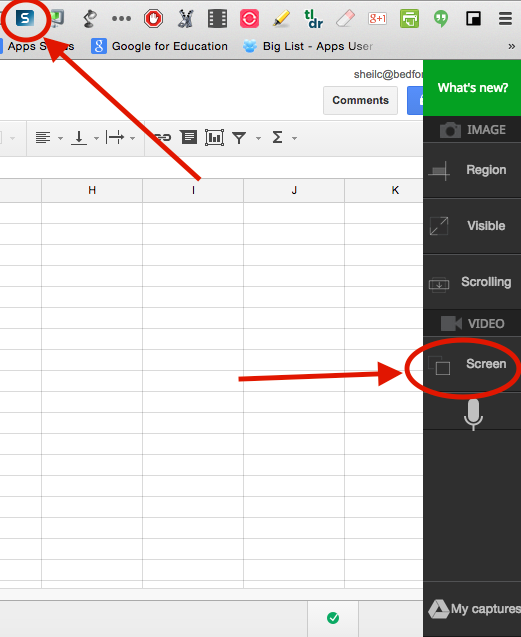
  • When ready, click on the Snagit chrome extension (top right corner of the browser) and select the Screen option.
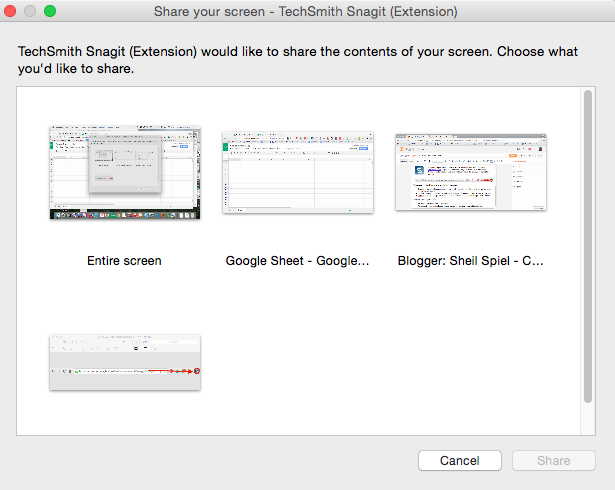
  • Snagit will ask you what you would like to record – based on what is already opened on your computer. Once you select the ‘screen’ you want to record, Snagit will start recording. In the image below, Snagit can record my entire screen, a Google Sheet that I have open, another tab that has my blog, or a file that is opened in Preview.
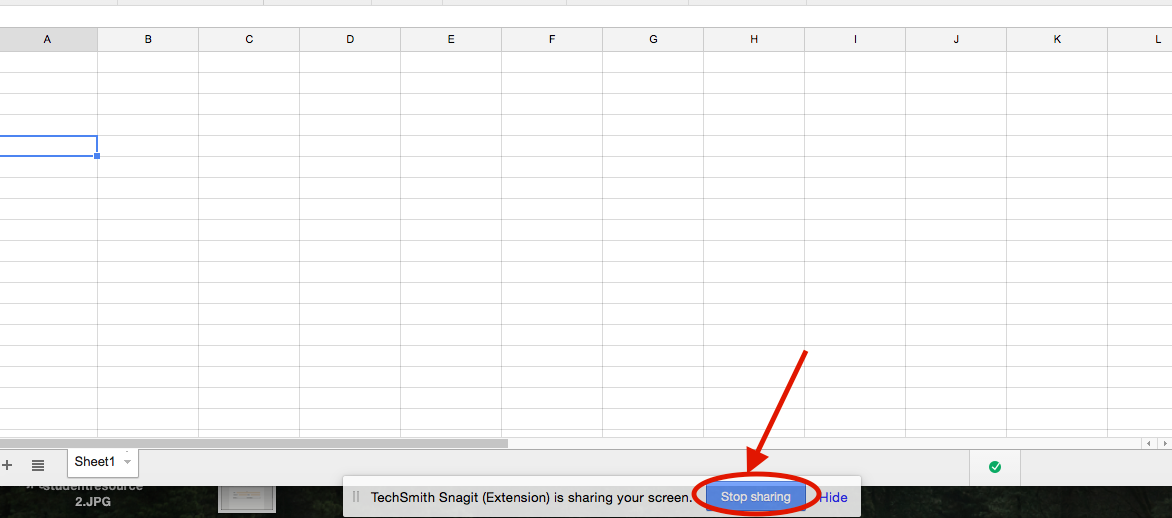
  • Once you are done with your recording, hit the stop sharing button.
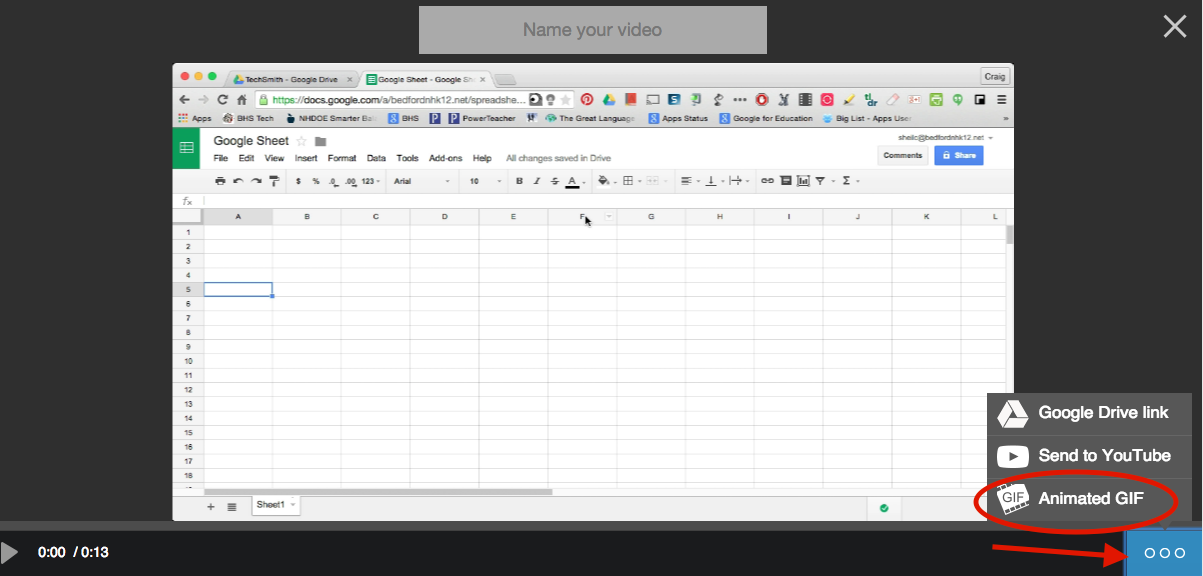
  • Then, name your video at the top of the screen. Next select animated GIF from the menu on the bottom left.
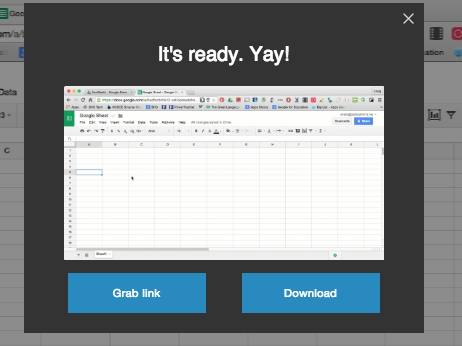
  • Lastly, Snagit will create a link as well as give you the ability to download your GIF file to upload on a website or blog post. Keep in mind that you can access these files right from your Google Drive in the Techsmith folder. (I also like the fact that you can upload video files right to YouTube as well.)

Hope this is helpful.