12 Days of Google

In the spirit of the season and the inspiration from Eric Lawson and Eric Curts, I have decided to run my own ’12 Days’ of tech tips and ideas. For the next 12 work days, I will provide a Google Tip/Trick that might help take your Google knowledge to the next level.

In the embedded Google Drawing below, I will link up each tip or idea each working day moving forward. (You might have to open up the Google Drawing in order for the icons to actually provide the Google Tip of the Day). You will also notice below the Google Drawing, I will have each day linked up.

Wishing everyone a happy and healthy holiday season!

And that is my Spiel…

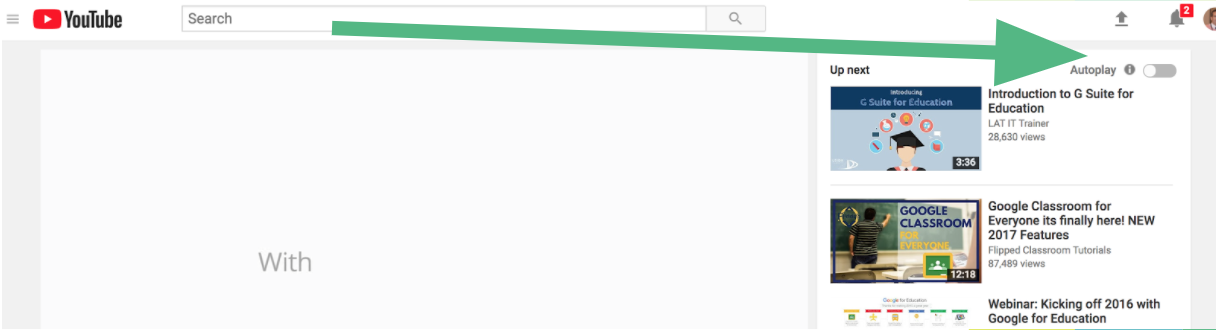
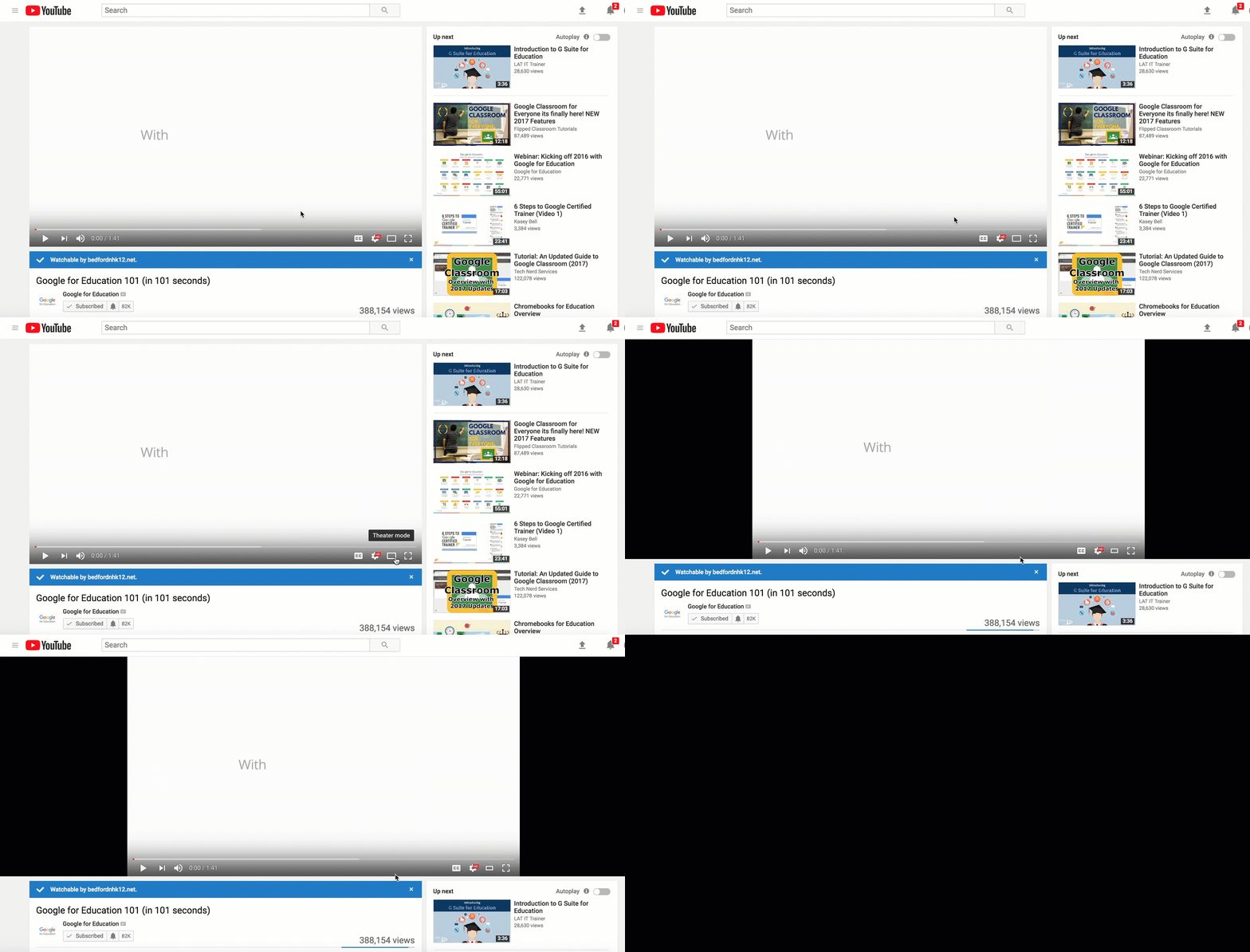
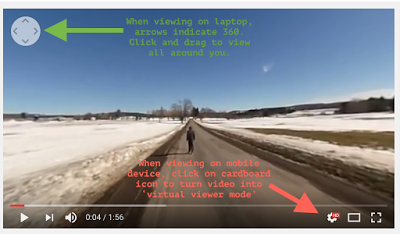
Day 1 of Google: YouTube Tips
Day 2 of Google: The Many ‘Different Views’ to Google Slides
Day 3 of Google: Exploring with Google Trends
Day 4 of Google: Google Calendar
Day 5 of Google: Providing Feedback in Google Docs
Day 6 of Google: Google Drive – Location of Files
Day 7 of Google: Google Classroom – Creating to Accessing Student Work
Day 8 of Google: Chrome Keyboard Shortcuts
Day 9 of Google: Google Keep Features
Day 10 of Google: equatIO for Math and Science classes
Day 11 of Google: Change Default Text in Google Docs
Day 12 of Google: Creating Your Own GIF with AutoDraw, Google Photos & Google Slides

Curate Images with DriveSlides

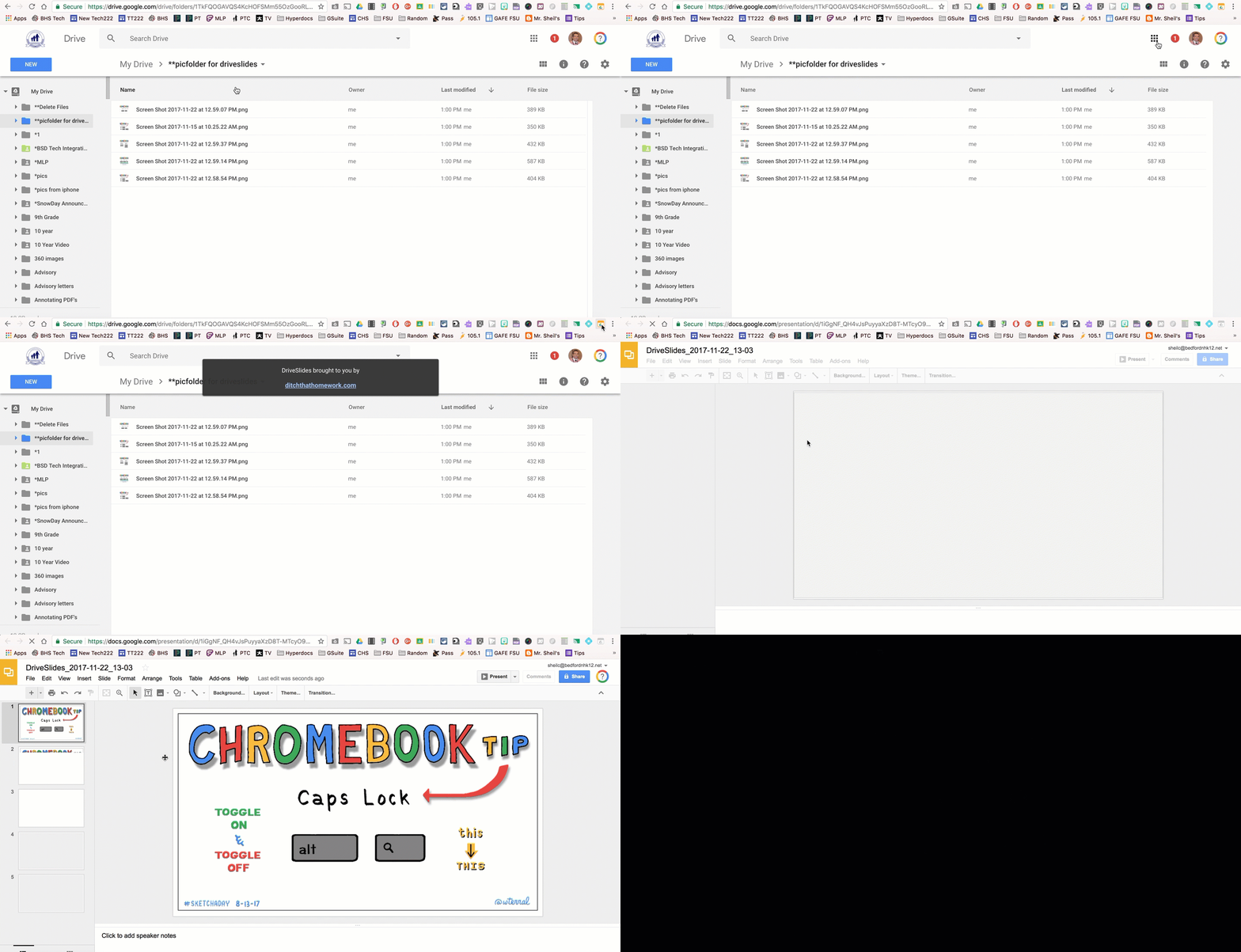
DriveSlides is a chrome extension that was created by Matt Miller and Alice Keeler to help get images into one place, more specifically into a Slides presentation. Below, I have provided an explanation of how the extension works as well as given a couple of examples in how this tool can be implemented.

How the extension works:

  • Curate all images into a folder in your Drive
  • Be sure to open said folder showing the list of all images
  • Select the chrome extension DriveSlides
  • Automatically, the extension will curate all of the images in the folder and place each one on its own slide in one Google Slide presentation. You will notice that the Slide presentation is located in the same folder as the images for further access.
You really cannot ask for a simpler process in getting images into one place. Alice Keeler is all about helping educators (and students) be more efficient with their time.
DriveSlides Examples
Curating Pics for Staff Slideshow
On our first staff day for the school year, it is tradition to watch a slideshow of staff experiences over the summer. Here staff can celebrate marriages, highlight family outings, and/or share new experiences. In past years, staff photos were curated in different ways:
  • Staff would email individual photos to the person who was creating the slide presentation. You could image the number of emails that this person must have received. Then to only download each picture to their desktop, followed by inserting the downloaded image into a Google Slide presentation.
  • Staff would add their own pictures to a shared Google Slide presentation. You could image that this is not as fun as staff could see what others had imported prior to the first staff meeting showing.  
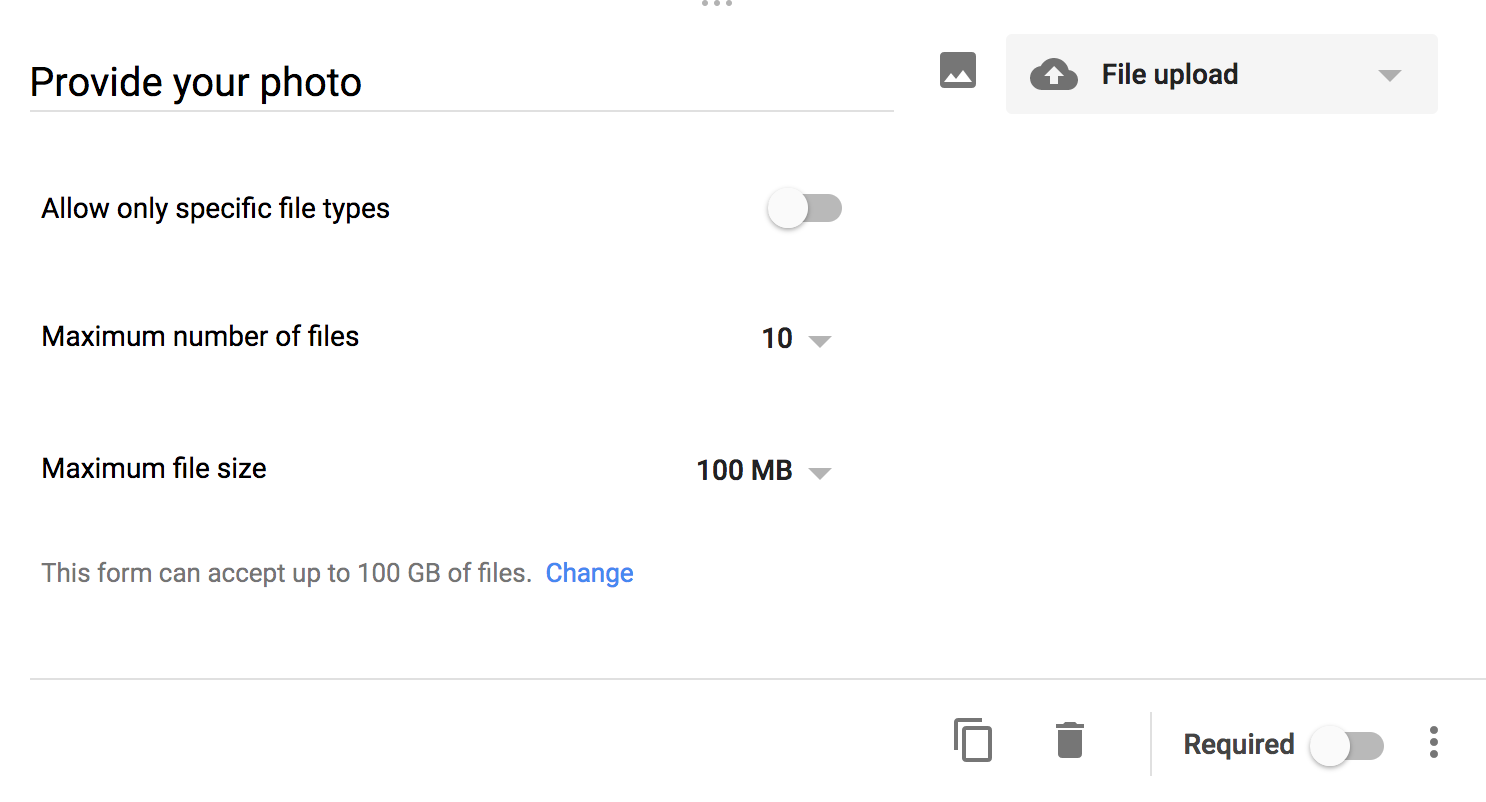
This past year, Mrs. Croft, created a Google Form and asked one simple question. Upload your photo. She allowed staff to fill out this form as much as they wanted. Because of the way the ‘File Upload’ question works in Google Forms, a folder is automatically created in Google Drive. Here, Mrs. Croft was able to open up the folder and use DriveSlides to automatically move all the images into a Google Slide presentation. From there, she was able to move slides around, add text to some slides, as well as insert her own slides to create title slides. DriveSlides, saved her a lot of time.

Note: With the ‘File Upload’ option in Google Forms, participants filling out the form must be signed in with their Google account in order to submit a file to you.

Google Classroom Assignment
With the design of how Google Classroom has been created on the backend, DriveSlides works perfectly. To help with organizing files, for every assignment that is created in Google Classroom, a folder is made. Thus, if you ever have students turn in an image, such as:
  • photos taken for photography class
  • screenshots showing graph created in Desmos
  • picture of written work from webcam on Chromebook
you can use DriveSlides to curate them all in one Slide presentation.

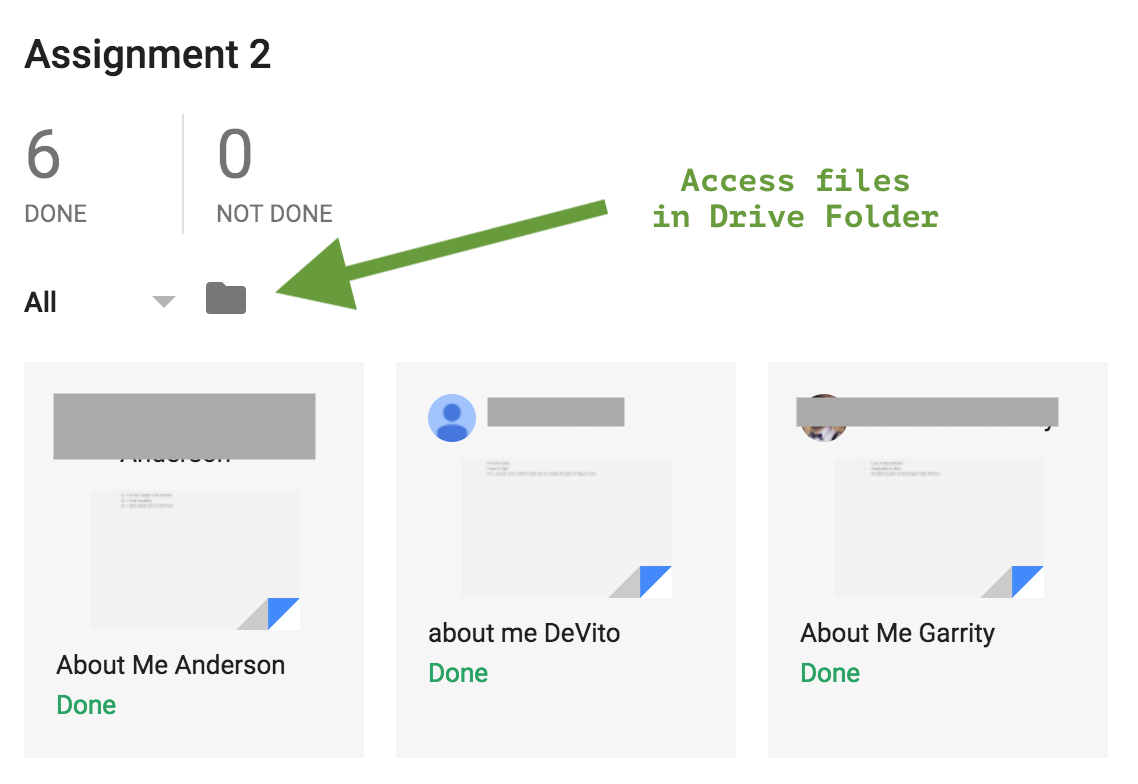
Once you open an assignment in Google Classroom, you will find a folder icon above all of the files turned in. You would select this folder icon to then view all images uploaded in the folder view. This would allow you to then use DriveSlides.

You might say, well why do I need all student work from the class in one slide presentation. Maybe you

  • want a way for students to collaborate and provide feedback on each piece of work. With the appropriate sharing permissions (anyone with the link can edit), you can allow all students in the class edit that one Google Slide presentation and provide feedback/add content.
  • want an easy way to show what the overall class thought process was like after the lesson
  • want an easy way to share student learning with administration
The possibilities are endless with this chrome extension. If you are interested in learning more about how you can use this extension with your curriculum, you know where to find me. 
And that is my spiel…

#sau25discovers – Learning From Each Other

Last Friday, the Bedford School District hosted its second annual Future Ready Conference where over 100 sessions were offered by its own staff as well as a few outside presenters. This day reminded me yet again at how fortunate we are that our district is willing to provide an opportunity for all staff members in the district to get together in one place to learn and share ideas with each other. We modeled our day off of Medfield’s Digital Learning Day – thanks again Neal for the inspiration!

Most importantly, I am also proud and thankful that we have a staff who are willing to take the time, out of their already busy lives, to share their own experiences and knowledge on particular concepts/tools/ideas. Let’s face it, our day would not be as successful if we didn’t have staff who were willing to go above and beyond to put together engaging sessions to inspire others. What I think is also cool is that we had a couple of sessions where students were presenting to our staff, thanks to the National Honor Society and DECA students. Hands down, this staff development day is by far my favorite as we all get together to not only learn from one other but to also support one another. Below, I have curated some tweets to highlight #sau25discovers.

On another note, if you are inspired to try something new in your classroom and you would like assistance or want to talk things through, you know where to find me. And that is my spiel…

Link to Storify HERE

(Also a big thanks to Kerri Lunn for putting together this animoto slideshow capturing the day.)

‘Mrs. Frizzle & a Greece Tour Guide’ Visited our School

Over the past couple of weeks, we have had students experience learning with the help of Google Expeditions. Both students and teachers alike enjoyed the opportunity to learn curriculum through a different medium than they have in the past. (We are very fortunate that our school is able to share a mobile cart of phones with our middle school to be able to explore different virtual reality applications in the classroom).

Field Trip to Greece
Mrs. Cooney and Mrs. Hatzidakis (and later Mr. Woodhead and Mrs. Devito) were thrilled to know that Google Expeditions had a Greece tour for their Freshmen humanities students to experience. Based on some reading and class activities that they had already experienced in previous classes, Mrs. Cooney was able to reinforce concepts about the Acropolis and other important Greece facts with two different tours. Google Expeditions provided an opportunity to see the Acropolis from a bird eye view.

Mrs. Cooney and Mrs. Hatzidakis also took it to the next level by having students run their own virtual tour by walking through the Acropolis using Sites in VR app. Students were able to experience the actual location through a series of 7 different 360 images. It was great for students to be able to ‘walk through’ at their own pace to make their own observations.

Mrs. Frizzle in 2017

When Mrs. Morrissey found out that Google Expeditions had a tour of the digestive system, she knew right away that she needed to implement it in her IB Biology II SL course this year. She had told the students that as a kid, she always enjoyed watching the Magic School Bus shows, especially the episode of when the school bus brought the students through the digestive system of a body. To think that now Mrs. Morrissey is the ‘new’ Mrs. Frizzle!

I thought it was clever with how Mrs. Morrissey used the app. In other situations, teachers have had students participate in an expedition and then completed other tasks. Mrs. Morrissey instead started the expedition of going into the mouth and esophagus. Then the students took off the headsets and together the class took some notes. Then, the students put on the headsets again for Mrs. Frizzle, I mean Mrs. Morrissey, to walk them through the stomach, etc. So rather than taking notes first and exploring second, the students explored around the particular part of the digestive system, then they took notes. This idea was a great way of breaking up notes.

Some people might say, well Craig, do you need virtual reality in order to help students understand the geography of a place? Can’t you show an image through the projector and accomplish the same thing? My answer to that question is you do not need virtual reality to teach. However, it can be a great opportunity to integrate with curriculum if done thoughtfully. If you are curious how Google Expeditions, or other virtual reality apps, can be used in your classroom, you know where to find me.

And that is my spiel…

Using Document Cameras Beyond Projecting a Worksheet

Document cameras have been around for a while now – it certainly is not new technology. However, this past week has reminded me, yet again, how document cameras can serve different purposes. Yes, I know the typical situation where a teacher places a piece of paper on the desk and uses a document camera to project the paper on the wall. This way students can follow along with filling out the piece of paper. But how can you take this simple device and take it to the next level. (Again, keep in mind that these examples are not new, earth shattering ideas).
Class Demonstrations

p.p1 {margin: 0.0px 0.0px 0.0px 0.0px; font: 12.0px Helvetica} p.p2 {margin: 0.0px 0.0px 0.0px 0.0px; font: 12.0px Helvetica; min-height: 14.0px}

Mrs. Lederhos, our ceramics teacher, used the IPEVO document camera for the first time last week. She was explaining how it was hard for her whole class to look over her shoulders when she wanted to demonstrate a technique with pinch pots. She asked if she could try out a document camera to see if it would help improve the way she showcased techniques. We set her up with the document camera and things could not work any better. To the left, is a picture of her set up. Now, Mrs. Lederhos is able to demonstrate techniques in wide screen on the front of the room. I also like how she has placed the document camera on a rotating stand. This can help her with making sure that the document camera is in the right place as well as give the document camera more height. I was also impressed with how clear the picture quality was coming through during demonstration, even though there was constant movement.
Mrs. Hogan, our Photography teacher, has also found the document camera to be very helpful when needing to show her Photography students how to check settings on their digital camera prior to taking pictures. Again, she solved a situation of needing everyone in the class to see the steps rather than having to show each individual student.

Screencasting
Over the past couple of years, I have helped teachers create short screencasts. Teachers have created these screencasts for different purposes. However, I have had in the back of my mind that screencasts must be done with content created on a computer screen. This is not the case!
A friend of mine, Ms. Drake, who happens to be a math teacher, shared with me a visual with what she accomplished. The picture spoke to me as it made me realize that a teacher does not need to have everything electronic in order to screencast. She had her document camera connected to her laptop. She used Screencastify, a chrome extension that we use all the time in my school, to gather what is being shown on her screen. In this case, it is the document camera projection on her screen that she is recording. Rather than using Smart Notebook, or Google Slides to walk through examples, she was using her notepad to write out her mathematics. Again, you might be saying well Craig, that is not any different than a teacher filling out a piece of paper live in front of a class. You are right! But I didn’t make the connection that a teacher could in fact record a screencast with paper and pencil. 
If you would like to talk more about how document cameras can be used in your classroom, you know where to find me.
And that is my spiel…