Setting Up Conference Meetings using Google Calendar

Many of us can relate to having students sign up for a one-on-one conference with students for a particular project/assignment. Many of us passed around a sheet of paper and students signed up by putting their name on a piece of paper. Many of us had students email times that were good until we found a time that worked out great. There is nothing wrong with either of the above mentioned methods. However Google Calendar can help streamline and make this process a bit more efficient as well as remind you of your meeting time.

Google Calendar has a feature called Appointment Slots with all GAFE accounts. In other words, you cannot use this approach on a personal gmail account. It is also important to understand that in order to use the method, students MUST have a gmail account in order to sign up for an appointment slot.

Examples of this Feature:

  • Teachers setting up meetings with students during Midterm week for oral presentations that occur out of the classroom
  • Administrators giving teachers opportunities to sign up to go over evaluations
  • Librarian giving teachers opportunities to send entire classes down to pick up a new novel or textbook (this is something that our Librarian, Mrs. Gilcreast, has set up for our teachers to help streamline the process of knowing when classes can pick up textbooks and novels).

Below are instructions to using Google Calendar Appointment Slots

Step 1: Create a Calendar
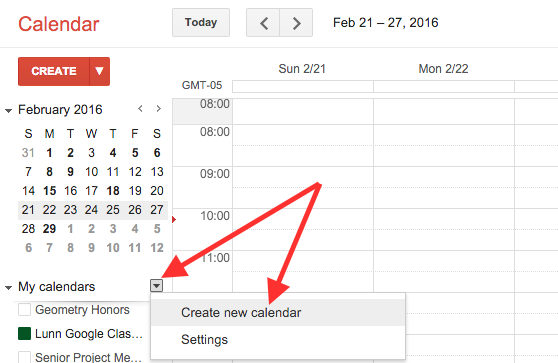
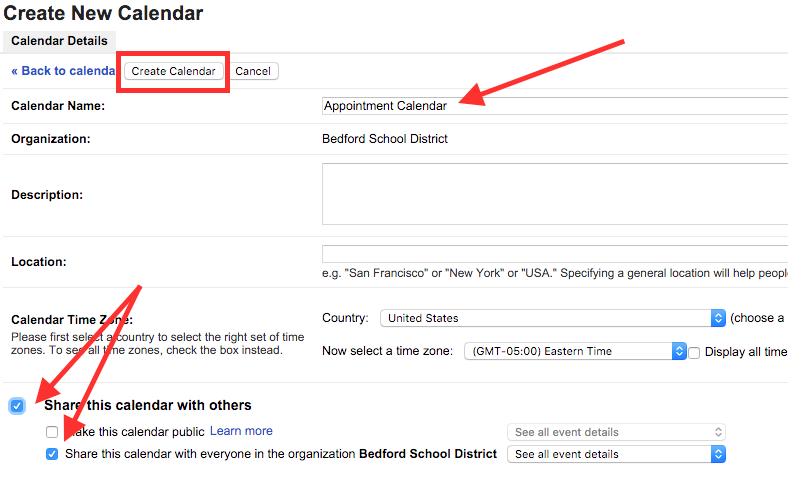
Create a calendar that is separate from the default calendar that was created (don’t use the calendar with your name on it). You might want to create a calendar called meetings or appointments.

You will add the name of the calendar, on the next window. It is also important to change the sharing permissions to anyone in your school domain. Then hit the Create Calendar button


Step 2: Create the Event
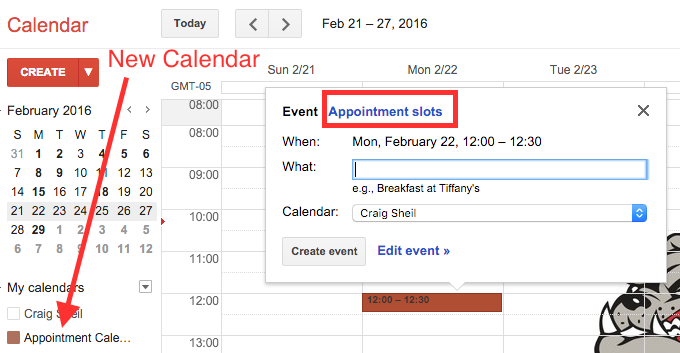
The new calendar will show up under your own calendar. Once this is done, click anywhere on the day you want to create the appointment. A pop up window will appear. Be sure to select Appointment slots at the top.

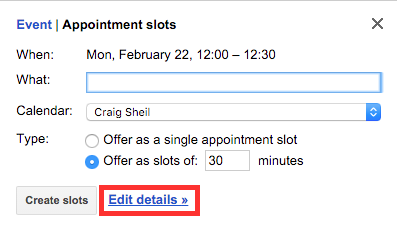
The pop up window view will change – click on Edit details to fill out all the necessary information.

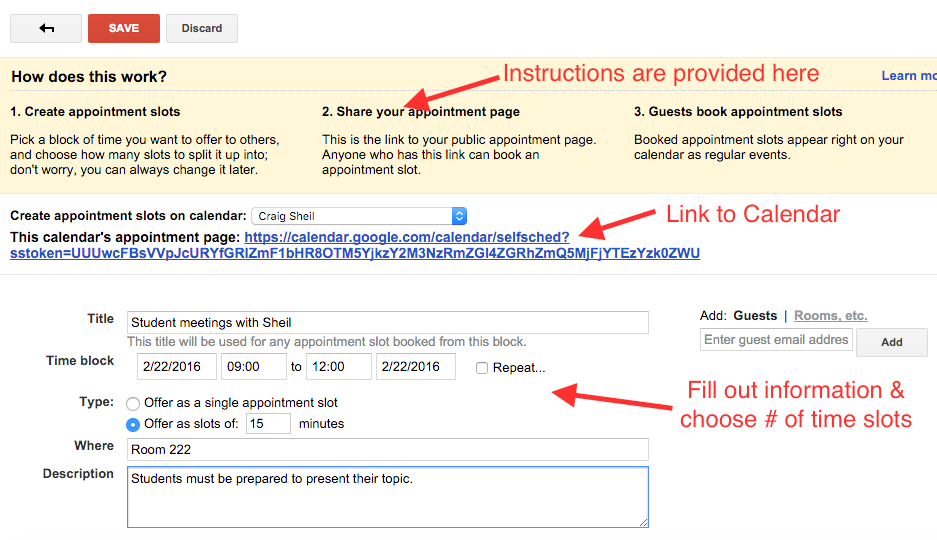
Step 3: Add information to Event
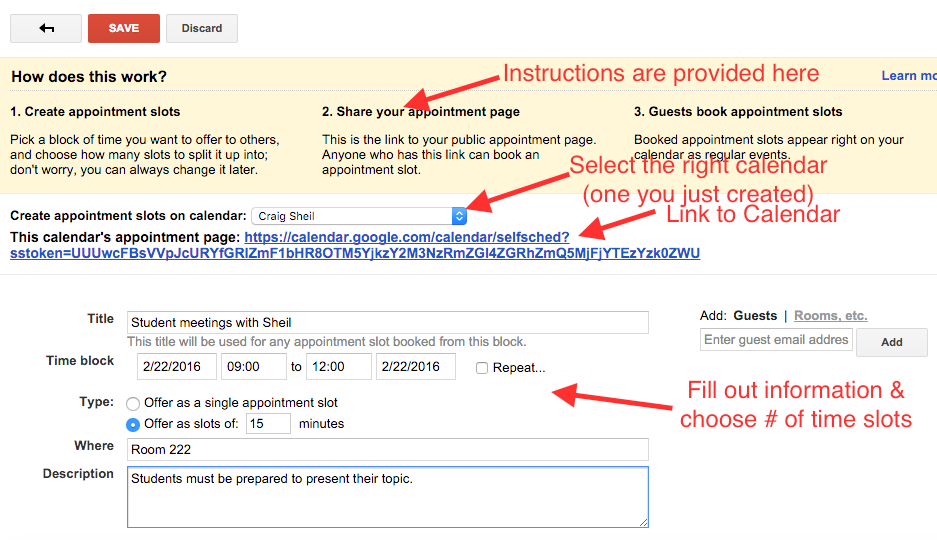
Add the necessary information to your event. Make sure you also select the RIGHT calendar from the drop down.  Important to note that you create an event for the entire amount of time you are available and then determine how long you want the appointment slots to be. Google Calendar will then automatically create each of them individually.


Step 4: Sharing the Link to Calendar
The link to this calendar is provided. This is the link that you would need to put somewhere for students to access, either through Google Classroom or a Teacher Google Site. Students will not be able to view your available appointment slots unless they have this particular link. Students must be logged in with their Google account (if they are not already logged in).


Step 5: Signing Up for Appointments
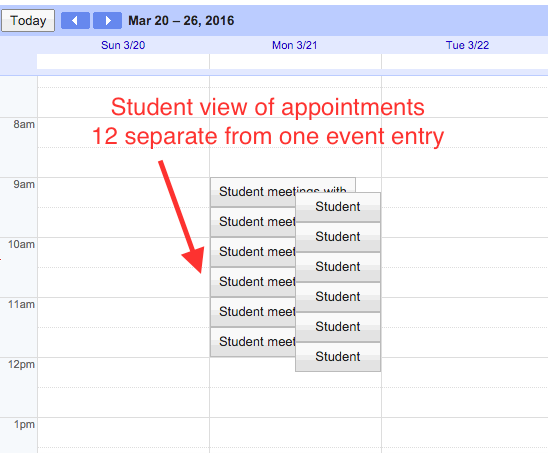
Once a student clicks on the calendar link, they will see the appointments that are available. Below are the separate appointments that were created from one entry 9am – 12pm availability with 15 minute appointment slots. As students start signing up for a time, they will no longer show up.
NOTE: When you hover over an appointment, it will actually give the specific time.
NOTE: You can also sign up for your own appointments if there are times that you want to block off throughout the block of time you created.

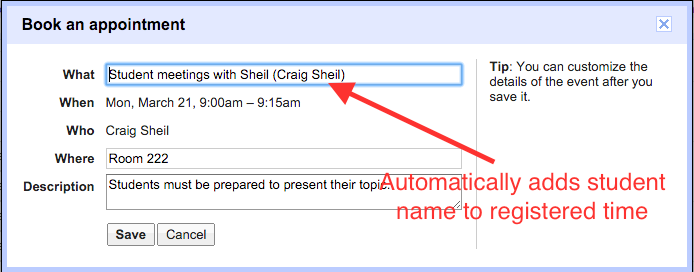
Once the student selects a time for an appointment, a window will show up with the details before saving and accepting it. You will notice that the name of the person who is requesting the appointment will automatically show up. This will be helpful for you knowing who will be showing up.

Once the student chooses a time, the appointment will automatically show up in your Google Calendar. Just click on the appointment and you will know who requested that time slot.

If you would like further assistance with trying out this method, feel free to stop by and ask.

Using Your Own Google Drawings as Images in a Google Doc

From time to time, we all have wanted to include an image or picture of something in a Google Document. Google has made it very easy to make this happen.

  • Drag and drop an image anywhere on the Google Document
  • Insert an image by URL
  • Search ‘free to use’ images from Life and Stock Images databases
There are three ways to include a Google Drawing you have made in your Google Document. The most obvious method is just taking a screen shot of the final version of the Google Drawing and inserting it in the Google Document. The only disadvantage of this would be if an edit was made to the drawing after the screenshot was taken. An updated screenshot would then have to be inserted on the Google Document.

Below are two different ways an ‘always current’ Google Drawing can be included in a Google Document.

Inserting a ‘Non-Existing’ Google Drawing
STEP 1:
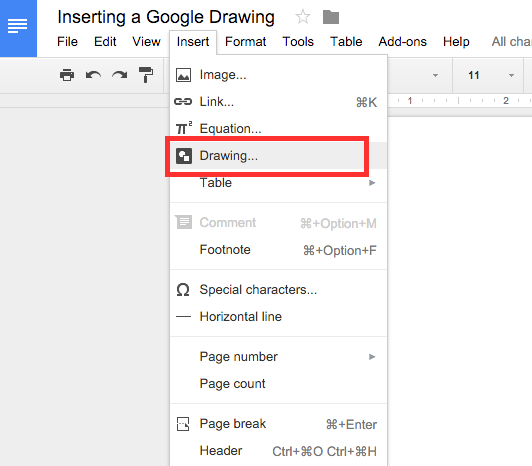
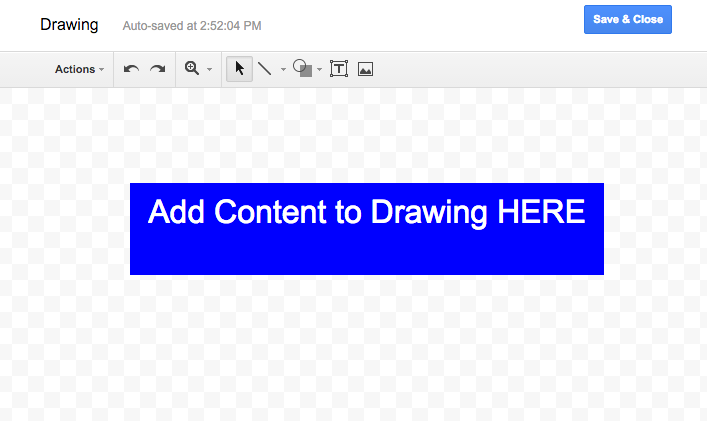
Place your curser where you would like to create your Google Drawing. Then select Drawing under the Insert menu.
STEP 2:
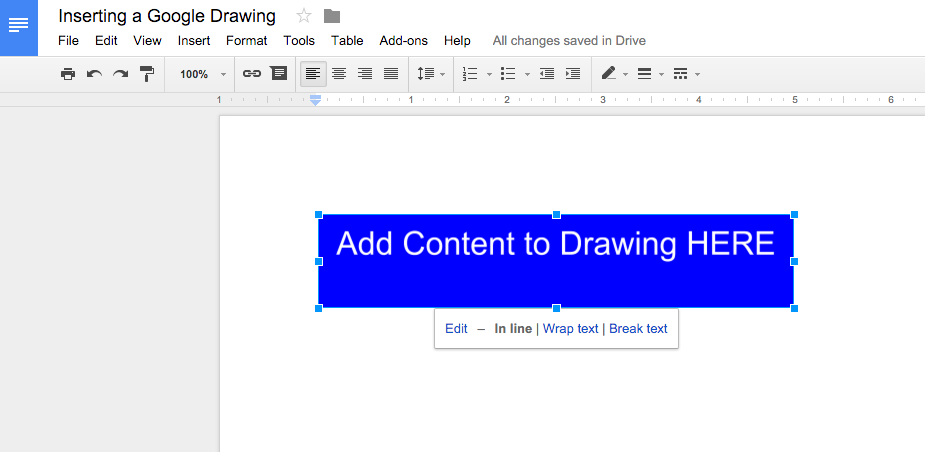
A drawing pop up window will appear for you to add your content. Once you are done, you will then hit the Save & Close button. It is important to know that a separate Google Drawing file will not be created since you are making this ‘drawing’ in the Google Document. You also cannot grab a pre-existing Google Drawing this way.
**NOTE: You are able to made edits to your drawing after you have saved it to the Google Document. To do this, double click on the drawing and the popup window will reappear.

Inserting a ‘Live’ Pre-Made Google Drawing

STEP 1:
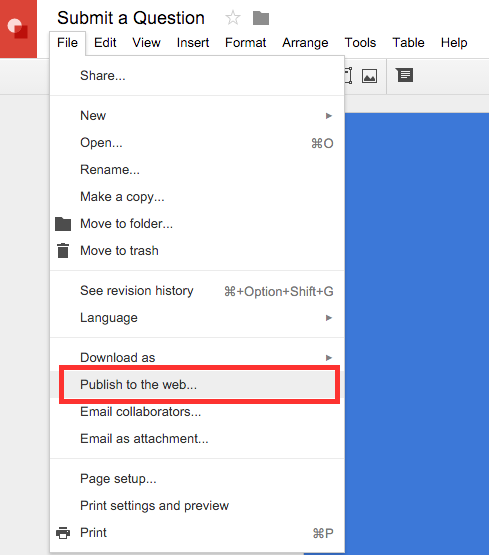
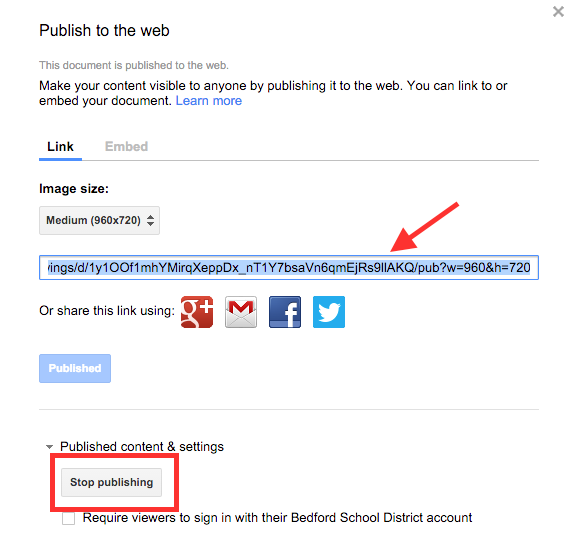
Open the Google Drawing that you want to include in your Google Document. Then select, Publish to the Web under the File menu.

STEP 2:
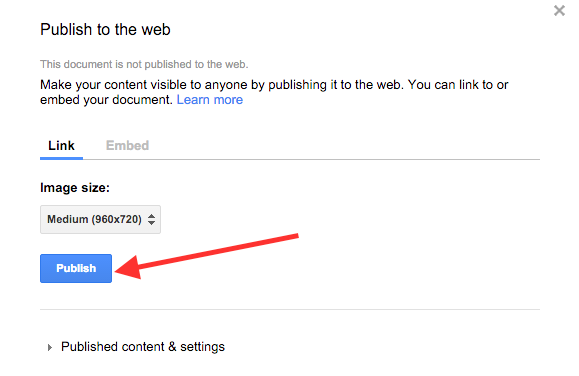
Select the blue Publish button. This will provide a link that will be available for anyone in the world to view.
** NOTE: You do have the ability to restrict who can see this information under the Published content & settings drop down menu at the bottom of that window.
STEP 3:
Copy the provided link.
** NOTE: You have the ability to stop publishing your file, however if you ever choose to do this, you would loose the linked Google Drawing in your Google Doc.
STEP 4:
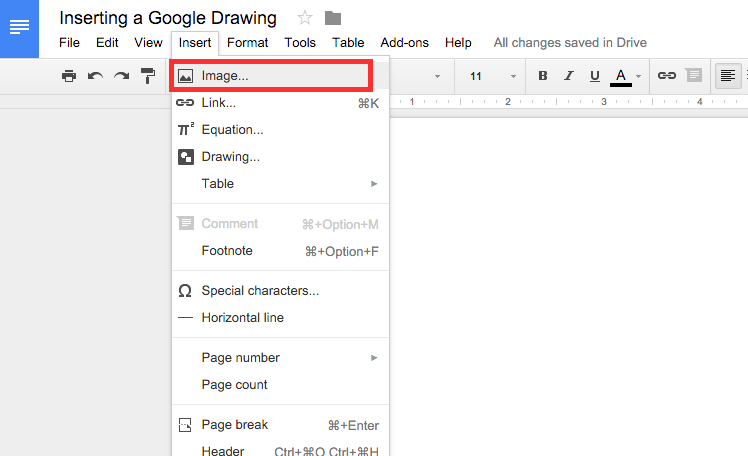
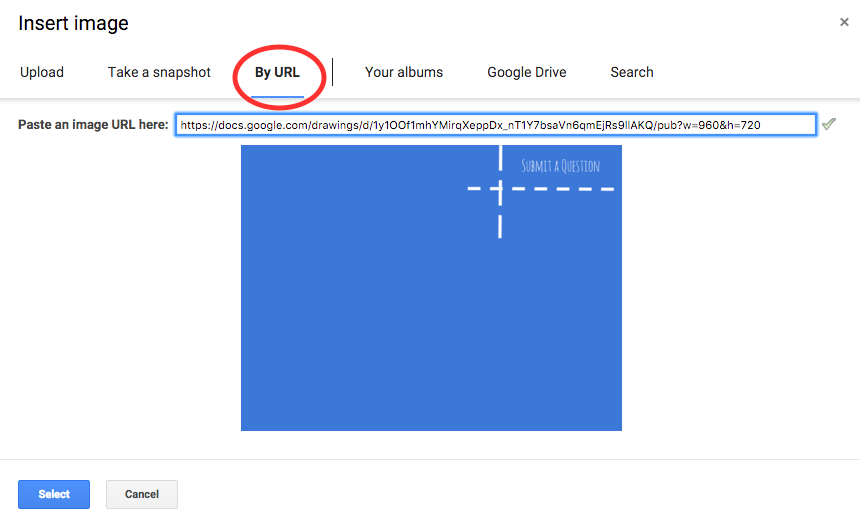
Select Image under the Insert menu and paste the link to the Google Drawing. Your drawing will then be embedded in your Google Document.
As always, if you ever have any questions – you know where to find me. Happy Drawing…

Polling Students through Google Slides

Receiving formative feedback can be very helpful. There are many tools out there that help get that feedback, whether you use Kahoot!, Quizizz, Socrative, or Peardeck (to name a few).

Just recently, Poll Everywhere came out with a Chrome extension that allows Google Slide users the ability to embed Poll Everywhere questions right in a presentation.

I can see this being very useful when you know you want to ask your students a very quick question but don’t want to spend the time to add the presentation in a Peardeck or Kahoot! Poll Everywhere does have a free educator account (which is great) but only limits you to 40 responses per question. So, those of you who have class sizes higher than that would not be able to use this tool.

So the next time you have that moment of ‘I want to quickly add a question or two to a google slide presentation’ give Poll Everywhere a try.

STEP 1:
Get the Poll Everywhere Chrome extension. The actual official title of this Chrome extension is: Polling in Google Slides (This chrome extension has already been pushed to the staff in my district).

It is important to note that you will not ‘see’ the chrome extension with the rest of the extensions in the Chrome browser. Instead, a new menu option will show up when you have a Google Slide opened on your screen.

STEP 2:
Go to Poll Everywhere and sign up for the free K-12 Educational Plan. Click HERE for the direct link.

STEP 3:
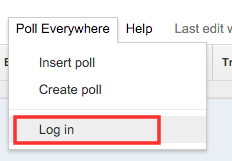
Open up a Google Slide presentation that you would like to include a question or two in your presentation. You will notice the new menu option: Poll Everywhere.

STEP 4:
Log in to your Poll Everywhere account.

STEP 5:
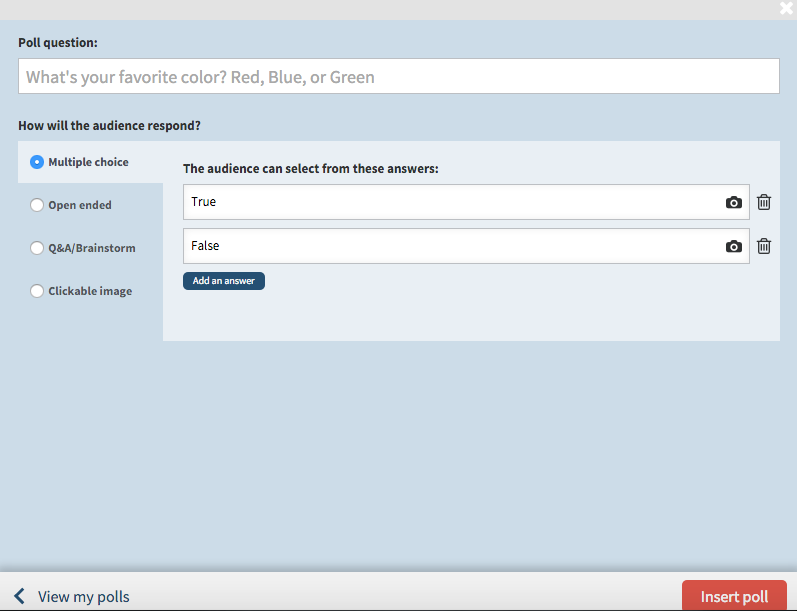
Then select Create Poll. A pop up window will appear for you to choose the type of question. Once you hit insert poll, it will automatically insert a slide with that poll question on it.

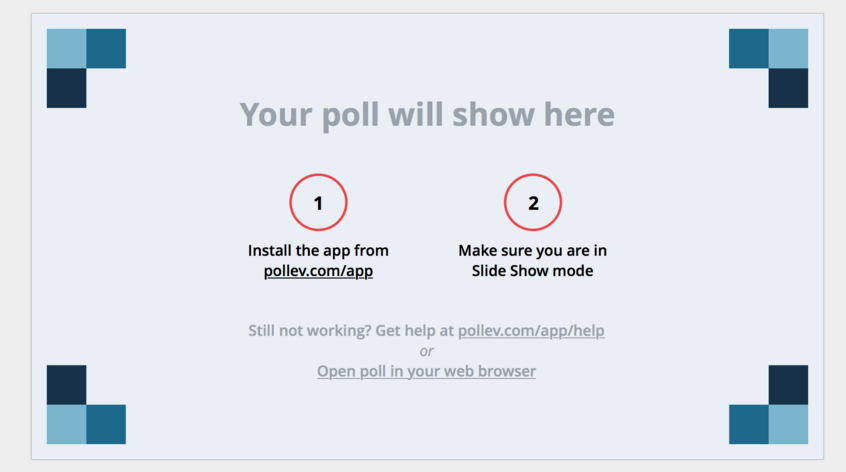
Important to Note: The actual poll question will not show until you are in present mode of your slide presentation. While in editing mode, you will see the following:

If you have any questions on how you can use this extension or you need assistance making this work for you, just let me know.

QR Codes: Way to Get Students Moving Around with Chromebooks

Looking to do something different with students and have them moving around in your class? How about creating QR codes for students to scan with their chromebooks to complete tasks. This can be a great way of changing things up, besides playing Kahoot! games, pushing an assignment through Google Classroom, or having students fill out an exit ticket.

Examples of Implementation:
At times, I see teachers having students complete tasks in groups with the use of stations. The groups work on that particular task and once time is over, groups are instructed to move to the next station to solve another task.

Mrs. Cooney and Mrs. Hatzidakis did this for their roots classes this week and the activity proved to be successful. They had several stations where students needed to visit. One student from each group would have a chromebook and would scan the code to access the content needed for that station. The group then worked together to accomplish the task. Some codes opened up articles from databases, YouTube videos, Google Drive files, etc.

Another possibility is creating a QR code treasure hunt where students have to answer questions in order to move on through the use of QR codes. If you are interested in this, check out classtools – VERY easy to use. What I like about this tool is that the QR codes are automatically made for you.

Creating QR Codes
Step 1: Find/Create items
You will first need to create or find things that you want to be scanned by your students. This can be a range of things from Google Documents with problems/questions on the, to an article on a website, to an image you want them to ponder about.

Step 2: Creating QR Codes
Once you have the items you want to use, you must then create your QR Codes. There is a Chrome extension that I use for this purpose. It is called goo.gl URL shortener.

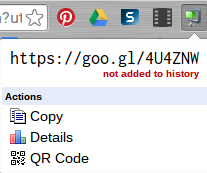
It is very easy to use. Have the website, video, or Google Document you want to create a QR code for opened. Then click on the goo.gl URL shortener Icon where all of your chrome extensions are located (top right corner of chrome browser). A window will open like the one below.

All you need to do is click on the words QR Code and a QR code will appear. Below is what that will look like. Then, click and drag your QR code to your desktop so that you can put it in a Google Document that you will print to post somewhere in your classroom or around the school.

Step 3: Getting the QR Scanner Chrome App
Before students can scan, they must have a particular Chrome App, called ScanQR. They can download this to their chromebook or you might need the administrator to your school domain to push this to your students. All students at BHS have this app pushed to them.

Step 4: Using ScanQR App
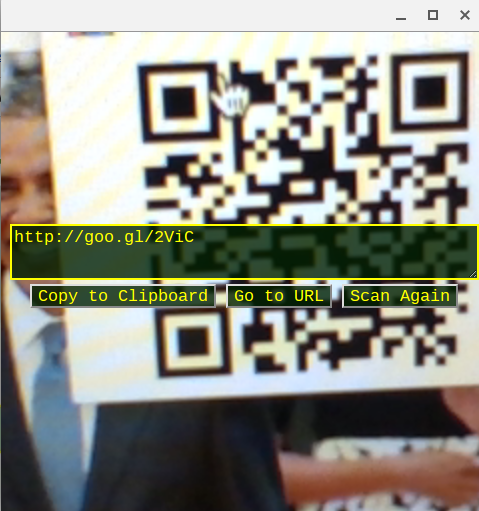
Student must then open the Chrome App on their Chromebook. For those students who have a swivel camera, they can flip the camera and scan the QR code. Once scanned, a window will appear with options. More than likely they will select Go to URL.

As always, if you have any questions on how to use this tool, you know where to find me.

Have You Shared with Classroom Yet?

Google has created a Chrome extension that allows teachers to be able to share information easily to students that are enrolled in their Google Classroom without having to log into classroom.google.com. The name of the extension is Share to Classroom.

In order to effectively use the power behind this extension, your students will need to have this extension in their account as well. (This Chrome Extension will be pushed to all BHS students in the very near future as this will work nicely with chromebooks.)

What You Can Do…

  • Push a website, article, video, document to students right on the spot without making an assignment/announcement
  • Push an assignment to the class
  • Make an announcement to the class
Push Content
I am a big fan of this feature. Everyday, we make spontaneous decisions based on where discussions are leading us. This extension helps support information you want students to access right on the spot. By using this chrome extension, you can send all students who have their device open a link to a website, video, article etc. This is similar to Google Tone (another Chrome extension) but I like how this is tied to a Google Classroom so that only those students in the class get the pushed site – not other students. 

For instructions and demonstration on how this works:

Posing Assignment and Announcement

You are able to post assignments and announcements in Google Classroom without having to be logged into classroom.google.com.

For instructions and demonstration on how this works:

As always, if you have any questions, let me know!