2021 – Day 1 of Google – Chrome

On our first day, we will take a deeper dive into some features of Google Chrome. I must say for myself, there were several “I didn’t know you could do that moments” for me.

AUTOFILL

First thing we will talk about is your own settings in chrome. I think it is a great time to remind people about things that have been saved under your account. Some users save their passwords on websites that they use. It can be a risky thing to do. If you don’t remember what websites you have saved passwords for, or you no longer want to grant access to saved passwords, or you didn’t know you even save a password for a paricular tool/website…have no fear. You can see and make changes, by:

  • Selecting the three dots on top right corner of chrome
  • Choose Settings
  • Select Autofill on left column
  • Select Passwords

In a similar fashion, check to see if you have any saved payment methods. You might not want websites to have your saved credit card information or better yet, any saved financial data on your school google account.

HIGHLIGHT TEXT and SHARE

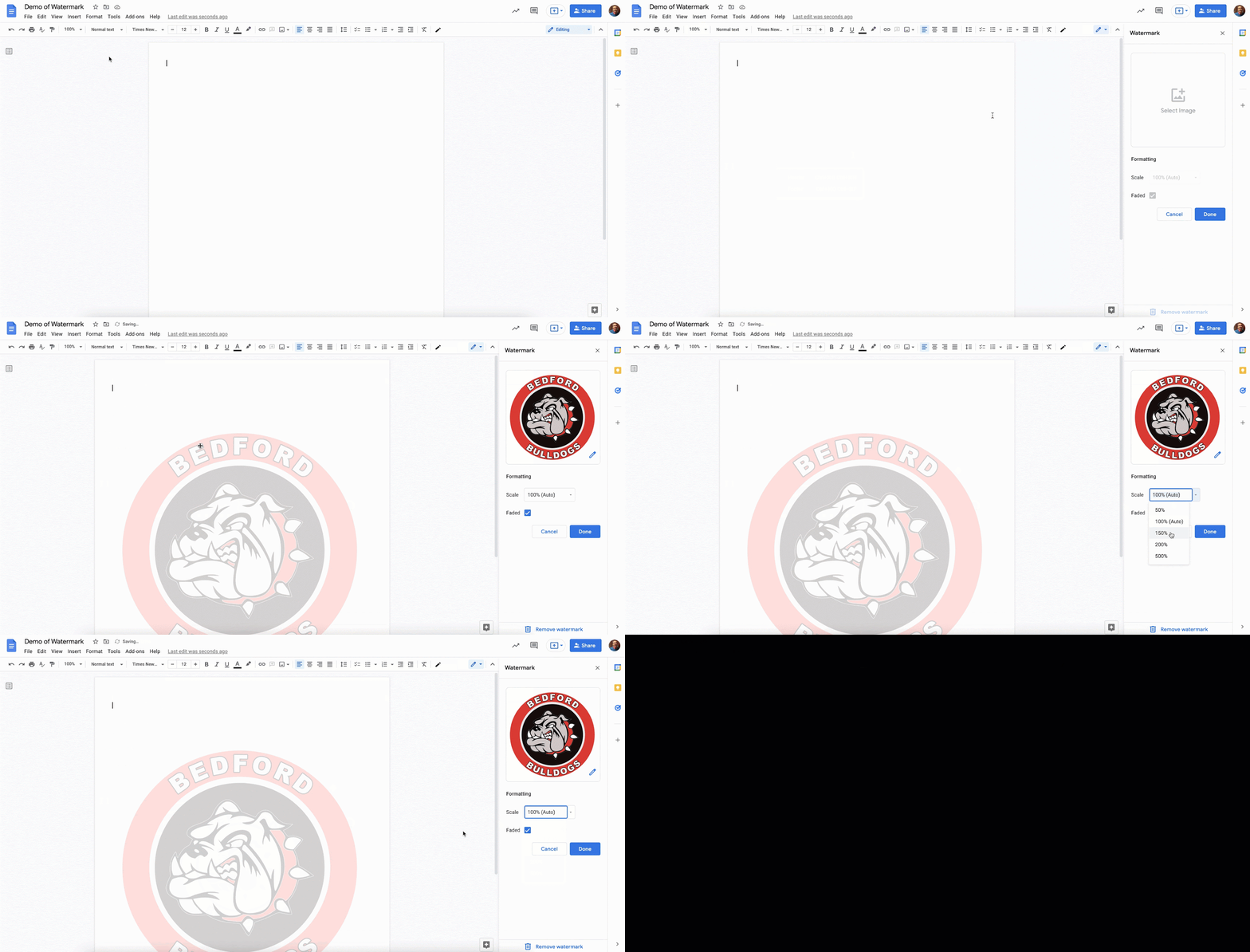
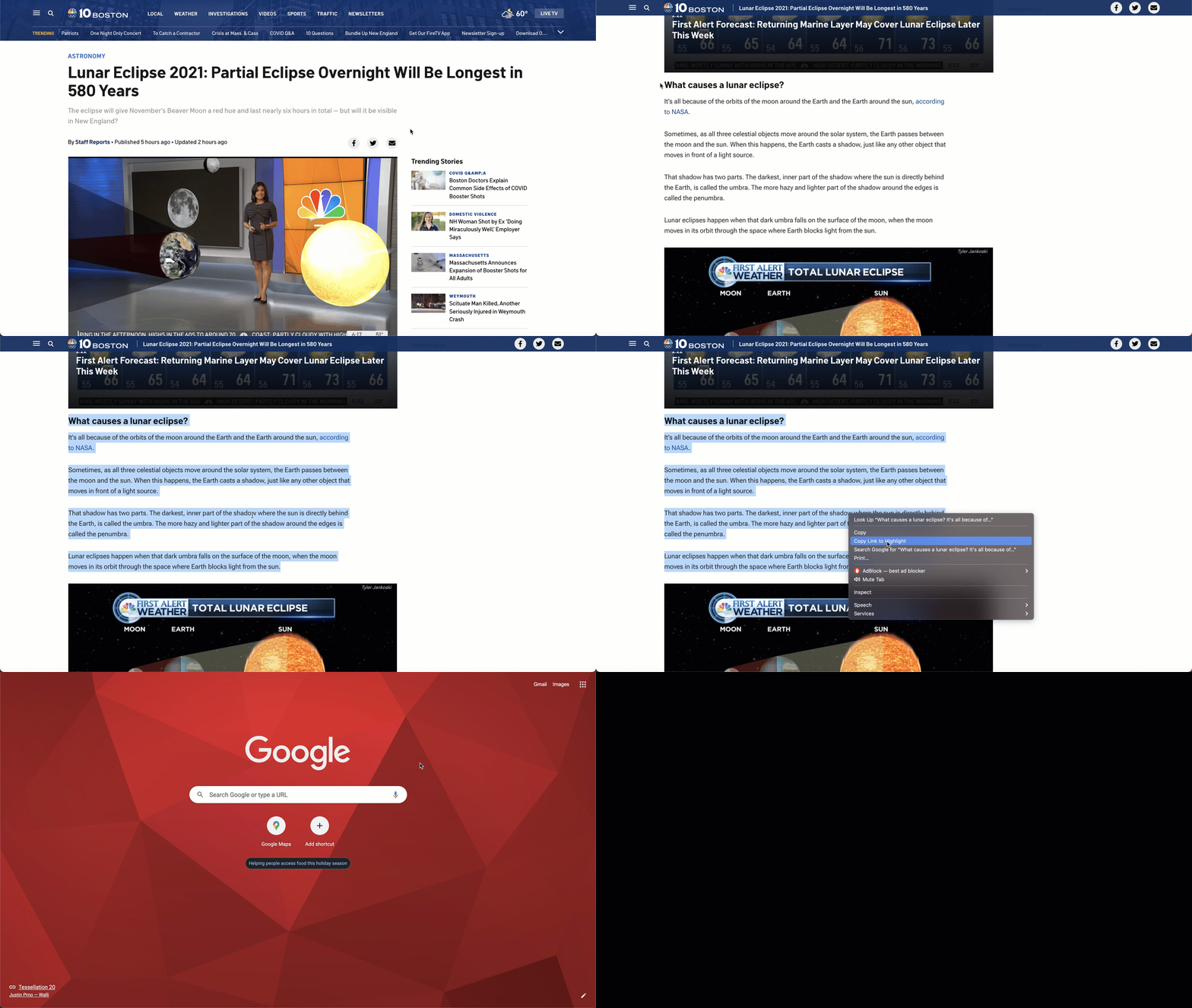
Did you know you can direct students to particular text on a webpage? This was a learning moment for me! Yes, you have the ability to draw attention to a certain part of a website for students so that they don’t get distracted. How to make this happen?

  • Highlight the section you want students to read or pay attention to
  • Right click
  • Select “copy link to highlight”
  • Then provide link to students

The gif below will walk you through the process.
HIGHLIGHT TEXT and SAVE IN GOOGLE KEEP

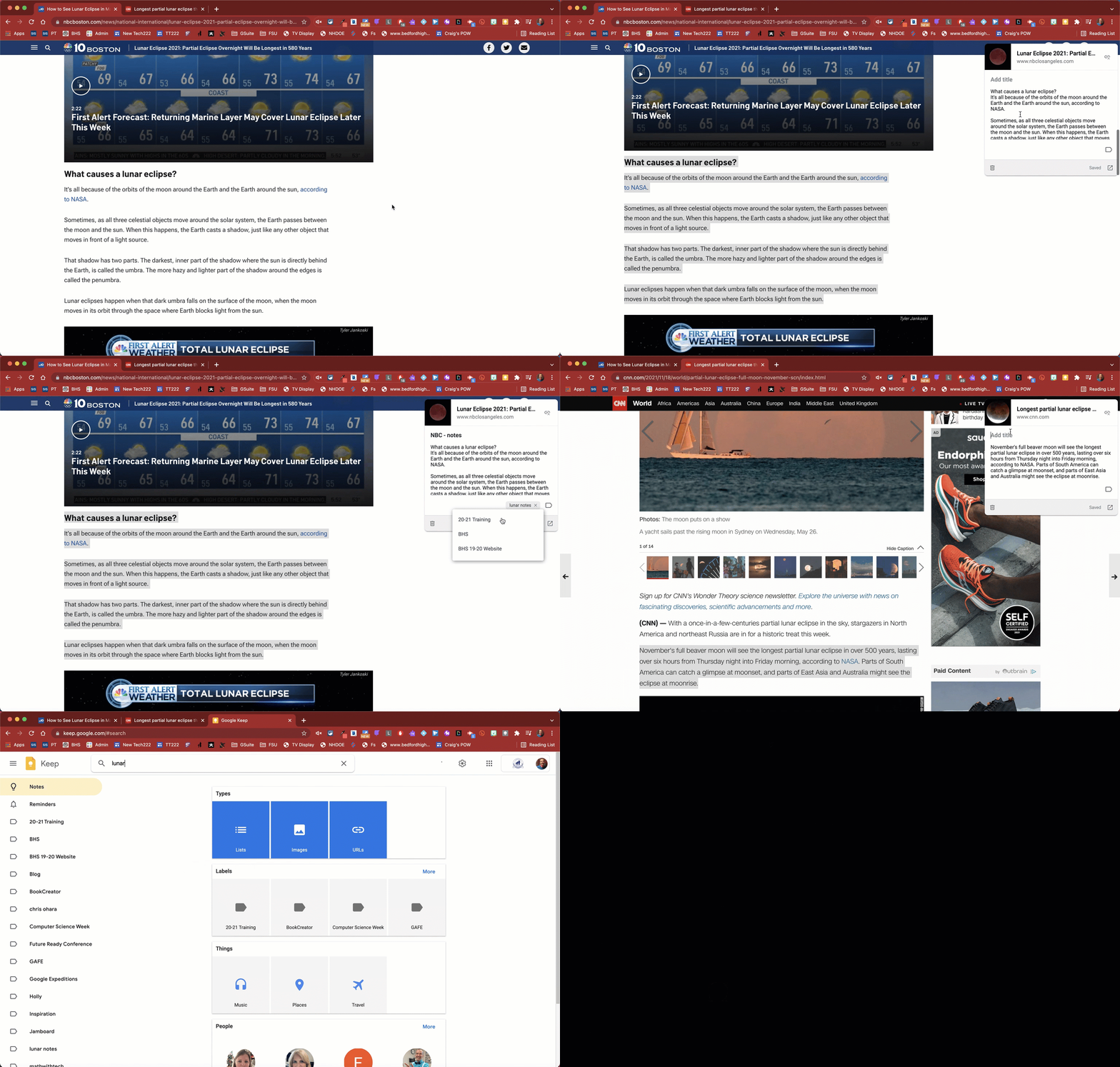
In a similar fashion, I have been seeing people talk about how they have students use Google Keep for note taking purposes. As students are doing research online with certain websites, they can highlight information that they want to keep. Once the text is highlighted, they can select the Google Keep chrome extension. Students will notice that the link is already added to the keep note, as well as the text that was highlighted. Students can add a title to the note, as well as type any other text they want to add. Students would then provide a tag to the note so that they can go back to all of the information they found useful in their research under that particular tag. Student would go to keep.google.com, search that tag they decided to use, to see all of their notes. Clever. In fact, very clever.

Below is a gif walking through the process of how to use the keep chrome extension.
And that is my Spiel…

10 Days of Google – 2021

It is that time of year to highlight some features of Google that are ‘Good to Know’ items. Look out for helpful tips starting next week. Hope you are able to have a couple of ‘aha moments’. (Hard to believe this is either my fourth or fifth time putting this together).

Link to Resource – will be updated as Days are available.

On another note, may you and your family have a happy and save holiday season.

And that is my Spiel…

Collaborative Class Podcast

In the next couple of weeks, I will be visiting a couple of humanities classes to help students take their written work and convert it into spoken language. Teachers are asking students to create a podcast episode to what will turn out to be a full class podcast. The 9th grade humanities teachers, Mrs. Devito, Mrs. McDermott, & Mrs. Kenney, want to be able to hear their students share their thoughts and tone. Another history teacher, Mrs. Gaudreau, wants to have her students interview a grandparent, or a friend of the family, to get their perspective of what life was like in a particular era. I am excited for the fact that for many of the students, this will be a new skill/task. They aren’t ‘just’ submitting another google doc or another slide presentation. They are learning how to share their knowledge or ideas in a different fashion.

THE TOOLS

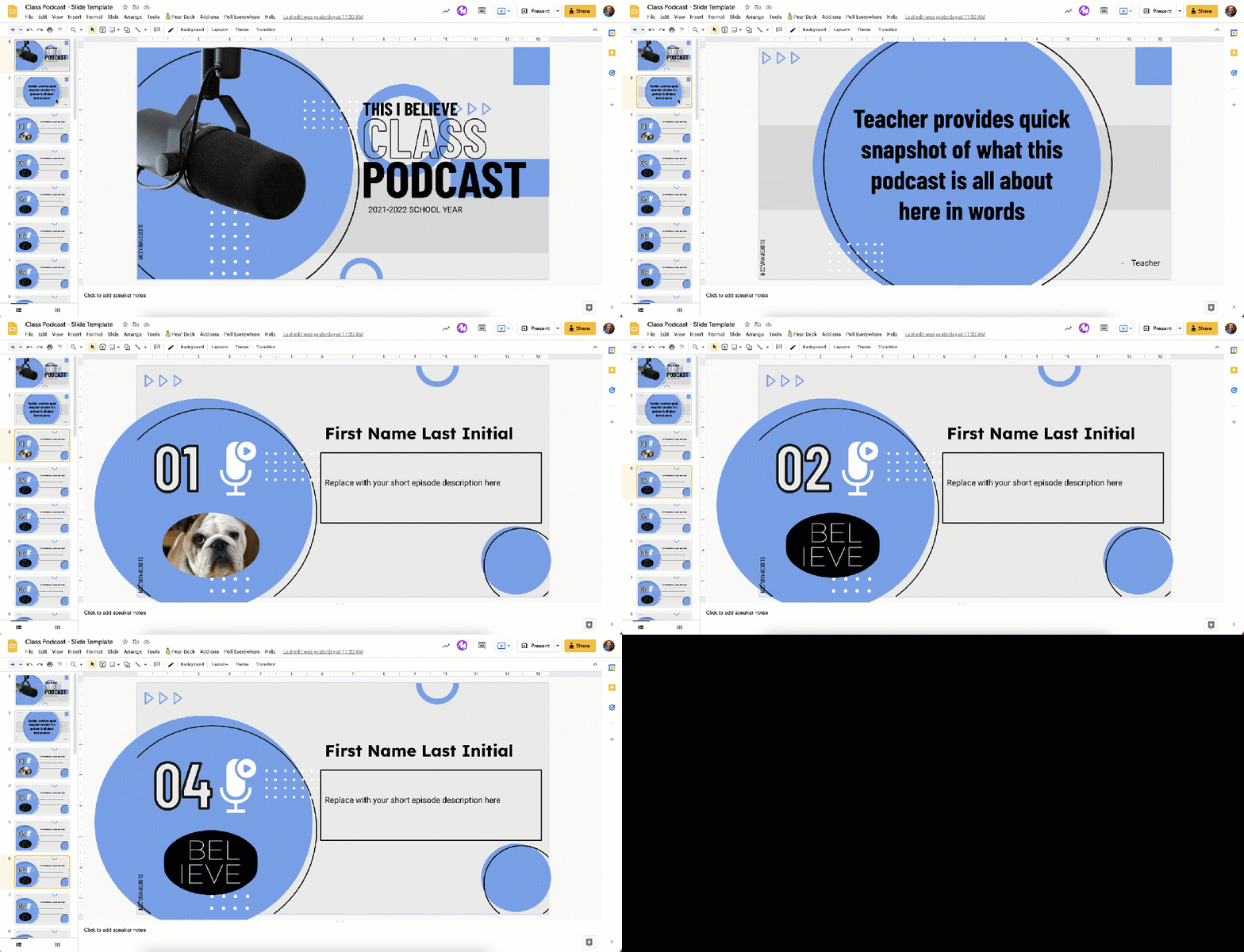
In both of these scenarios, students will be using WeVideo to create their audio track (our school has the paid version of WeVideo). Students will have the ability to record right in WeVideo or upload a recording from their mobile devices into WeVideo. Once audio clips are stitched together, students will share their final recording on their own slide, in the class google slide. The gif below gives you an idea what it will eventually look like. Big shout out to Slides Mania for providing great templates to pull from. It truly is much appreciated. Click HERE to view in a different window.

Why WeVideo?

  • We needed a tool where students didn’t have to record all in one shot.
  • We wanted the ability for students to add sound bite/interludes.
  • We needed a tool that would allow for a range podcast length.
  • We also pay for the service.

Why Google Slides?

  • We wanted a space where students can provide a link for others to access.
  • We wanted a space for students to provide a photo and short description of the episode.
  • We wanted a space that easily allows for collaboration.

THE SUPPORT

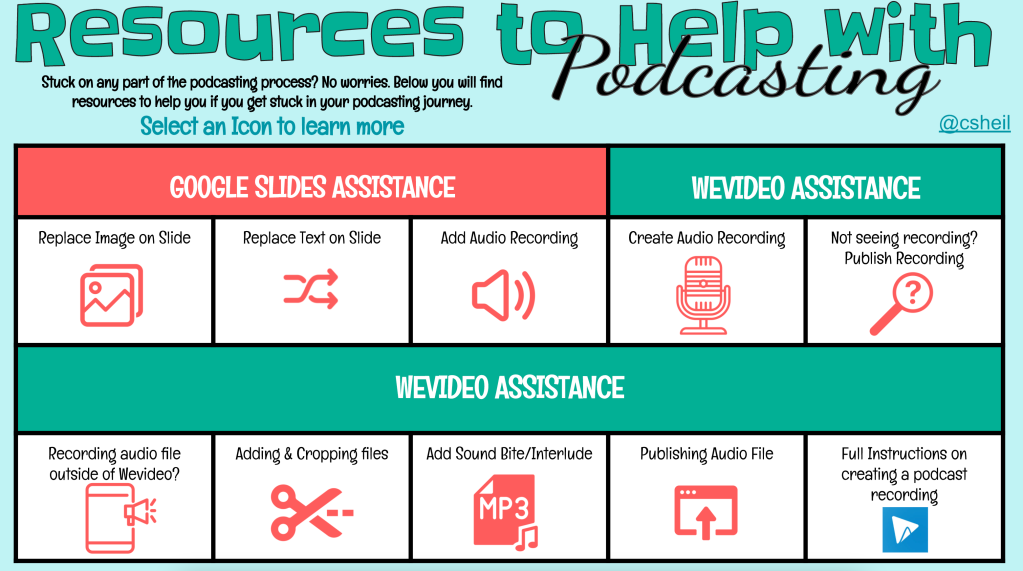
In other to help support students, this resource has been created for students to help them throughout their podcast journey. Students are able to select the square they have questions on. The hope here is that students can quickly navigate to get the answers they need. There is a section on how to alter their own slides as well as how to use WeVideo to their advantage. (I like the look of the slide – got some inspiration from Amanda Sandoval).

I look forward to seeing how the class podcasts turn out. If you have any questions on how you can use this with your own students, you know where to find me.

And that is my Spiel…

Brochures in Google Slides

There are a couple of tools out there that help with creating brochures or infographics from pre-made templates. Sometimes, it might make sense to create a similar product in Google Slides. This could be because you might need the ease of collaboration. Sometimes it might be due to the fact that your district does not have a signed agreement with the edtech tool. Regardless of the issue, if you find yourself in a situation where you would like to use Google Slides, don’t assume students know how to use the tool beyond adding a slide, adding text in a textbox field, and grabbing pictures

Recently, our 9th grade humanities teachers wanted students to work collaboratively to create a brochure. Doesn’t really matter what the topic was as this could be adapted in any curriculum. What I wanted to focus on was helping make sure students knew how to be creative and manipulate their content to fit the brochure appropriately. Yes the information curated was important for the task at hand, but in my mind, it also needed to look visually appealing that someone would actually want to learn from.

Continue reading “Brochures in Google Slides”

Communicating with Staff

Each year, Jess Gilcreast (librarian) and I get together to talk about how we are going to support our staff. We evaluate what we have done in the past and how we think we want to move forward. We know that each ‘student’ learns differently and keep that at the forefront when making decisions.

The first thing we wanted to tackle was how we were communication with staff this year. Staff receive too many emails. Staff don’t have a lot of time on their hands. Staff have too much information coming at them at once. So how do we get staff to want to learn/understand new things? It is one of the trickiest things for those of us in our positions.

Continue reading “Communicating with Staff”