Use Google Form Templates for Exit Tickets & Course Evals

Over the past couple of days, I have spent some time looking at templates that Google has created for its products. More specifically, I came across some templates with Google Forms. Two of them that I feel could be very useful for teachers are the Exit Ticket and Course Evaluation templates. They are short sweet and to the point. I also like the fact that you have the ability to make any changes that you want with the templates by adding your own questions and/or deleting ones that you don’t find useful/important.

To see the template options, go to the Google Forms direct link forms.google.com. If you go the route of creating a new Google Form from your Google Drive account, you will not see the option to create a form from a template. But by hitting the back button, Google will bring you to their form’s homepage where you will see the available templates. The video below will quickly explain how to get to the Google Form templates.

When it comes to exit tickets, I know that there are tools out there that do the same thing, such as Socrative, but using the exit ticket template in Google Forms can be great for those instances that you

  • don’t want students to have to log into a different tool/system
  • don’t have a lot of time and want to quickly get the exit ticket to students through Google Classroom
As always, if you have any questions, you know where to find me.

Google Slides – Using Drawing Features

This week, I was invited to attend Sophomore Humanities classes showing students how they can use Google Slides to help create a collaborative children’s digital story book.  Most people are very comfortable with doing the ‘basics’ when it comes to Google Slides – add some text and images. In the Google Slide presentation below, you will find tips on how to change the page height and width of the slide presentation as well as using some of the drawing features in Google Slides.

Check it out for yourself…did you know you could do the following in Google Slides?

NOTE: You might be asking, why not just use Google Drawings for the draw features. You most certainly can do that however the big difference with Google Drawings is the number of pages. You are only allowed one Google Drawing page, while you have the ability to add multiple pages in Google Slides.

Commenting in Google Docs – Notice the Change?

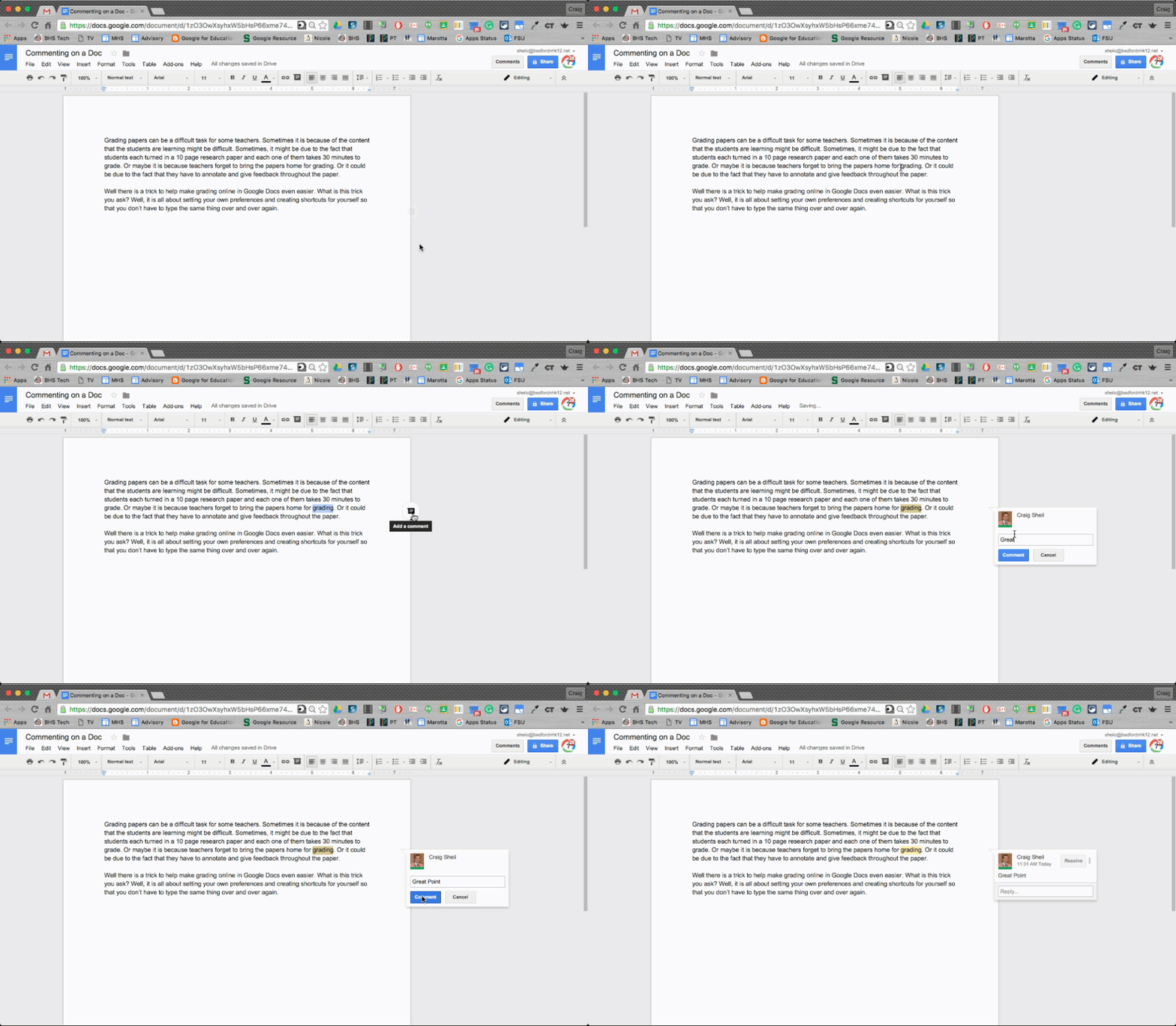
Google has made it easier for you to enter in a comment in a Google Document. I noticed that we actually received the update today in our school domain. Check it out in the gif below:

STEPS:
1. Highlight the text
2. Select the Comment button on the right side of the Google Document
3. Type in your comment
It is that easy.

Flippity: Random Name Picker

There are lots of random name generators out there. They all have their advantages and disadvantages. However, in my mind, there is one that surpasses the others. Flippity.net has created their own random name generator. In four easy steps, you can have a great random generator at your finger tips. I will not replicate the process of how to use the tool as they are provided in clear step by step instructions on the Flippity website. Click HERE to follow the instructions.

I absolutely love this tool. With a click of a mouse or a tap on a track pad, you can immediately change a grouping or ordering of your students. This is a great tool for on the fly decisions as well as planned out activities. Below is a demonstration of my own roster of students and how quickly I can have Flippity change my preferences of groups or ordering my students.

Basically, you make a copy of a Google Sheet template that is provided on the Flippity website. You add the names of your students in class, then you publish the sheet to the web to get the link to your random generator. Then the magic happens and you have a useful tool at your finger tips. You will never have to recreate the process explained above as you just keep using the same Google Sheet for your class all year. (You can change the roster in the Google Sheet if need be – as we all know that your initial roster of students changes over the course of the year)

You will want a different Google Sheet for each of your classes. I would even recommend that you create a folder in your Drive, called Name Generator (or something similar), to place all of the Google Sheets that are connected to the Flippity random name picker. You can also bookmark the link to the random name generator for each of your classes as suggested on the website.

Flippity has some great resources. I have written a previous post on using their template to create a Jeopardy Game using Google Sheets. Click HERE to view that post.

If you have any questions on how to use this tool, you know where to find me. Guaranteed you will fall in love with this tool the moment you first use it.

Google Classroom: Return Assignments, Archive Classes & Reuse Posts

Here are some good reminders to Google Classroom, especially at the end of a semester.


Returning Assignments to Students
Since we do not use Google Classroom for reporting out grades to students, we can easily forget to return assignments to students. As a good practice, once assessment has been completed, assignments should be returned to students.

Step 1: Select the assignment you want to return to students

Step 2: Select which students you want to return the assignment to. If you want the assignment to be returned to all students, select the checkbox at the top left. Then select the Return button.

NOTE: If there are only 1 or 2 students you don’t want to return the assignment to, select the checkbox at the top left and unselect the few students that should not get the assignment back.


Archiving Classes No Longer In Session
If you no longer need the class because the semester or the year has ended, you can archive the class. This not only will hide the classes you no longer need but it will also save all of the assignments you have pushed out to your students.

Step 1: Make sure assignments have been returned to students that were sent through Google Classroom.

Step 2: From the main classes view (once you first get into Google Classroom) select the three dot button on the top right corner of the class and select Archive.

You will get a message asking you if you are sure you want to archive a class. This class will not be deleted, instead it will show up in the Archive section of Google Classroom.

My class called “Demo class #2” is now located in the Archived Classes section. (Notice that there is a fence like look to the header of the class.)
NOTE: You do have the option to move this class out of the archived section if you had a need for it by clicking on the three dot menu.

You also still have access to the drive documents that were shared in the class by clicking on the Drive Folder icon on the bottom right corner of the class.

Reuse Posts For Future Classes
Don’t forget that Google implemented a great feature with being able to reuse posts from previous classes. Don’t worry about the date and time of the original assignment you pushed out the previous semester or year, as you are able to customize the new post. But why reinvent the entire assignment if nothing major has changed. Below are the steps to Reuse a post.

Step 1: Open up the class that you want to add a post to. Then click on the plus sign at the bottom right corner and select Reuse post.

Step 2: Then select the class that the original post is located and hit the select button.

Step 3: Locate the actual post you want to reuse. You will notice on the bottom left corner you have the option to have Google Classroom create new copies of the attachments. Then hit the reuse button.


Step 4: Feel free to make any changes you want to make to the assignment post. You can add new attachments, delete original attachments, assign new descriptions, etc.

Of course, if you have any questions with using Google Classroom, don’t be afraid to ask!