Brochures in Google Slides

There are a couple of tools out there that help with creating brochures or infographics from pre-made templates. Sometimes, it might make sense to create a similar product in Google Slides. This could be because you might need the ease of collaboration. Sometimes it might be due to the fact that your district does not have a signed agreement with the edtech tool. Regardless of the issue, if you find yourself in a situation where you would like to use Google Slides, don’t assume students know how to use the tool beyond adding a slide, adding text in a textbox field, and grabbing pictures

Recently, our 9th grade humanities teachers wanted students to work collaboratively to create a brochure. Doesn’t really matter what the topic was as this could be adapted in any curriculum. What I wanted to focus on was helping make sure students knew how to be creative and manipulate their content to fit the brochure appropriately. Yes the information curated was important for the task at hand, but in my mind, it also needed to look visually appealing that someone would actually want to learn from.

Continue reading “Brochures in Google Slides”
Communicating with Staff

Each year, Jess Gilcreast (librarian) and I get together to talk about how we are going to support our staff. We evaluate what we have done in the past and how we think we want to move forward. We know that each ‘student’ learns differently and keep that at the forefront when making decisions.

The first thing we wanted to tackle was how we were communication with staff this year. Staff receive too many emails. Staff don’t have a lot of time on their hands. Staff have too much information coming at them at once. So how do we get staff to want to learn/understand new things? It is one of the trickiest things for those of us in our positions.

Continue reading “Communicating with Staff”

Day 8 of Google 2020 – Google Slides (Part 2)

On Day 8, we look back at Google Slides. You might be saying to yourself, hey Craig, aren’t you cheating right now going back to Slides? One could say yes, but there was just so much with Slides that I felt it made more sense to break it up into two days. Hope you find at least one of the tips useful to put into your practice.

SHORTCUT KEYS

For those of you who have read my blog posts before, you know that I am big on short cut key to help streamline my workflow. The three below can be helpful for those of you who find yourself working with slides or drawings a lot. They work with both tools.

Duplicating

Prior to June 2020, anytime that I wanted to duplicate an object, a text box, an image, words, etc…I would use the following keystrokes.

Command + C (on mac) or Control + C (Chromebook) so that I could copy what I want a duplicate of. Then I would select Command + V (on mac) or Control + V (Chromebook) to paste the item that I want a duplicate of. Well, it was brought to my attention that that shortcut was not a shortcut.

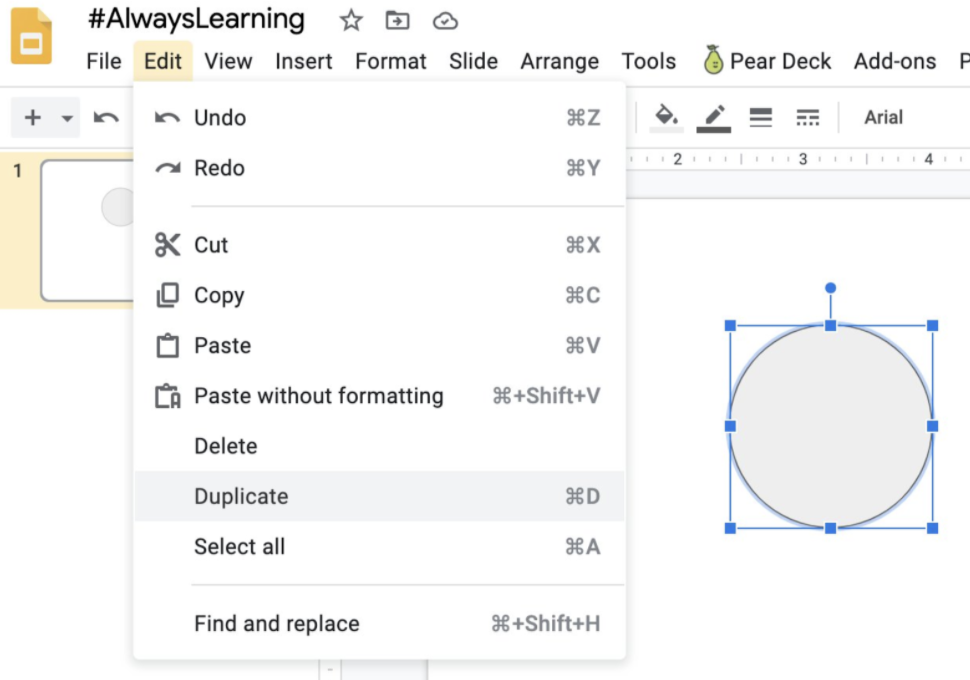
Instead, the shortcut is to select the item I want a duplicate of and then select Command + D (mac) or Control + D (Chromebook). This will right away duplicate the item I selected and make a copy of it. You can do this as many times as needed. AMAZING. Try it! You won’t waste that precious extra second again with copy and paste when duplicating in Google Slides or Google Drawings.

Continue reading “Day 8 of Google 2020 – Google Slides (Part 2)”

Day 5 of Google 2020 – Google Slides

On Day 5, we will take a look at Google Slides. Let’s face it…organizing content in such a way that others are able to learn from can be a challenge. We are visual people. And sometimes, going beyond black and white can go a long way. The tips below are not ones that you always have to include when creating slide presentations. Just want to help give you an idea of what can be done.

SEARCHING IMAGES – USING EXPLORE

Did you know that you can search for images to use in your presentations right in the slides tab. There is no need to open another tab and perform a google search. You can launch explore feature two ways.

1. Click on the explore icon on the bottom right corner. 2. You can find explore under the Tools menu.

Let Google know what you are looking for – find what makes the most sense for you and away you go, the image is added to your slide presentation. NOTE: Once the image has been added in the presentation, you will find that it is hyperlinked to its source.

Continue reading “Day 5 of Google 2020 – Google Slides”

PDFlix: Providing ‘On Your Time’ PD Opportunities

Screen Shot 2020-01-21 at 8.09.00 PM

Screen Shot 2020-01-21 at 6.42.02 AMOk, yes…the sound of Netflix went through my mind as I started typing. Each year, Jess Gilcreast (High School librarian), and I think of creative and different ways to provide professional development for the staff that we work with. We have tried it all, or at least seems that way. Whether it is providing ‘learning at your own time’ opportunities through Google Classroom, in person trainings, or online book chats through Twitter. We strive to keep things ‘fresh’ and continuously push the limits.

Continue reading “PDFlix: Providing ‘On Your Time’ PD Opportunities”