Throughout the year, I co-teach several technology graduate level courses through Fitchburg State University with a friend, Mary Marotta. For the past two weeks, we taught two full one week courses. Without a doubt, there are always a couple take-aways from the classes for me. I am going to address one of them in this blog post: #bookbento.
BookBento
It is very rare for us to not address the idea and concept of Hyperdocs in our courses. For those of you who have not heard of hyperdocs, click HERE to learn more about them. Well, during this particular unit, one of our students stumbled across with #BookBento. (Thank you Sam Burns – as she shared this resource from Lisa Highfill). I am going to be honest, I hadn’t heard of the word bento until a couple of weeks ago. So, I was very intrigued when #BookBento was shared with me.
What is #BookBento?
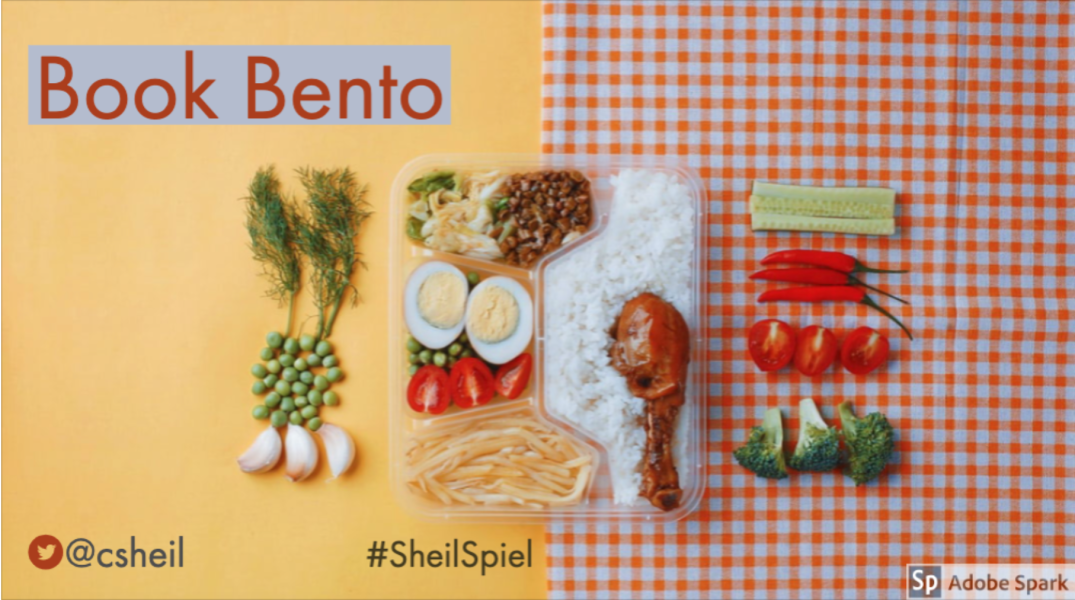
To get inspired you can find excellent examples of a book bento from Instagram or Pinterest. Here is the quick breakdown. Typically in the center, you will find a book. Then surrounding that book, you will find different items, typically five, that have some sort of meaning to the book, giving a quick window into what the story is all about. You will also notice that the background color may also help paint a picture explaining what the book is about.
To take the picture to the next level, students can then pull this picture into a Google Slides presentation and make each of the items launch to something helping explain why those items were selected.
Here is my example of a bento book. I did it around the book titled One Grain of Rice, a story that I used to read to my Algebra II students when we were in the exponential unit. (In fact, students loved this day because I would set up the room where we would have story time, like back in the day in elementary school).
Some Things to Know
- Have students take picture in square mode.
- When using Google Slides, customize the size of the slide (in page setup) to instagram size – 1080 x 1080 pixels.
- Use shape icons or an image as a way to launch other applications for explanation of item or information about the book itself. Once icon or image is there, make sure it is selected so that you can hyper link it.
- Keep in mind that other tools can be used for explanations: Google Docs, Screencastify, Flipgrid, audio recording, Jamboard, etc. Basically anything that has a link.
- As a side note, I provided a QR code for one of my items. If you have flipgrid app on your phone, launch the app. Then select the QR code button on top left corner on the home screen of Flipgrid. Once scanned, you will see a video response done through Flipgrid of me speaking. However, this video will show up through Flipgrid’s Augmented Reality feature.
- Don’t want to worry about physical objects? No worries, you can always use digital images.
I am intrigued with the concept of #BookBento. This could be a great alternative to students writing a paper about a book that they read. Someone else indicated that this could be great for when students are asked to do independent reading on a book of their choice. I can also see this being used in other ways as well, beyond books. The theme can be a math topic, or historical time period. As always, if you have any questions or want to talk things through with me, you know where to find me.
And that is my Spiel…