Day 5 of Google: Providing Feedback in Google Docs

On the fifth day of Google, we will explore around with feedback in Google Docs.

One of the hardest parts with teachers transitioning to online work can be providing feedback electronically. I can see the point. It is really easy to write over text, underline, cross out, etc using paper and pencil. Edtechteam is trying to help teachers with the transition with a Chrome extension called CheckMark.

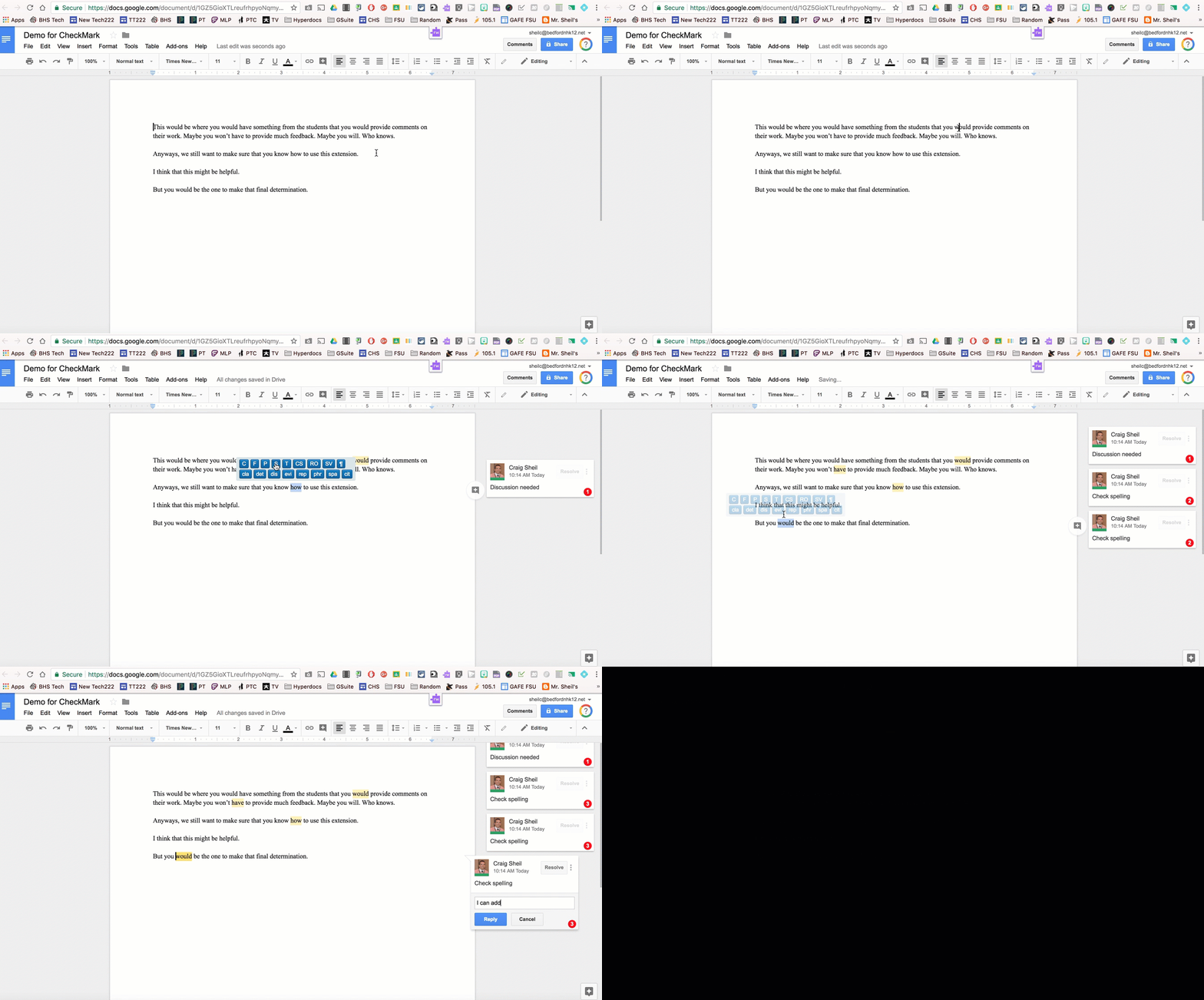
This extension has pre-determined, common remarks that teachers would be apt to include in a comment to a student. Rather than having the teacher taking the time to type the comment out, with the click of a button, a teacher is able to provide that same feedback without all of the extra clicks/keyboard hits necessary to make it happen.

How it Works:

  • Get the chrome extension HERE
  • Open up a Google Document you want to provide feedback
  • Select the extension (it will turn green) indicating you want to use its features while in the document
  • When you want to provide feedback, double click on a word, phrase, or statement. Then determine which comment you want to use.
Once you continue to use the extension, you will notice that numbers will show up in each comment. Based on the number of comments for a particular skill that you have added/marked, that number will adjust. In other words, if you used the comment, “S” for Check Spelling three times throughout the paper, the number will show up in the comment as a three. This can be helpful in letting you know what skill the student needs assistance with.
Right now, the extension comes with pre-determined comments. You will need to familiarize yourself with them prior to using to help make you be more efficient with your feedback. The company has said that you cannot add your own comment shortcut yet.
And that is my Spiel… 

Day 4 of Google: Google Calendar

On the fourth day of Google, we will look at Google Calendar.

Google Calendar (web version) has recently received an upgrade to mimic the mobile version of Google Calendar. Don’t have the new Google Calendar? Select the blue icon on top right that says Use New Calendar. I am a big fan of the refreshed look.

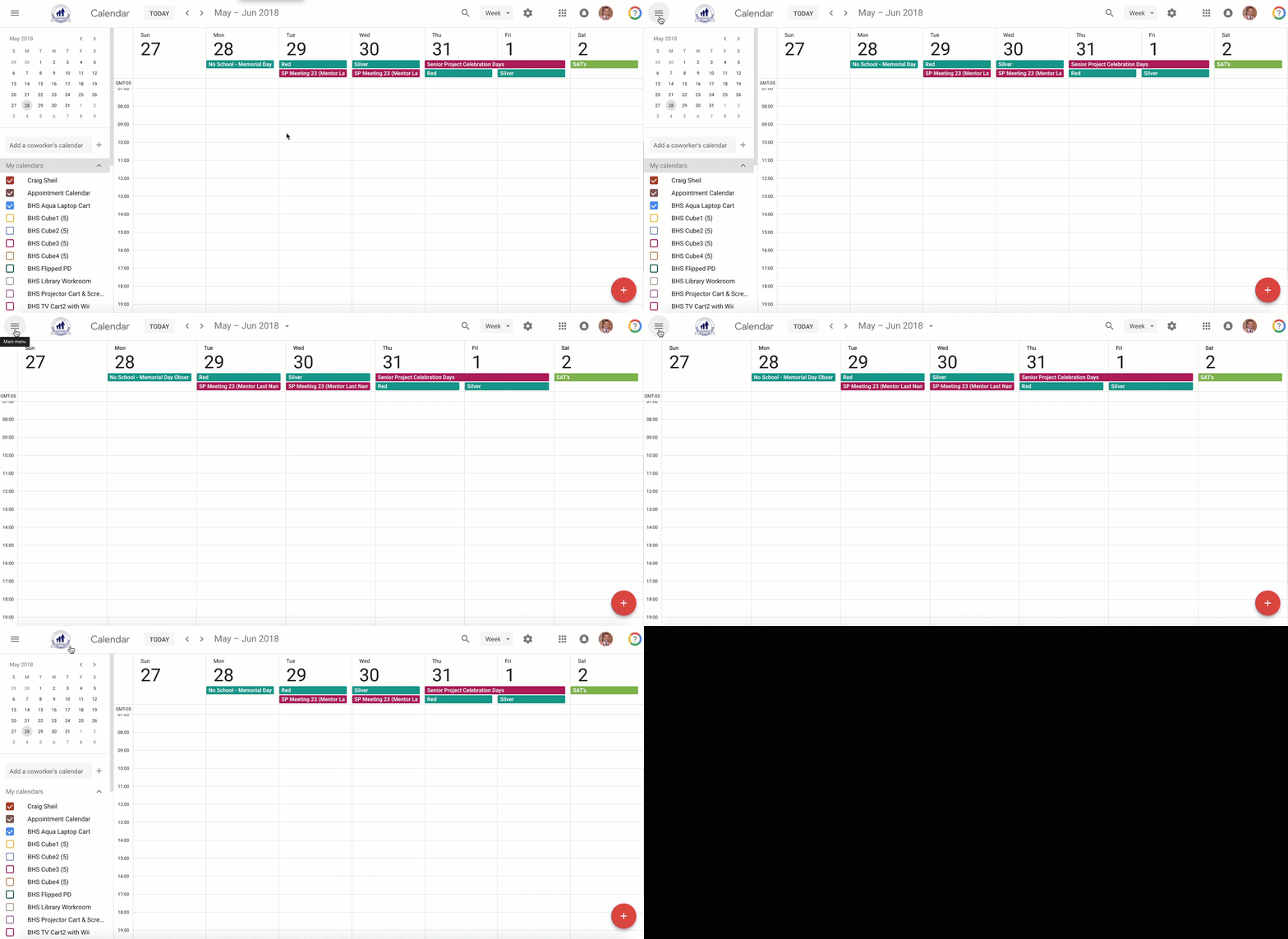
One change, is that you are able to gain more real-estate on the screen. By selecting the hamburger icon on the top left corner, you can determine whether or not you want the small month calendar and list of calendars you follow to appear or disappear.

Keyboard Shortcuts
In the change, I stumbled upon shortcuts that pertain to Google Calendar. I don’t believe that these shortcuts are now, just never thought to look them up to use.

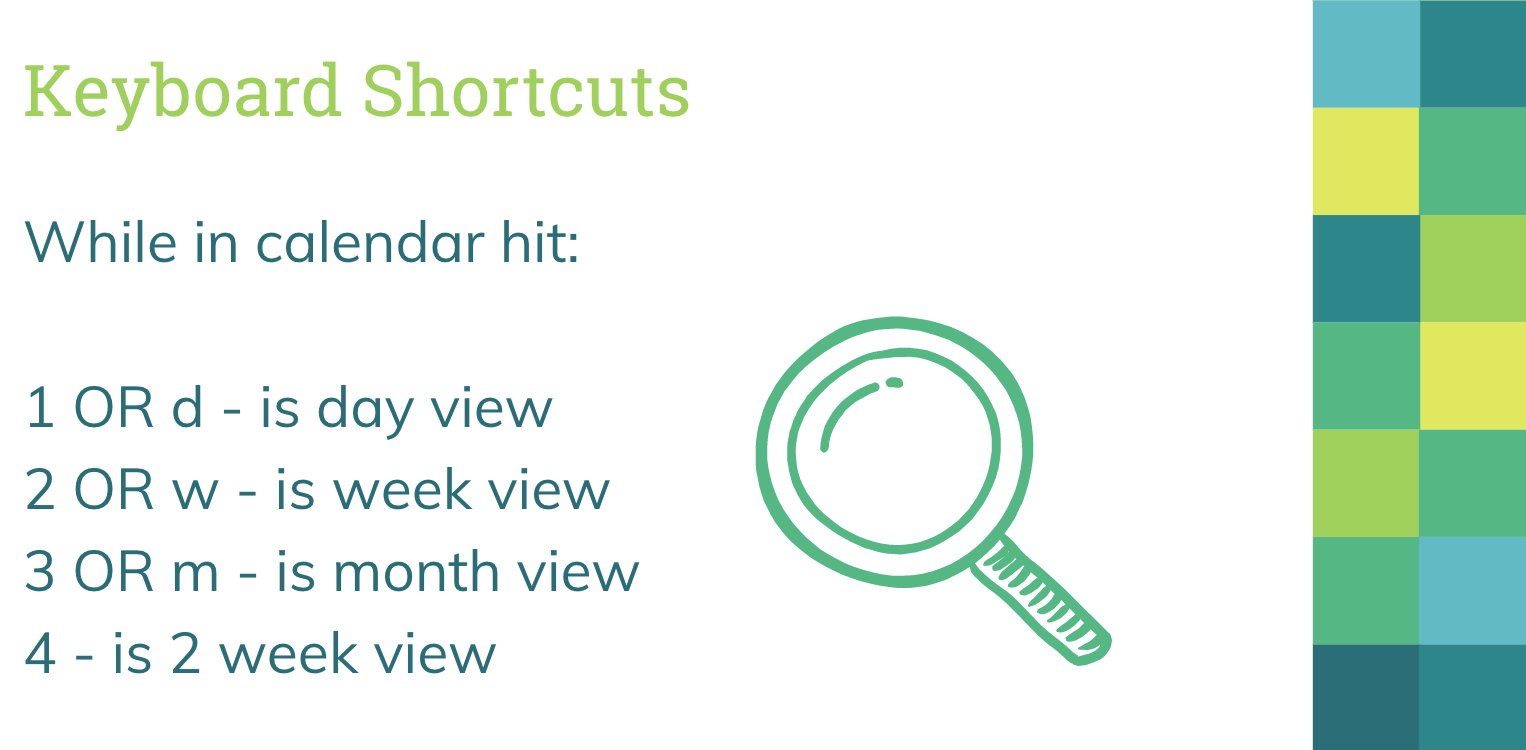
For instance, with the click of a number between 1-4 you are able to switch between different views of the calendar on your screen. You can also use d for day view, w for week view and m for month view.

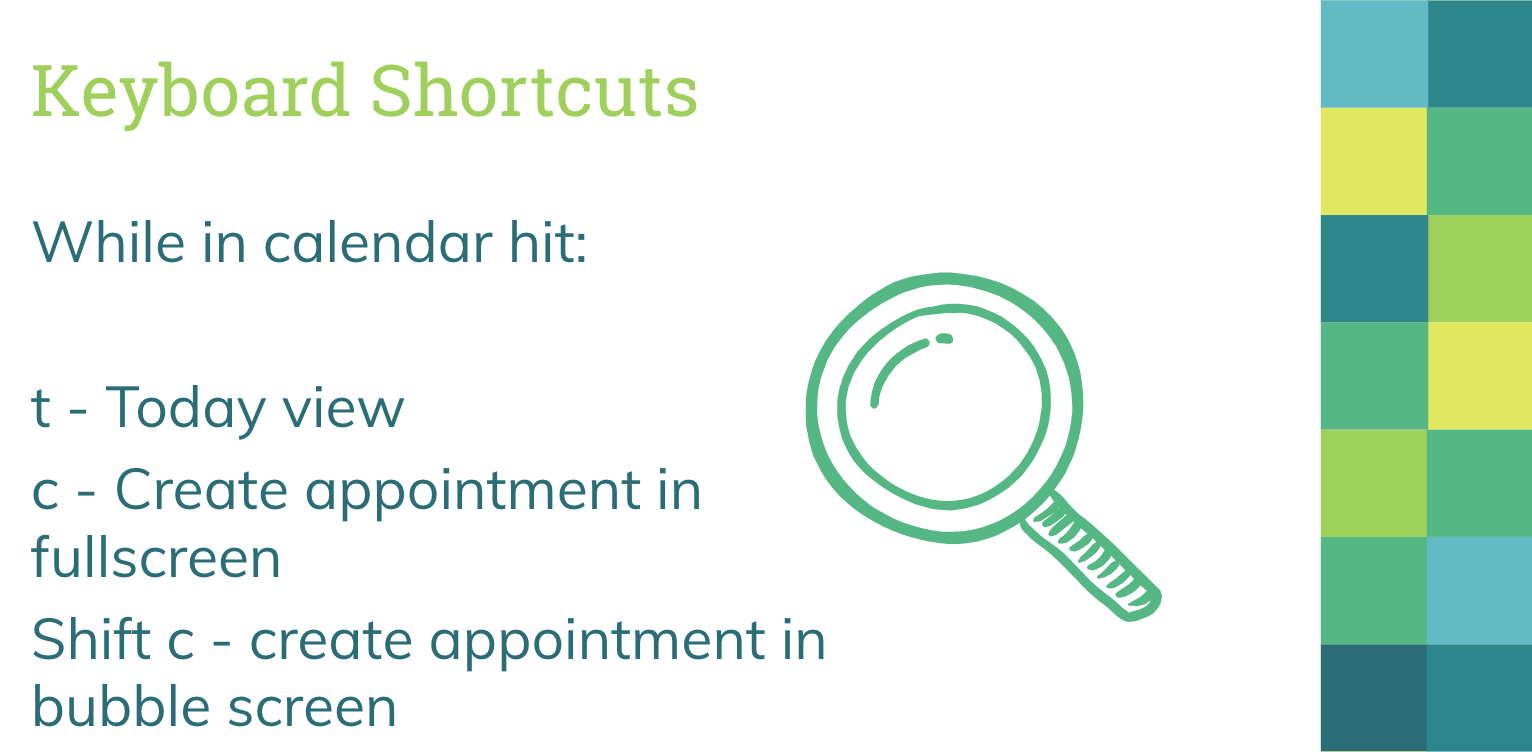
Other Keyboard shortcuts of potential interest

Mobile Version of Calendar

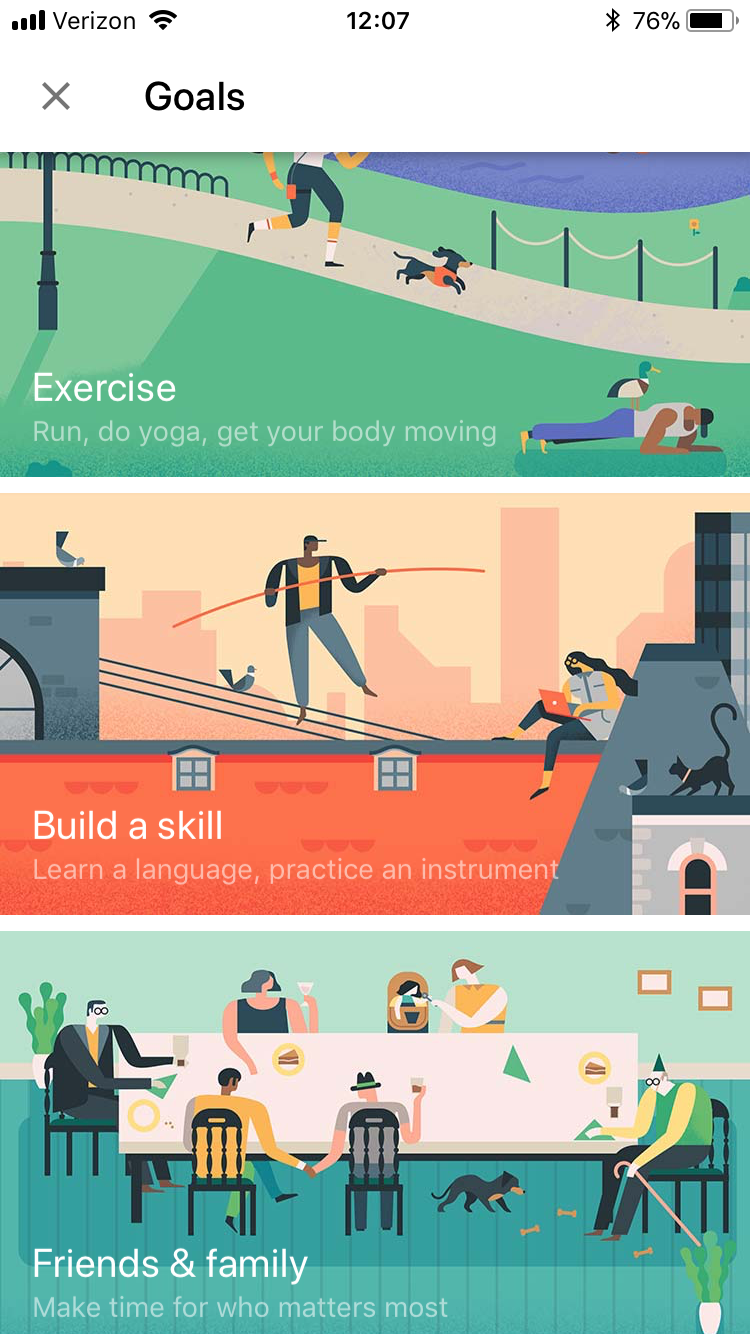
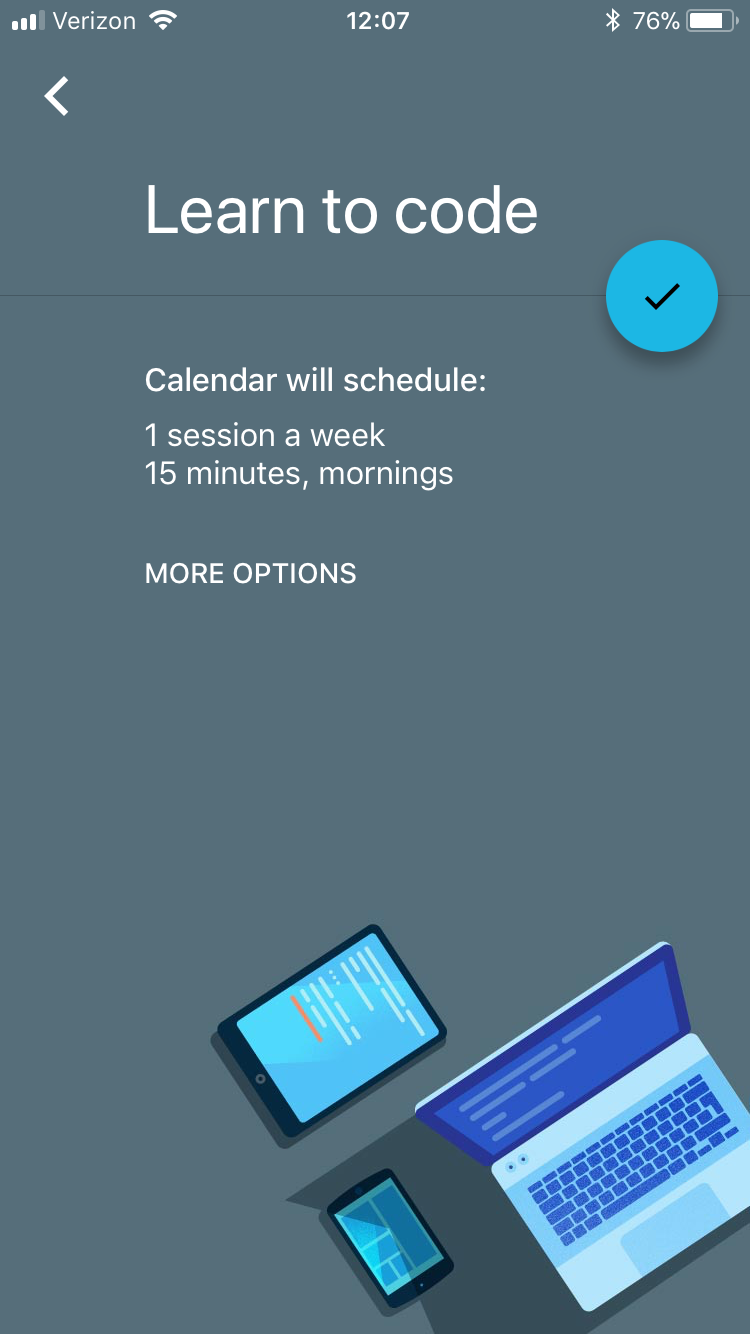
For those of you who have Google Calendar on your mobile device, you have the ability to set a Goal. Google Calendar will then schedule sessions for you to reach that particular goal. You have the ability to say you want to exercise, build a skill, be with family & friends, have time to your self, or organize your life.

Let’s say I want to have Google Calendar help me build a skill. I tell Calendar what I plan on doing, indicate how often I want it to be done (once a week, every day, etc), indicate for how long I want to do it for, and indicate when the best time would be. Calendar will then look at my calendar to find a time slot to add that particular skill into my day. If I don’t like what it came up with, I can make the change.

And that is my Spiel…

Day 3 of Google: Exploring with Google Trends

On the third day of Google, we will explore Google Trends…

Google Trends (trends.google.com) is relatively new to me and I have not explored all of its capabilities yet, however I do see the value with this tool. I feel as though Google Trends could be applied to different curriculum.

Once you get to the website, you will notice that Google provides featured items as well as stories that are trending on that particular day. As I write this blog post (Thursday, Dec 7, 2017), I am seeing Alabama Senate seat info, Holiday shopping, Grammy Awards, and National Pear Harbor Remembrance Day.

When we first explored with Google Trends, the Tuesday prior to Thanksgiving, we were diving deep into Thanksgiving. This is what we discovered, Thanksgiving 2017. It was cool to see things like:

  • top searched pies by state
  • top searched Thanksgiving recipes
  • top searched Thanksgiving questioning
  • searches for Friendsgiving (on the rise)
You can either look at what is trending or you can search your for specific content. 
I can see some interesting conversations coming out of searching trends. NOTE: Data changes from one day to the next due to what is trending – thus you might see different results from the last time you looked at a particular topic.
And that is my Spiel…

Day 2 of Google: The Many ‘Different Views’ of Google Slides

On the second day of Google…

We are going to take a look at some view features of Google Slides.

Forcing Present Mode
Let’s face it, if you are using G-Suite you have shared a link to document in your Drive. Assuming sharing permissions have already been handled so that those that can view are able to view (anyone with the link), you can actually force present mode on a Google Slide presentation. Sometimes, you might not want people to be able to see the slides along the left side of your Google Slides. The traditional way many people would share a link outside of Google Classroom is to copy the link from the omni box (the search box in Chrome). Then share out the link via email etc.

Instead, you have the ability to share the presentation so that they only see the final slides and not the edited side of Google Slides. How might you ask? Go to the omni box – where the link is for the presentation. Follow these steps:

  • Move your cursor all the way to the right until you see the word ‘edit’ in the URL.
  • You will want to delete the word ‘edit’ and anything else to the right of the word ‘edit’. 
  • Replace what you deleted with the word ‘present’.
  • Copy your new link and provide this with those that you want to have access to. NOTE: Sometimes, I will paste the new link in a different tab and shorten it so that people can very quickly get to the presentation in present mode.

Looping Through Slides

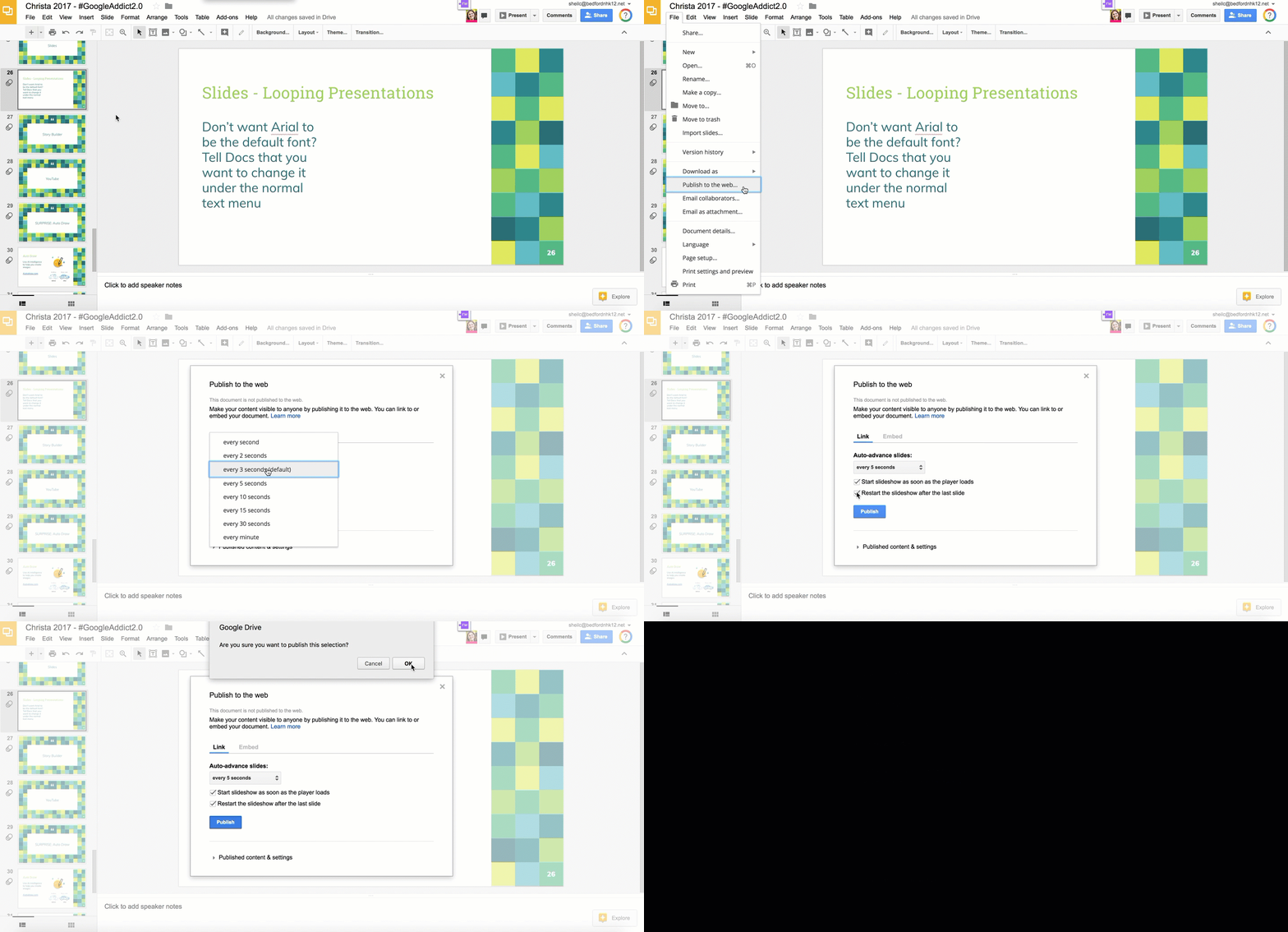
You have the ability to loop through a Slide presentation without clicking through the presentation or restarting the presentation when it is done. This can be great for evening community events or photo slideshows.

Follow these steps:

  • Change share permissions to ‘Anyone with the Link’
  • Choose ‘Publish to the Web’ under File Menu
  • Determine how long you want each slide to show
  • Determine if you want the presentation to restart when it gets to the end and if you want the presentation to start right away when page loads
  • Select Publish button
  • Copy the link from the pop up window (this is the link that you will use for looping the presentation)

Viewing Slides in Edit Mode

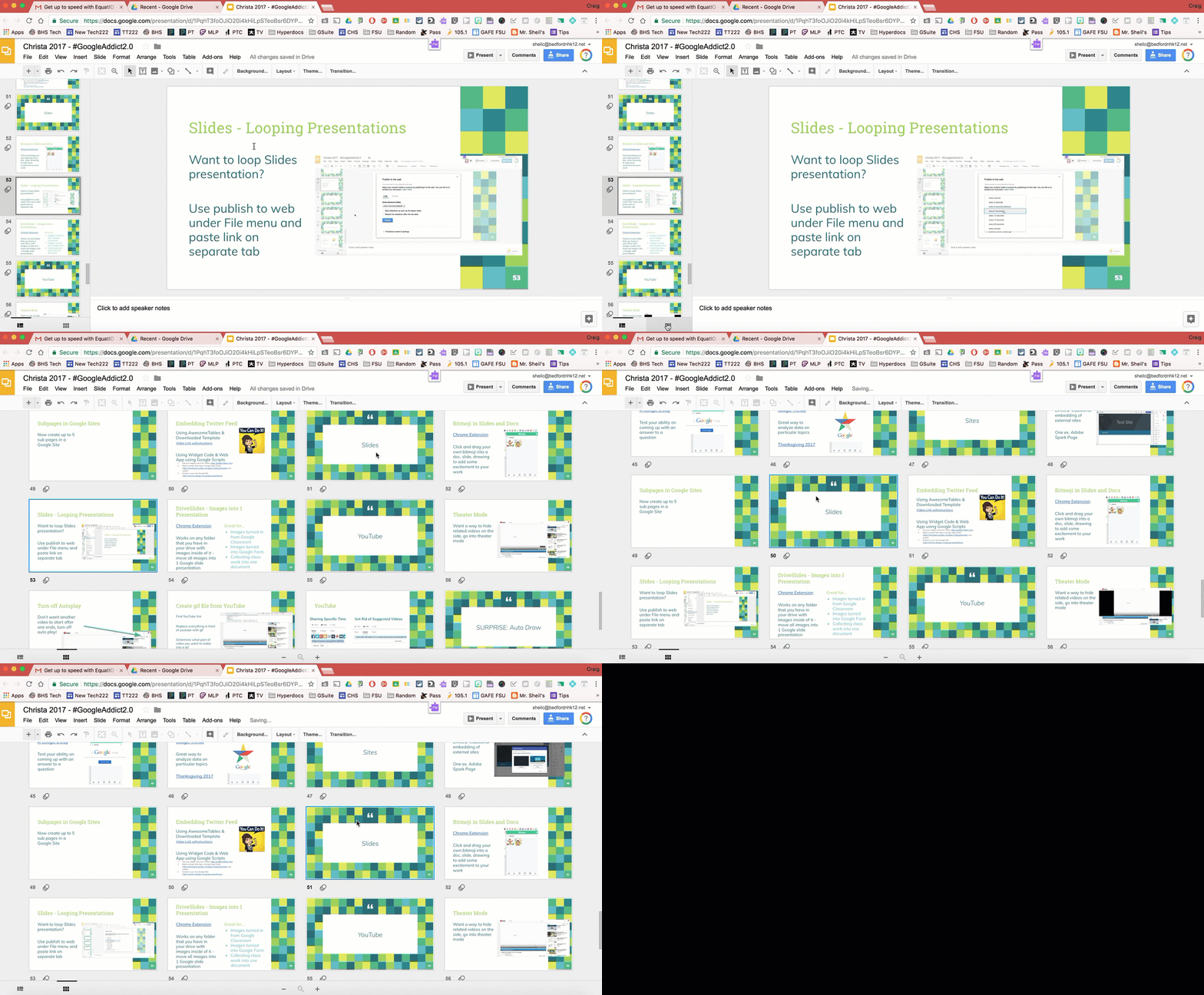
Recently, Slides received an update where you could view your slides beyond the left side bar. You can actually have them show up in block mode on the entire screen. This way you can see the layout of the slides a bit better and easily move slides around. Just double click on a slide to get back into editing it.

How to make this happen? Select the block icon on the bottom left (under all of the slides).

And that is my Spiel…

Day 1 of Google: YouTube Tips

On the first day of Google….

We are going to take a look at YouTube. Hard to find someone out there now a days who has not used YouTube, either for their own enjoyment, or to share ideas/content in a lesson with students.

But, did you know the following:

Autoplay of YouTube Videos
1. The default to YouTube is for related videos to automatically play for you after your last video finishes. In some instances, you might want this. I am sure many can relate to watching a video that a friend has shared with you or posted on a social media outlet, you start to watch the video and then get hooked and end up watching other videos that are related to the same topic. Then 30 minutes later, you wonder where the time went!

However, in a school setting, you might not want a new video to start automatically – especially if you haven’t had a chance to view the next video prior to students seeing it. There is a very easy way to stop autoplay.

  • Search for a video
  • Top right, above the suggested “up next videos”, you will find Autoplay – just turn it off

Theater mode for YouTube
2. The default in YouTube is for the video that you searched to show up on the left side of the screen and the ‘up next/suggested videos’ to show up on the right. You actually have a way to move related content below the YouTube video. This way, there is less distractions if you are projecting your screen. No matter what video you search, switch the view to Theater mode (bottom right corner of the YouTube video).

True 360 Videos
3. Virtual Reality is a buzz word right now. Some teachers are looking for ways in which this concept can be implemented appropriately into curriculum. One particular way, is finding 360 videos in YouTube that could either be viewed in a VR headset or on a laptop/Chromebook. While there is a bit more effort to view on a Chromebook/laptop (in terms of clicking and dragging around in the video), you can still get a similar experience as if you were watching in a VR headset.

If you are interested in exploring around more 360 videos, add ‘360’ in your search. However, some people who upload a video might consider a video 360 when in reality it isn’t. A true 360 video will have the four arrows on the top left corner of the video. This allows you to ‘look behind you’ or ‘look above’ etc by either using the arrows or clicking and dragging inside of the video.

To learn more about how to create your own 360 video, read this previous blog post.

And that is my Spiel…