
Last February, I had the opportunity to attend SXSWedu Conference in Austin, TX. Google set up a space at the conference where attendees would walk through different Google activities over the span of 45 minutes. Each activity pertained to a common theme of recycling. While attendees were waiting to experience the three different stations, we were asked to fill out a Google Form and answer questions. Once submitted, we were brought to an infographic showcasing data from all those that had already completed the form. The infographic was constantly being updated. I thought that this was really cool taking data to the next level. Yes I have heard of infographics before, but I had not seen infographics being updated in real time. It was VERY COOL. I noticed that the tool that was used to make this happen was something called Google Data Studio (datastudio.google.com). I knew that this was going to be a future challenge for myself to take a look at.
Wouldn’t you know, October arrived and I had yet to push myself to play around with Google Data Studio. It is amazing how quickly time flies by. Thankfully, it was brought to my attention that Laura Tilton was offering a one day workshop on the tool.
I can’t say enough with how cool and useful this tool is. Let’s put things into perspective.
Continue reading “Google Data Studio: Interact with your Data”

 For the third day of Google, we will take a closer look at Google Keep (keep.google.com or you can find it in the waffle). There are many staff members who use Google Keep on a daily basis to keep track of their to do lists, whether individually or collaboratively. There is something about being able to cross and item off the list.
 Day two of Google focuses on the browser, Chrome. Today we will dive into two features that are good to know.

 Today we will focus on YouTube. Let’s face it. Most of us end up on YouTube at least once a day for whatever reason. Maybe one of these three tips will help make your viewing experience that much better.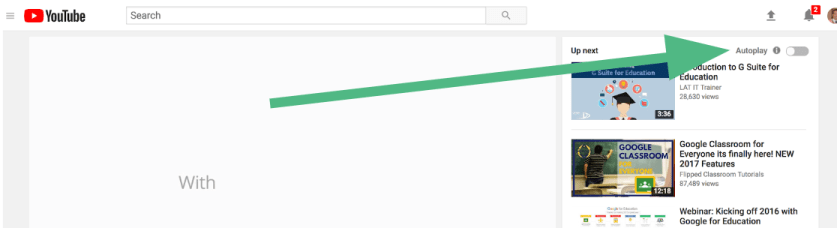
 Craig M Sheil