2021 – Day 1 of Google – Chrome

On our first day, we will take a deeper dive into some features of Google Chrome. I must say for myself, there were several “I didn’t know you could do that moments” for me.

AUTOFILL

First thing we will talk about is your own settings in chrome. I think it is a great time to remind people about things that have been saved under your account. Some users save their passwords on websites that they use. It can be a risky thing to do. If you don’t remember what websites you have saved passwords for, or you no longer want to grant access to saved passwords, or you didn’t know you even save a password for a paricular tool/website…have no fear. You can see and make changes, by:

  • Selecting the three dots on top right corner of chrome
  • Choose Settings
  • Select Autofill on left column
  • Select Passwords

In a similar fashion, check to see if you have any saved payment methods. You might not want websites to have your saved credit card information or better yet, any saved financial data on your school google account.

HIGHLIGHT TEXT and SHARE

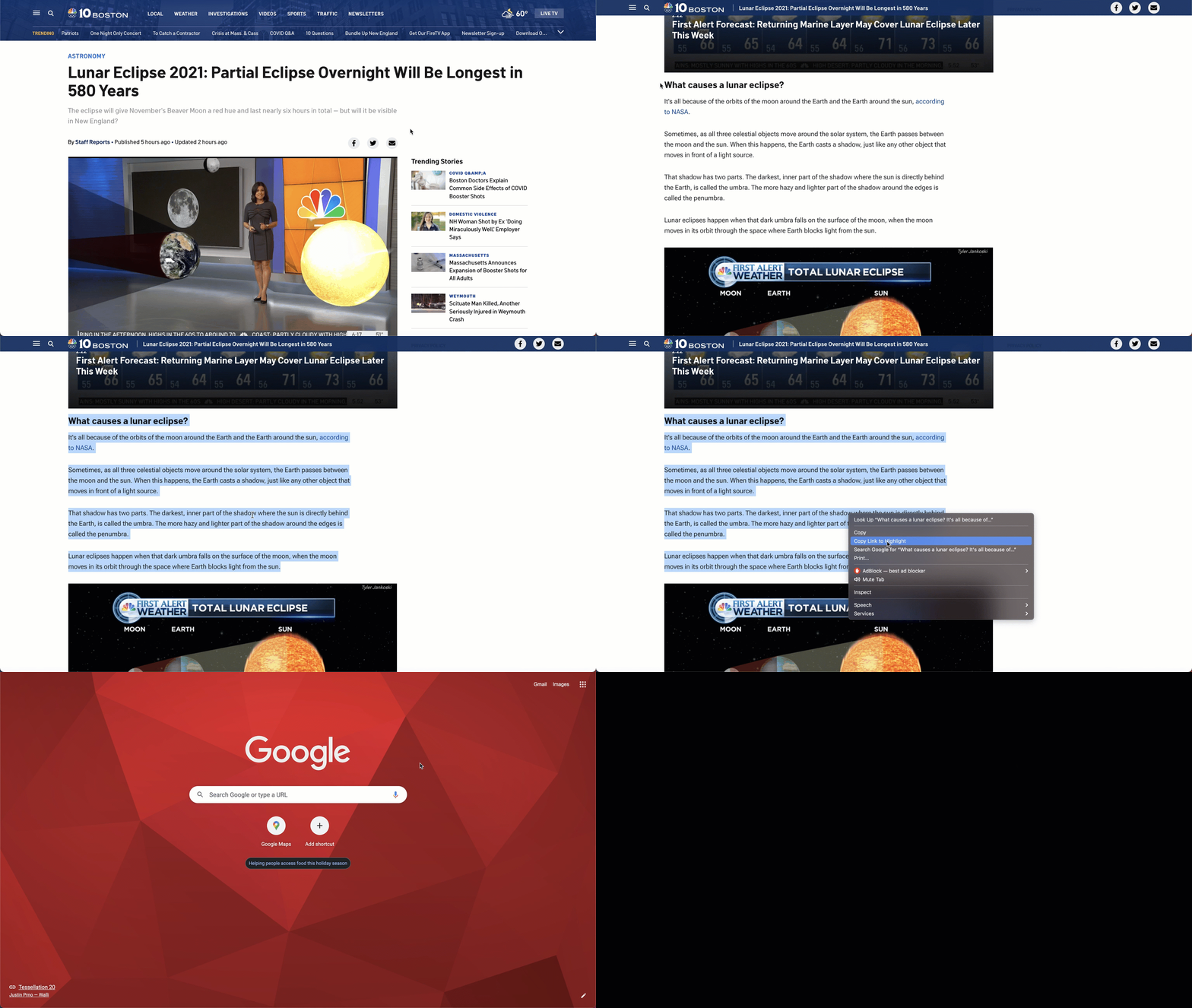
Did you know you can direct students to particular text on a webpage? This was a learning moment for me! Yes, you have the ability to draw attention to a certain part of a website for students so that they don’t get distracted. How to make this happen?

  • Highlight the section you want students to read or pay attention to
  • Right click
  • Select “copy link to highlight”
  • Then provide link to students

The gif below will walk you through the process.
HIGHLIGHT TEXT and SAVE IN GOOGLE KEEP

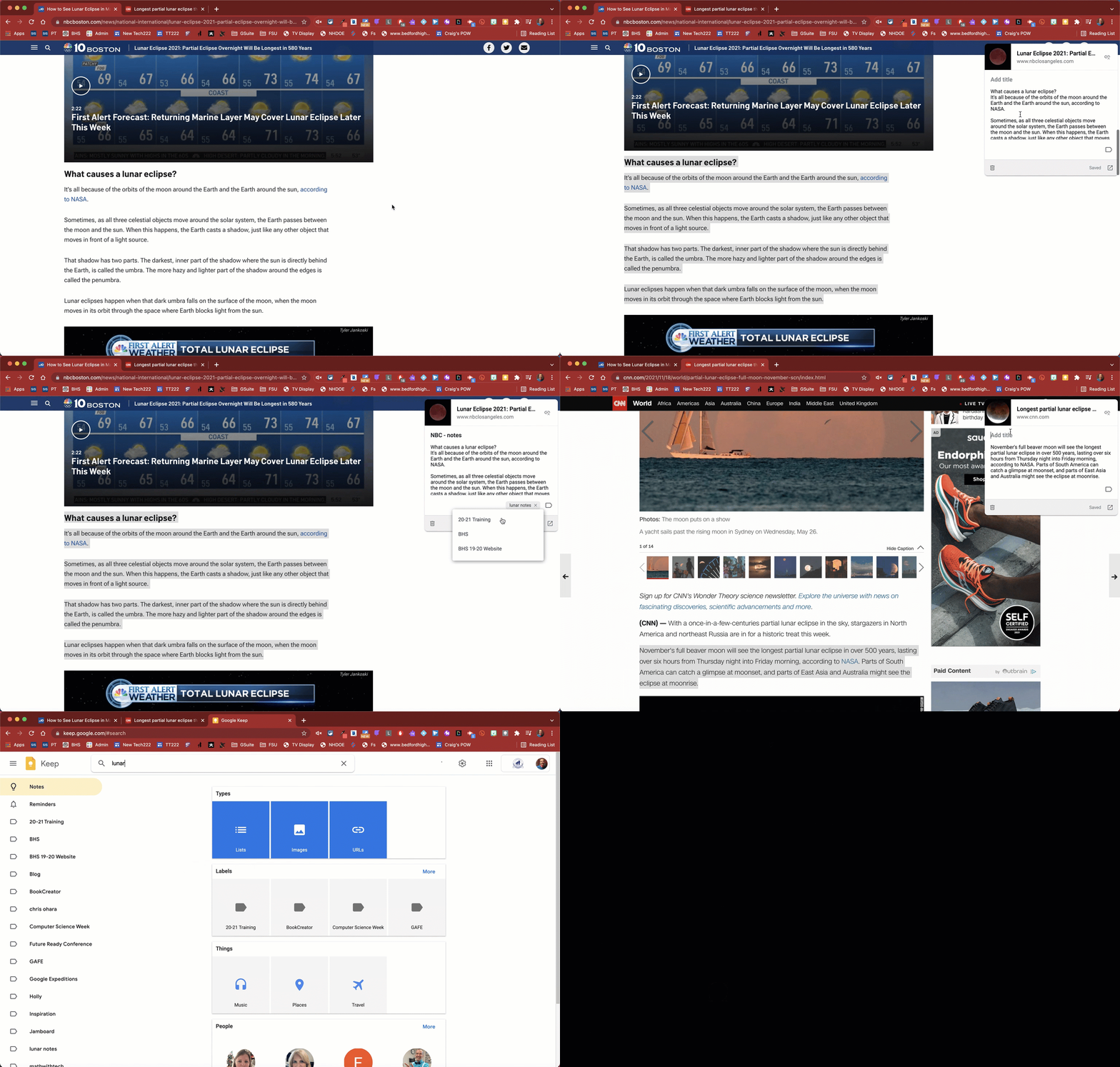
In a similar fashion, I have been seeing people talk about how they have students use Google Keep for note taking purposes. As students are doing research online with certain websites, they can highlight information that they want to keep. Once the text is highlighted, they can select the Google Keep chrome extension. Students will notice that the link is already added to the keep note, as well as the text that was highlighted. Students can add a title to the note, as well as type any other text they want to add. Students would then provide a tag to the note so that they can go back to all of the information they found useful in their research under that particular tag. Student would go to keep.google.com, search that tag they decided to use, to see all of their notes. Clever. In fact, very clever.

Below is a gif walking through the process of how to use the keep chrome extension.
And that is my Spiel…

10 Days of Google – 2021

It is that time of year to highlight some features of Google that are ‘Good to Know’ items. Look out for helpful tips starting next week. Hope you are able to have a couple of ‘aha moments’. (Hard to believe this is either my fourth or fifth time putting this together).

Link to Resource – will be updated as Days are available.

On another note, may you and your family have a happy and save holiday season.

And that is my Spiel…

Day 7 of Google 2020 – Gmail

Today, for Day 7 of Google 2020, we will take a deeper look with Gmail. Oh who doesn’t like a good ol’ email? We live in email every day. Do you find yourself using the tool as effectively as possible? Here are some tips to consider.

RIGHT SIDE CHAT

The default with Gmail is having chat appear on the bottom left corner of your email. I honestly don’t find that helpful, I need more space then what is provided on the bottom. If you click on the settings gear on the top right corner, followed by the advanced menu, you will see that you can turn on right side chat. The 19 second video below (no sound) will walk you through the steps.

Continue reading “Day 7 of Google 2020 – Gmail”

Day 2 of Google 2020 – Google Docs

On the second day of Google, we give you a couple of Google Document tips.

PREVIEW OF VIDEO/GOOGLE SLIDE PRESENTATION

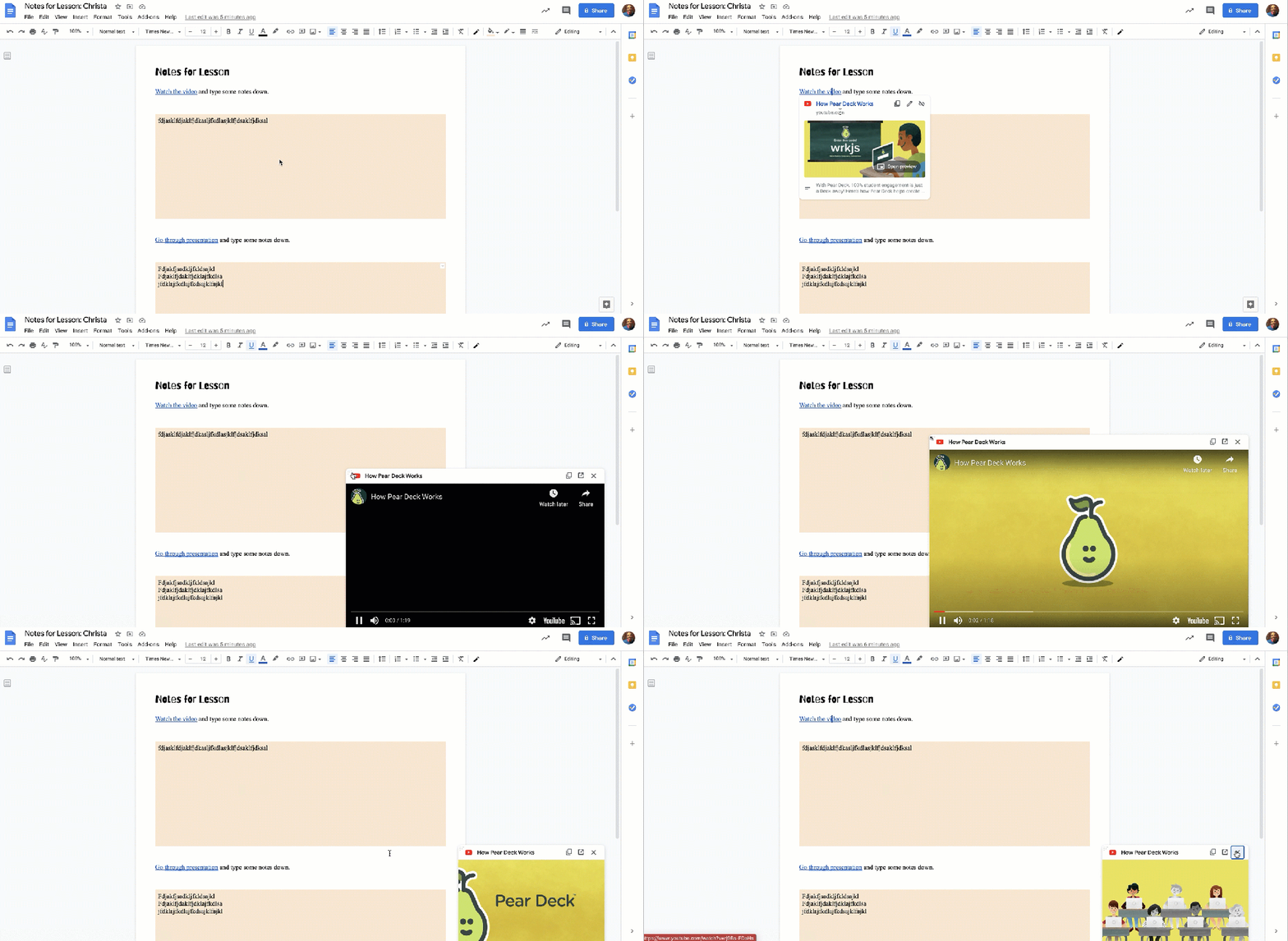
Recently, Google implement a new feature where you can actually view a YouTube video or a slide presentation while you are still in a Google Document instead of having to view in a completely separate tab.

Why this can be helpful? For students, they can decide to take notes while they are watching the video. Or maybe for teachers who share curriculum documents with one another, they can preview a file without having to open the file on a completely separate tab. Other good things to know…

  • YouTube videos can be played in a preview of a Google Slide presentation
  • Users can determine how big or small they want the preview window to be

Click HERE to view a quick demo (1.5 minutes long) on this feature

Continue reading “Day 2 of Google 2020 – Google Docs”

Supporting Curriculum & Pedagogy

All educators can agree on one thing. It has been an interesting nine months. I support teachers in a high school where students and teachers are participating in a hybrid model. Students show up to school for a class in the morning. Then in the afternoon, they participate in remote blocks online.

Teaching remotely is still a ‘new thing’ for all of us, regardless of the fact that we went remote back in March. Let’s face it, expectations were different and the curriculum taught was also different. All educators are still trying to figure out what works and does not work in this remote setting.

In an effort to support teachers, Jess Gilcreast, high school librarian, and I decided that we should curate all of the great resources that we are discovering on Twitter and hearing about in house from our colleagues. Sometimes, just finding the right template or layout of a task can help streamline things or help make planning that much better. While, Jess and I don’t have all of the answers, our hope is that with a bit of organization we can help staff.

Continue reading “Supporting Curriculum & Pedagogy”